Help Center Media & Videos
Gallery settings
The Settings tab of your gallery's admin page decides how the gallery looks and behaves for visitors: statistics, the folder menu, thumbnails, the rating type and the folder it opens on.
Watch it done: a short silent video with captions · 1:03. The steps below show the same thing picture by picture.
Before you start
- Log in and open ADMIN › Manage Help Videos (the Manage item of your gallery).
The settings
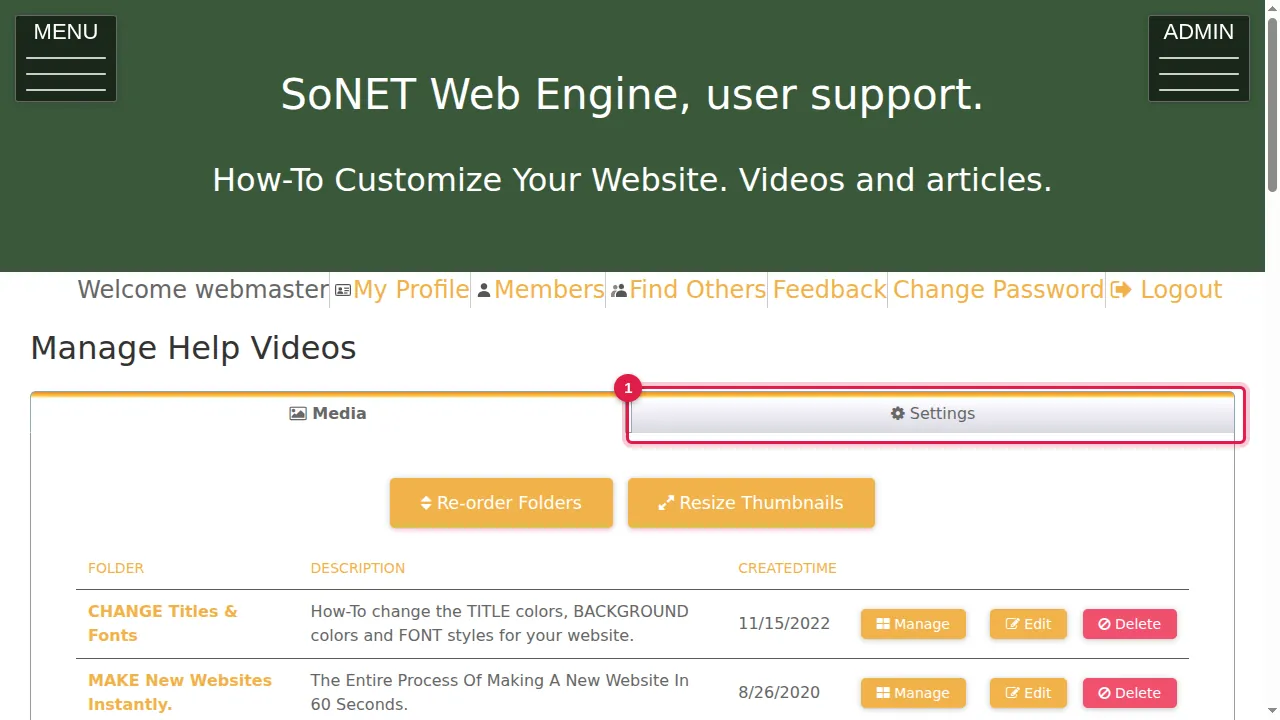
Step 1. Open the Settings tab.
Step 2. Show statistics under thumbnail: Yes shows each picture's rating and number of views under it.
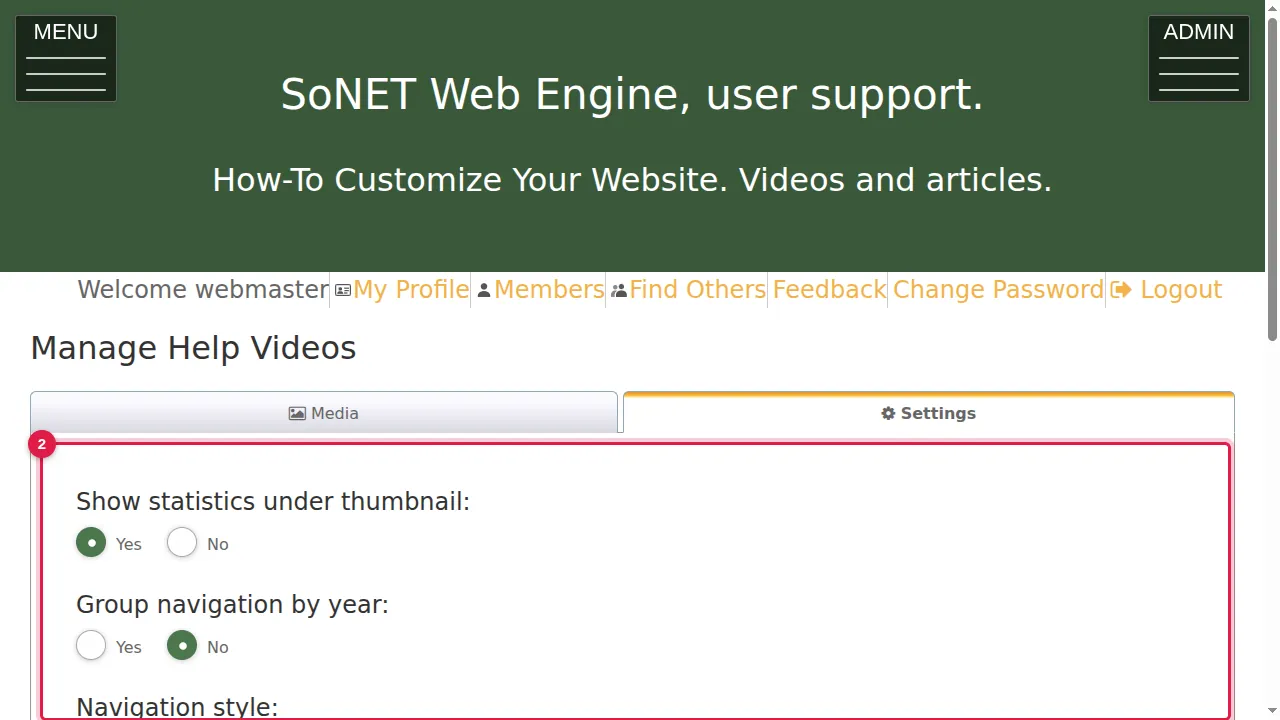
Step 3. Group navigation by year: Yes sorts the folder menu under years.
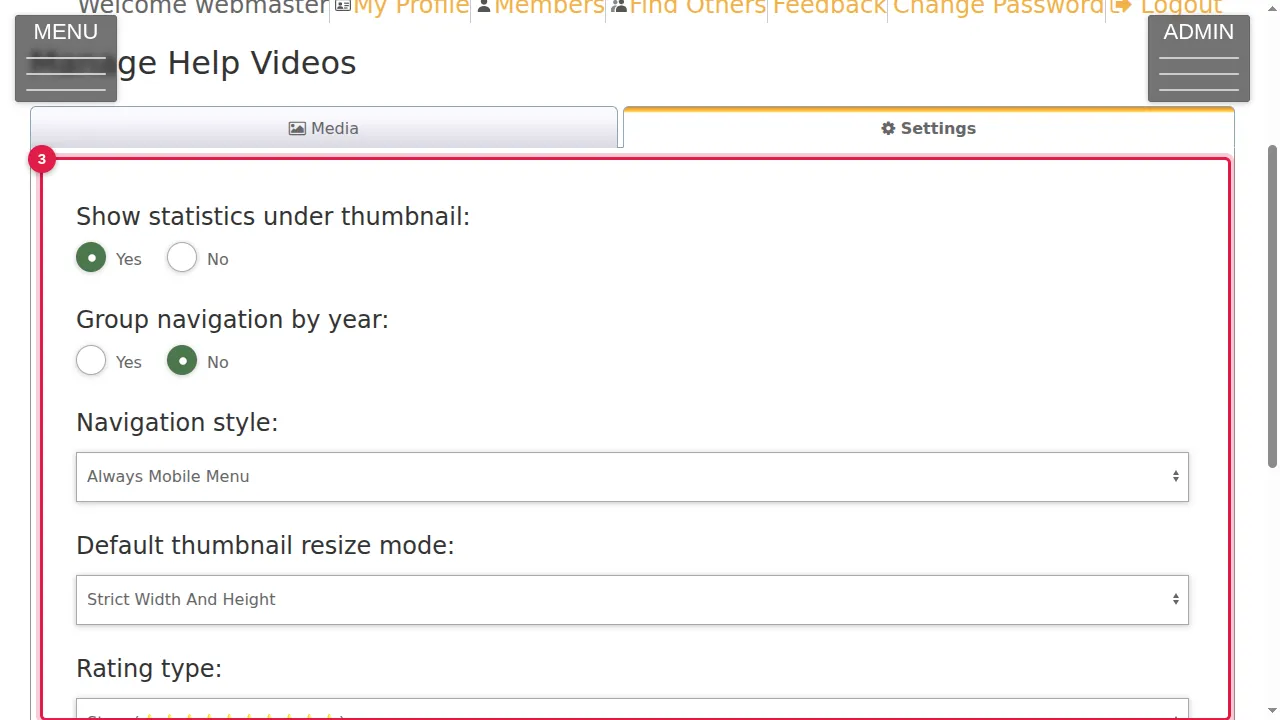
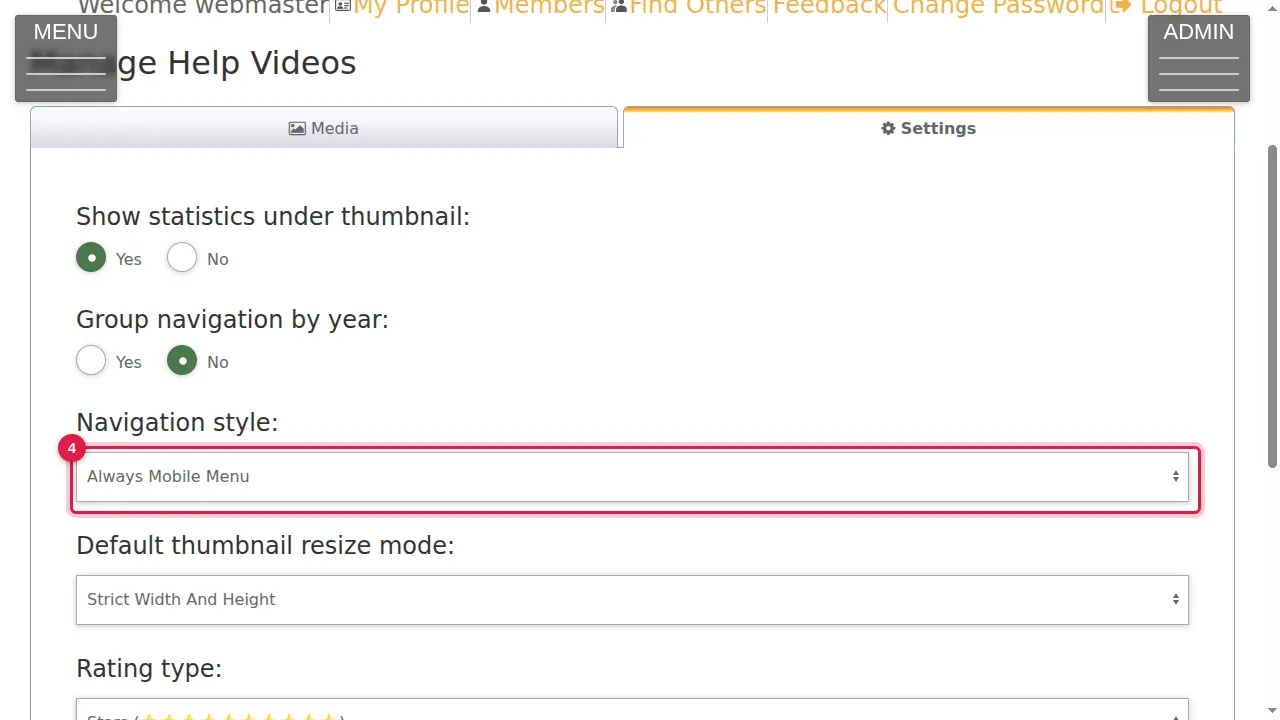
Step 4. Navigation style: Always Mobile Menu or Automatic Mobile Menu, for the folder menu.
Step 5. Default thumbnail resize mode: Strict Width, Strict Height, or Strict Width And Height, for how pictures are fitted into the small previews.
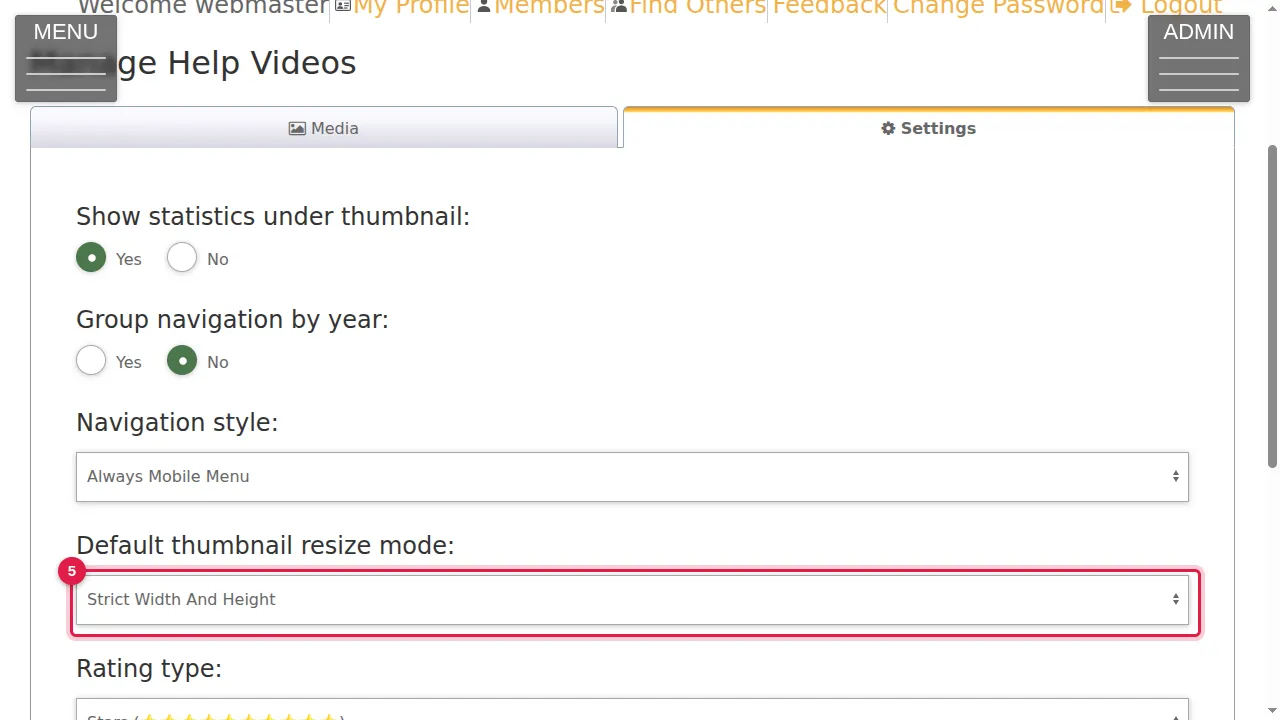
Step 6. Rating type: stars (one to ten) or a heart.
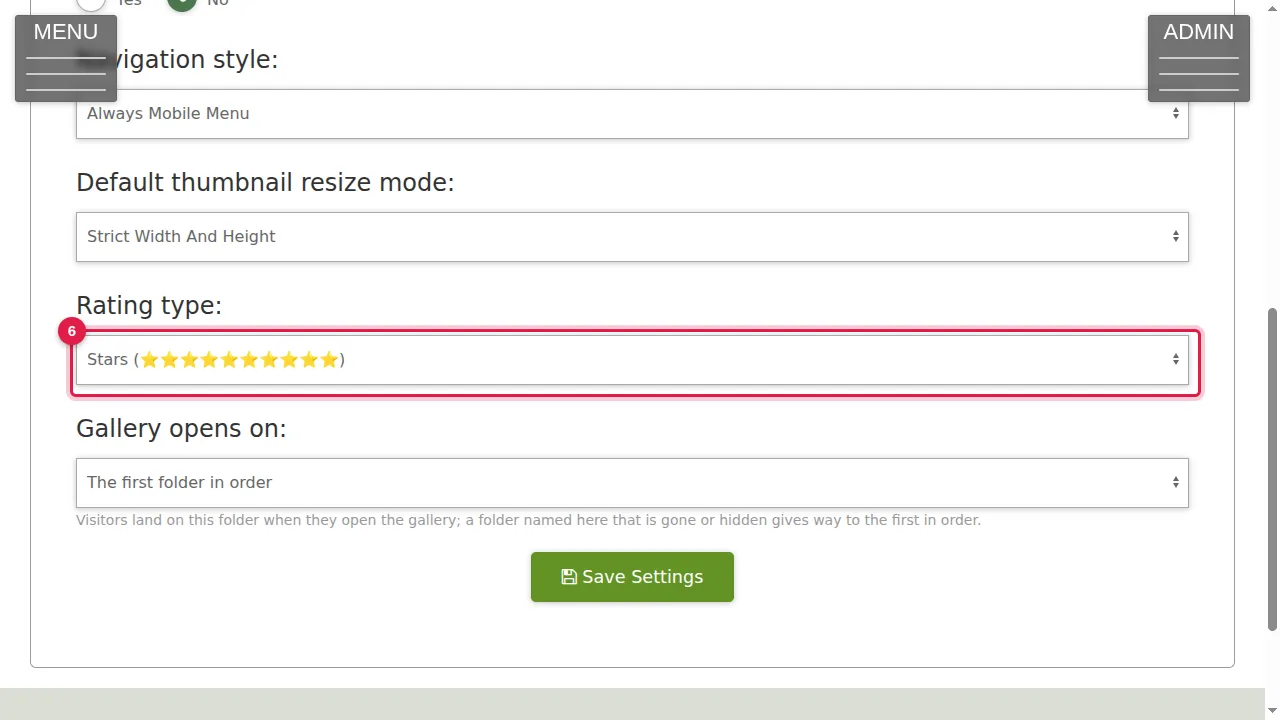
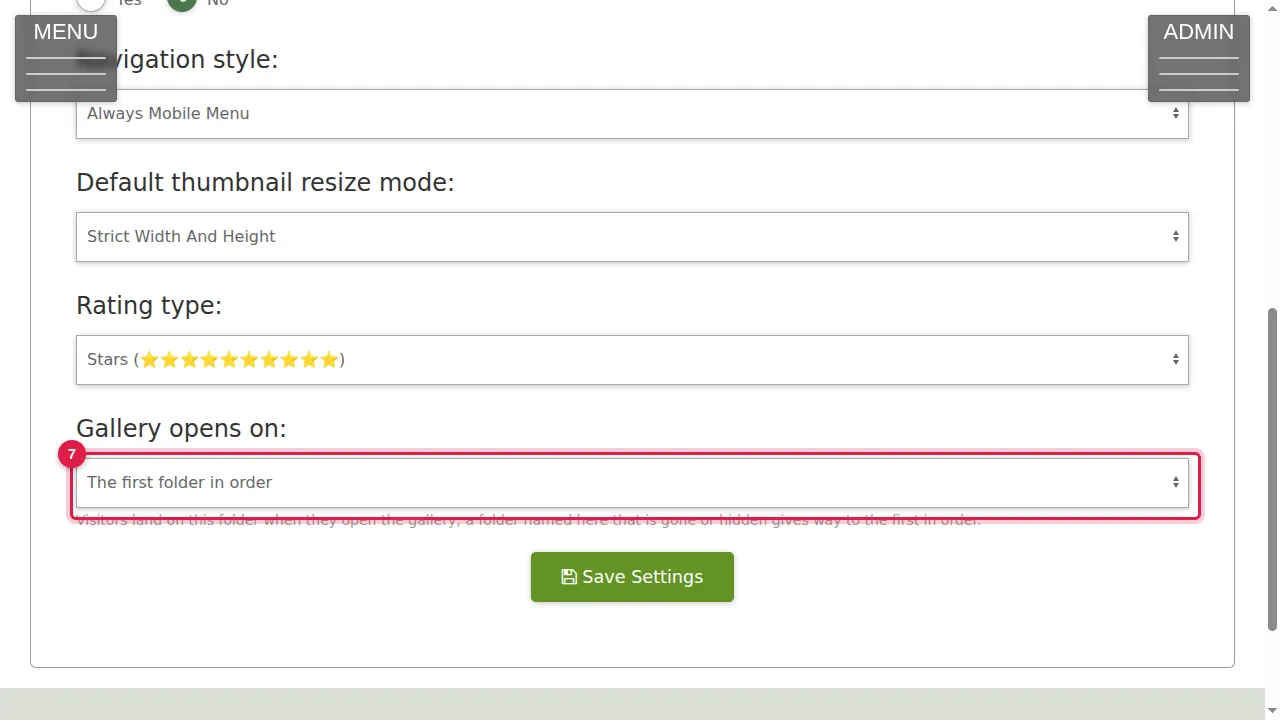
Step 7. Gallery opens on: the first folder in order, the newest folder, the oldest folder, or a folder you choose. If the folder named here is gone or hidden, visitors land on the first folder in order.
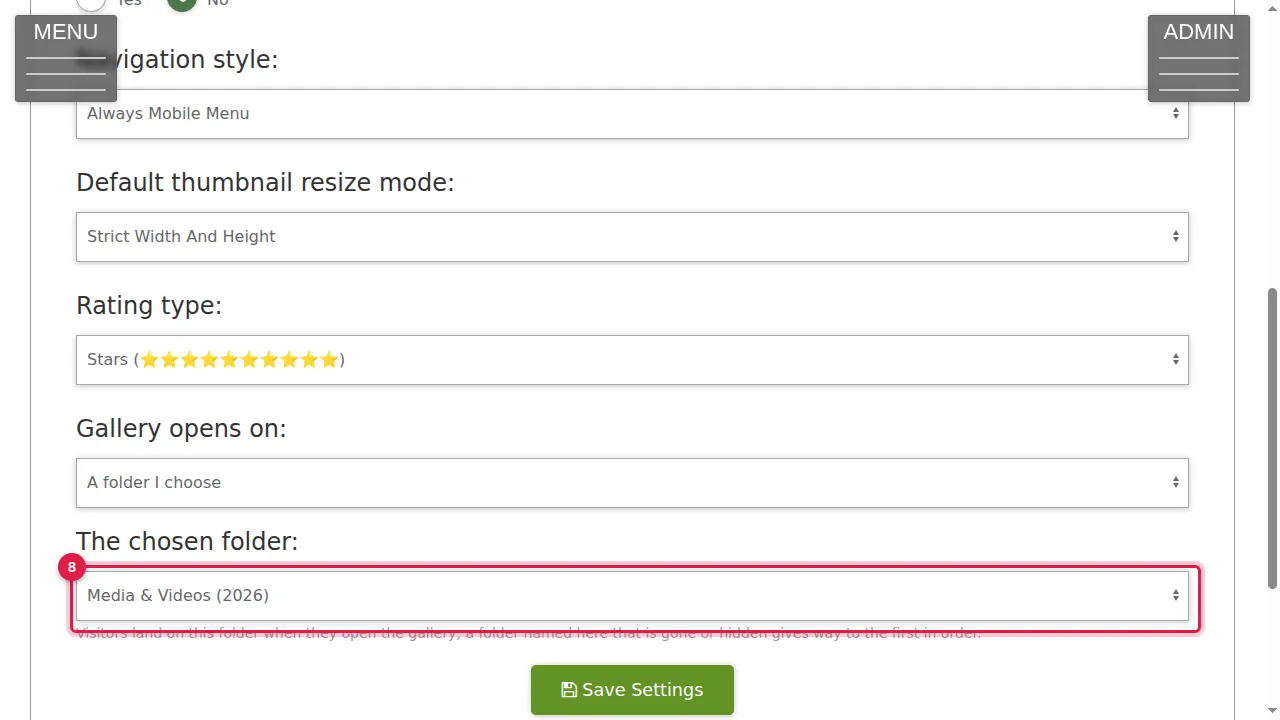
Step 8. With "A folder I choose", pick the folder in the list below it.
Save
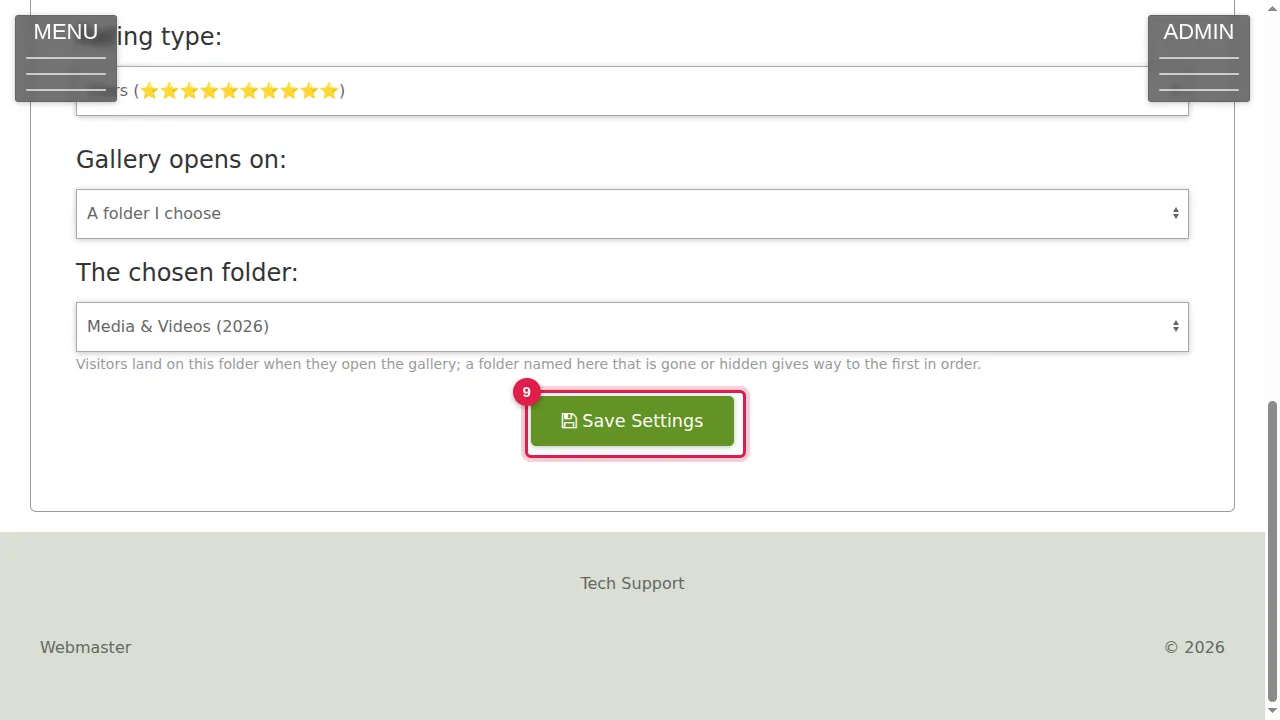
Step 9. Click Save Settings to keep your changes. (Not clicked in this video.)
Check it worked
Open your gallery as a visitor (log out or use a private window) and see which folder it opens on.
Good to know
- To change the order of the folders themselves, use Re-order Folders on the Media tab.
Related help
Shown on the 2026 version of the SoNET Web Engine. Last checked 21 October 2026. Something different on your screen? Tell us through the Contact page.