Help Center Forms
Form results: find, read and delete them
Everything visitors send with your forms is kept in the Results tab (when Save Results is ticked): search it, open a result to read every answer, and delete results you no longer need.
Watch it done: a short silent video with captions · 1:09. The steps below show the same thing picture by picture.
Before you start
- Log in as the site owner.
- Open ADMIN › Manage Contact Forms and click the Results tab.
Find a result
Step 1. The Results tab lists what visitors sent, newest first. To find one, type a word from it, for example a name, and click Find Form Results. Reset Search shows all results again.
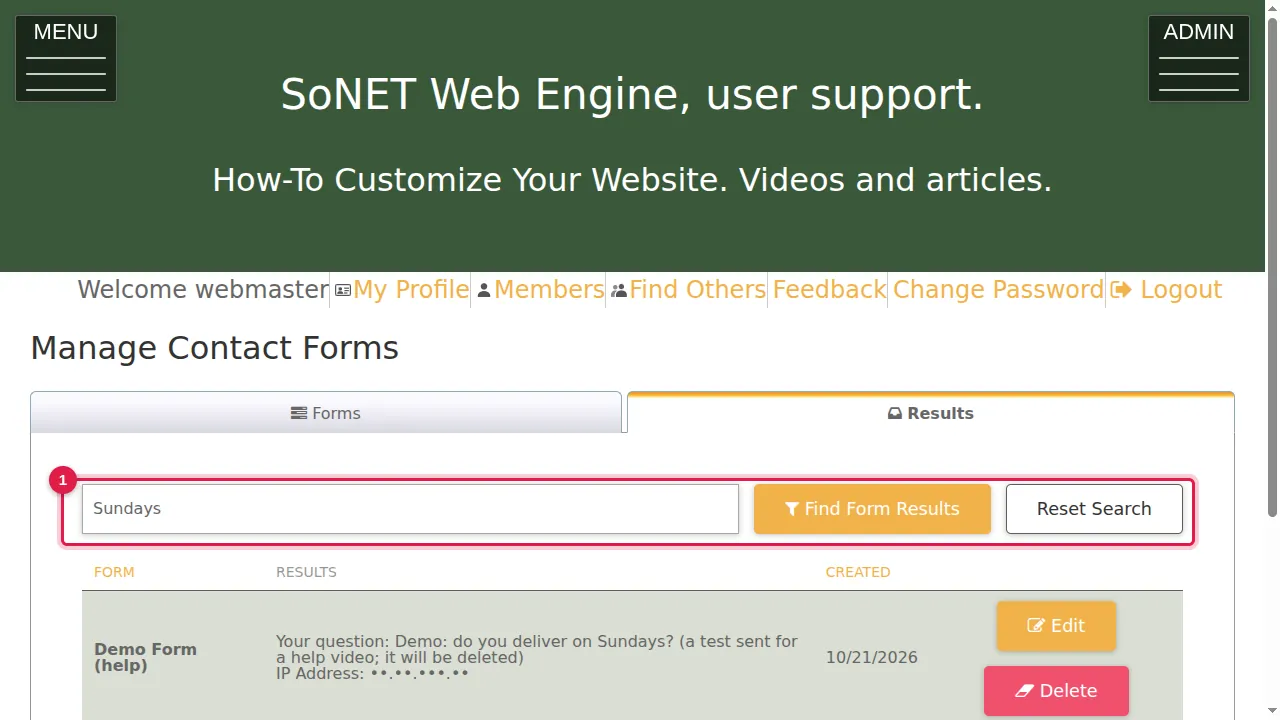
Step 2. Each row shows the form's name, the answers and the date it was sent.
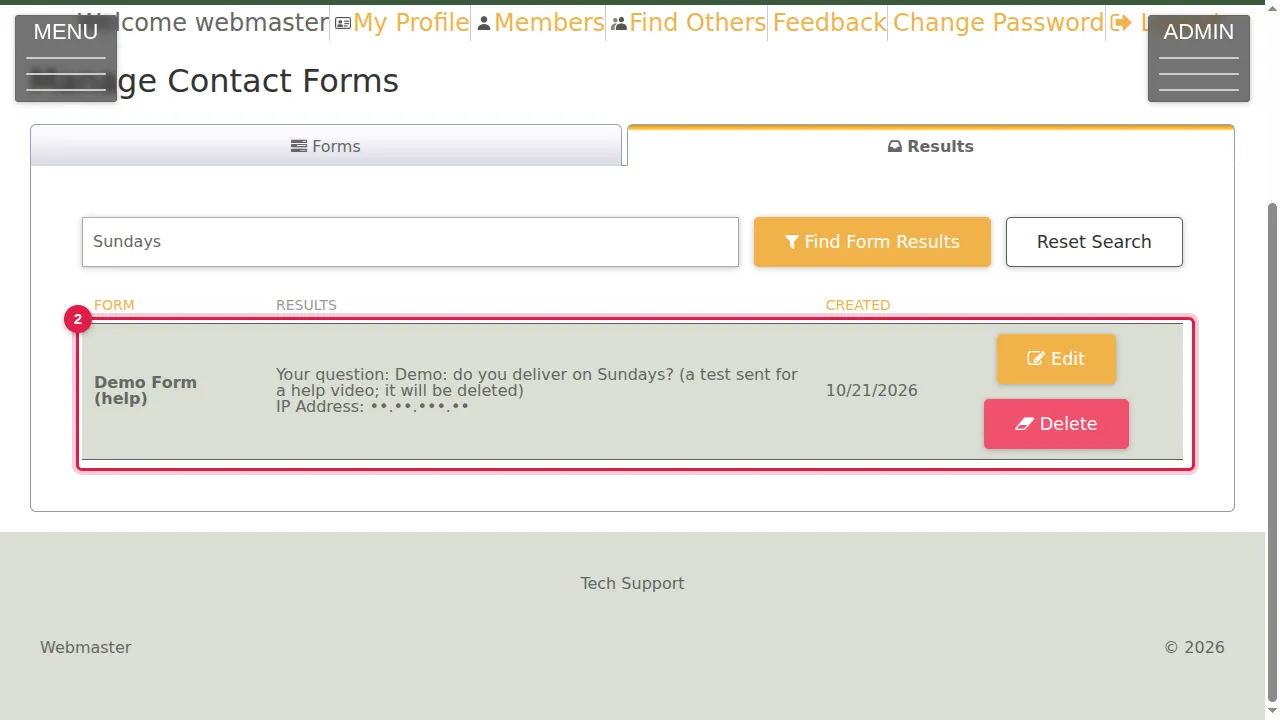
Read it
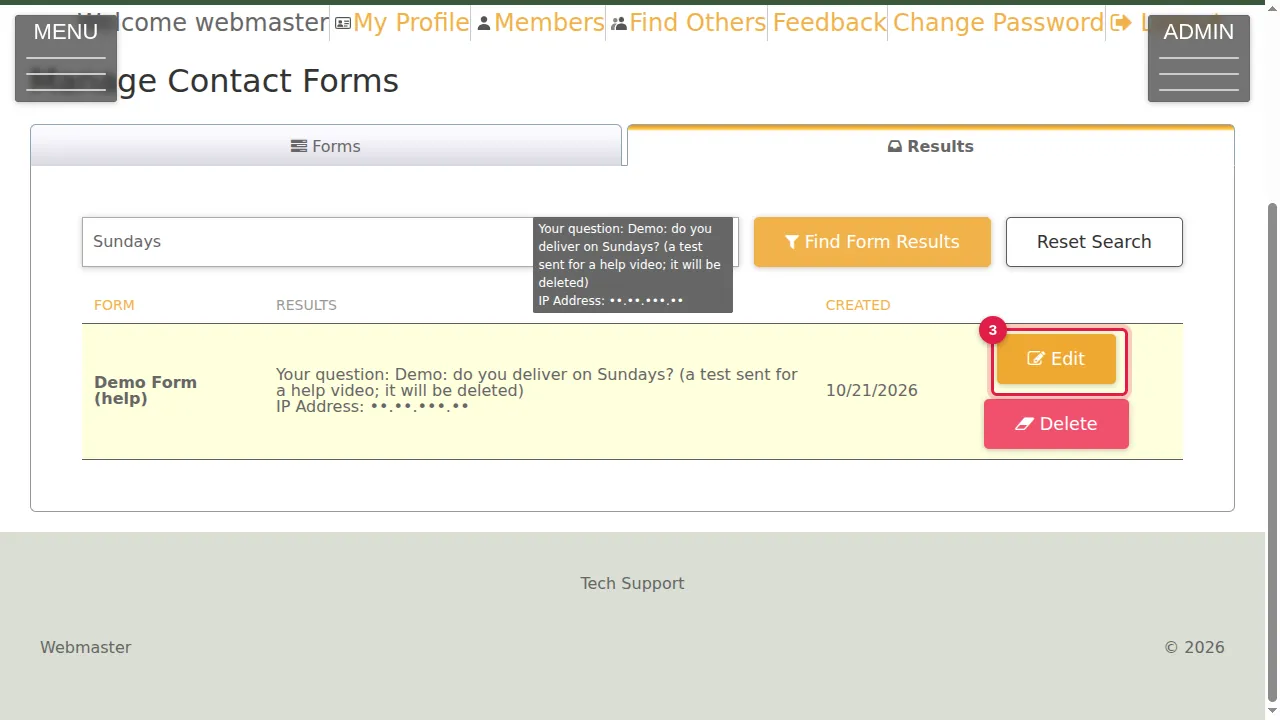
Step 3. Click Edit to open a result.
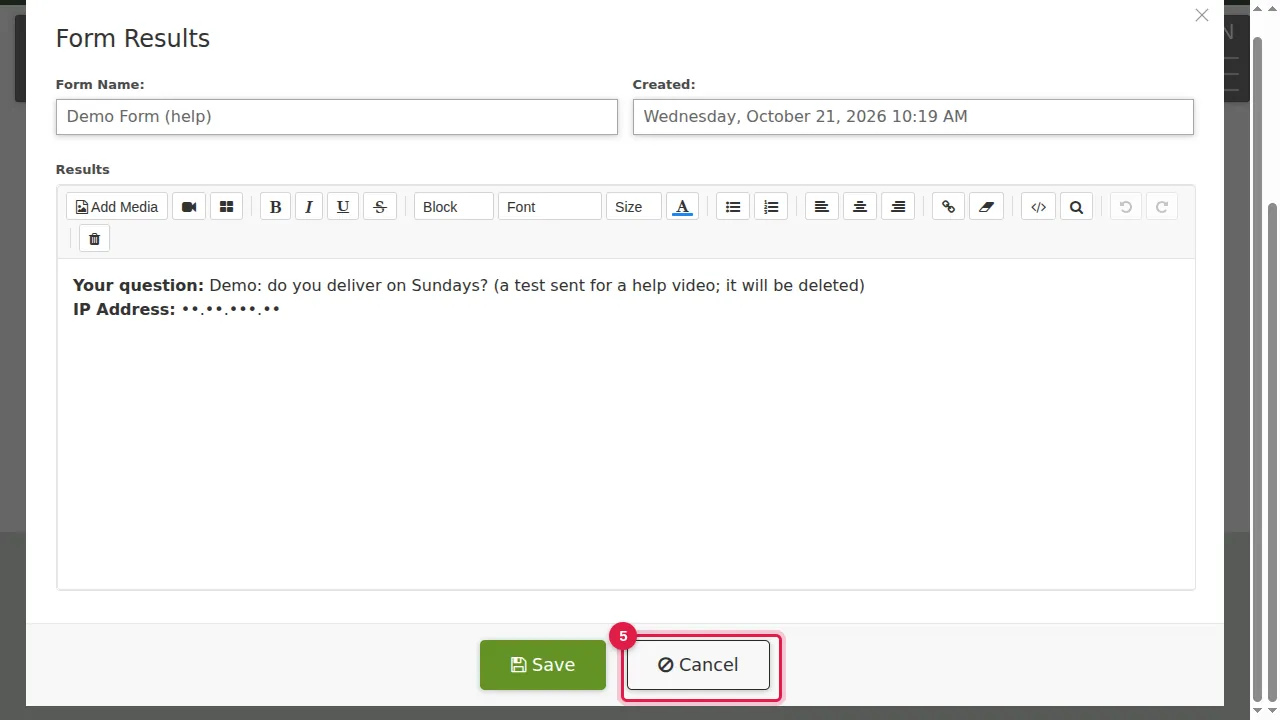
Step 4. You see the form's name, the date and time, every answer and the visitor's IP address (hidden in this picture). The answers are in an editor with a Save button, so you can add a note or correct a typing error.
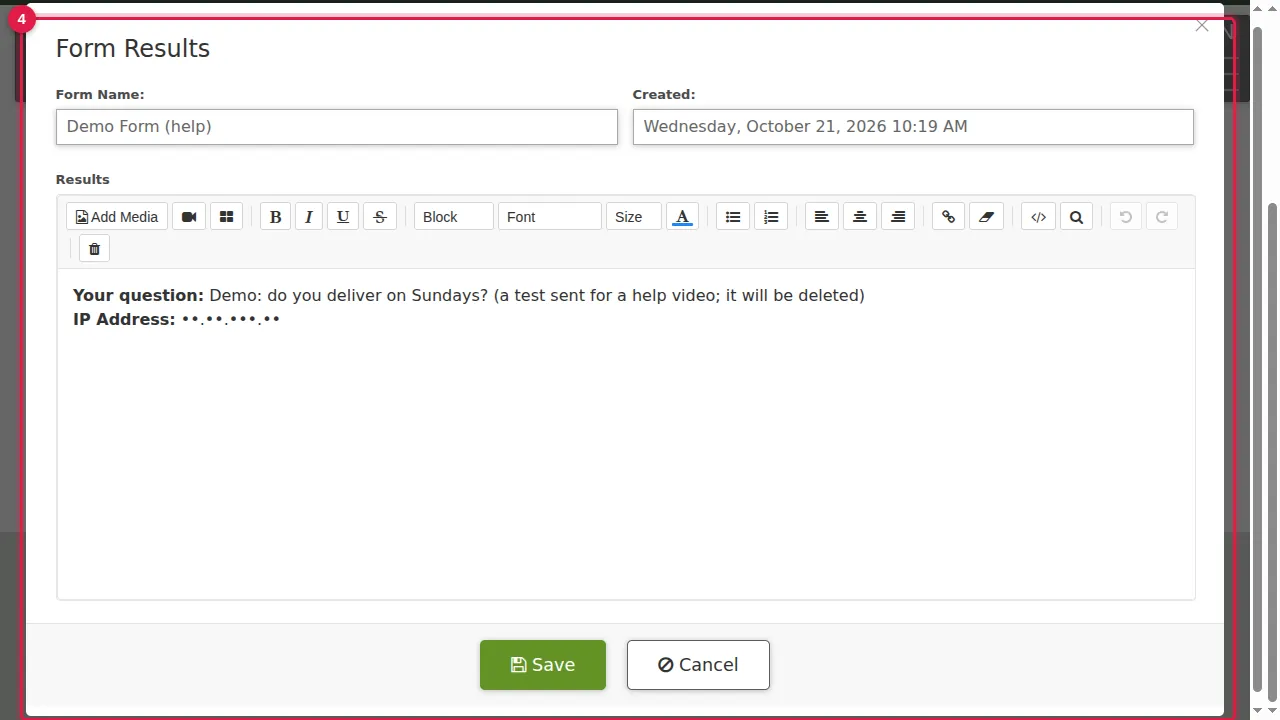
Step 5. Cancel closes it without changes.
Delete it
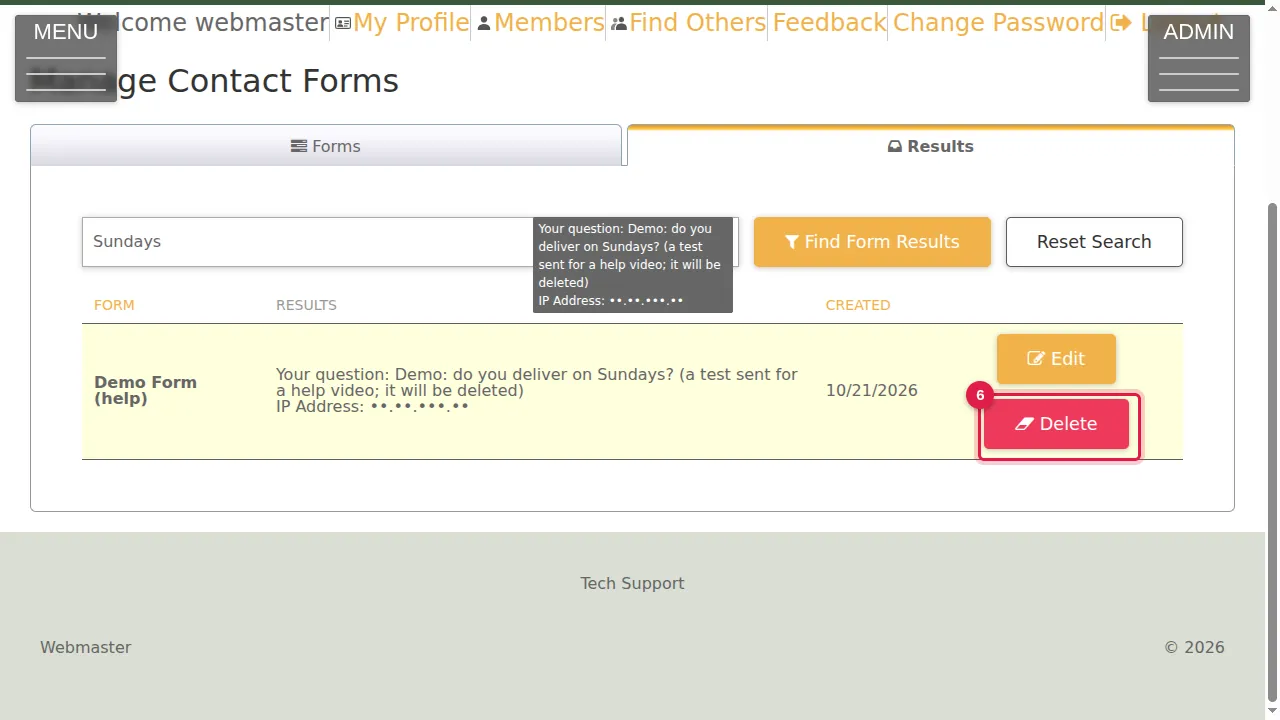
Step 6. Delete removes a result after you confirm.
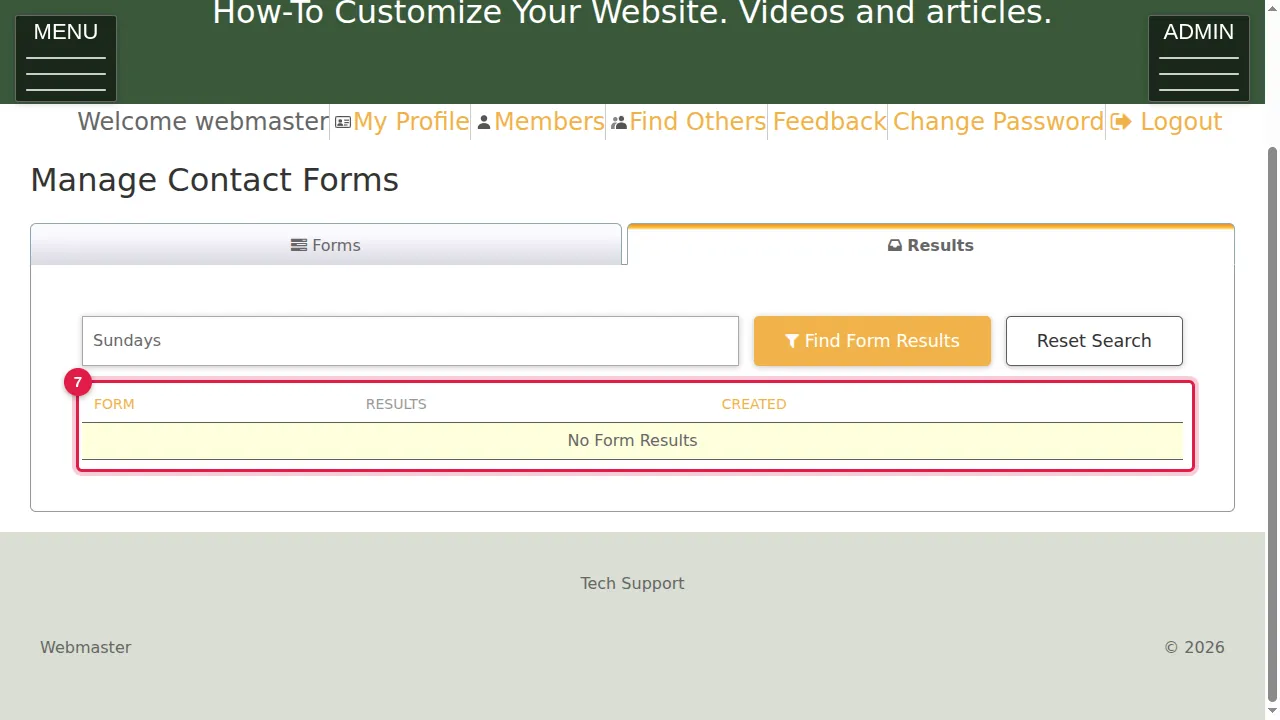
Step 7. The result is gone.
Check it worked
Send your own form once from a private window, then find your test in the Results tab and delete it.
Good to know
- When a form asks for an e-mail address or a phone number, the sender is also added to your Contacts.
Related help
Shown on the 2026 version of the SoNET Web Engine. Last checked 21 October 2026. Something different on your screen? Tell us through the Contact page.