Help Center Getting Started
Change the footer text and author
The footer is the strip at the bottom of every page. It has a line of text and an author line, and you change both right on the page in edit mode.
Watch it done: a short silent video with captions · 1:22. The steps below show the same thing picture by picture.
Before you start
- Log in to your website.
Change the footer
Step 1. Click Customize This Page in the bar at the bottom of any page.
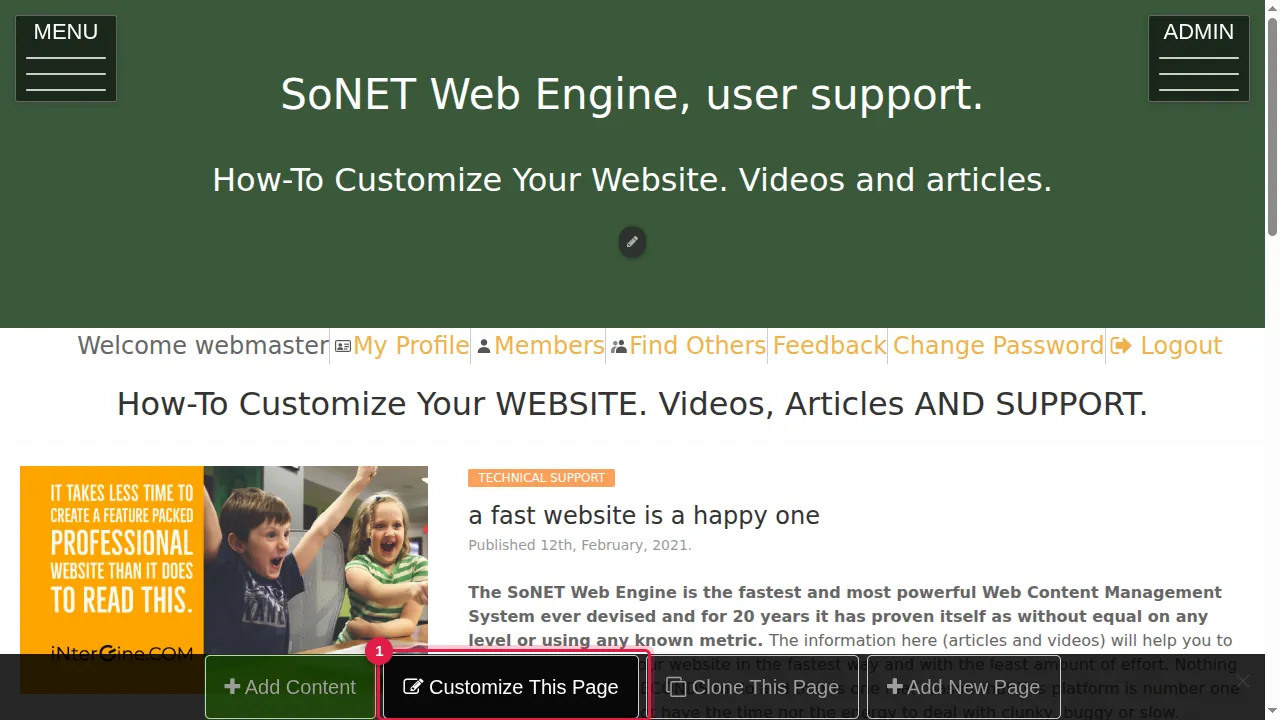
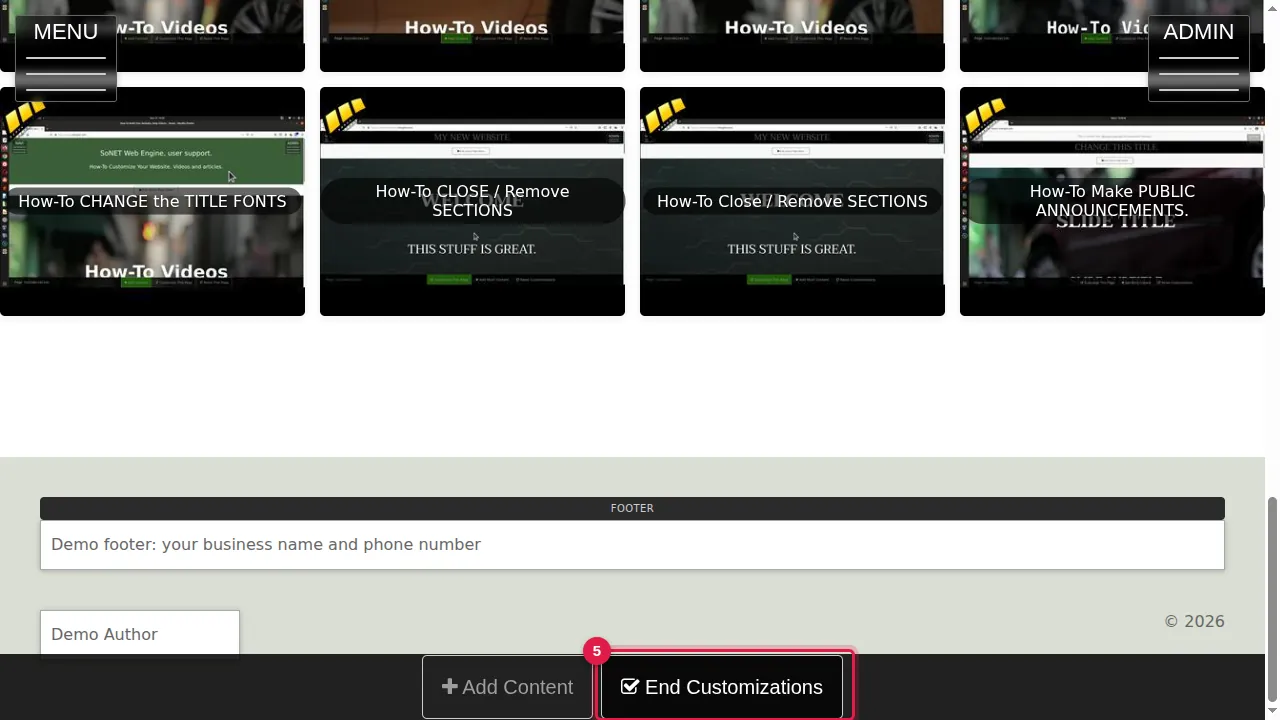
Step 2. Scroll to the bottom. In edit mode the footer shows two boxes: the wide FOOTER box and, under it, a small author box.
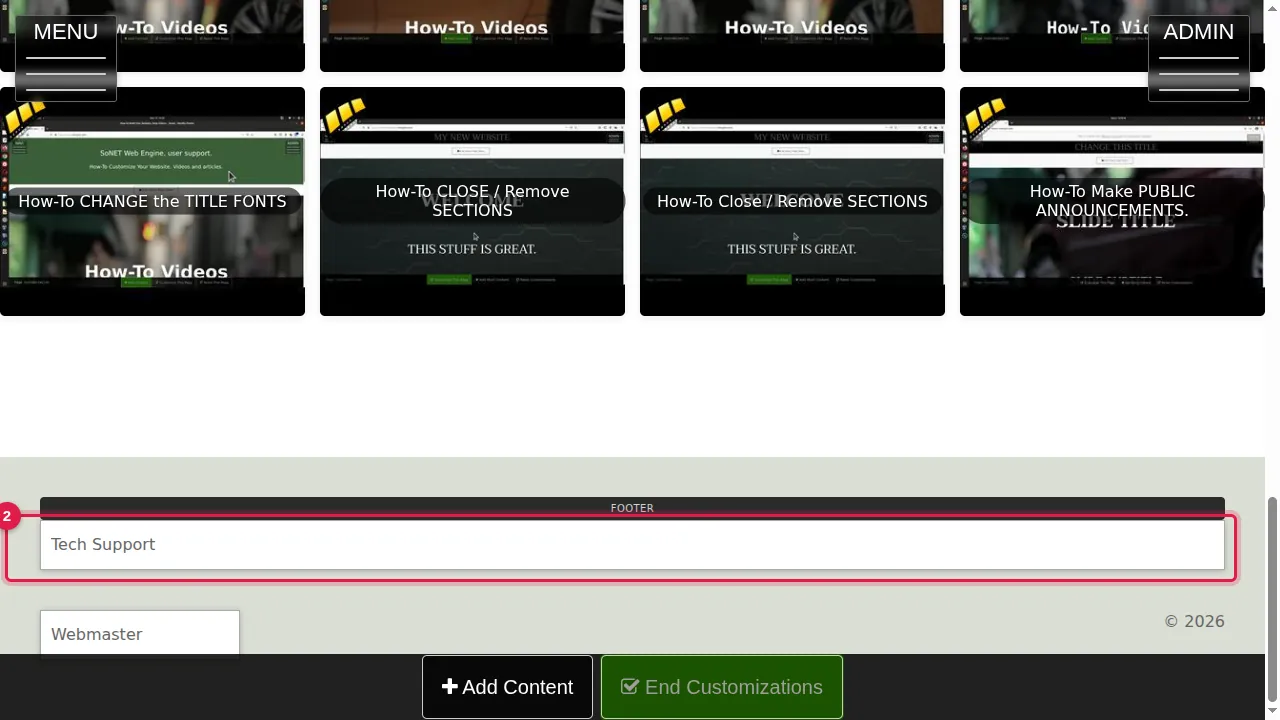
Step 3. Click the FOOTER box, replace the text with yours (for example your business name and phone number) and press Enter to save it.
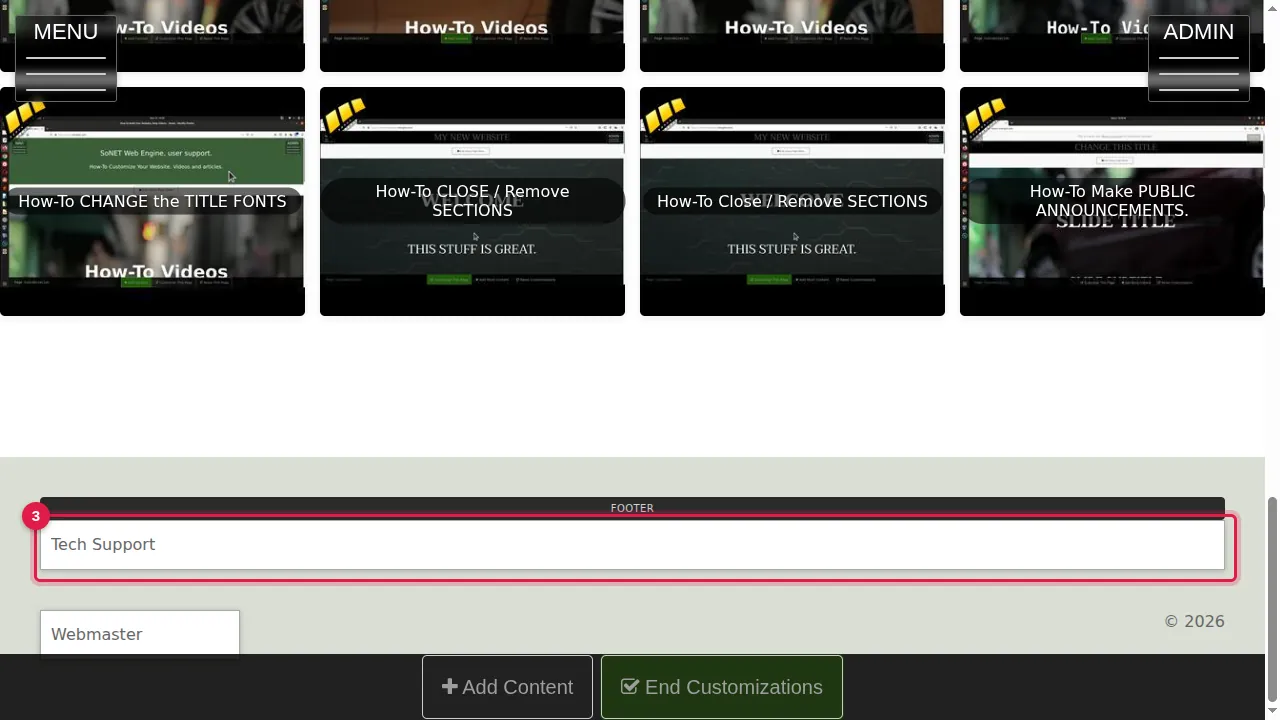
Step 4. Click the small author box, type a name and press Enter to save it.
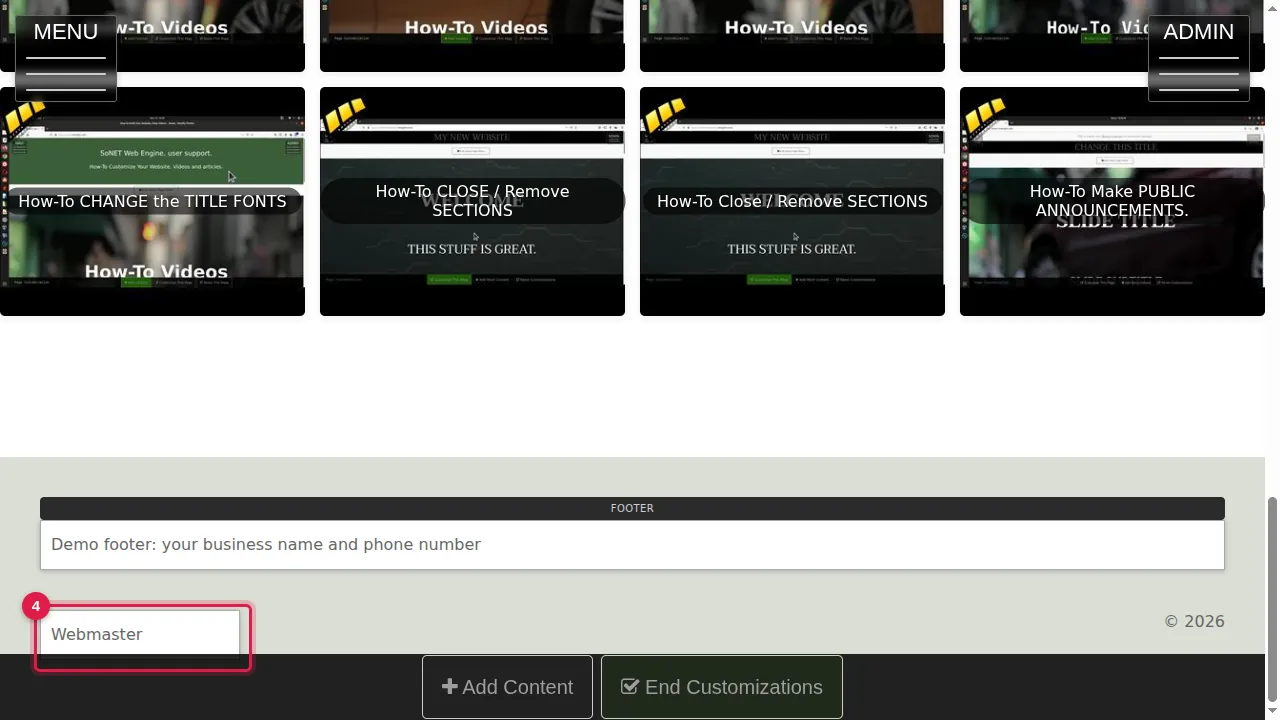
Step 5. Click End Customizations.
Check it
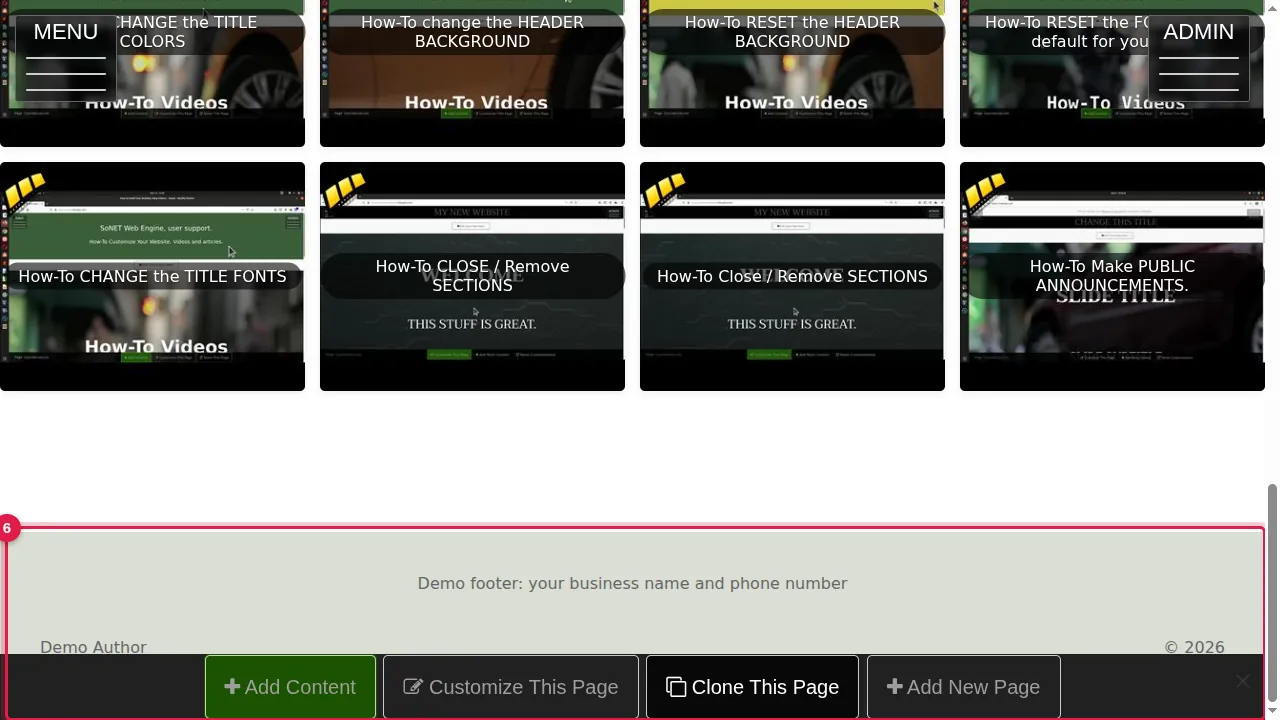
Step 6. The page now shows your new footer at the bottom.
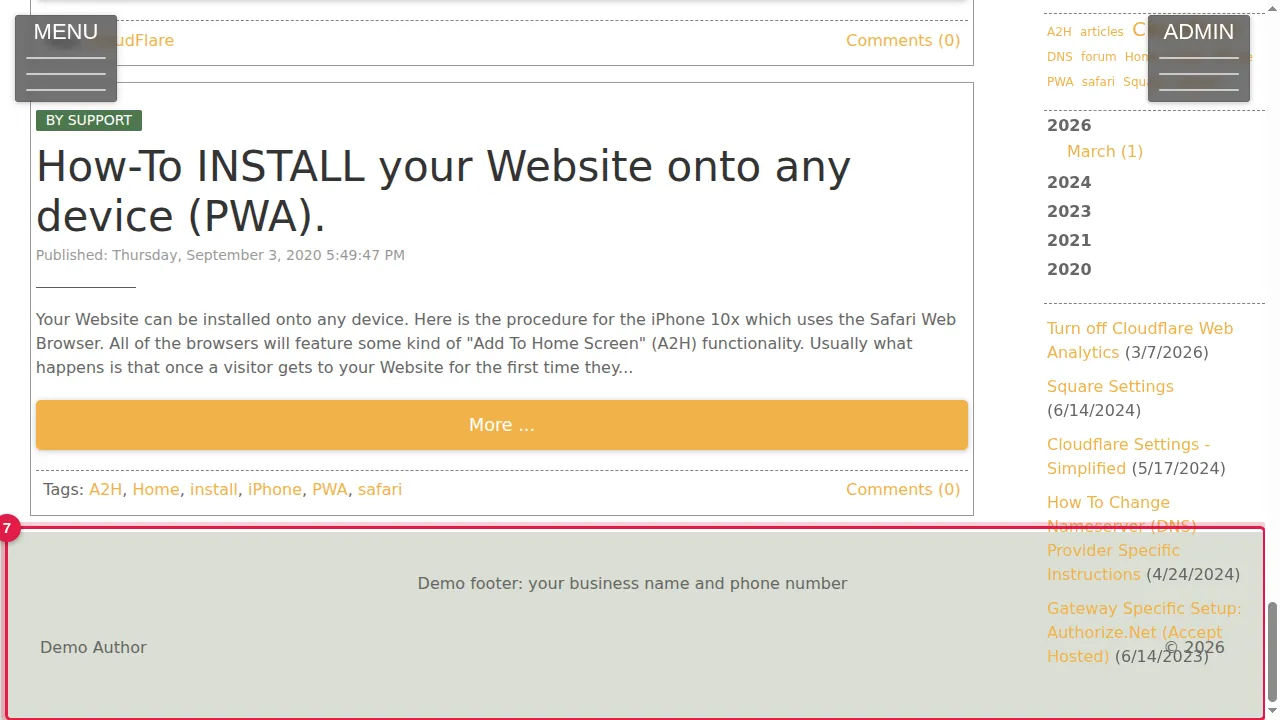
Step 7. Open any other page: it shows the same footer, because the footer is shared by every page of your site.
Check it worked
Log out (or open a private window) and look at the bottom of two different pages.
Good to know
- Each box saves when you press Enter: there is no separate Save button for the footer.
- The footer is the same on every page, so you only need to change it once.
Related help
Shown on the 2026 version of the SoNET Web Engine. Last checked 20 October 2026. Something different on your screen? Tell us through the Contact page.