Help Center Look & Design
Effects: presets, gradients, glass, rounded corners, shadows and hover
The Template Kit's Effects tab gives your whole site extra polish: colour fades (gradients), frosted glass, rounded corners, shadows and hover effects. A preset fills in all of them in one click.
Watch it done: a short silent video with captions · 1:54. The steps below show the same thing picture by picture.
Before you start
- Log in and open ADMIN › Template Kit.
Use a preset
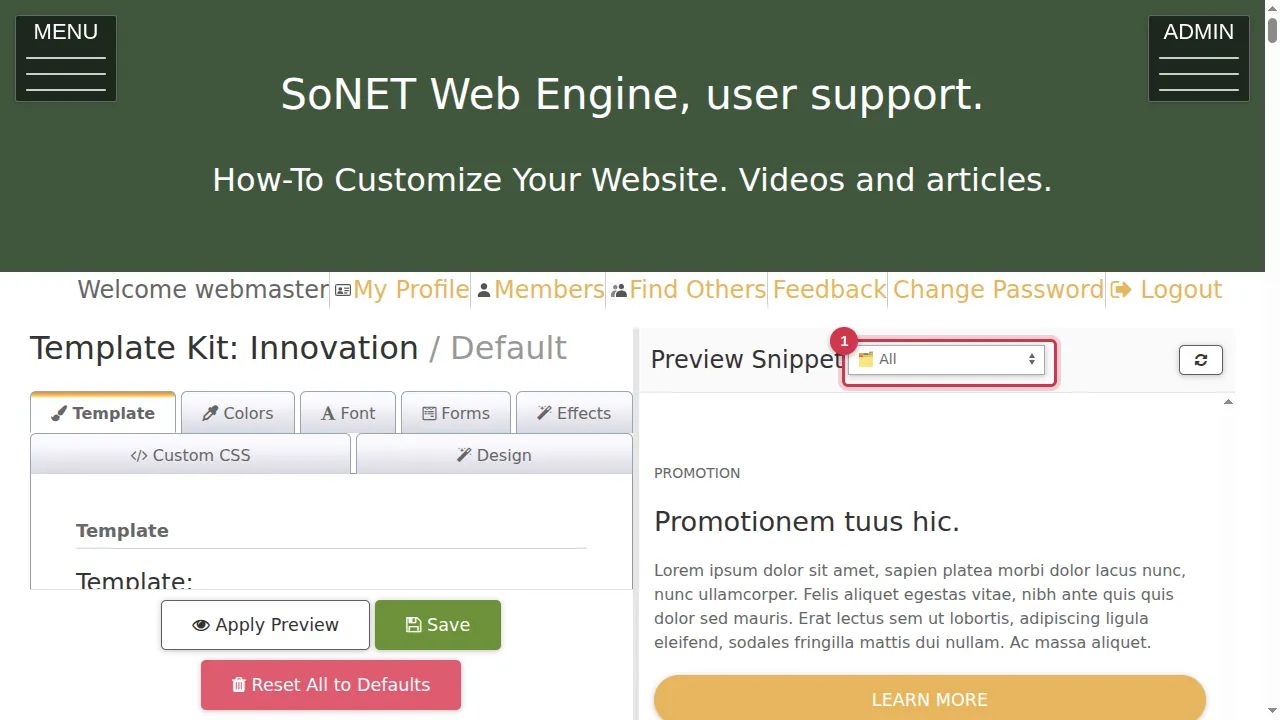
Step 1. Choose Promotion Deck in the Preview Snippet list: it shows sections, cards and buttons, so you see the effects well.
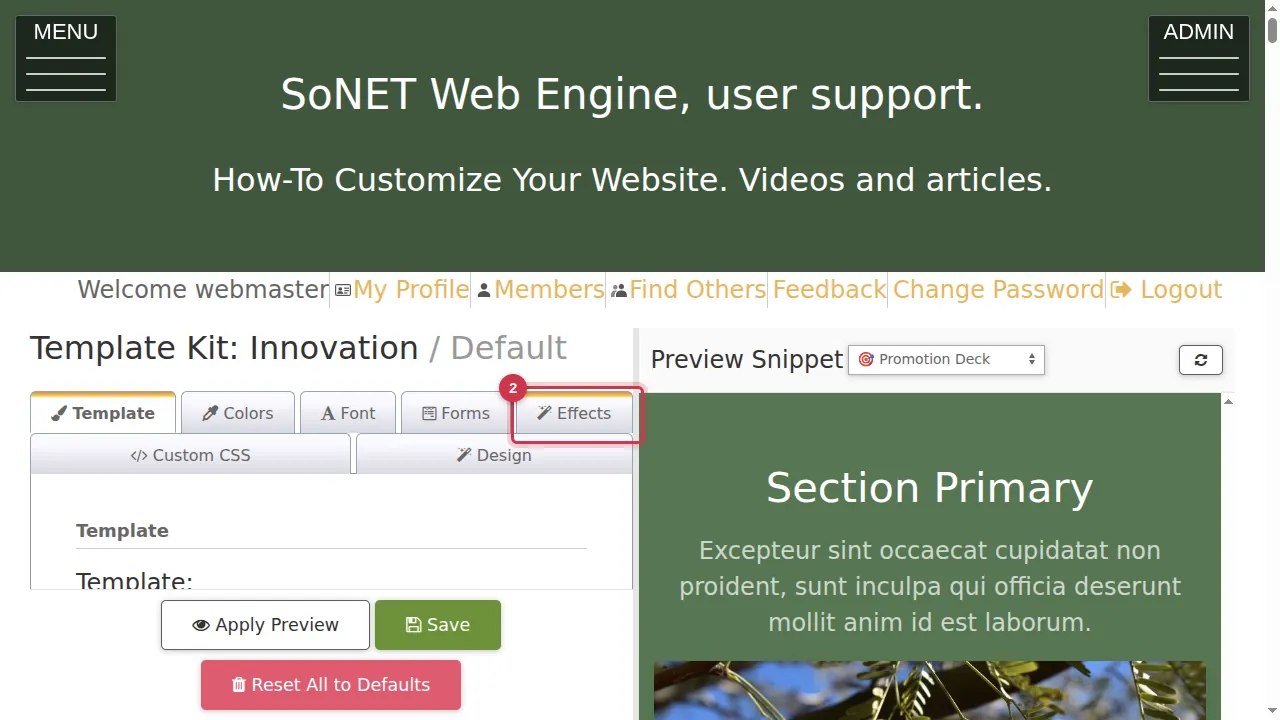
Step 2. Open the Effects tab.
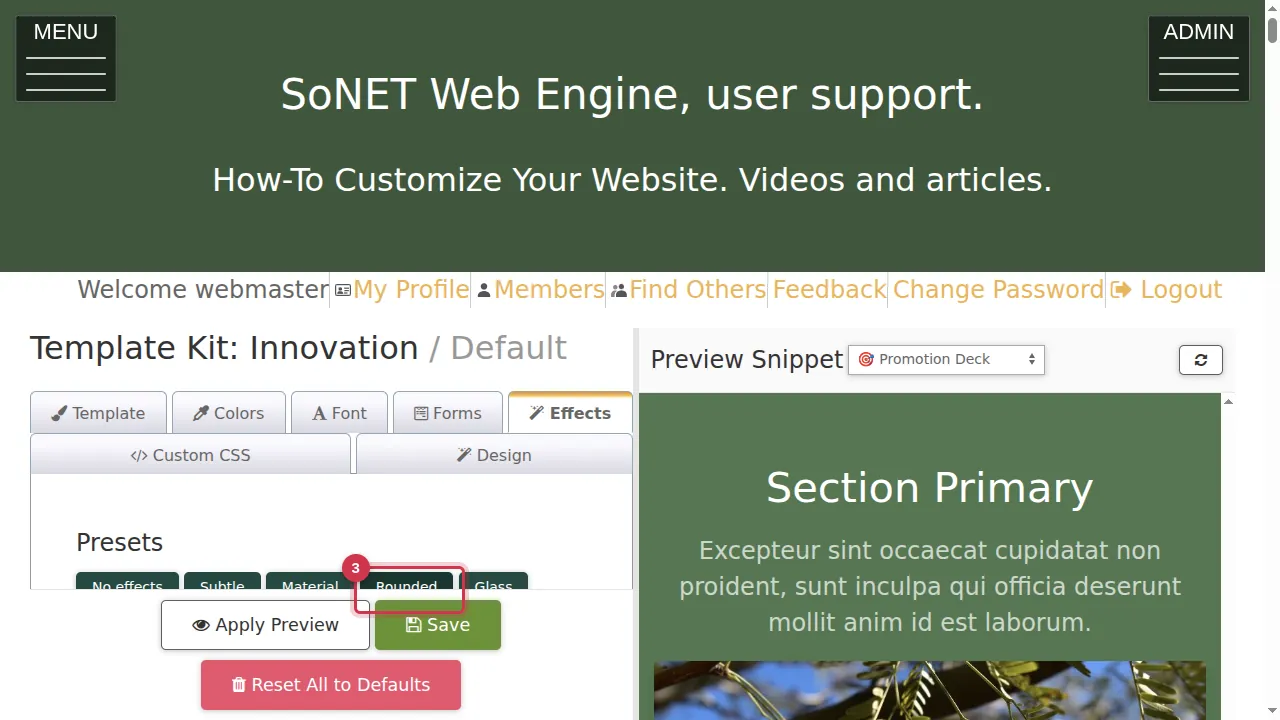
Step 3. The presets fill in all the effect settings at once: No effects, Subtle, Material, Rounded, Glass and Bold. Click one; here Rounded.
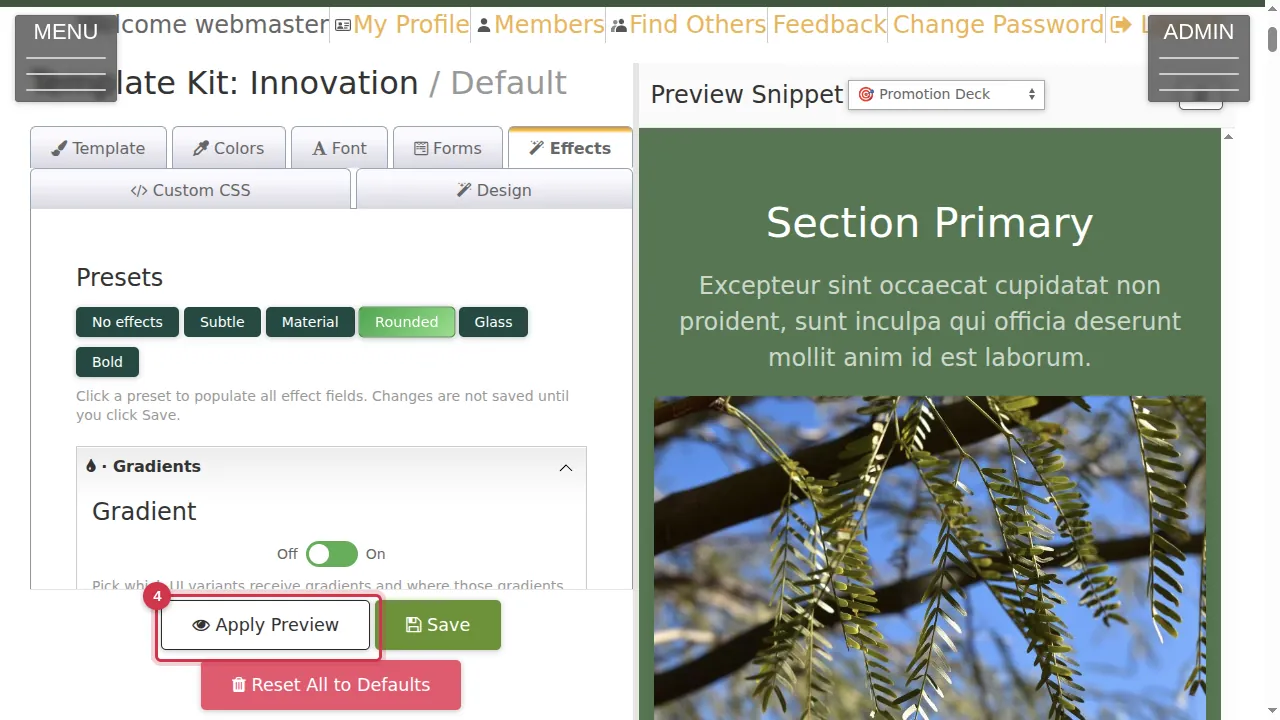
Step 4. Click Apply Preview. The preview shows rounded cards and buttons with soft shadows.
Set each effect yourself
Step 5. Gradients: switch them on to give sections, cards, tiles, buttons or background utilities a colour fade. Pick Linear or Radial, the angle, where they apply, and the start and end colour for each kind (default, primary, secondary, muted).
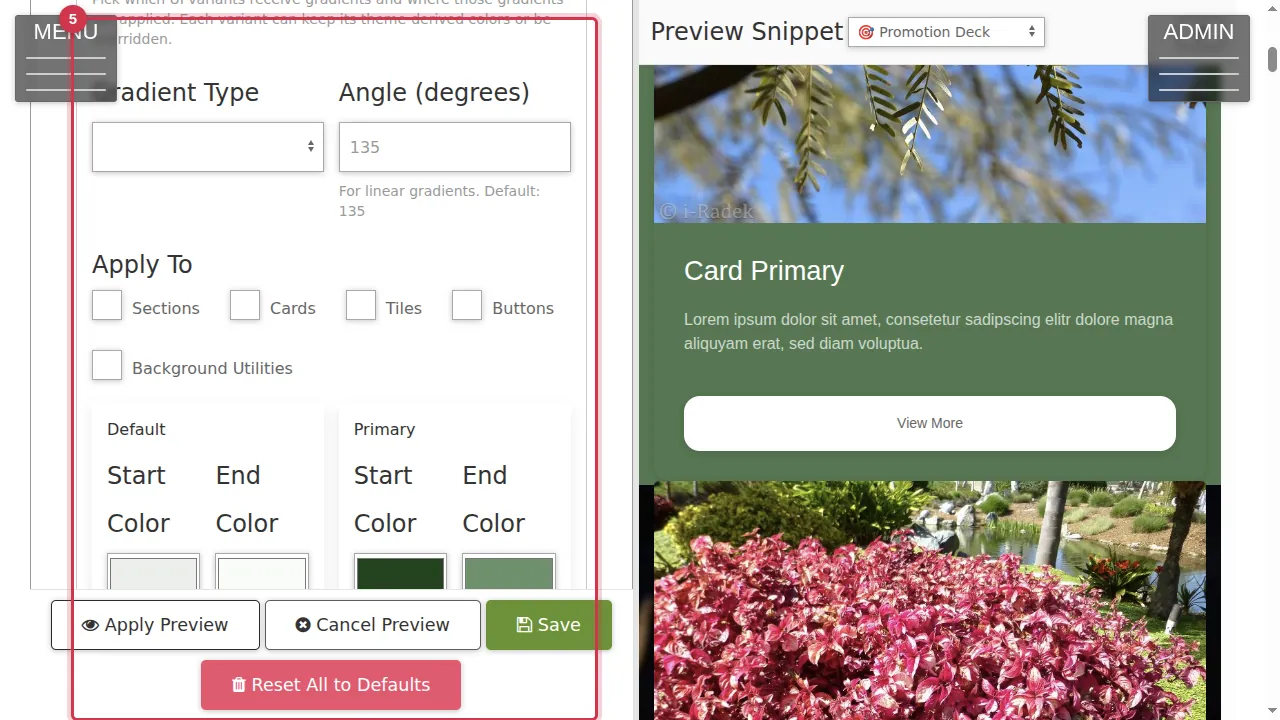
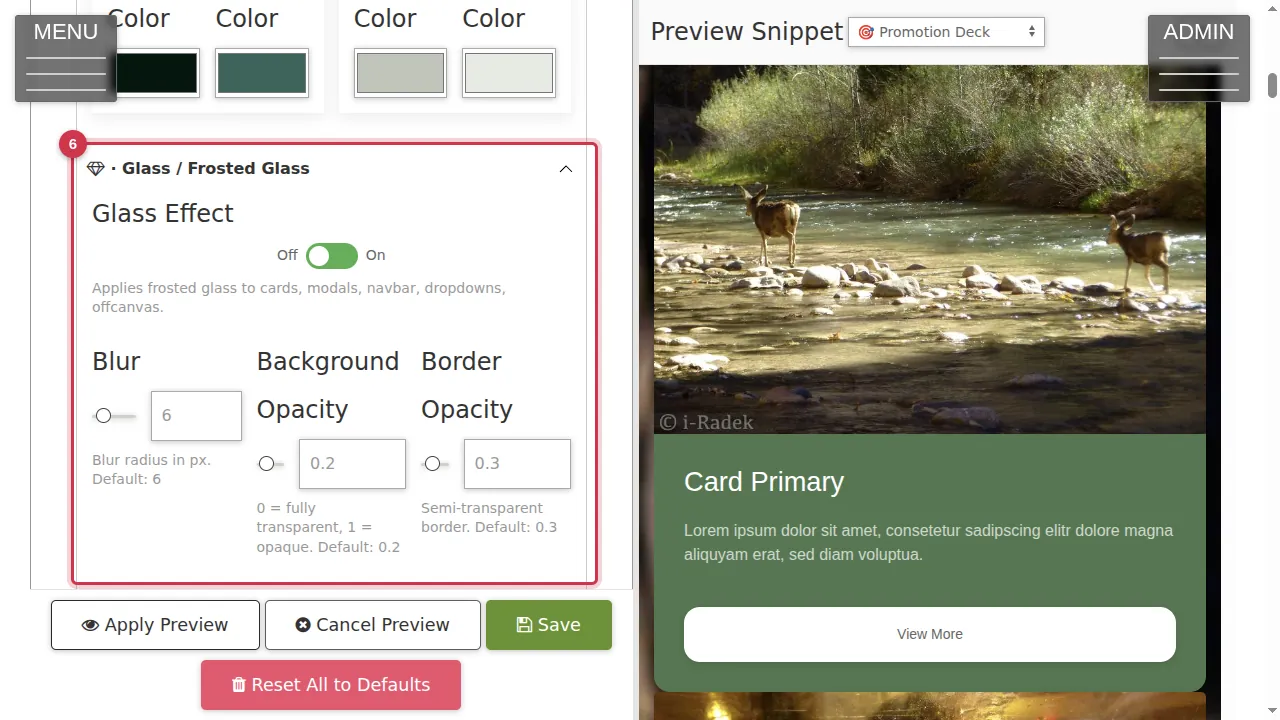
Step 6. Glass / Frosted Glass makes cards, windows, the navigation bar, drop-downs and side panels see-through and blurred. Set the blur (default 6), the background see-through (0 = clear, 1 = solid) and the border see-through.
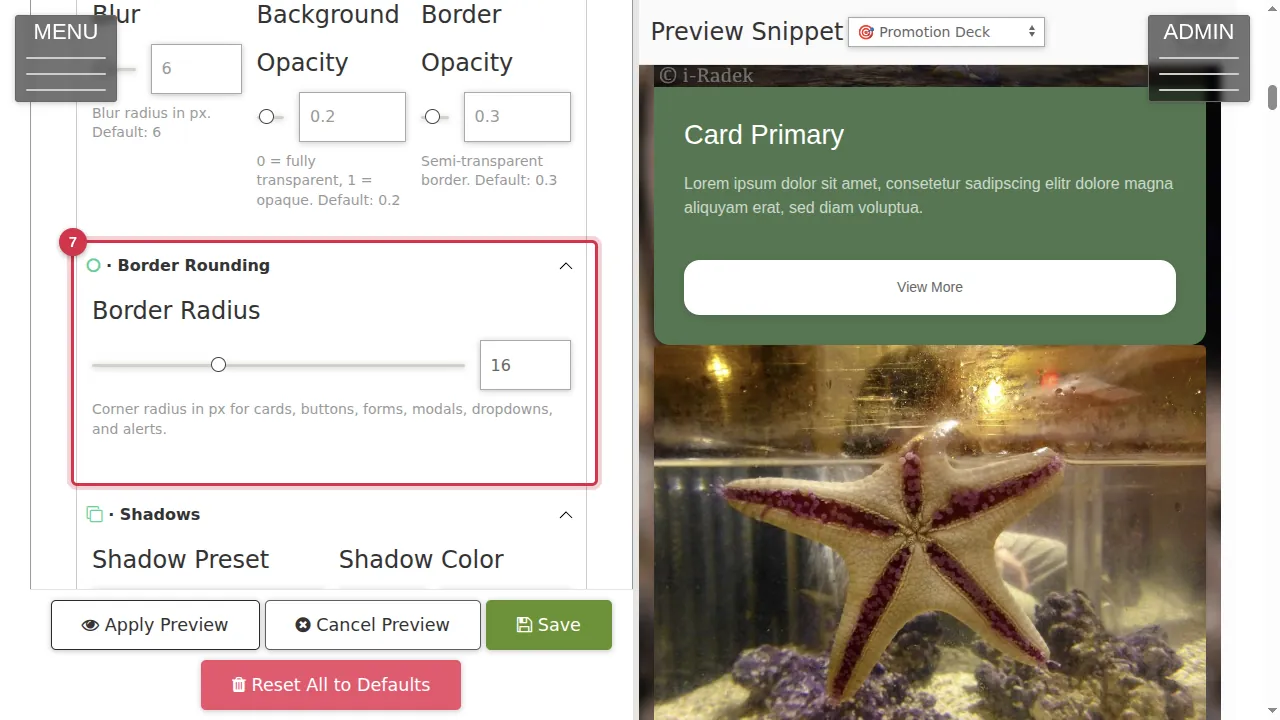
Step 7. Border Rounding sets how round the corners of cards, buttons, forms, windows, drop-downs and alerts are (0 to 48 pixels).
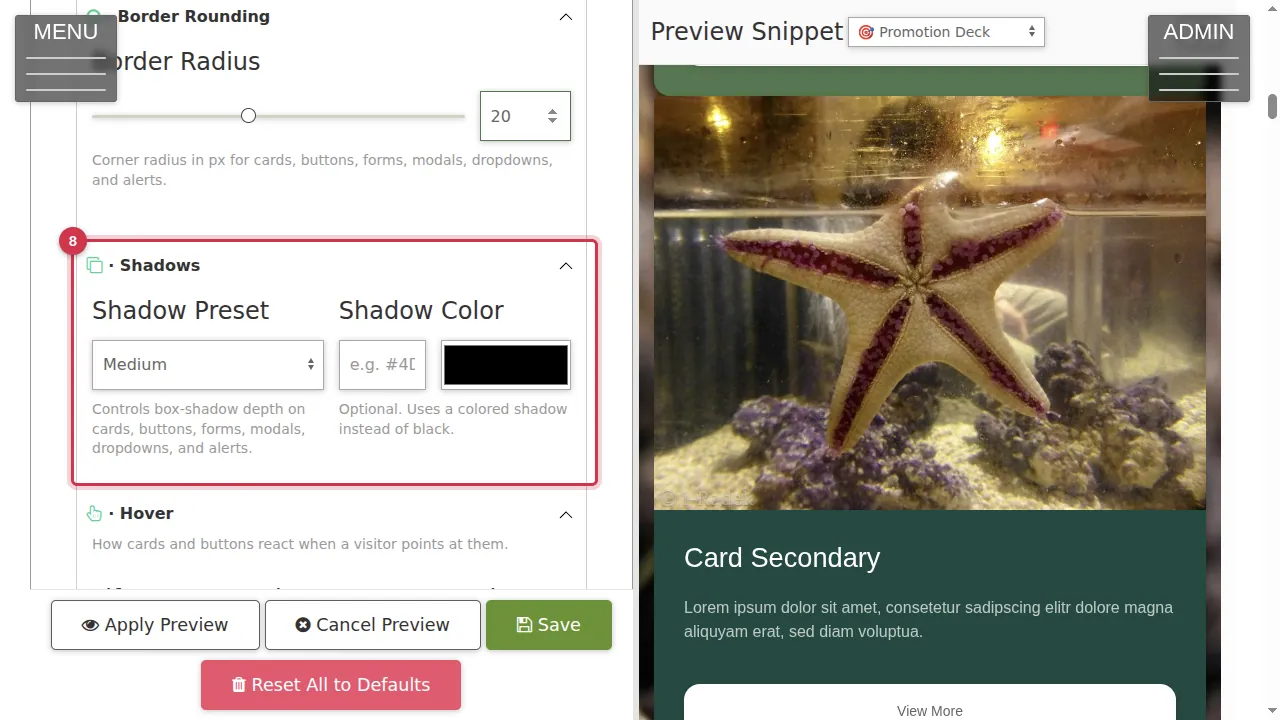
Step 8. Shadows: choose None, Subtle, Medium, Pronounced or Dramatic, and if you like a shadow colour instead of black.
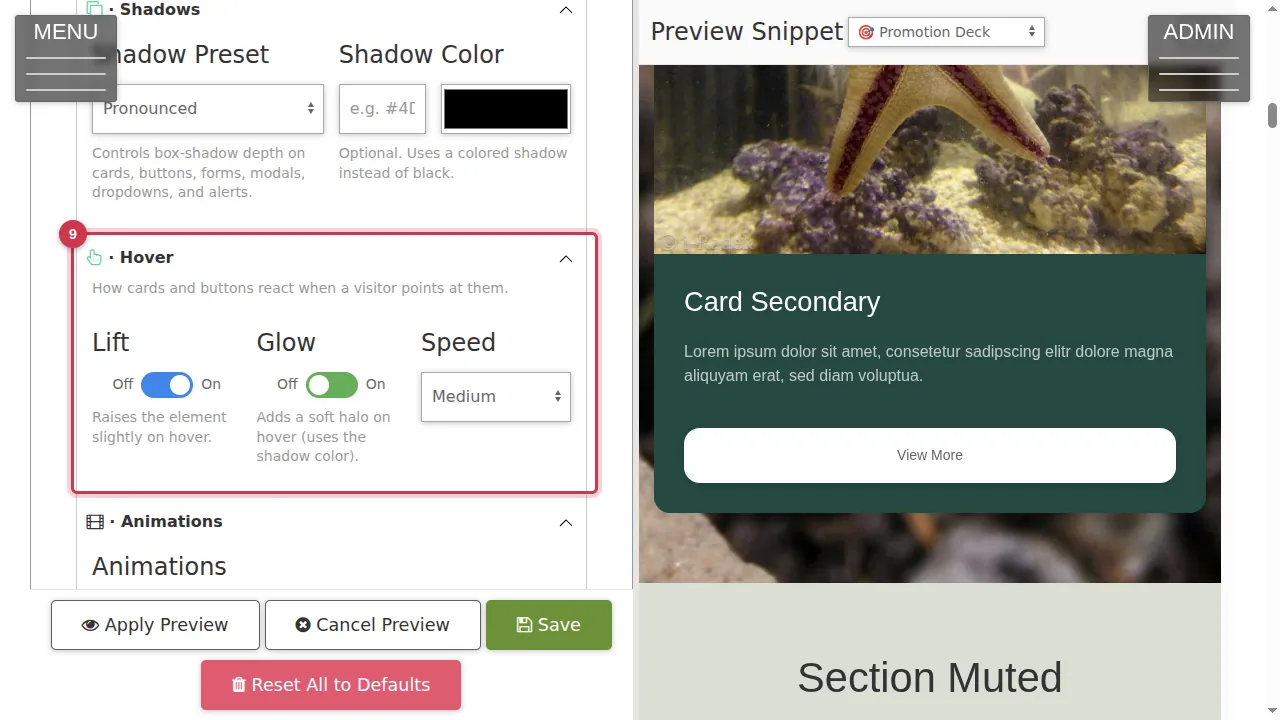
Step 9. Hover: Lift raises cards and buttons a little when the mouse is over them, Glow adds a soft halo, and Speed sets how fast it happens.
Check and save
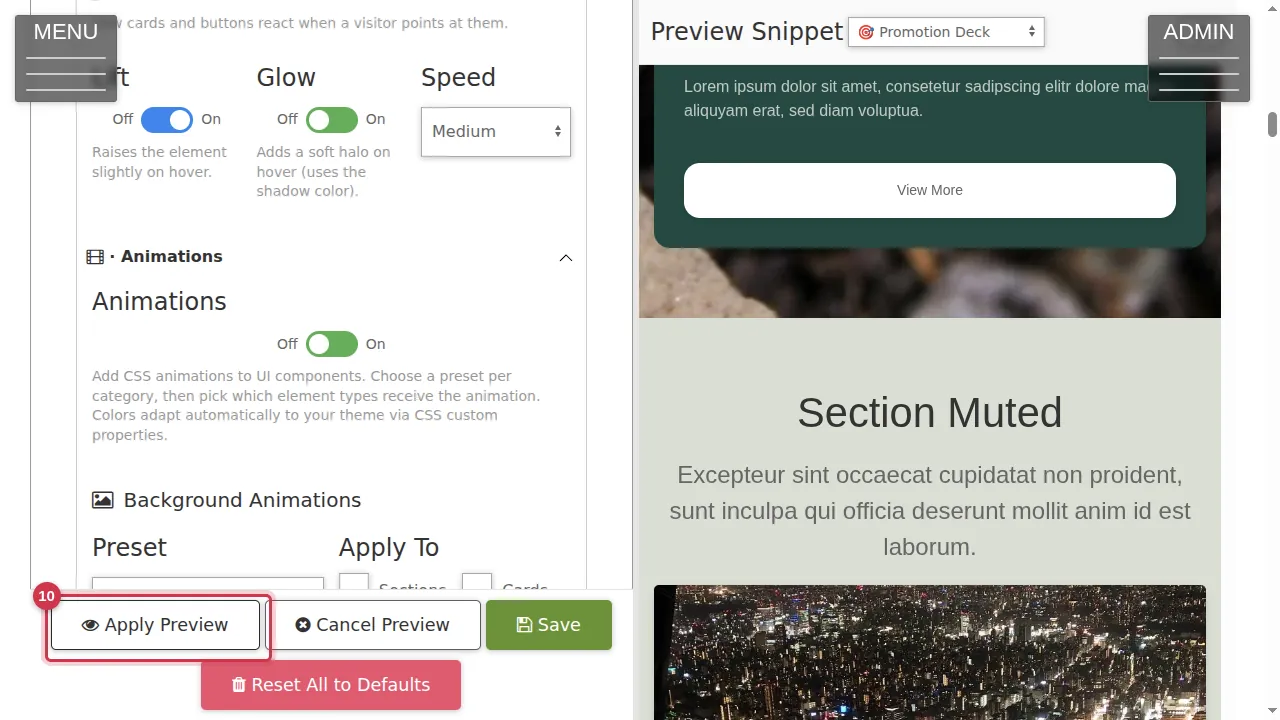
Step 10. Click Apply Preview again to check your settings.
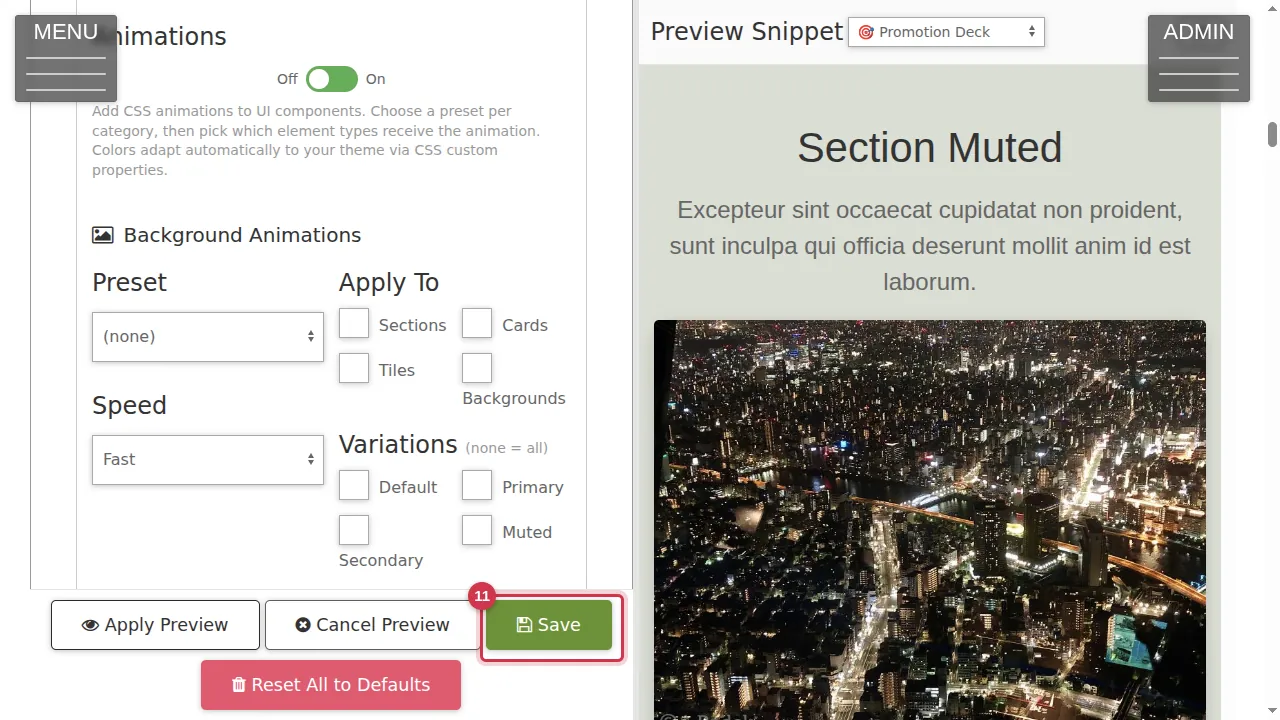
Step 11. Save makes the effects live (not clicked in this video). Leave the Template Kit without saving to keep your site as it is.
Check it worked
After saving, look at a page with cards and buttons as a visitor and point at a button with the mouse.
Good to know
- The presets only fill in the fields (the tab says so: "Changes are not saved until you click Save").
- Animations and dark mode are further down on the same tab.
Related help
Shown on the 2026 version of the SoNET Web Engine. Last checked 21 October 2026. Something different on your screen? Tell us through the Contact page.