Help Center Look & Design
Choose a template in the Template Kit
The template decides the overall look of your whole website. The Template Kit lets you try templates in a preview first; your site only changes when you click Save.
Watch it done: a short silent video with captions · 1:18. The steps below show the same thing picture by picture.
Before you start
- Log in to your website.
Open the Template Kit
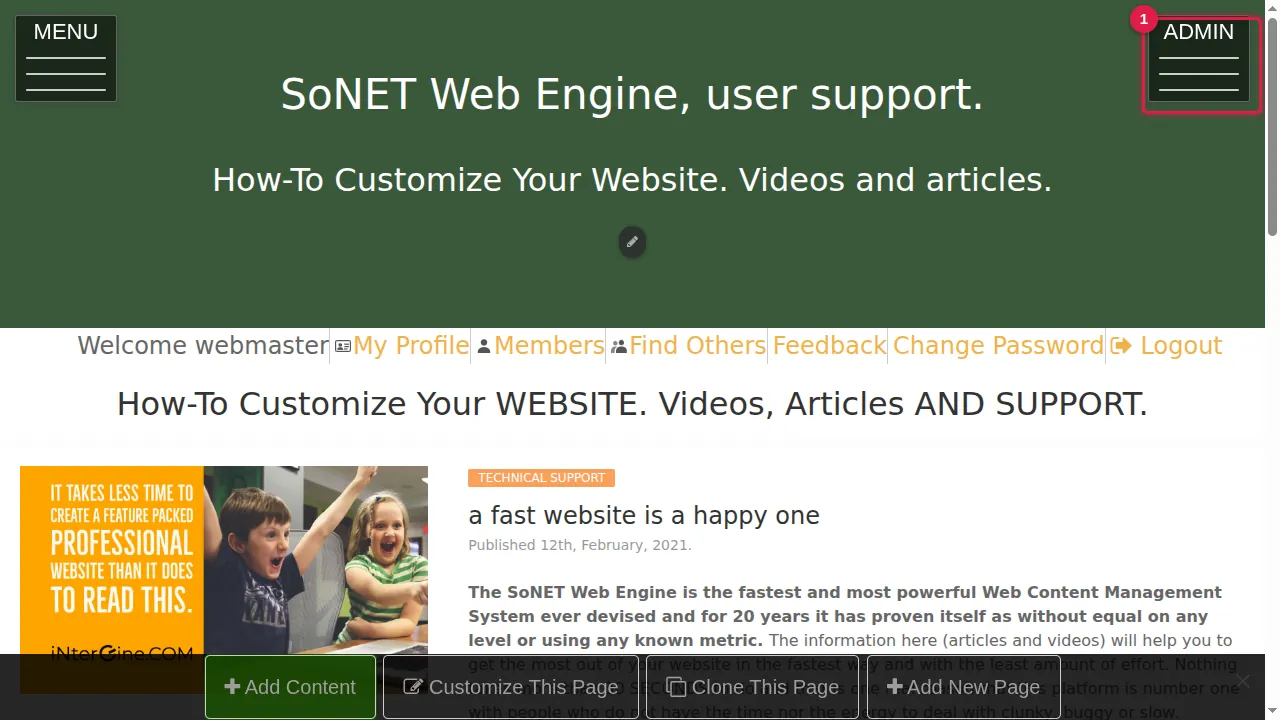
Step 1. Click ADMIN at the top right.
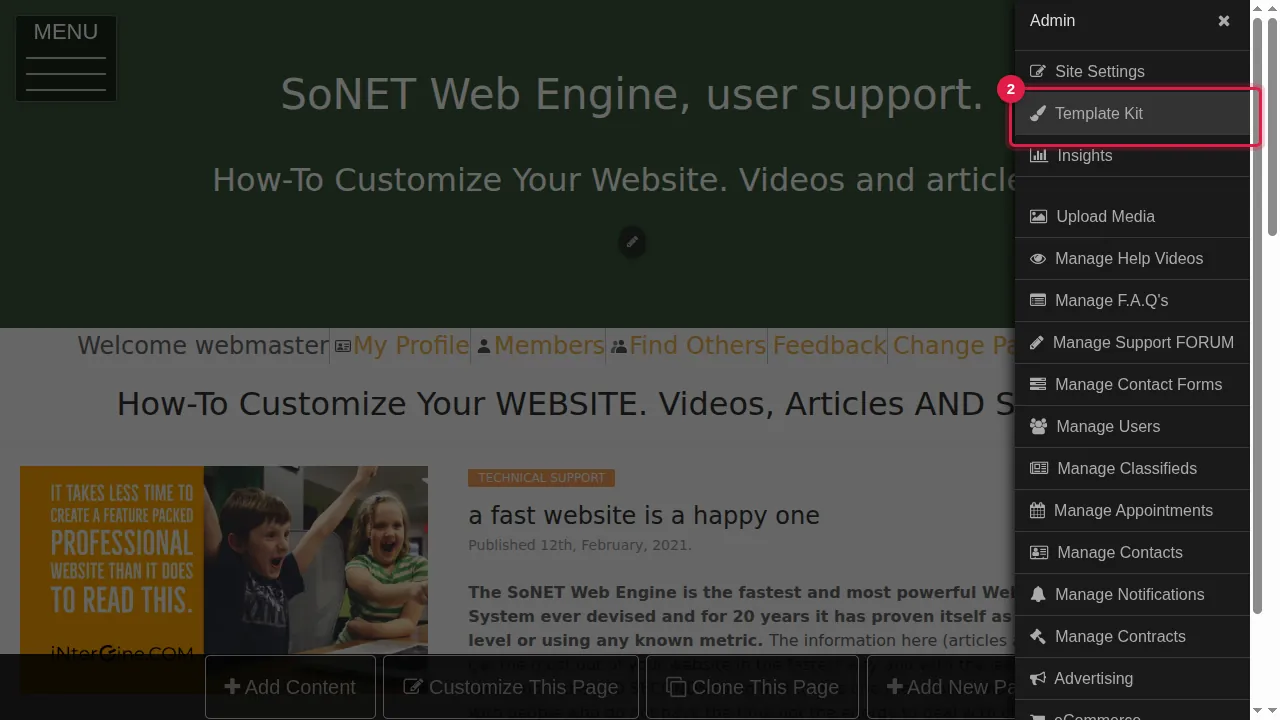
Step 2. Click Template Kit.
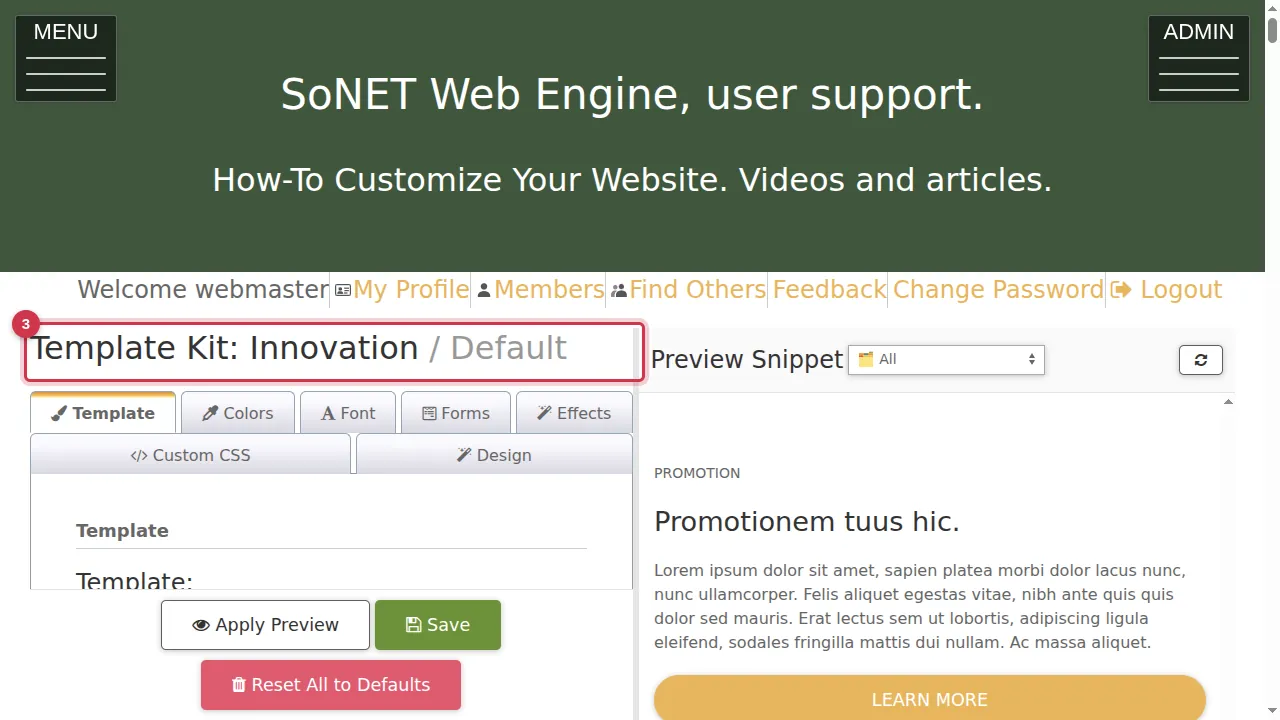
Step 3. The Template Kit has its settings on the left (tabs Template, Colors, Font, Forms, Effects, Custom CSS and Design) and a live preview on the right. Your site does not change until you click Save.
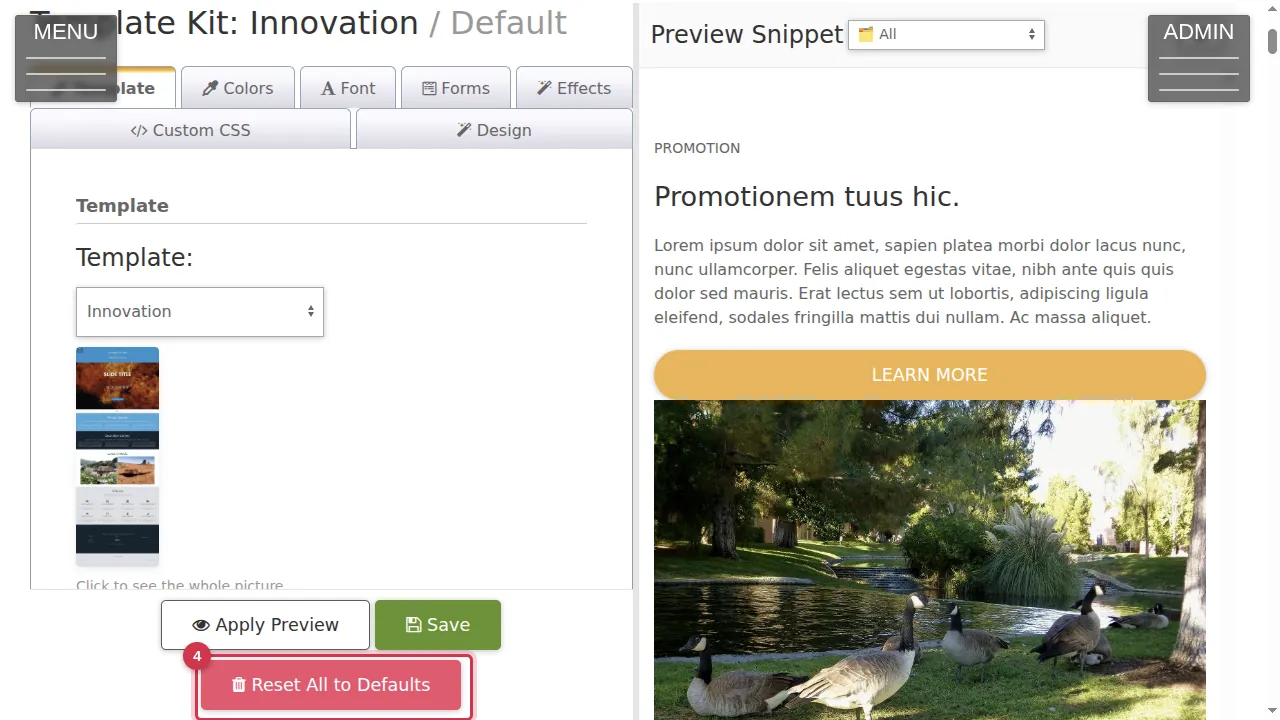
Step 4. Reset All to Defaults puts every Template Kit setting back to the template's own defaults (colours, fonts, effects). Use it with care. (It is hidden while you are trying another template; open the Template Kit again to see it.)
Try a template
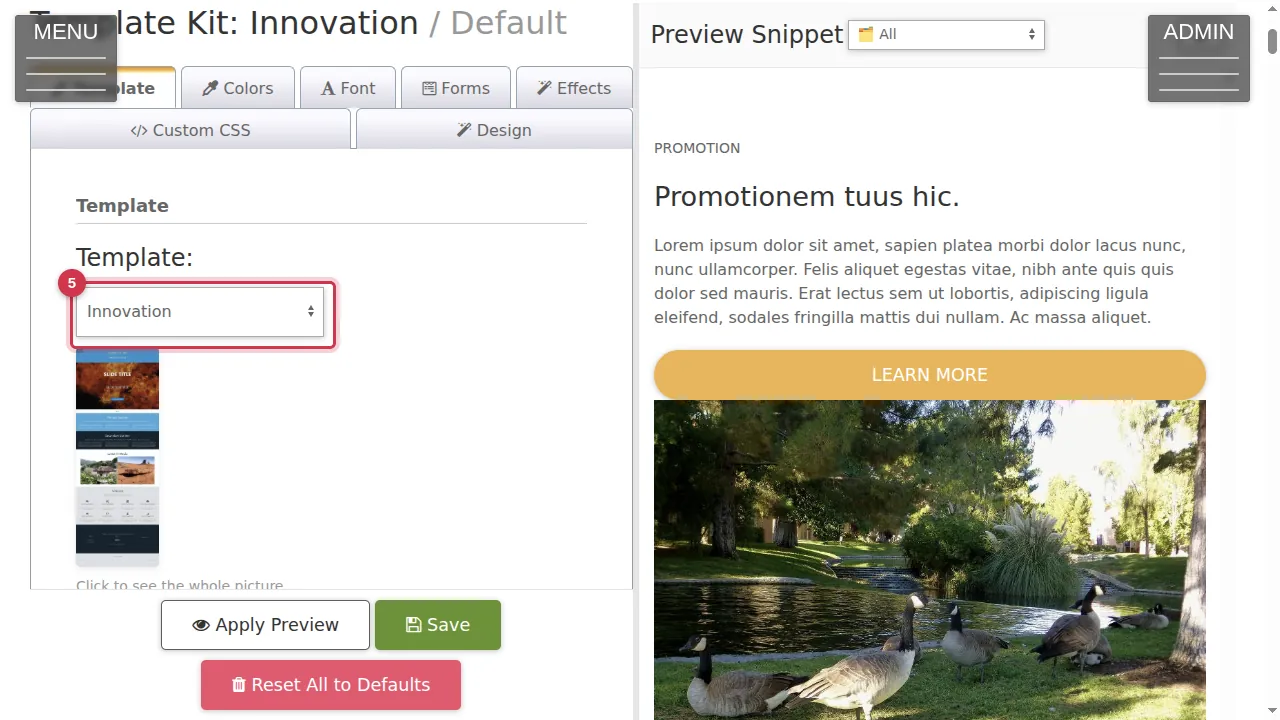
Step 5. On the Template tab, pick a template from the list. A small picture of it appears; "Click to see the whole picture" shows it larger. Some templates also offer variations.
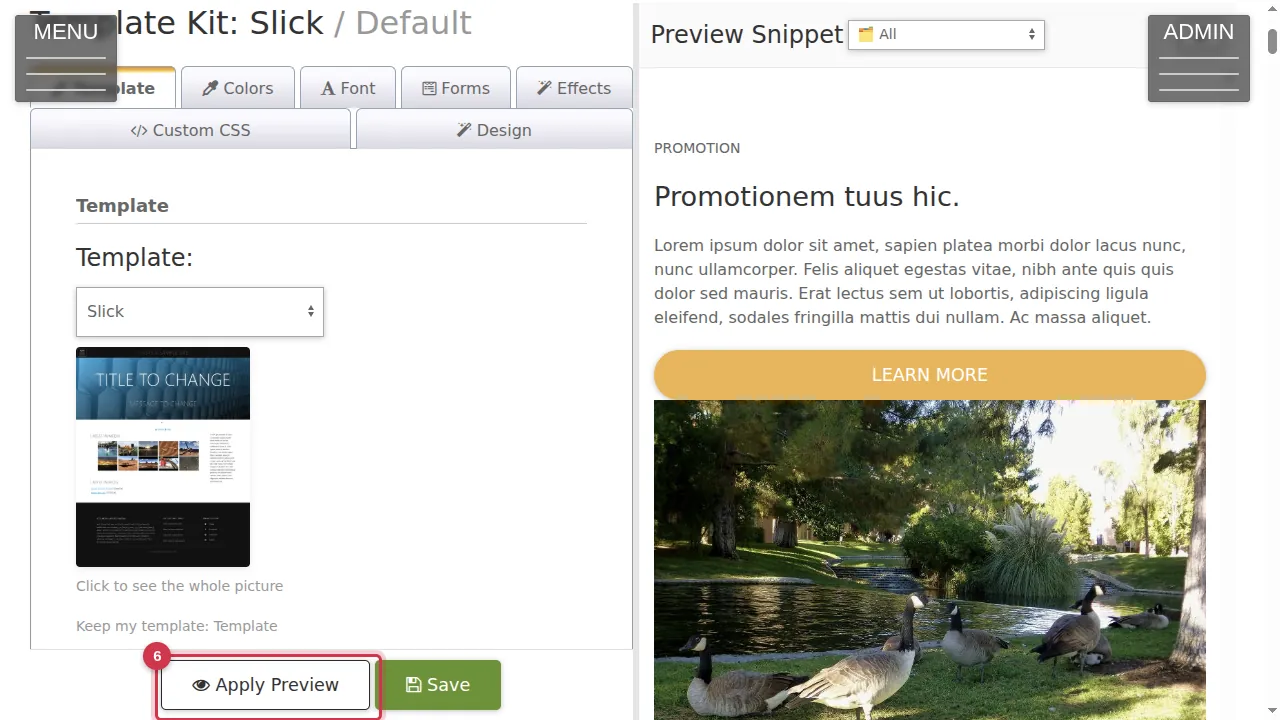
Step 6. Click Apply Preview.
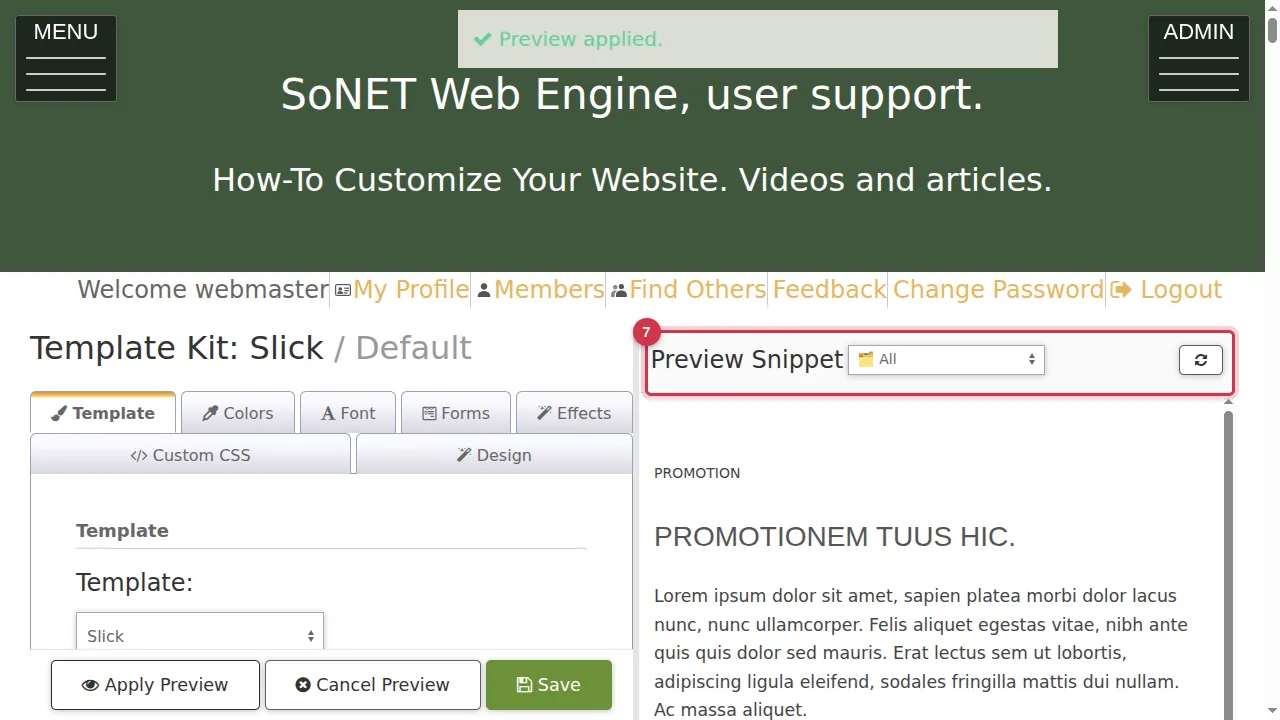
Step 7. "Preview applied." appears and the preview on the right shows the template. Choose which part to look at in the Preview Snippet list. Cancel Preview goes back to your current look.
Keep it, or not
Step 8. Happy with it? Click Save to make it your site's look. (It is not clicked in this video.)
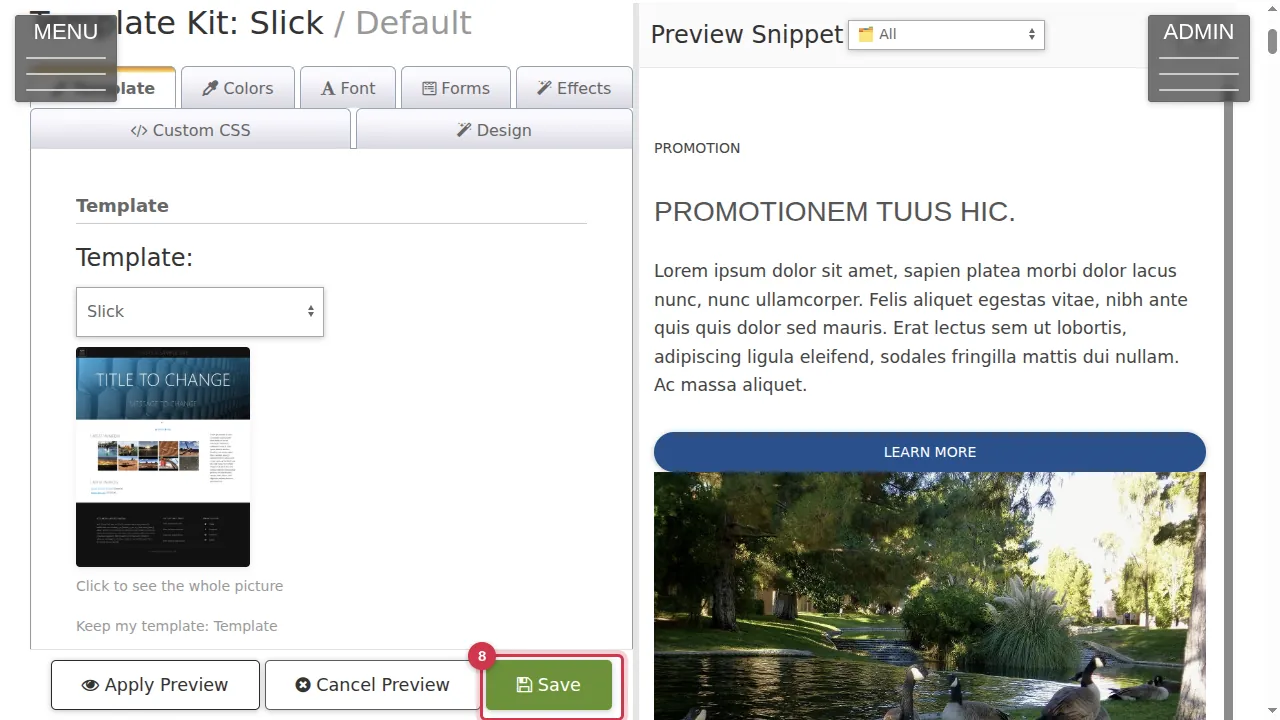
Step 9. Not happy? Click "Keep my template" or simply leave the page without saving: your site keeps its current look.
Check it worked
After saving, open your site as a visitor (log out or use a private window) and look at a few pages.
Good to know
- Apply Preview only changes the preview in the Template Kit; your visitors keep seeing your current look until you Save.
- Change one thing at a time and preview it: it is easier to see what each setting does.
Related help
Shown on the 2026 version of the SoNET Web Engine. Last checked 21 October 2026. Something different on your screen? Tell us through the Contact page.