Help Center Look & Design
Change your site's colours
On the Template Kit's Colors tab you pick a ready-made colour set in one click, or change each colour of your site on its own. The kit warns you when a colour is hard to read.
Watch it done: a short silent video with captions · 1:41. The steps below show the same thing picture by picture.
Before you start
- Log in and open ADMIN › Template Kit.
Pick a colour set
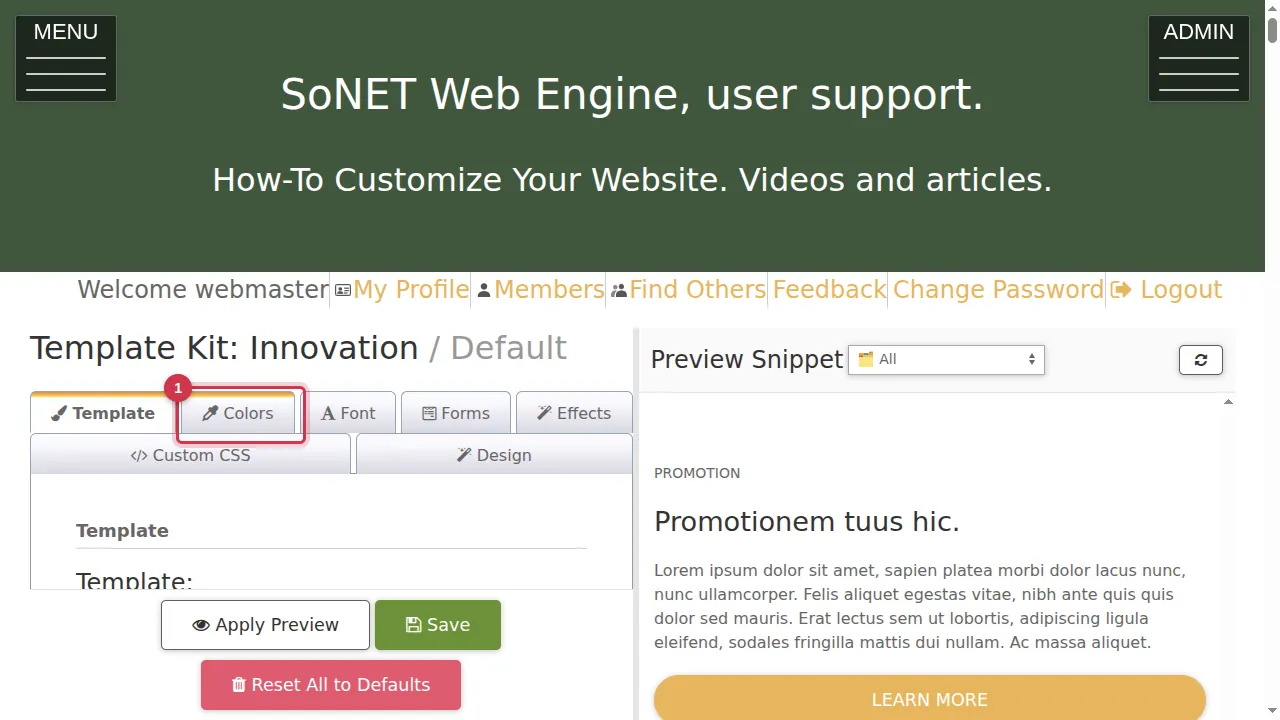
Step 1. In the Template Kit, open the Colors tab.
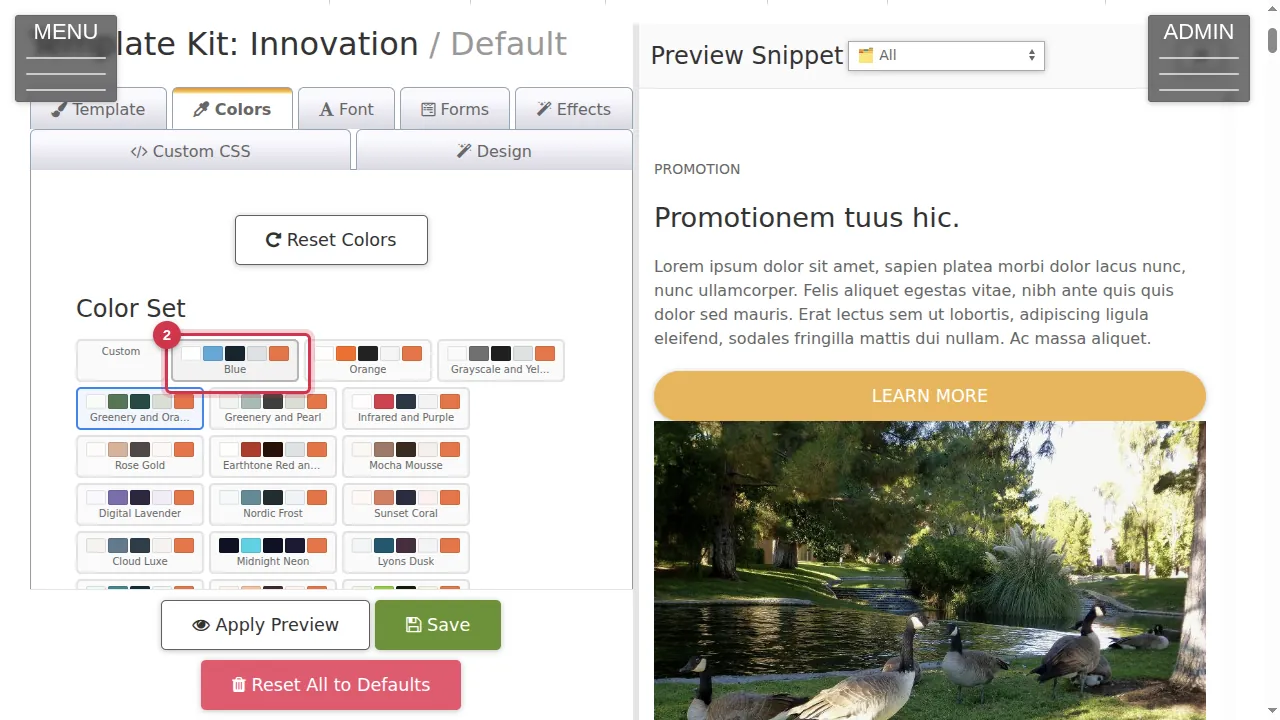
Step 2. Color Set shows ready-made colour combinations (Blue, Orange, Rose Gold, Nordic Frost and many more). Click one; here Blue.
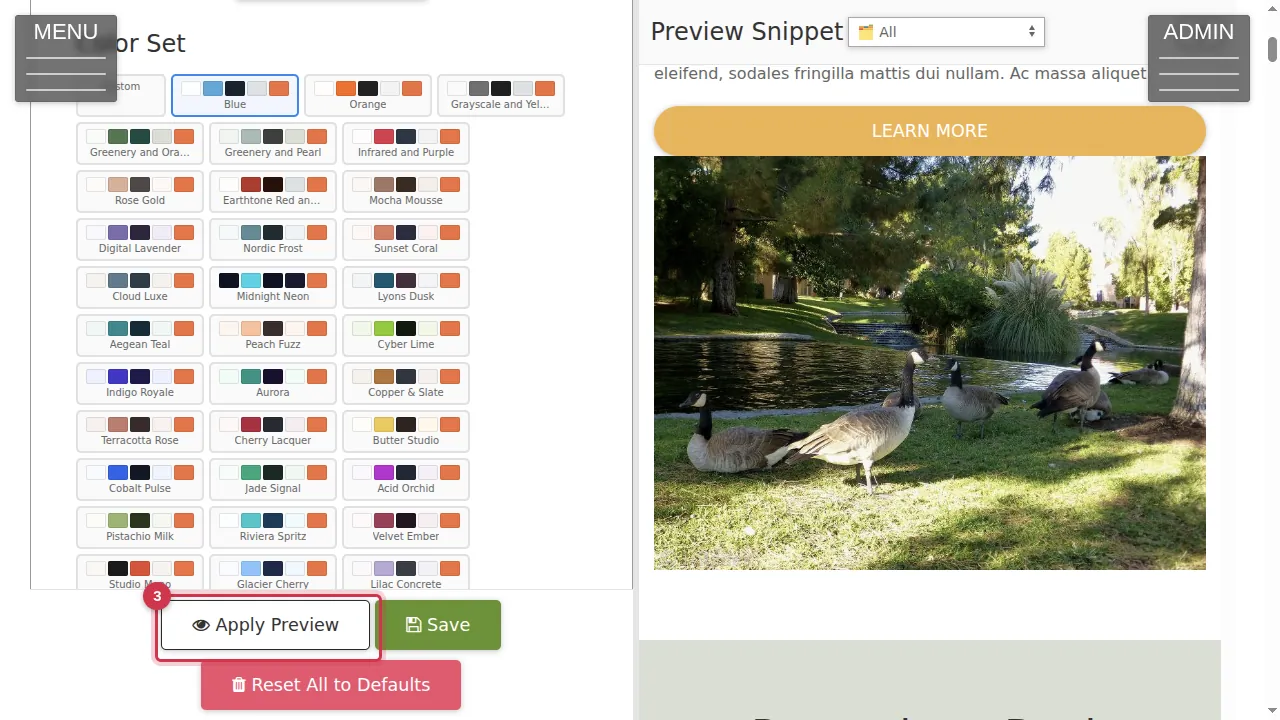
Step 3. Click Apply Preview. The preview on the right shows the new colours.
Change one colour
Step 4. Below the sets, every colour can be changed on its own: the header text and background (and its end colour for a gradient), the selected menu item's background and text, the page background, the primary, secondary, muted and complementary (accent) colours, the text colour, the inverse colour, borders and form borders.
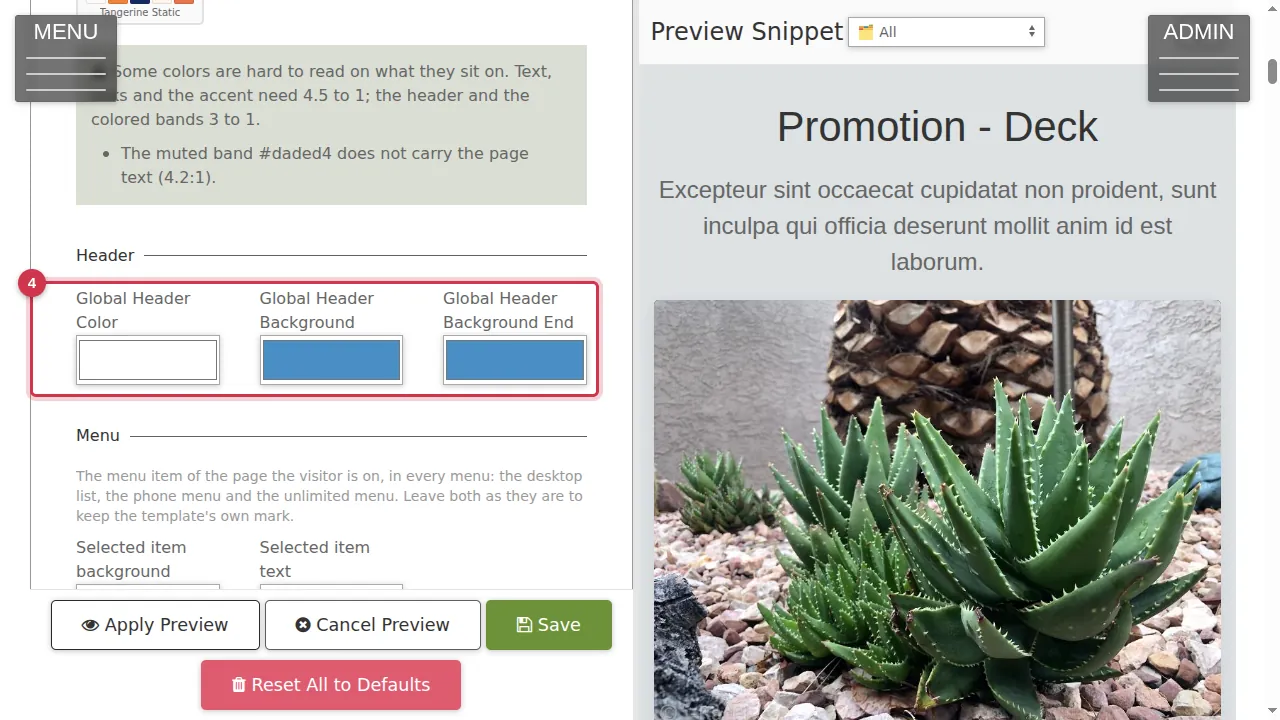
Step 5. Click a colour box. A colour picker opens: choose a colour, or type its code.
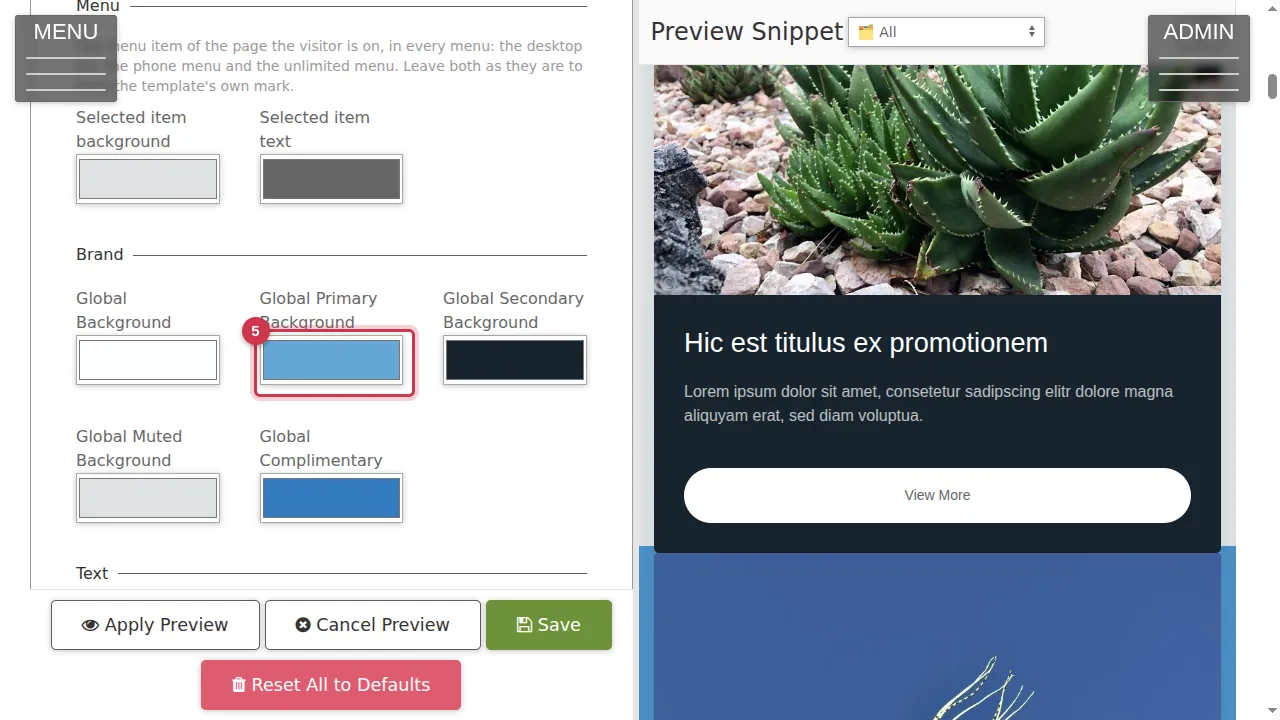
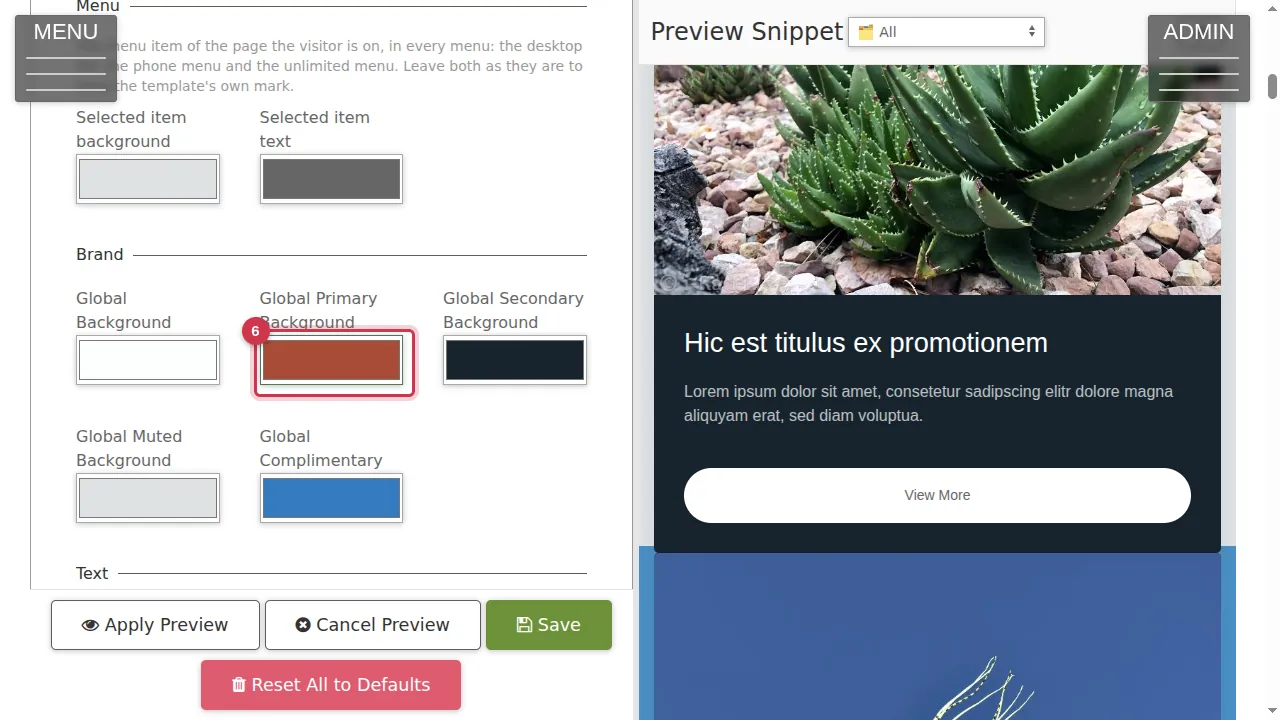
Step 6. Here the primary colour has become a warm red.
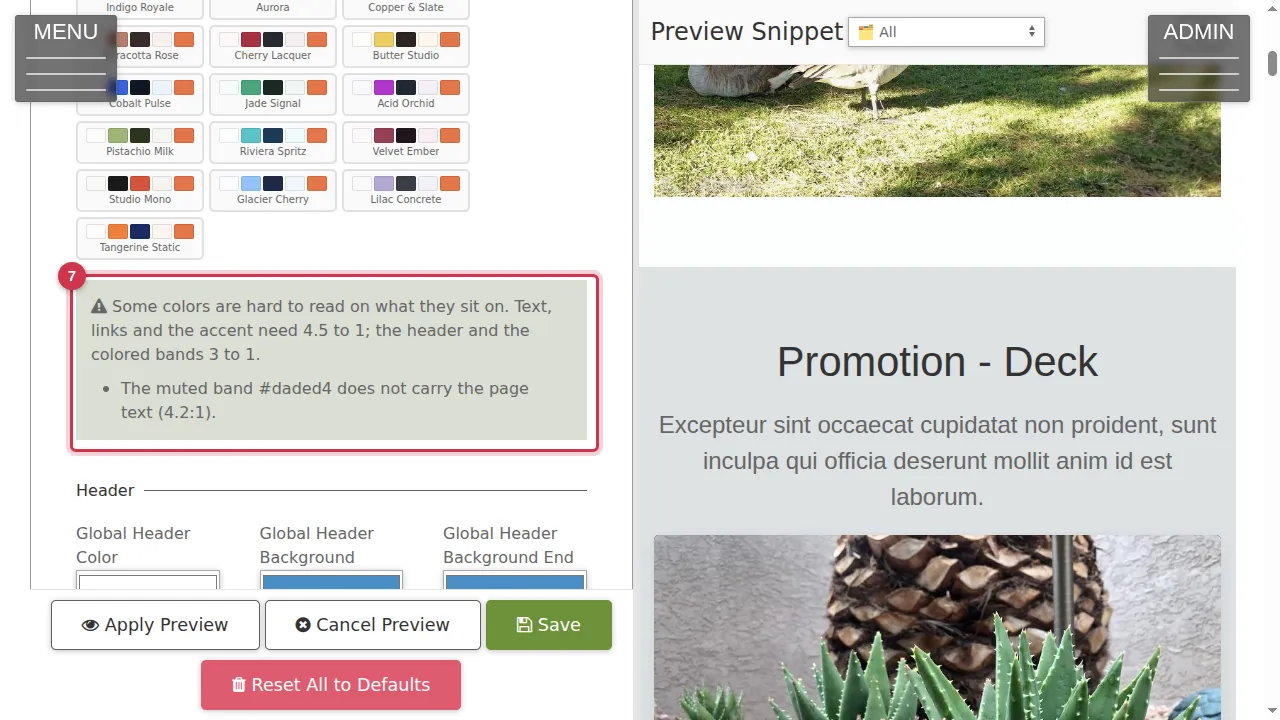
Step 7. If a colour is hard to read on what it sits on, a warning box tells you which one. Text, links and the accent need a contrast of 4.5 to 1; the header and coloured bands 3 to 1.
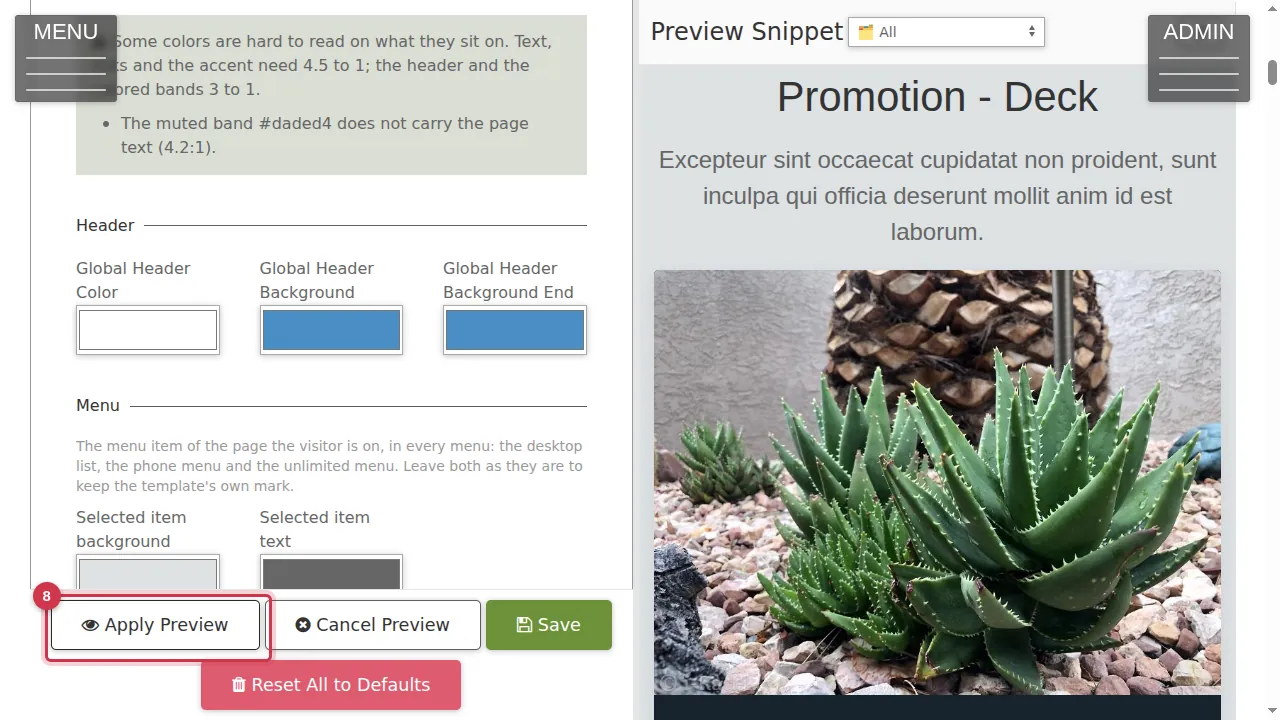
Step 8. Click Apply Preview again to check the result.
Save or leave
Step 9. Reset Colors puts back the template's own colours. Save makes your colours live (not clicked in this video).
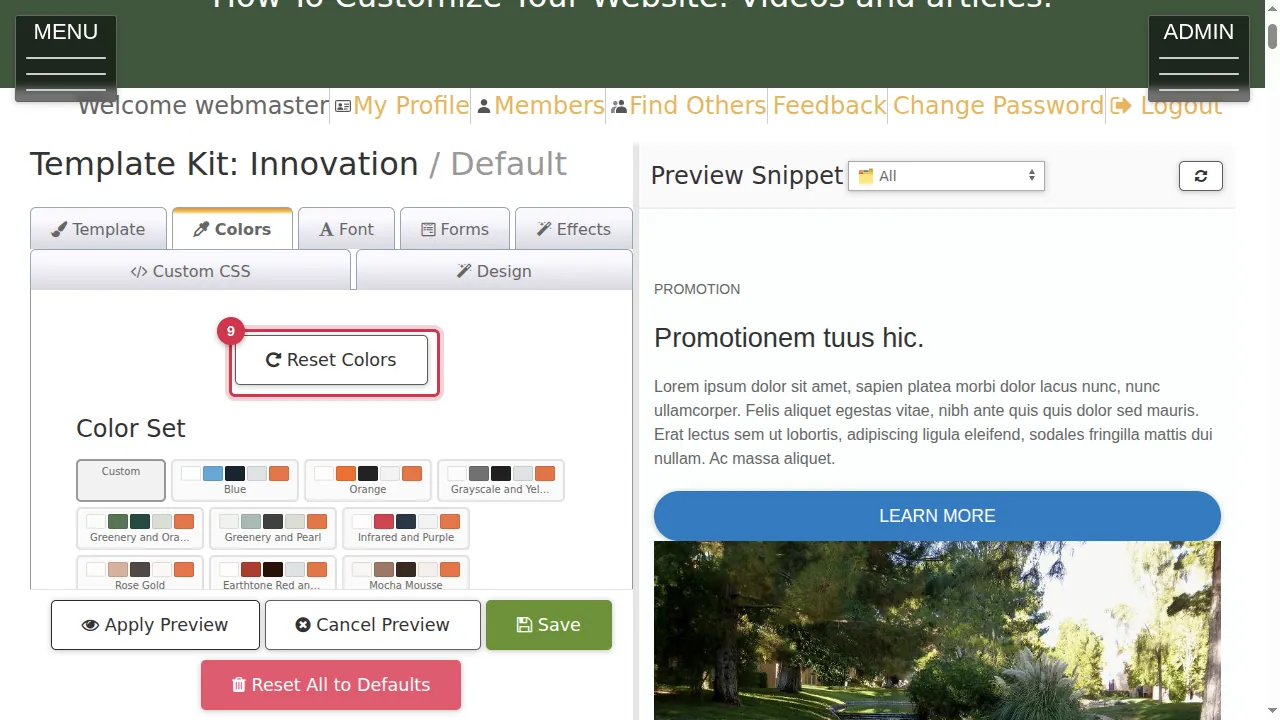
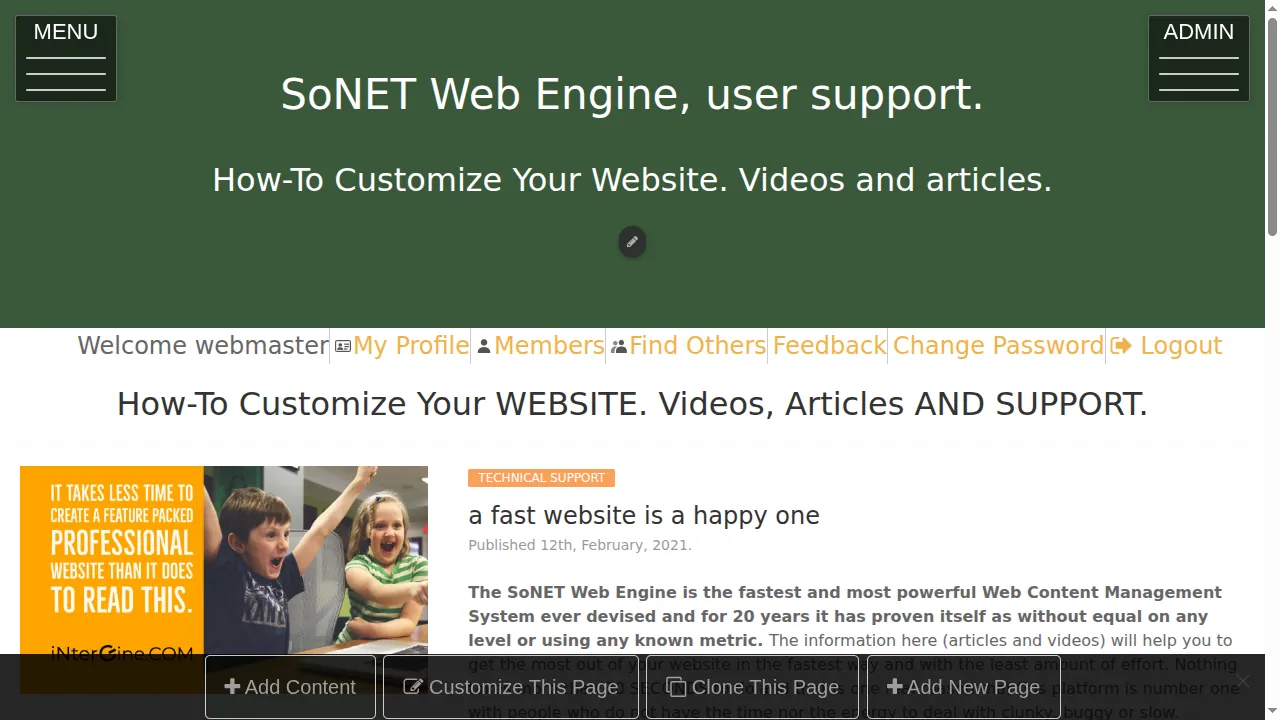
Step 10. Leave the Template Kit without saving and your site keeps its current colours.
Check it worked
After saving, open your site as a visitor and look at the header, buttons, menus and coloured sections.
Good to know
- Fix every readability warning before you save: visitors with weaker eyesight, and everyone on a phone in sunlight, will thank you.
- Start from a colour set that is close to what you want, then adjust one or two colours.
Related help
- Choose a template in the Template Kit
- Style a section: colours, spacing, width, heading, edge and background
Shown on the 2026 version of the SoNET Web Engine. Last checked 21 October 2026. Something different on your screen? Tell us through the Contact page.