Help Center Pages & Editing
Delete a page
Pages you added can be deleted with Delete This Page. The page and its content are removed and it disappears from your menu.
Watch it done: a short silent video with captions · 0:43. The steps below show the same thing picture by picture.
Before you start
- Log in to your website and open the page you want to delete. Make sure you no longer need its text and pictures: deleting removes them too.
Delete the page
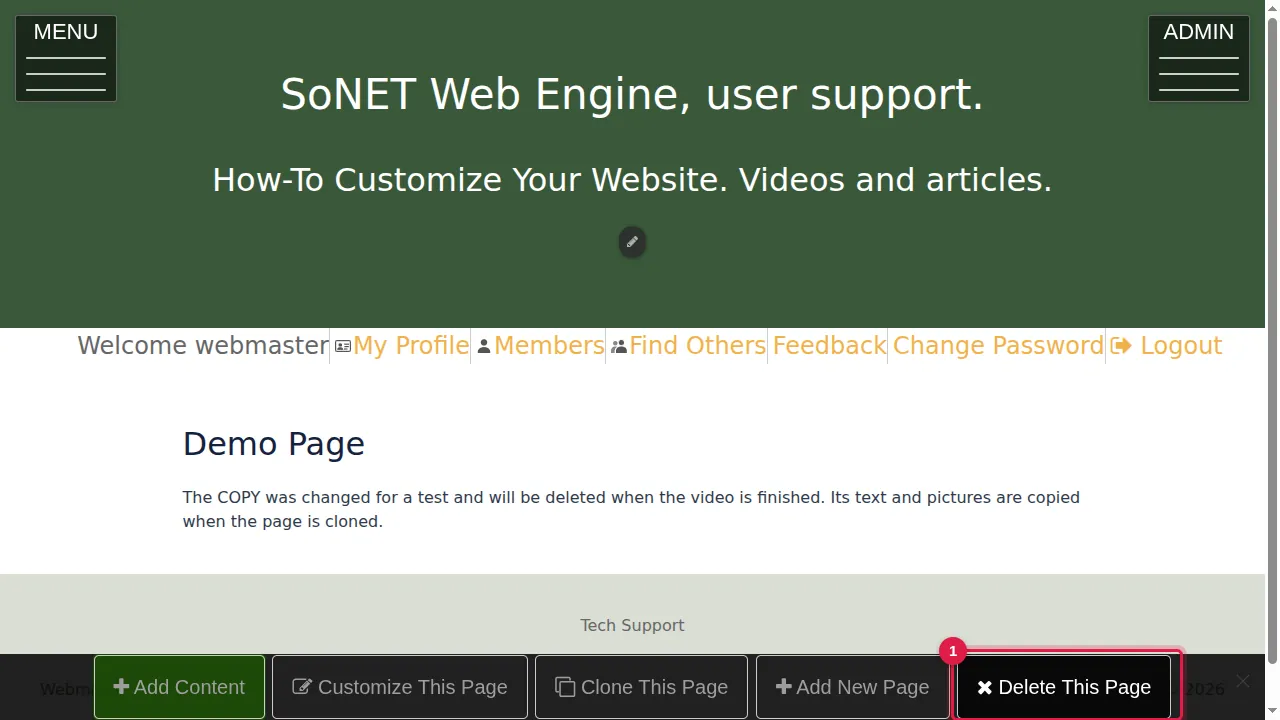
Step 1. On the page you want to delete, click Delete This Page in the bar at the bottom.
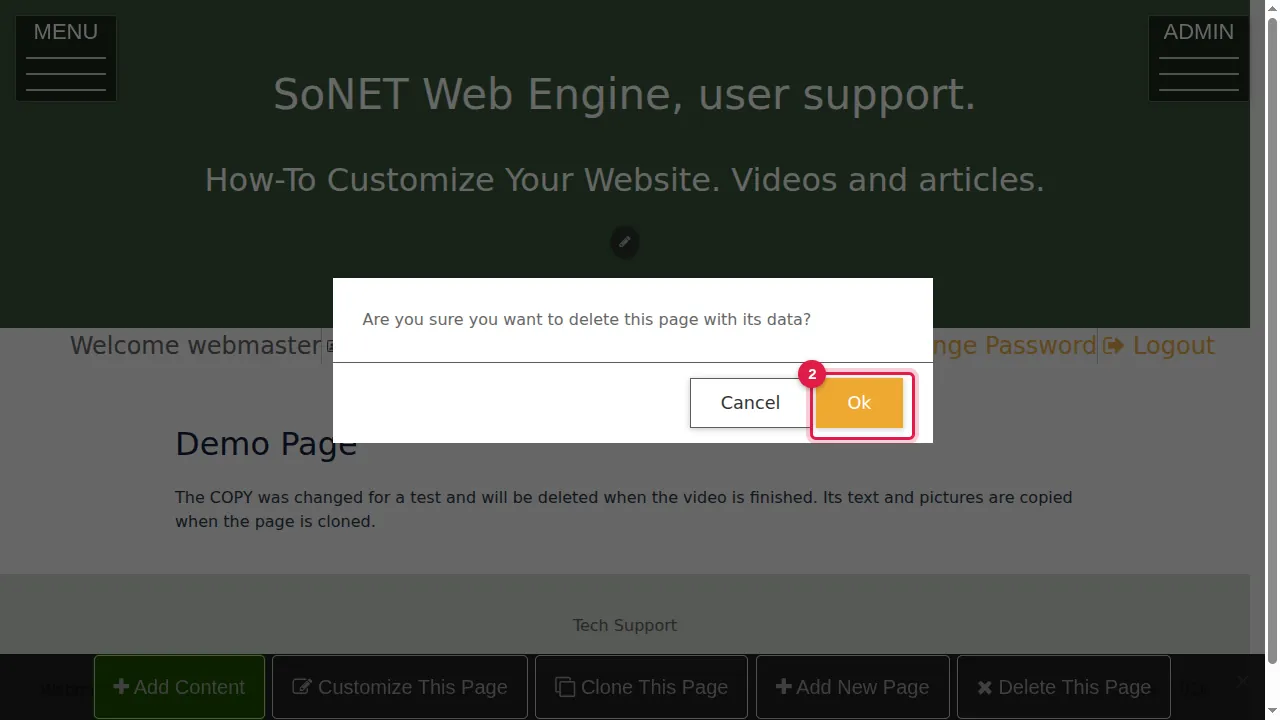
Step 2. The website asks "Are you sure you want to delete this page with its data?". Click Ok to delete it, or Cancel to keep it.
Check the menu
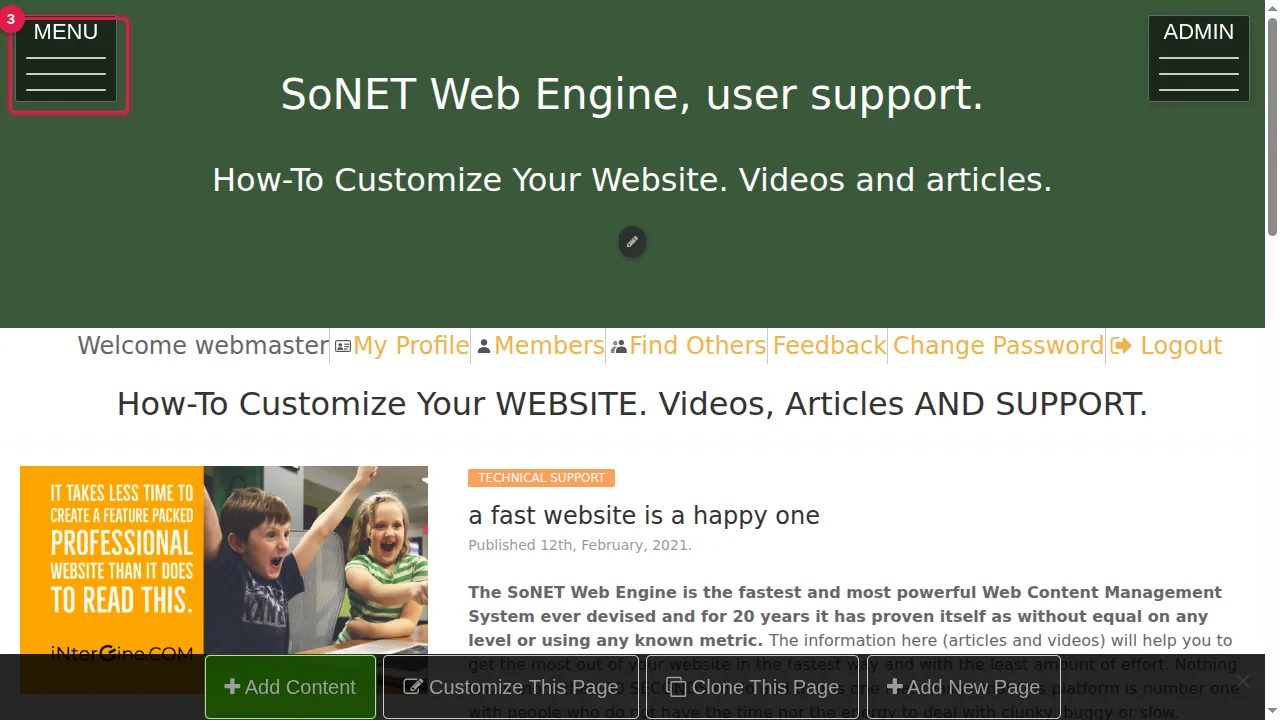
Step 3. The page is deleted and you are taken to your home page. Open the MENU.
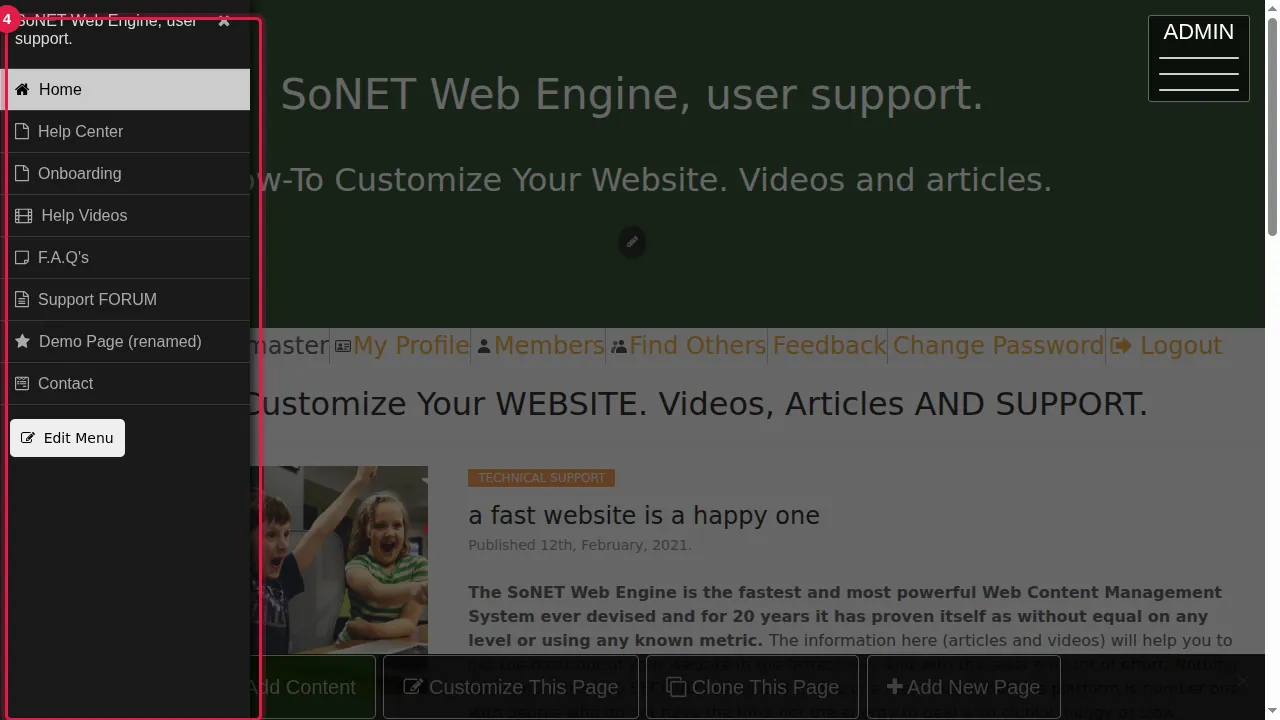
Step 4. The deleted page (here "Demo Page Copy") is no longer listed. The other pages are unchanged.
Check it worked
Open the menu as a visitor (log out or use a private window): the page is gone.
Good to know
- Delete This Page appears on pages you added yourself. The built-in pages (home, blog, gallery, forms, store…) cannot be deleted this way; hide them from the menu with Edit Menu instead.
- Only want the page out of the menu? Untick it in Edit Menu instead: the page and its content stay.
Related help
Shown on the 2026 version of the SoNET Web Engine. Last checked 21 October 2026. Something different on your screen? Tell us through the Contact page.