Help Center Store
Create products from a description
Name the products you sell and the store drafts them: a name, a price, a description and a few points each. You check every one, put in your own prices, and keep them or cancel.
Watch it done: a short silent video with captions · 0:33. The steps below show the same thing picture by picture.
Before you start
- Log in as the site owner.
- Open ADMIN › eCommerce.
Describe them
Step 1. In ADMIN › eCommerce, open the Products tab.
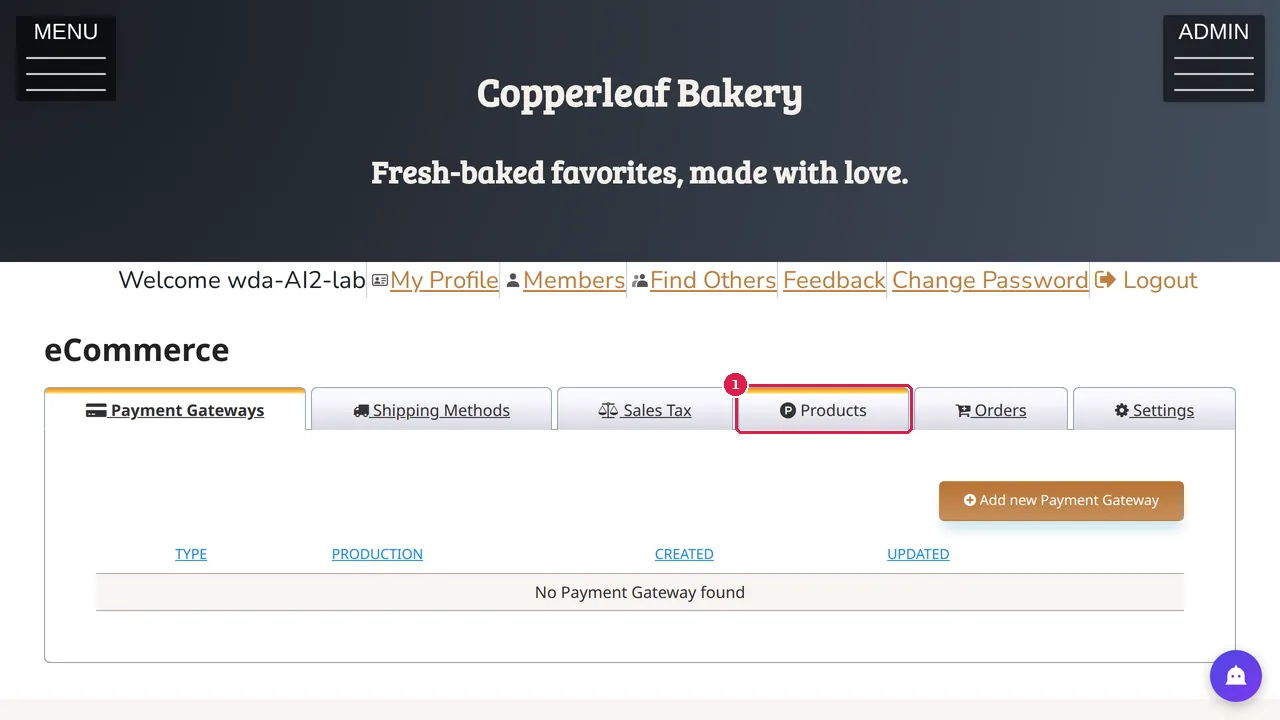
Step 2. Click Create from Description.
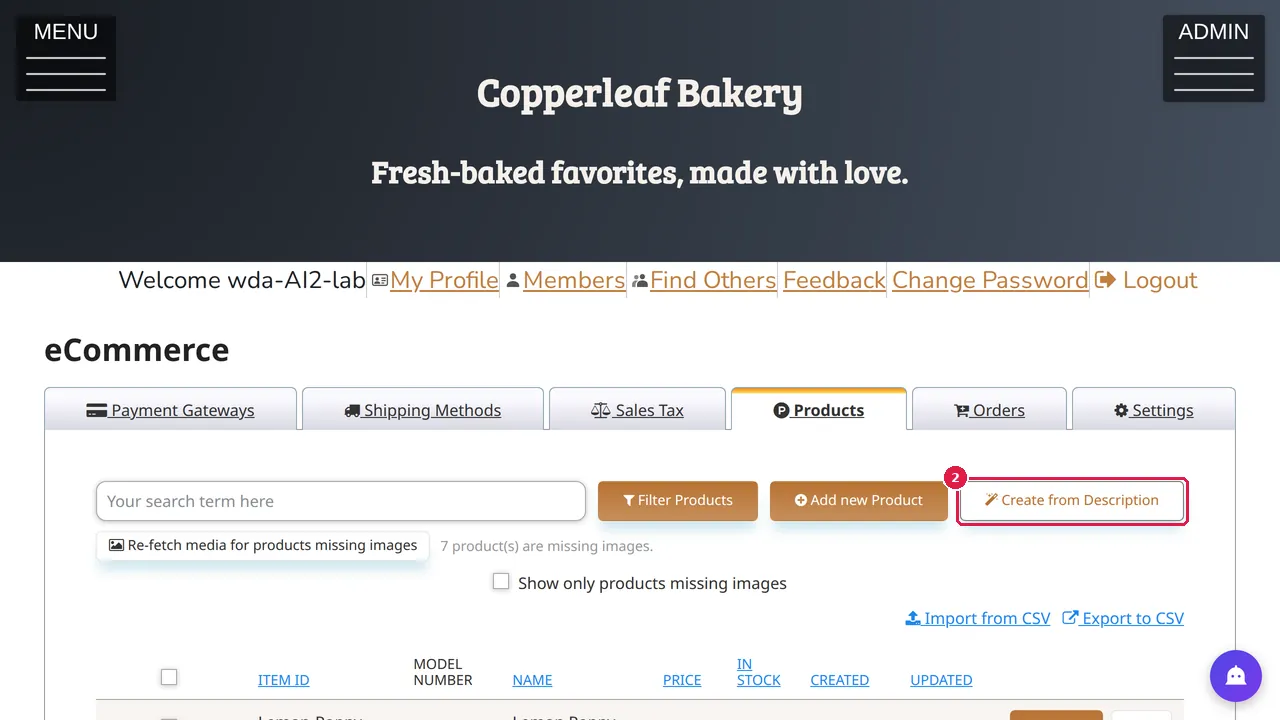
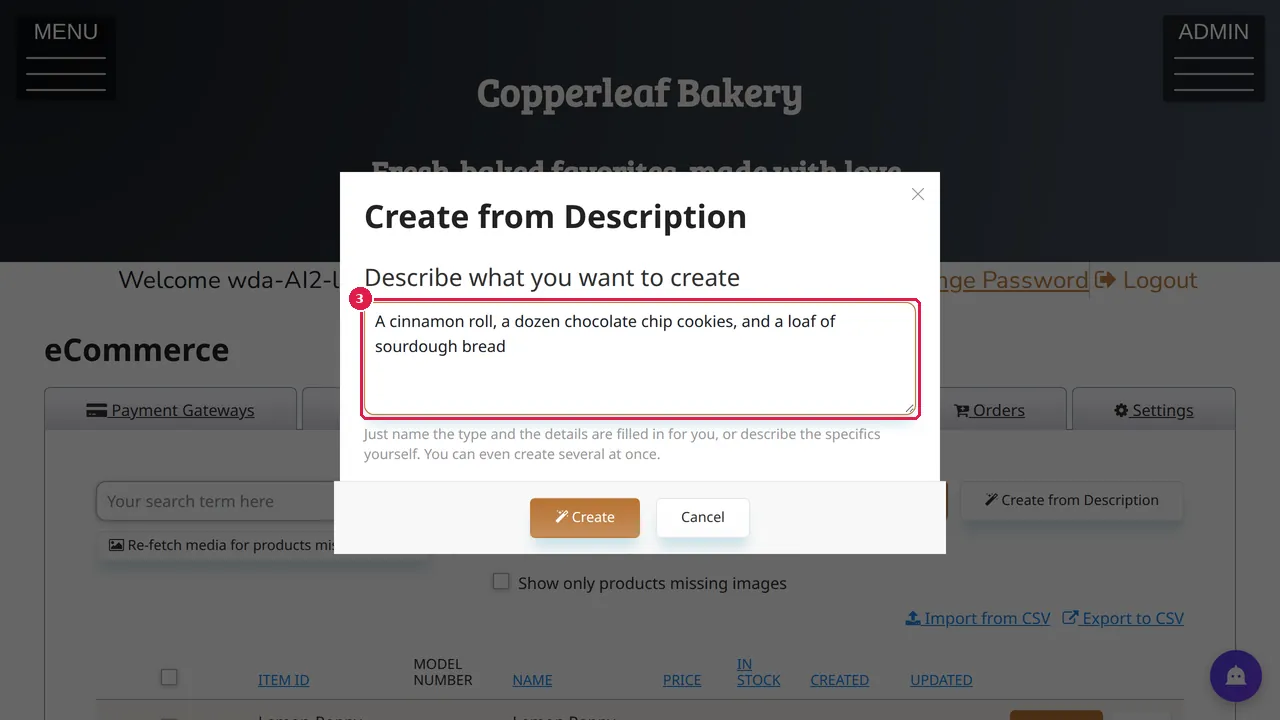
Step 3. Name the products you want, for example "A cinnamon roll, a dozen chocolate chip cookies, and a loaf of sourdough bread". You can create several at once.
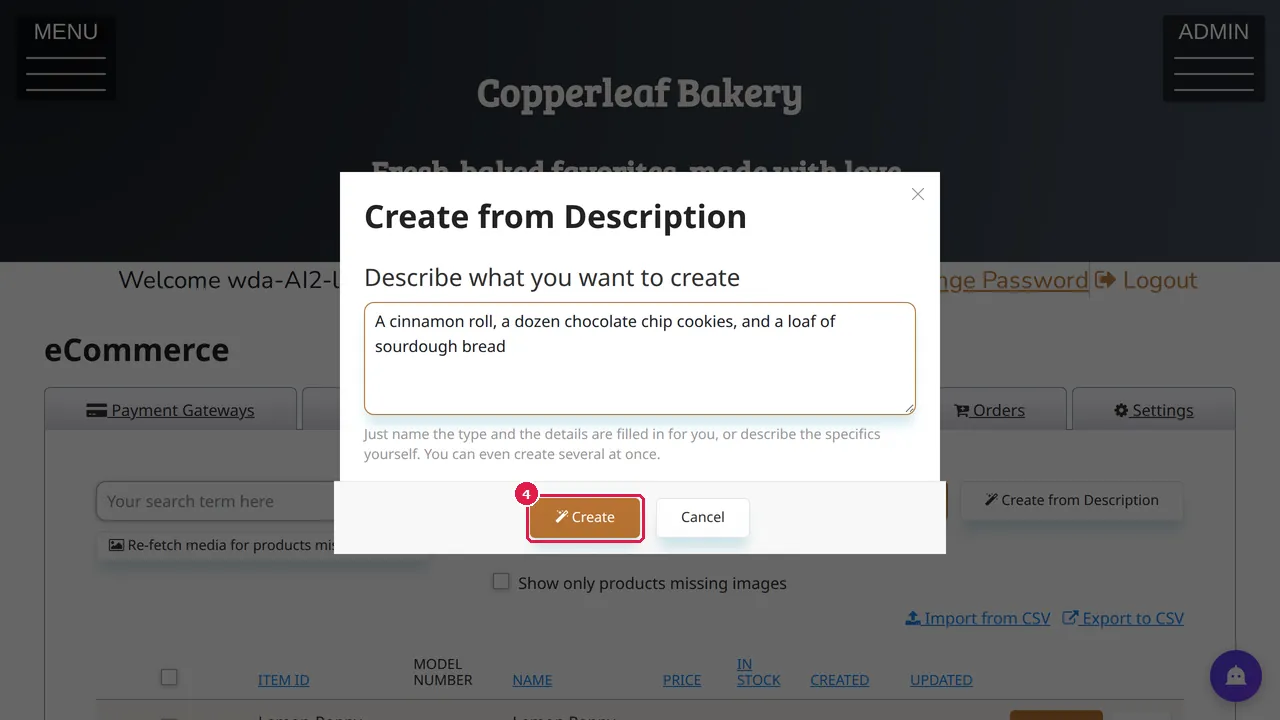
Step 4. Click Create and wait a few seconds.
Check them
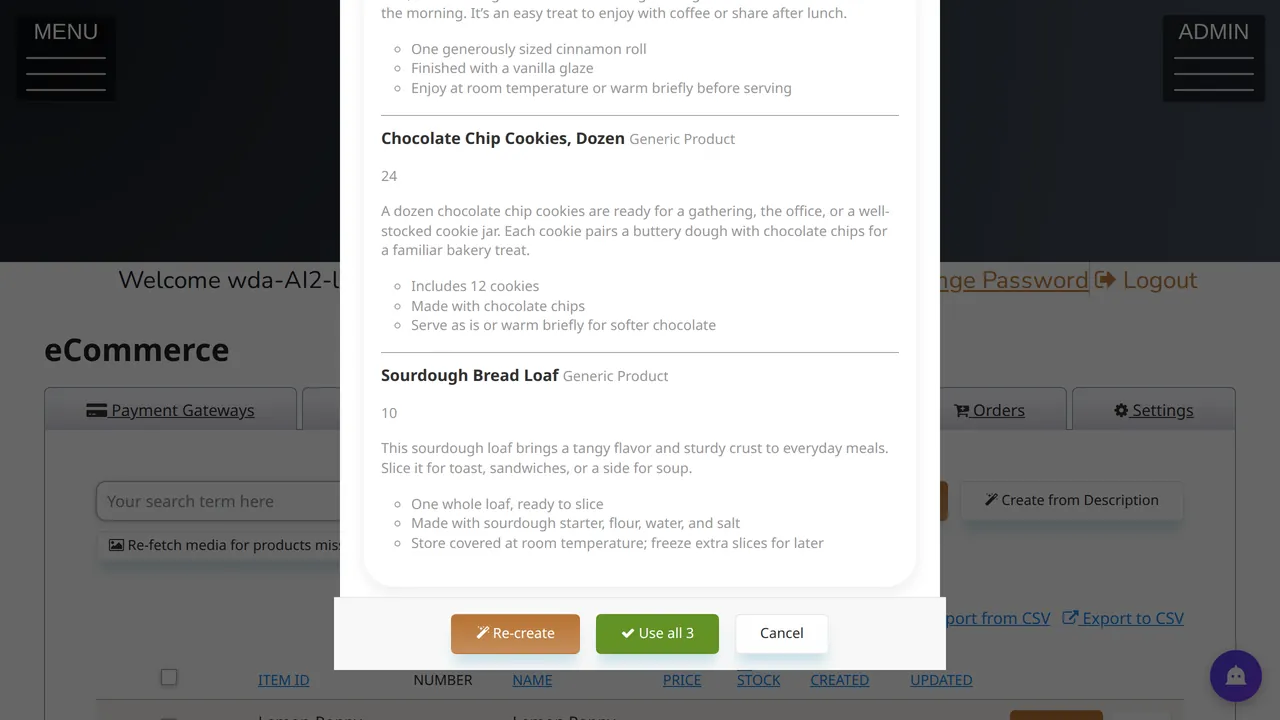
Step 5. The preview says how many products it will create and shows each one: its name, a price, a short description and a few points. In this example it made Cinnamon Roll (4.5), Chocolate Chip Cookies, Dozen (24) and Sourdough Bread Loaf (10). Those prices are its guesses, not yours.
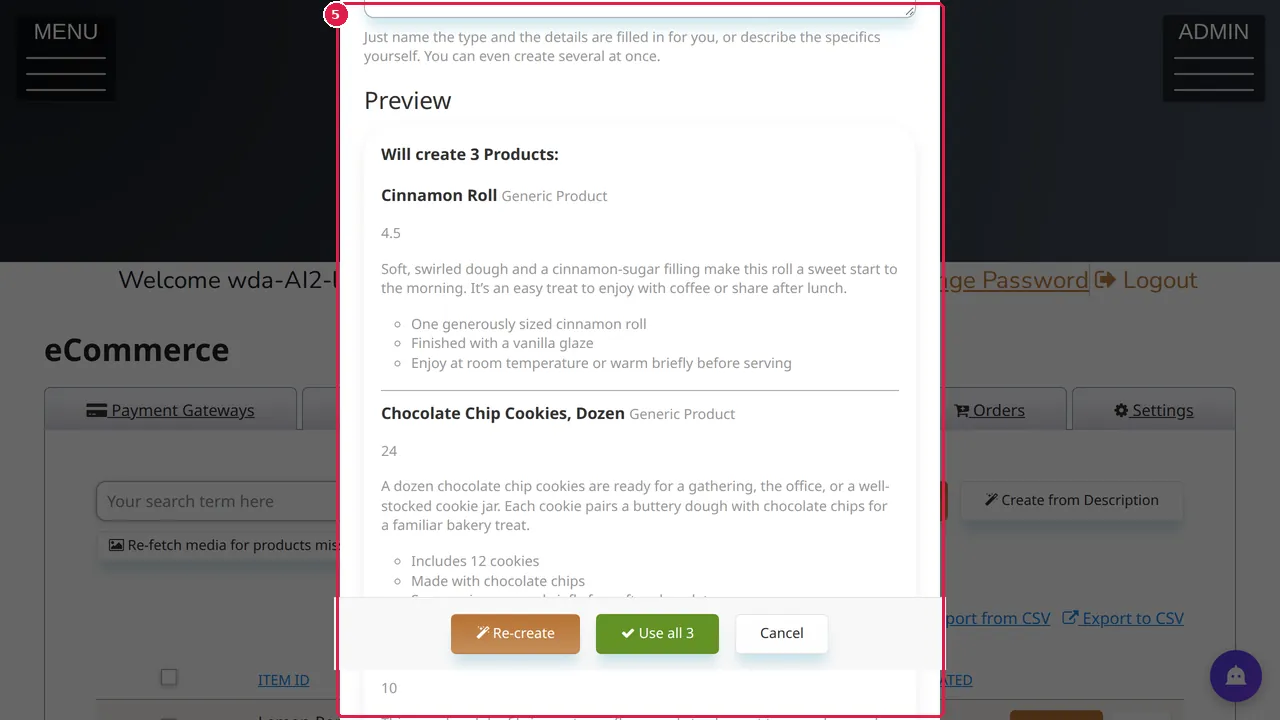
Step 6. Read every product. Re-create drafts again; Use all keeps them, and then you can change each one, its price above all, in its own edit window.
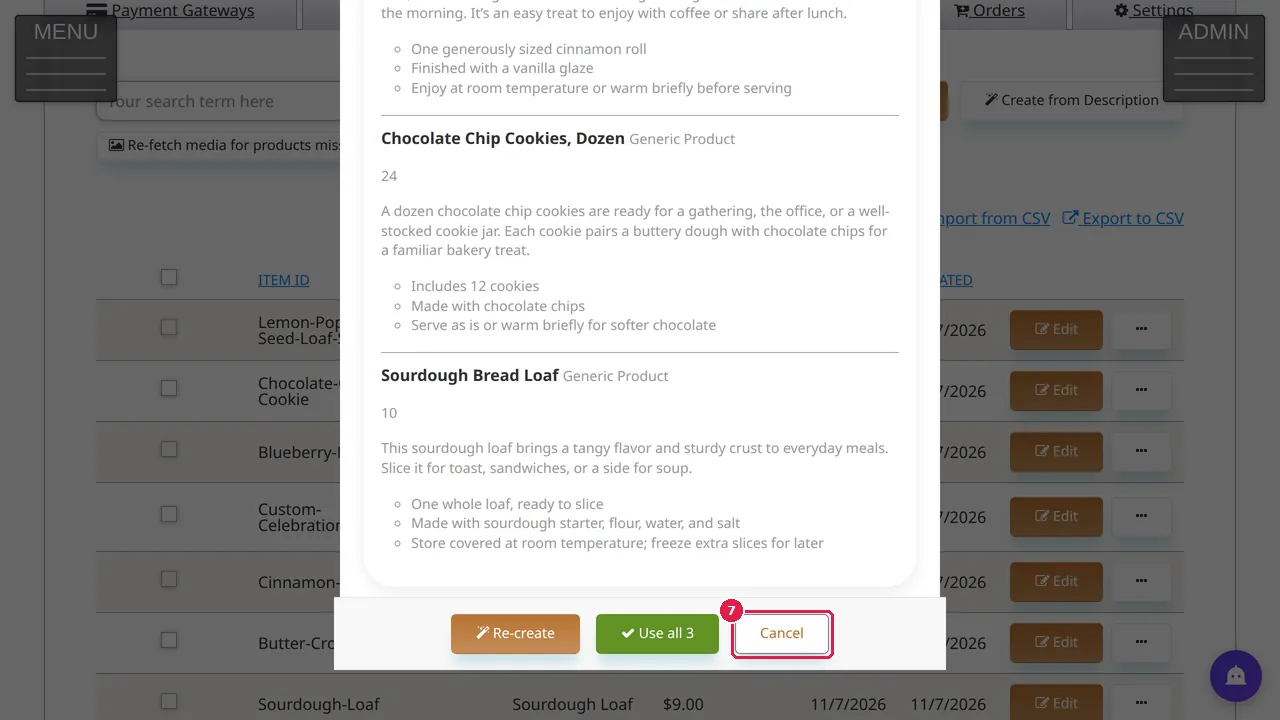
Step 7. In this demonstration Cancel was clicked, so no product was added.
Check it worked
After keeping products, open your store as a visitor: every product shows your own price and a true description.
Good to know
- Never sell at a drafted price: check every price and every claim before visitors see it.
Related help
Shown on the 2026 version of the SoNET Web Engine. Last checked 11 November 2026. Something different on your screen? Tell us through the Contact page.