Help Center Store
Create from Description: shipping, sales tax and blog posts
Shipping methods, sales tax and blog posts can be drafted from a sentence, just like forms and contracts. You read the preview, then keep it or cancel.
Watch it done: a short silent video with captions · 0:49. The steps below show the same thing picture by picture.
Before you start
- Log in as the site owner.
Shipping methods
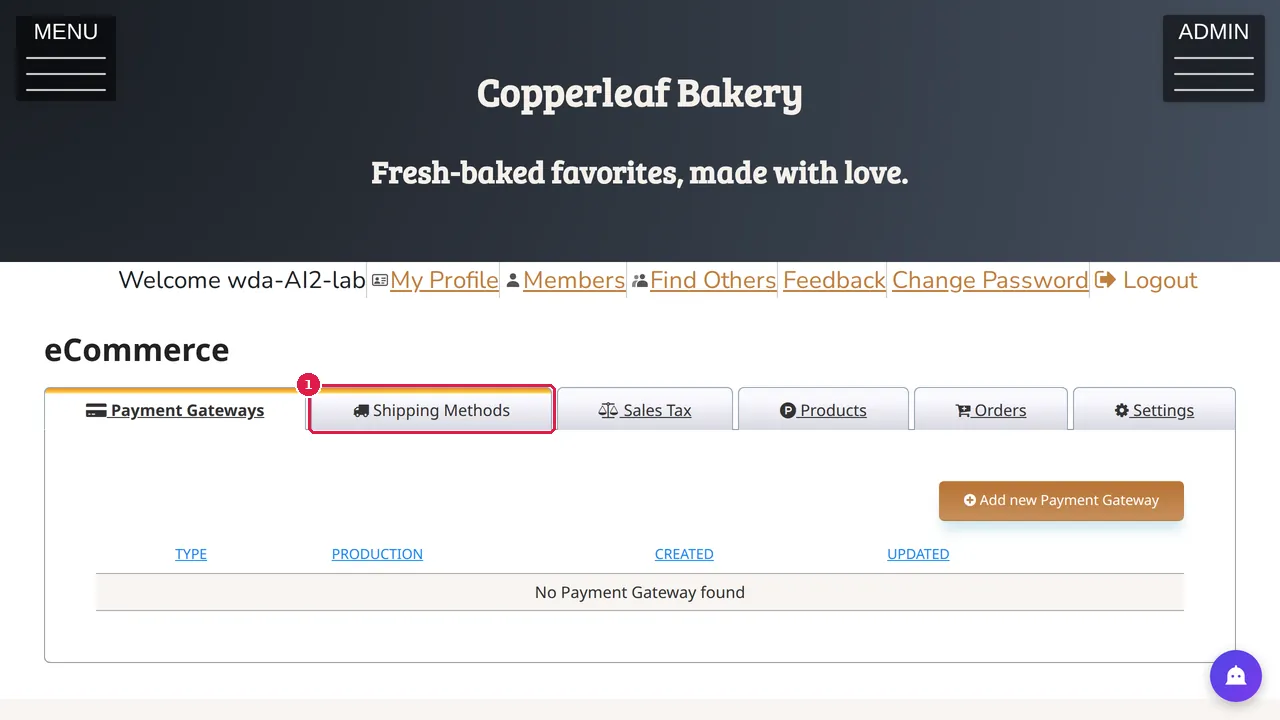
Step 1. Open ADMIN › eCommerce, the Shipping Methods tab, and click Create from Description.
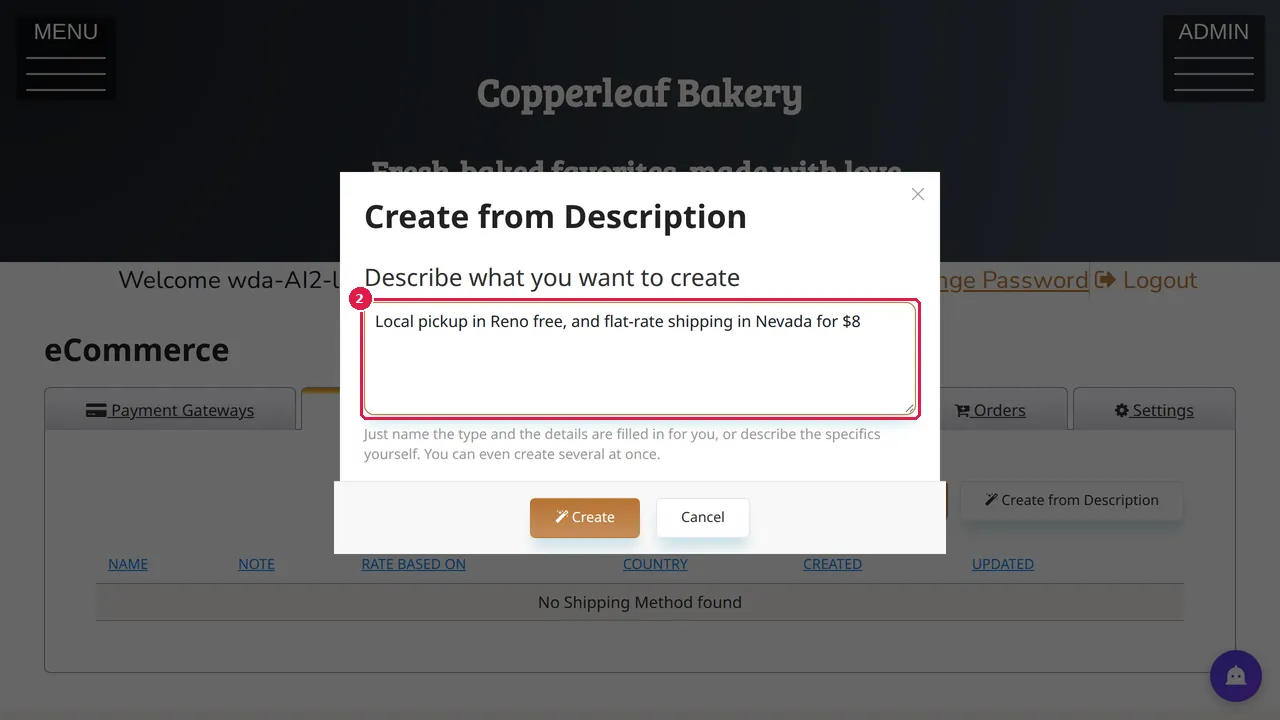
Step 2. Describe what you want, for example "Local pickup in Reno free, and flat-rate shipping in Nevada for $8". You can create several at once.
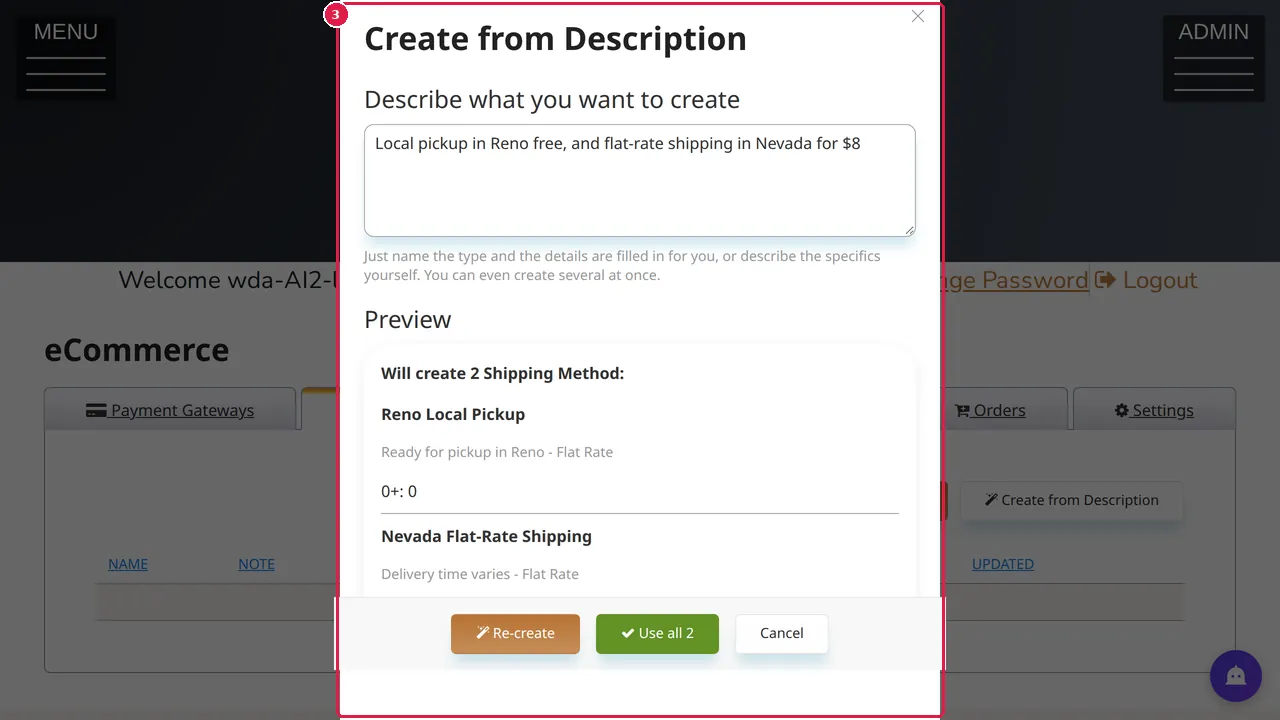
Step 3. Click Create. After a few seconds the preview lists what it will make, here 2 shipping methods with their rates. Re-create drafts again; Use all keeps them.
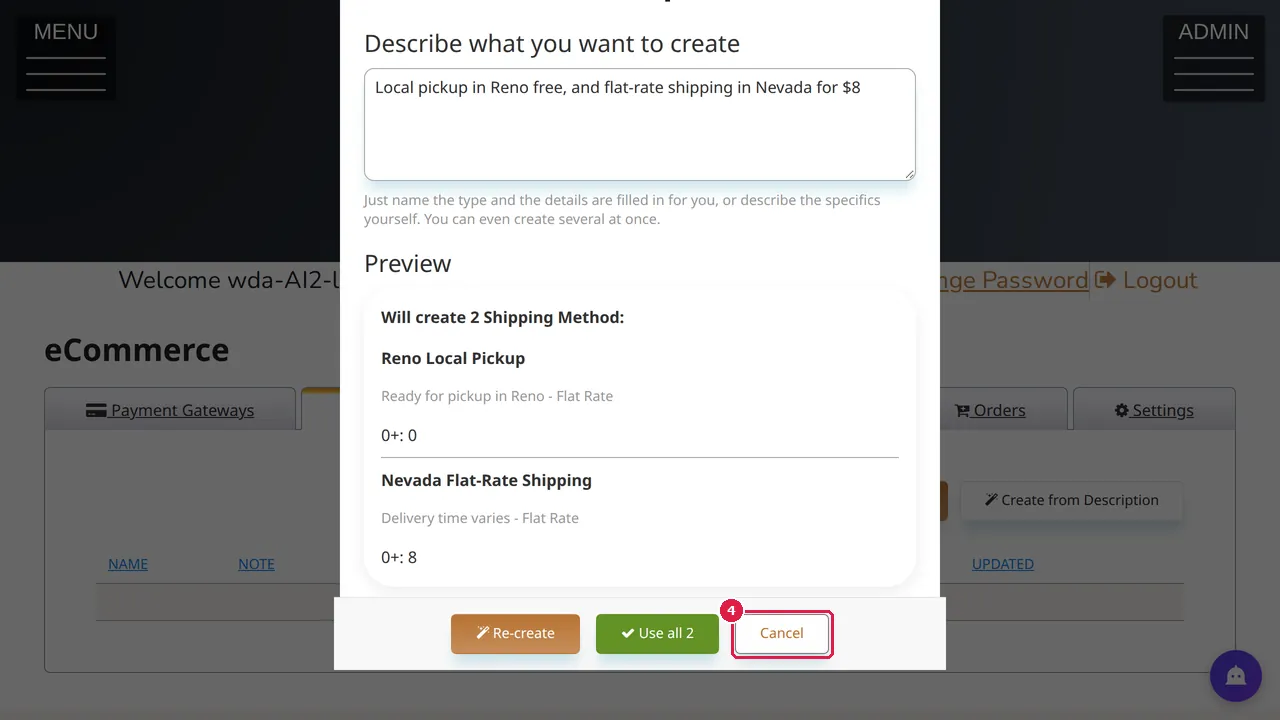
Step 4. In this demonstration Cancel was clicked, so nothing was created.
Sales tax
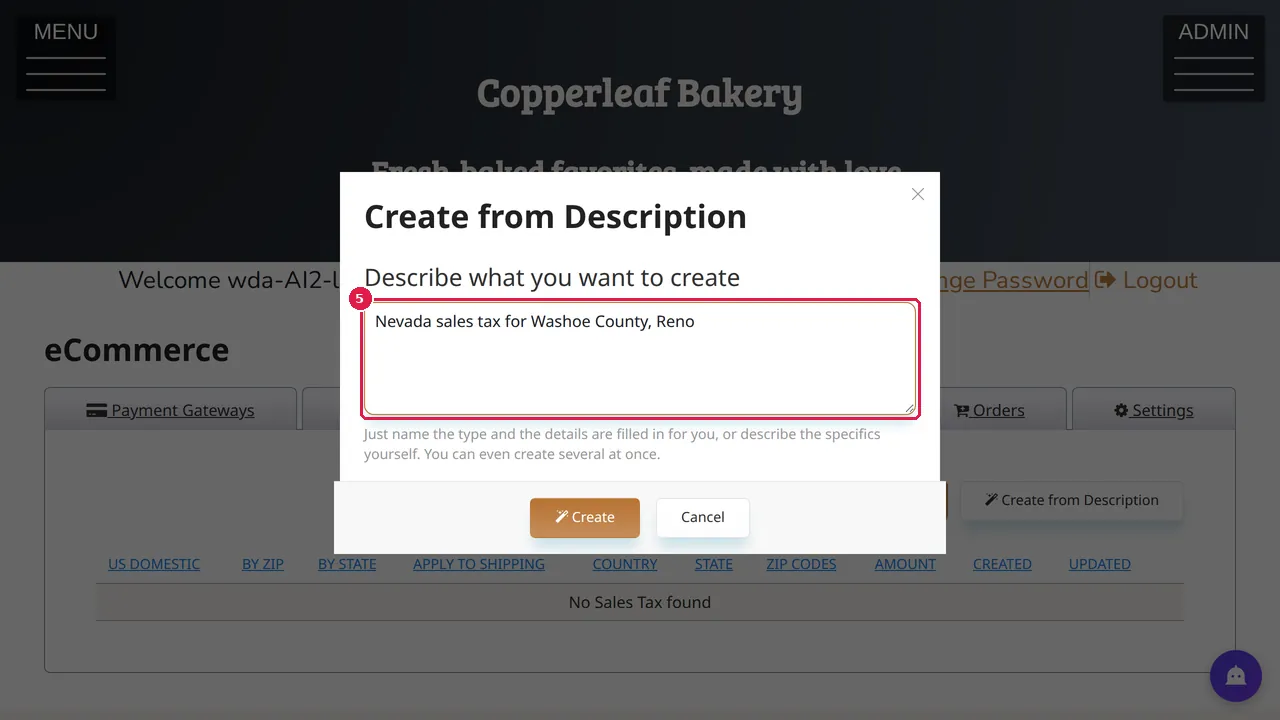
Step 5. The Sales Tax tab works the same way: click Create from Description and describe the place, for example "Nevada sales tax for Washoe County, Reno".
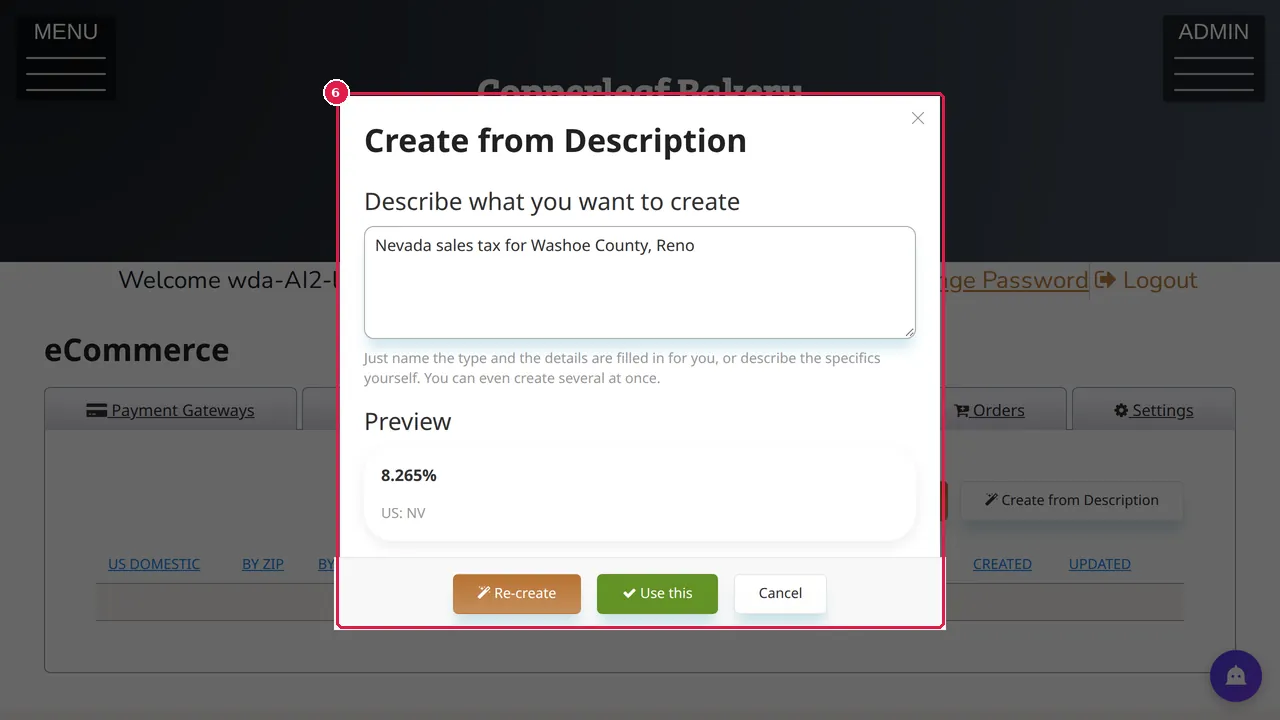
Step 6. The preview shows the rate it found and where it applies, here 8.265% for NV. Always check a tax rate with your state's tax office before you use it.
Blog posts
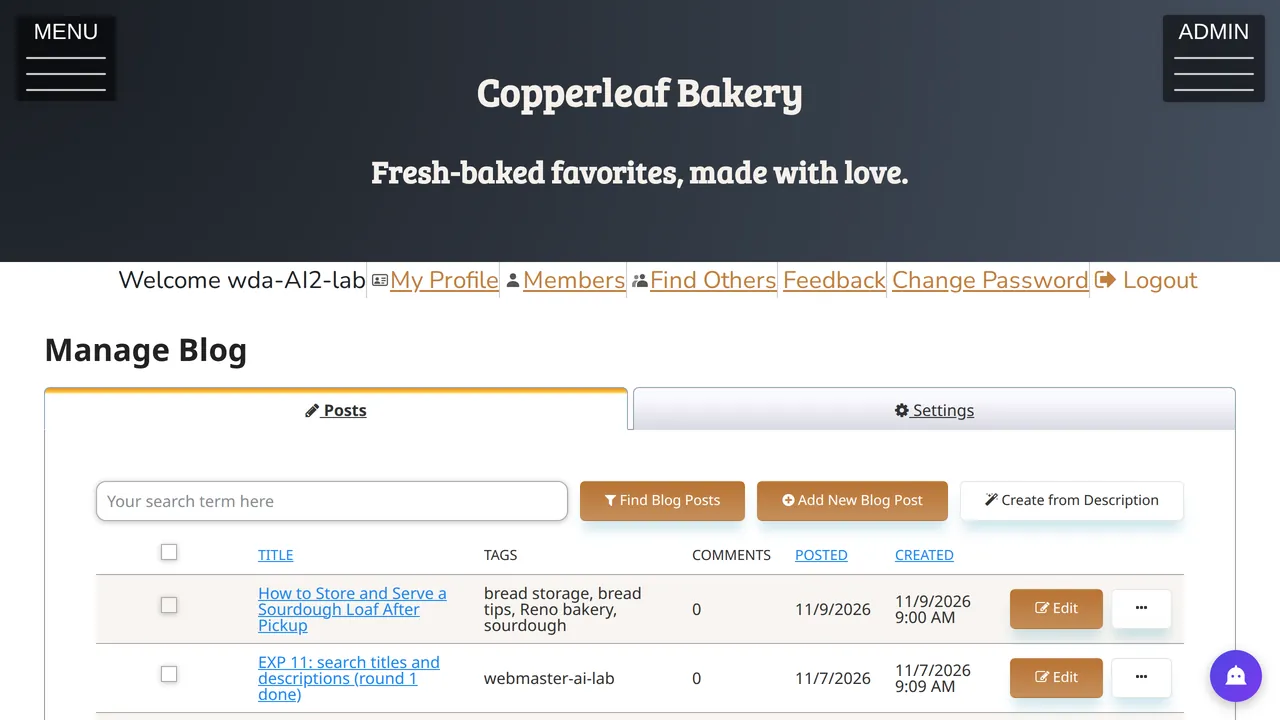
Step 7. Blog posts too: open ADMIN › Manage Blog and click Create from Description.
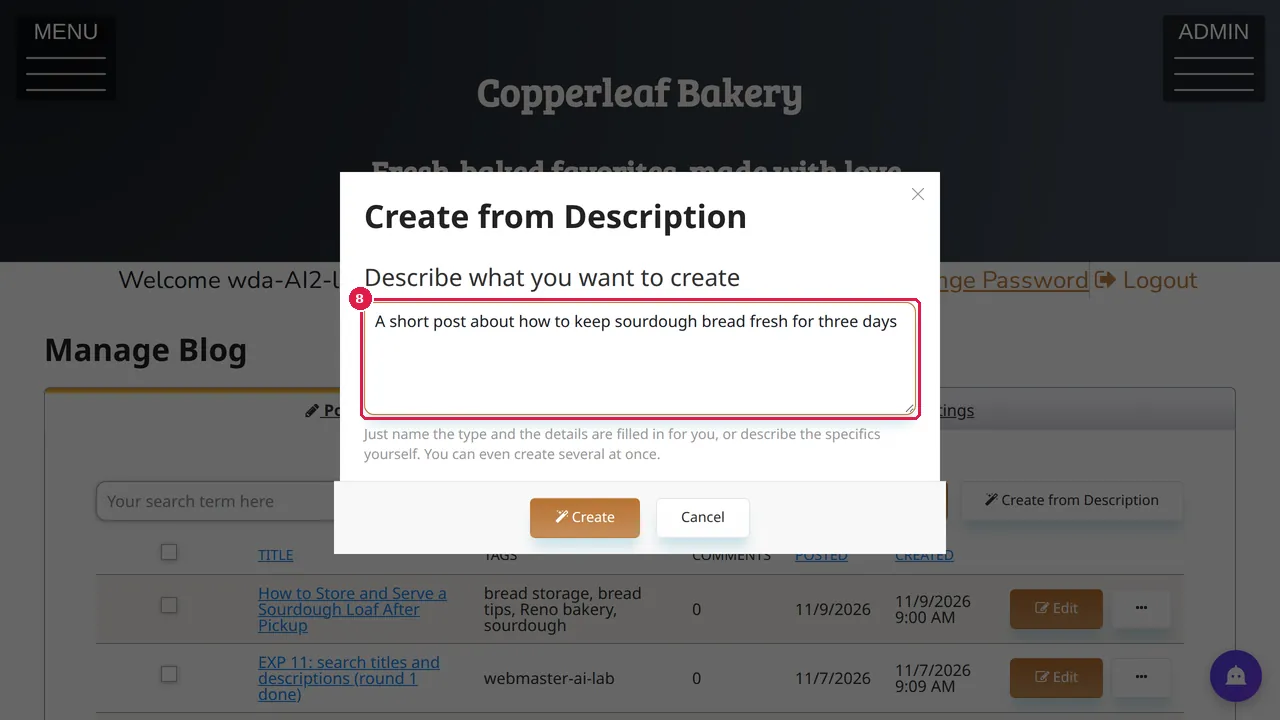
Step 8. Describe the post you want, for example "A short post about how to keep sourdough bread fresh for three days".
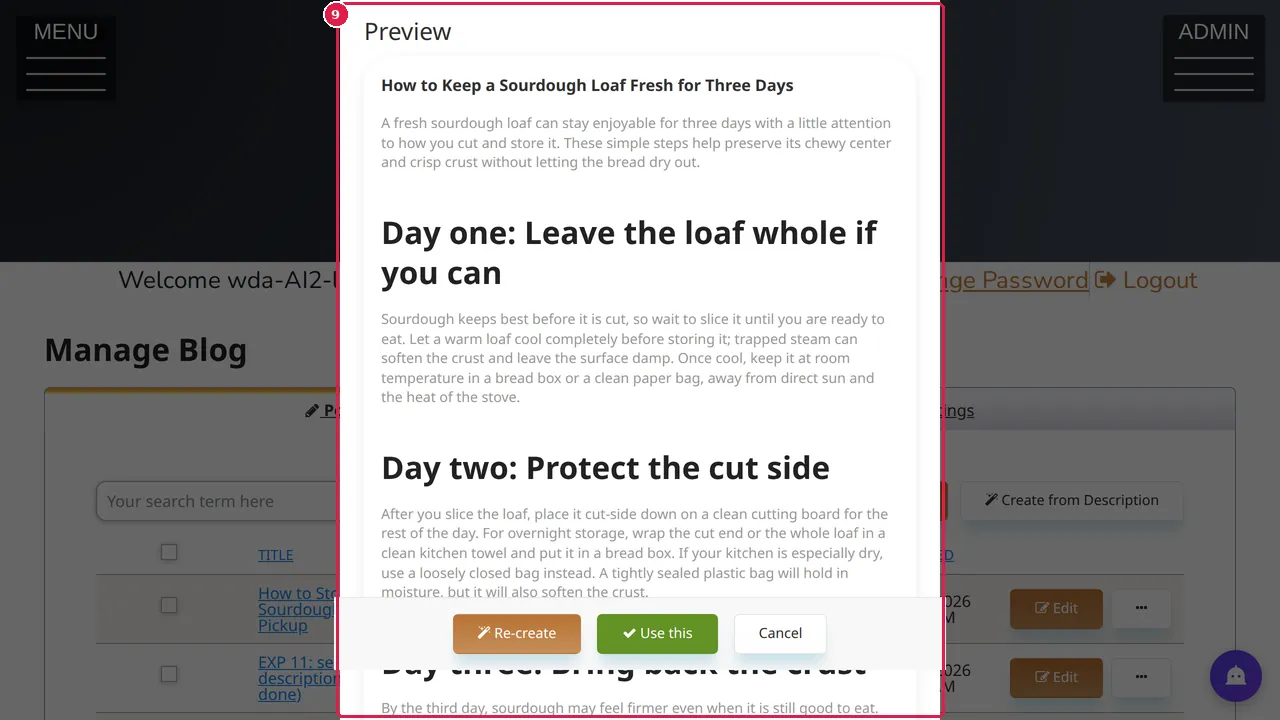
Step 9. The preview is a whole draft post with a title and headings. Read every line before you click Use this, and change anything that is not true for your business. (Here Cancel was clicked.)
Check it worked
After keeping a draft, open it in its normal edit window and read it once more before visitors see it.
Good to know
- A draft is only a starting point: prices, rates and facts about your business must come from you.
Related help
Shown on the 2026 version of the SoNET Web Engine. Last checked 10 November 2026. Something different on your screen? Tell us through the Contact page.