Help Center Contracts
Contracts: terms your users accept
Write terms (for example terms of use) that your users must accept: add a contract by hand or let the site draft it from a short description, set the accept and deny buttons, and publish it when it is ready.
Watch it done: a short silent video with captions · 2:57. The steps below show the same thing picture by picture.
Before you start
- Log in as the site owner.
- Open ADMIN › Contracts.
Add a contract
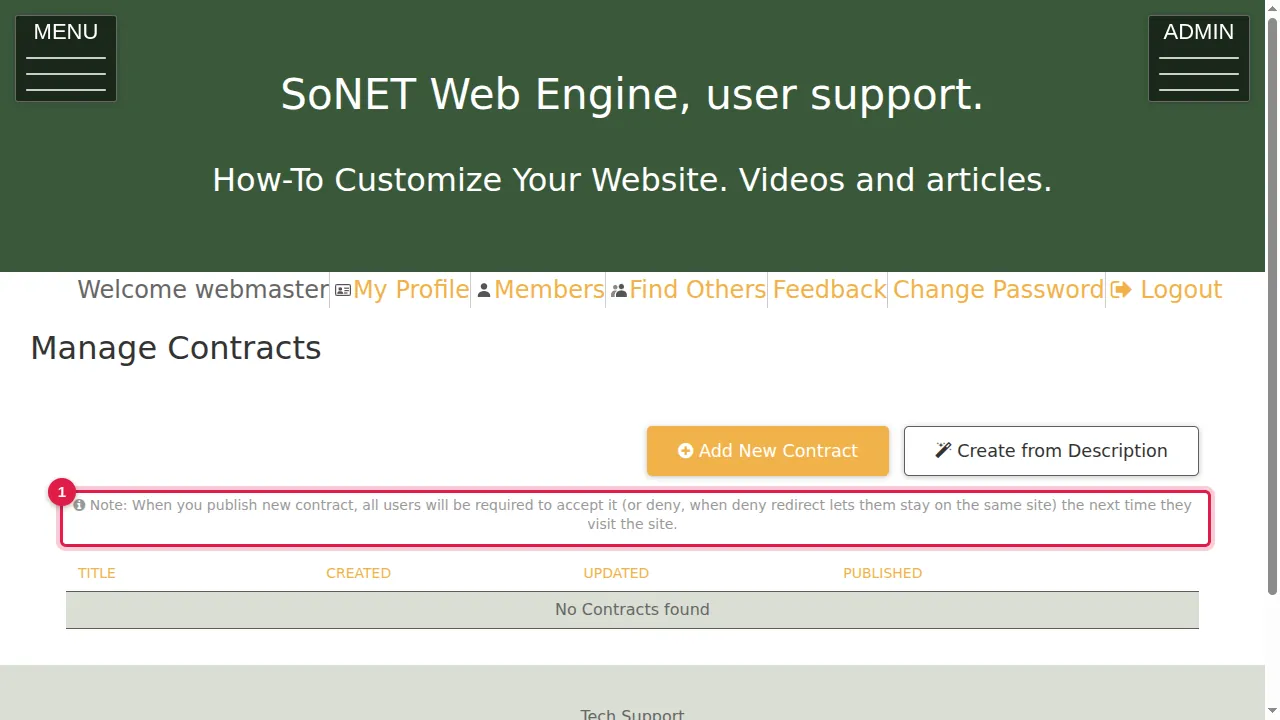
Step 1. Read the note at the top: when you publish a new contract, all users must accept it (or deny it) the next time they visit the site.
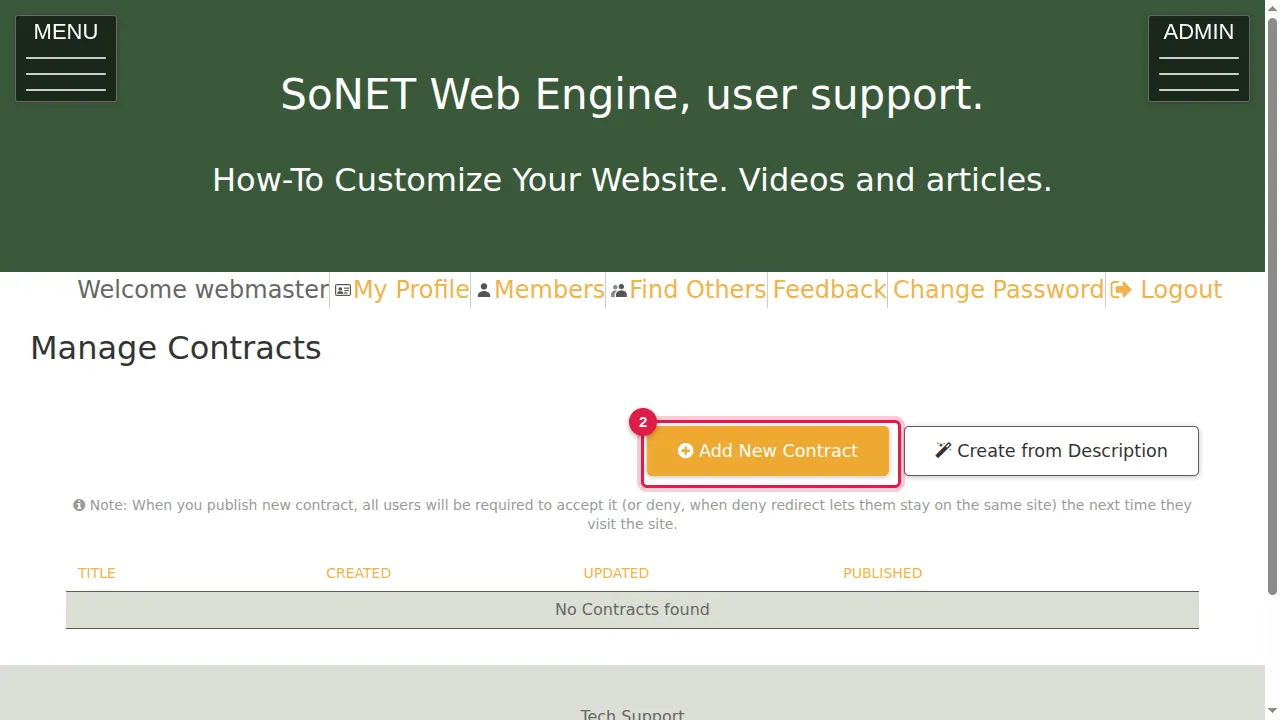
Step 2. Click Add New Contract.
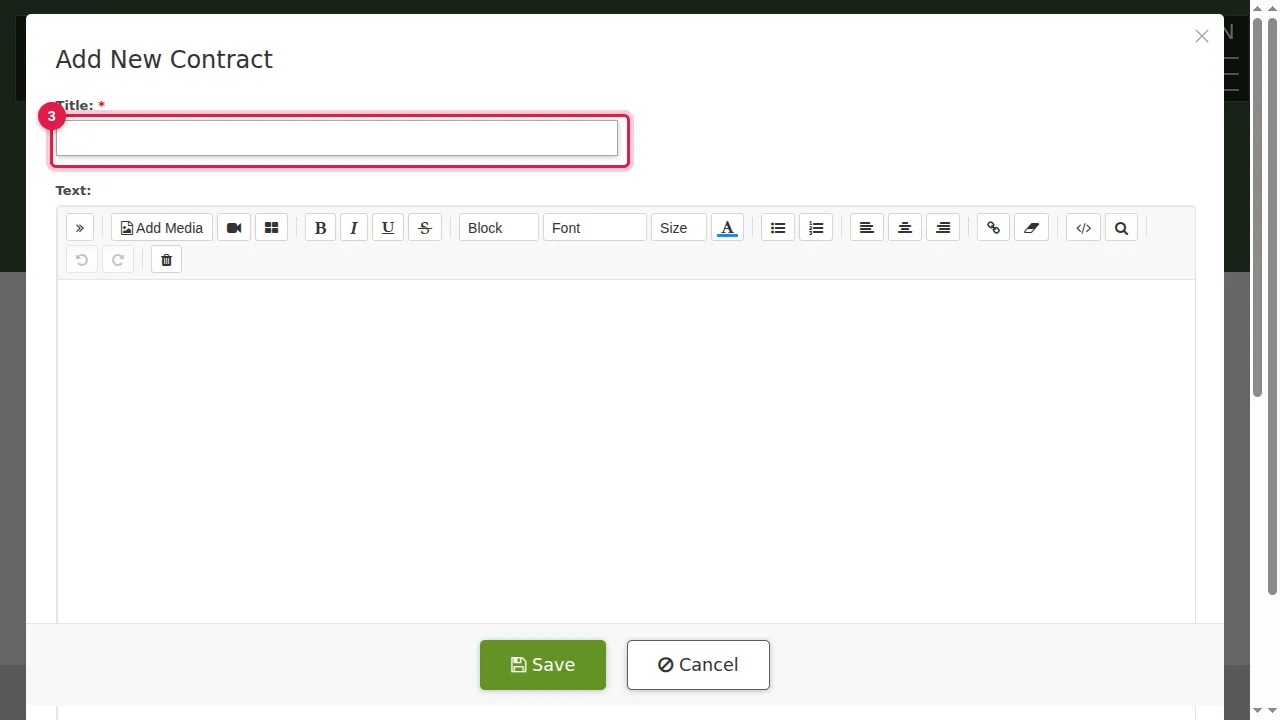
Step 3. Title (required).
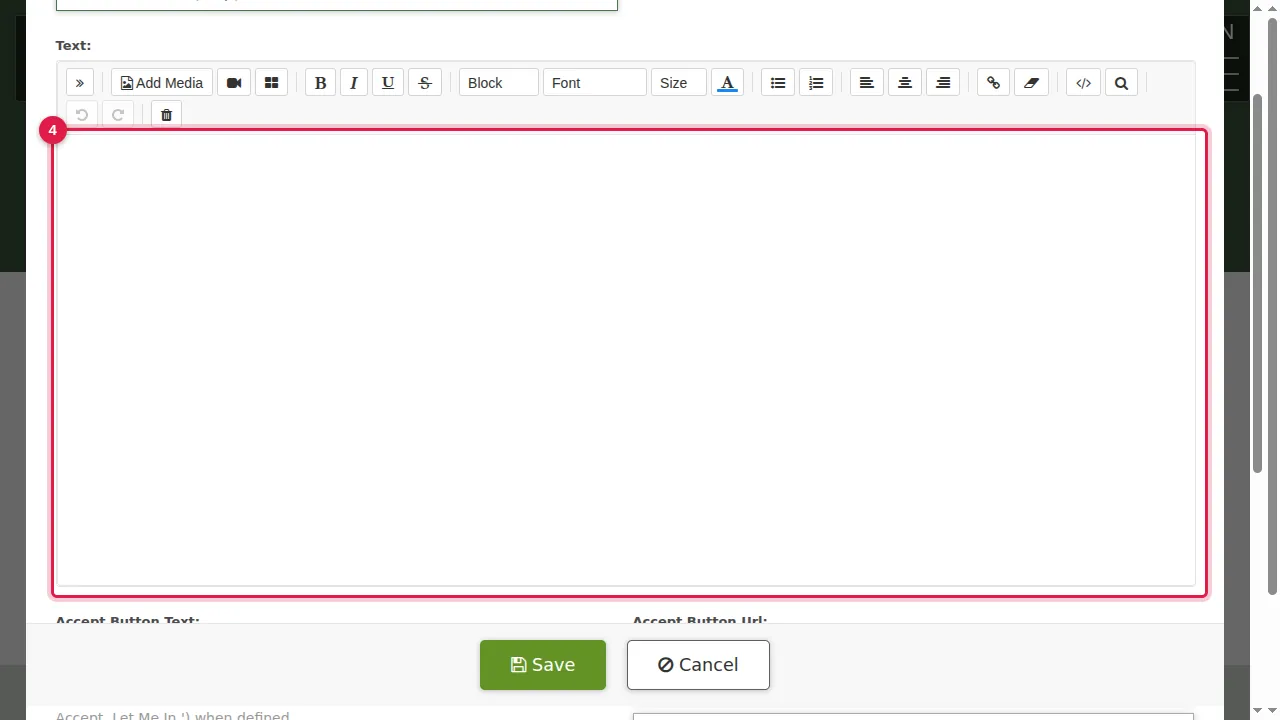
Step 4. Text: the terms themselves, written in the usual editor.
Step 5. Accept Button Text: the words on the accept button. If you leave it empty, the button says "I Accept. Let Me In."
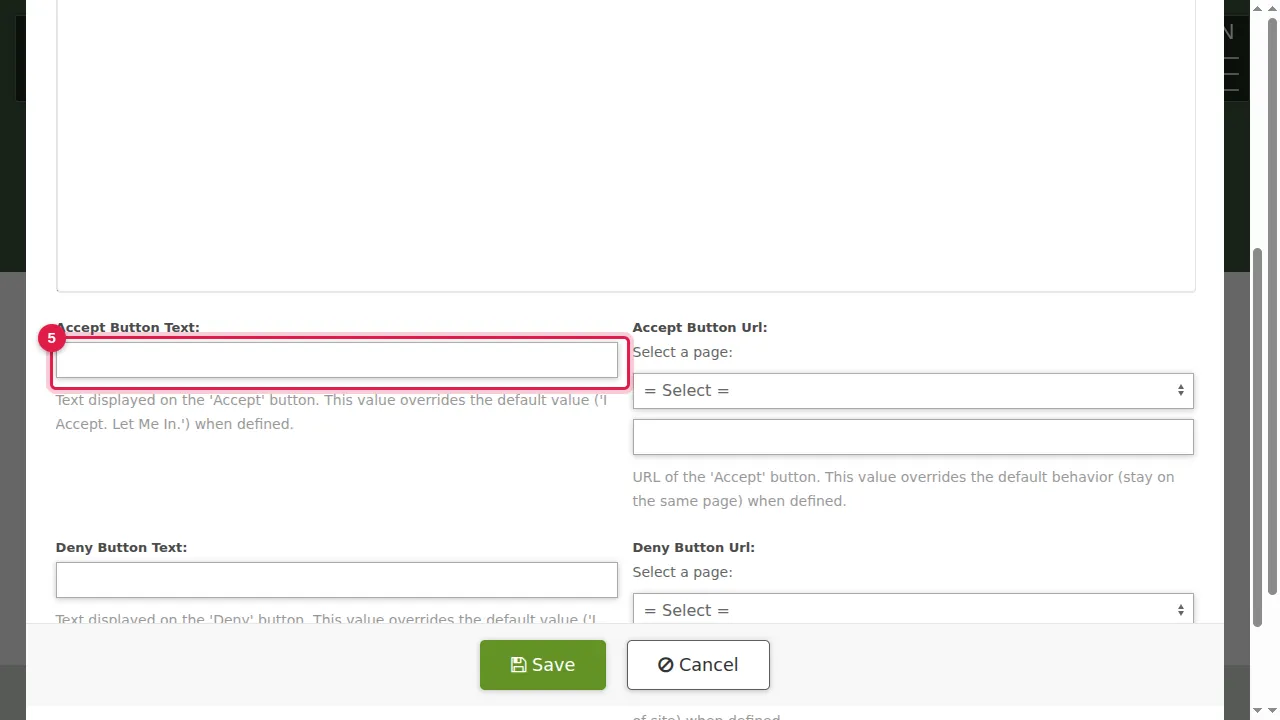
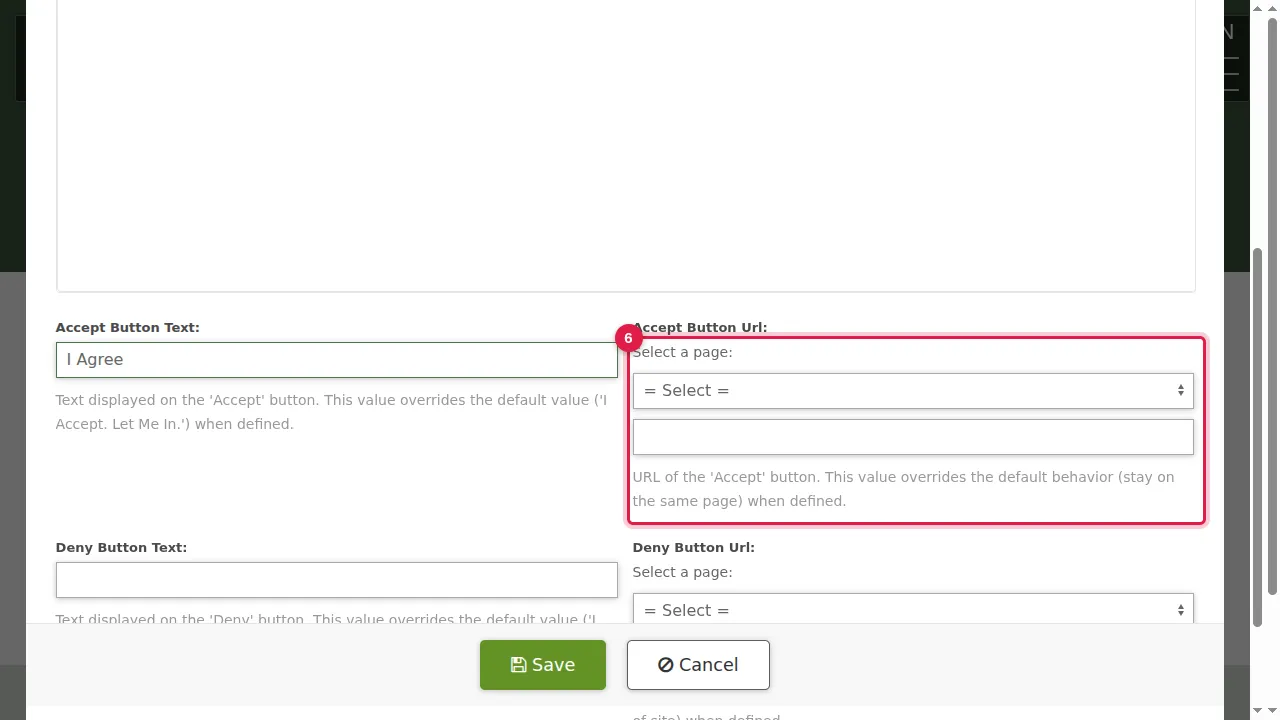
Step 6. Accept Button Url: where the accept button takes people. Select a page from the list, or type an address in the box below it. If you leave it empty, they stay on the same page.
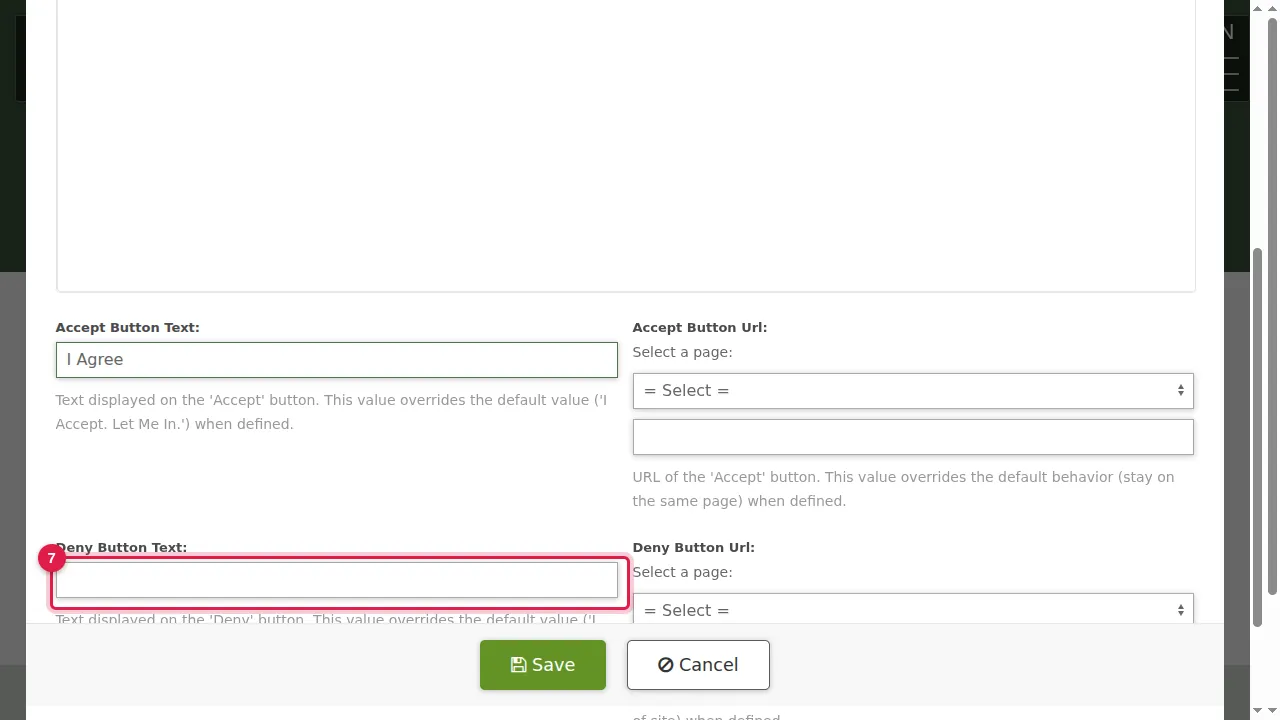
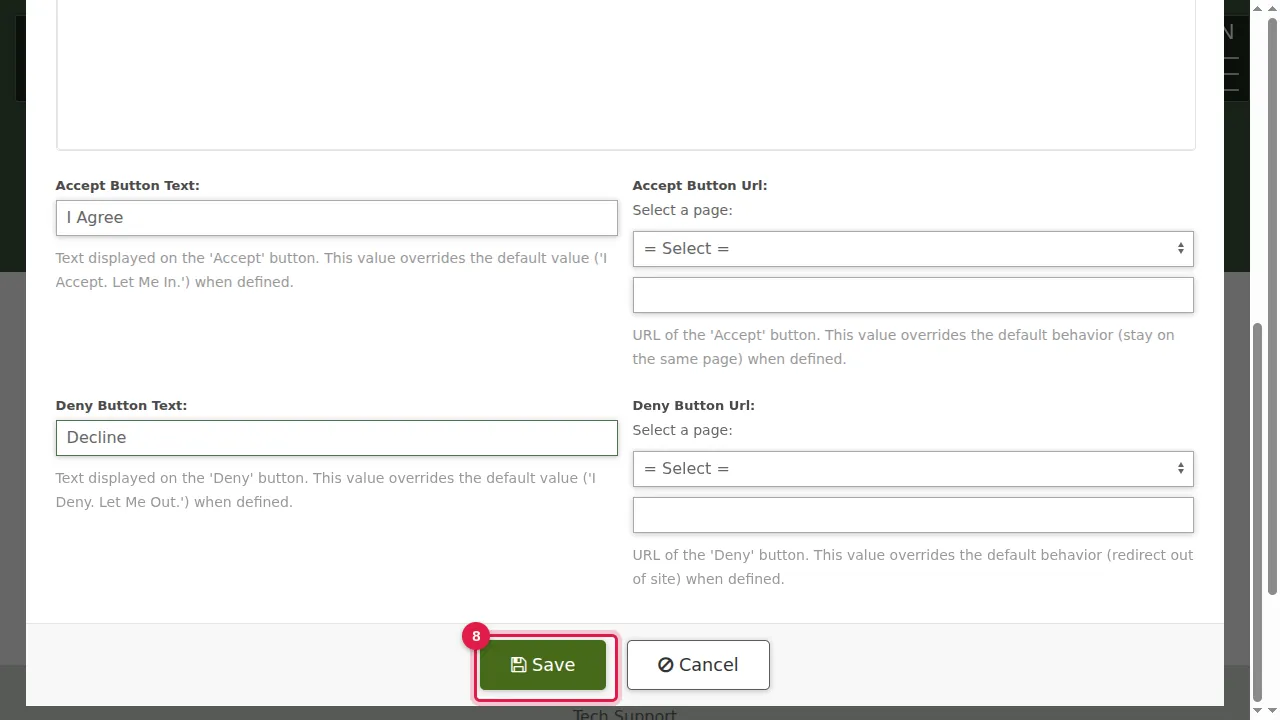
Step 7. Deny Button Text and Deny Button Url do the same for the other button. Left empty, it says "I Deny. Let Me Out." and takes people out of the site.
Step 8. Click Save.
Save and publish
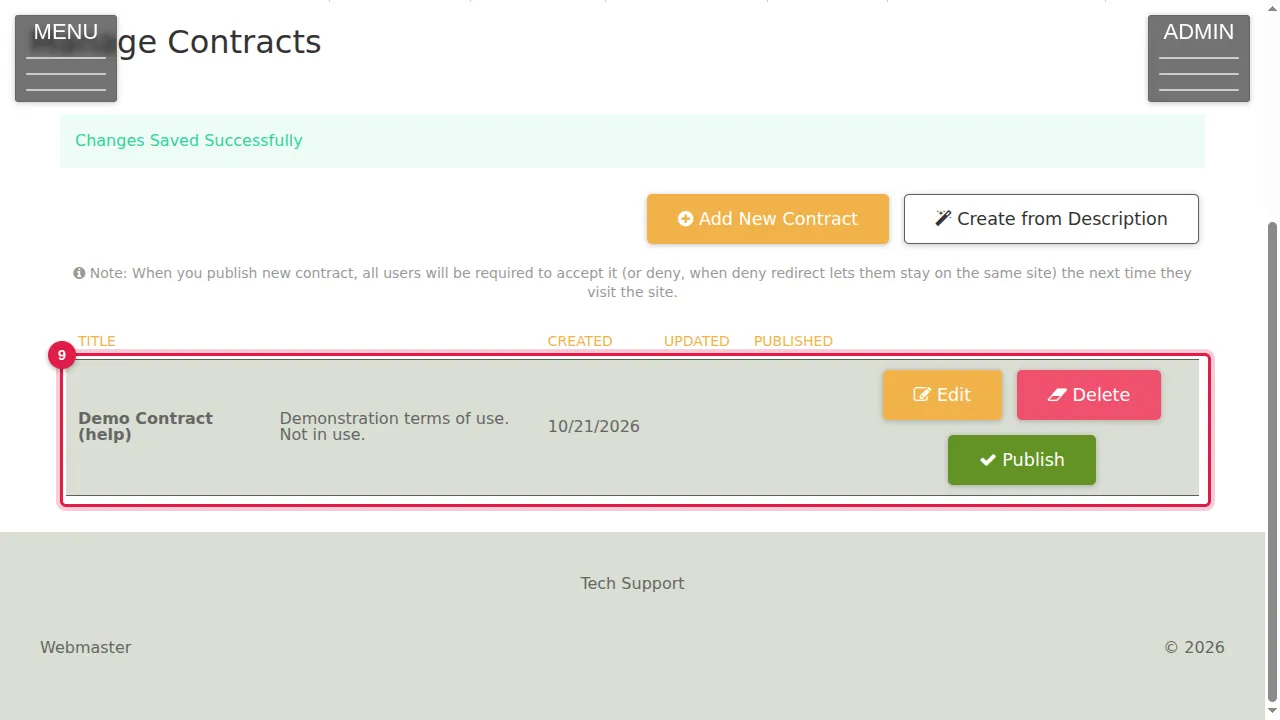
Step 9. "Changes Saved Successfully". The contract is listed with its CREATED date. It has no PUBLISHED date yet: it is saved but not published.
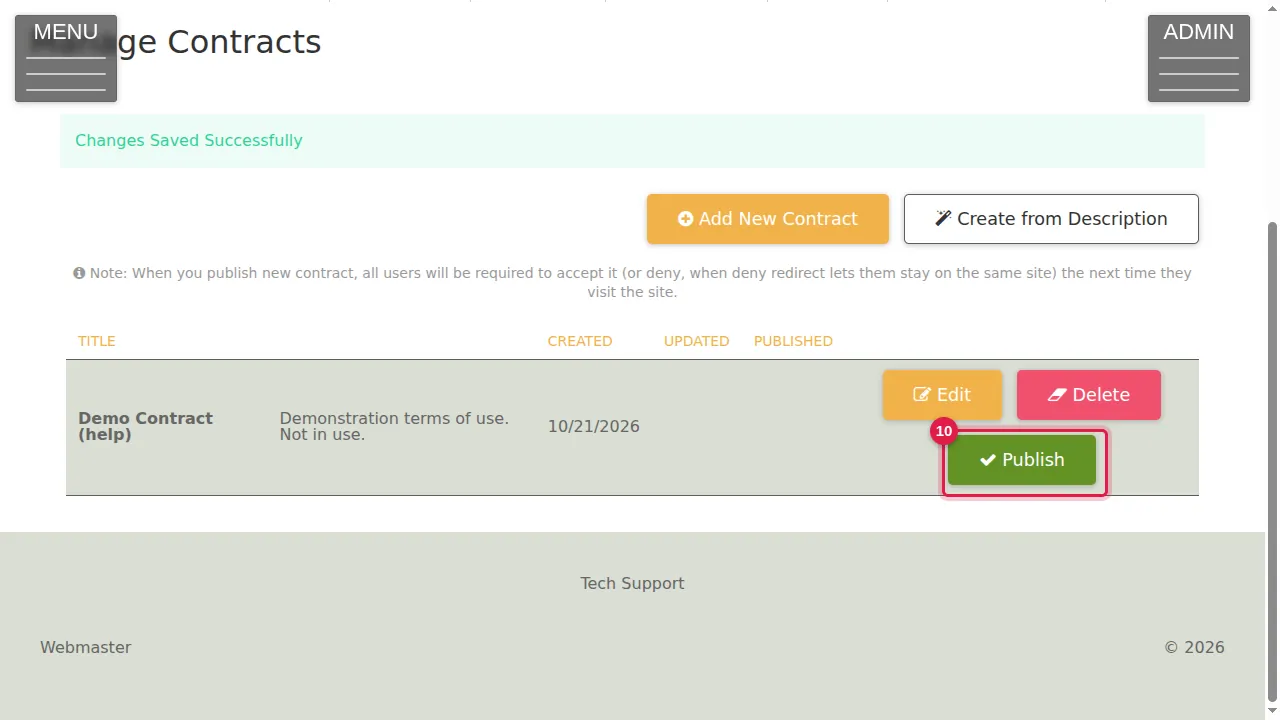
Step 10. When it is ready, click Publish. From then on every user must accept it on their next visit. (In this demonstration Publish was not pressed, and the contract was deleted afterwards.)
Draft it from a description
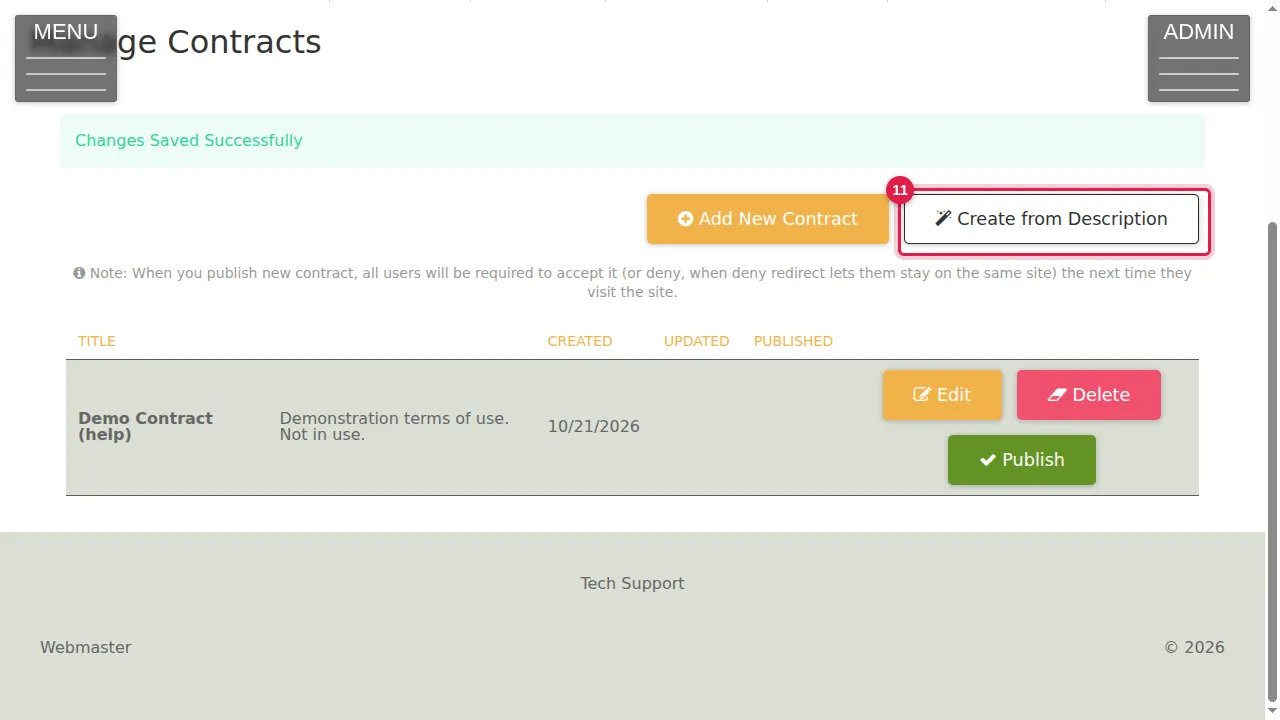
Step 11. Instead of writing it yourself, you can let the site draft it: click Create from Description.
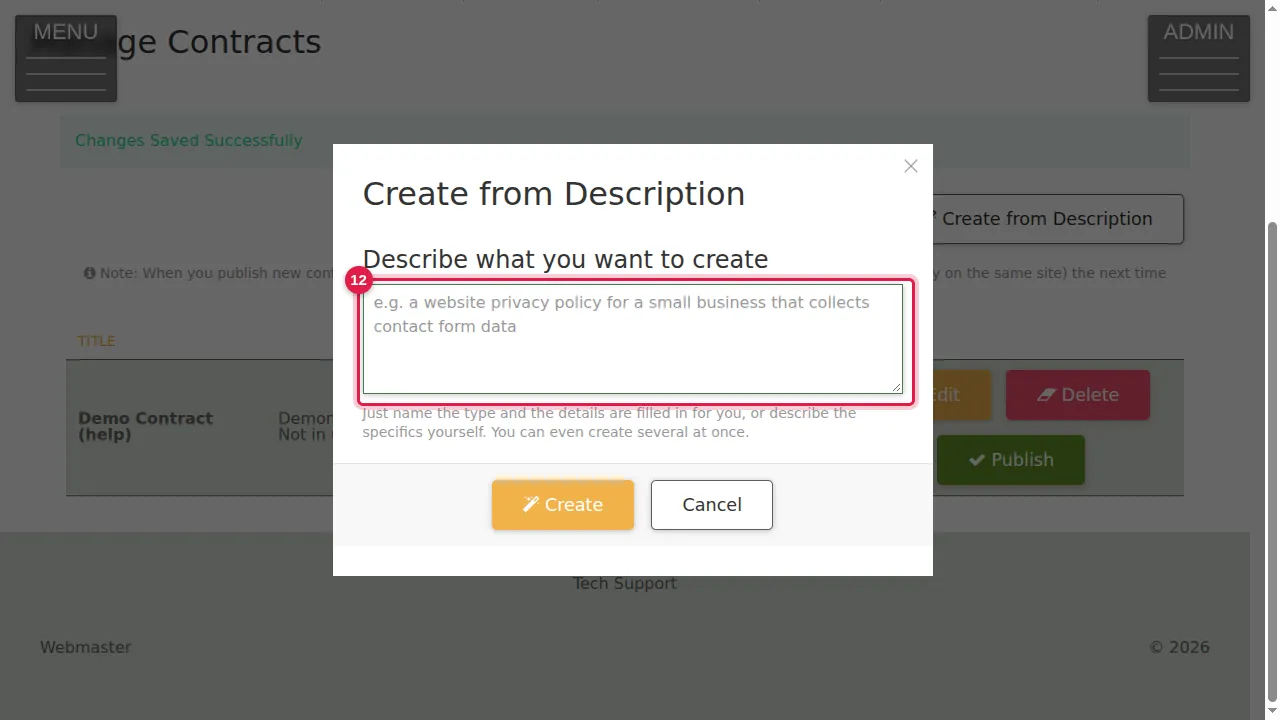
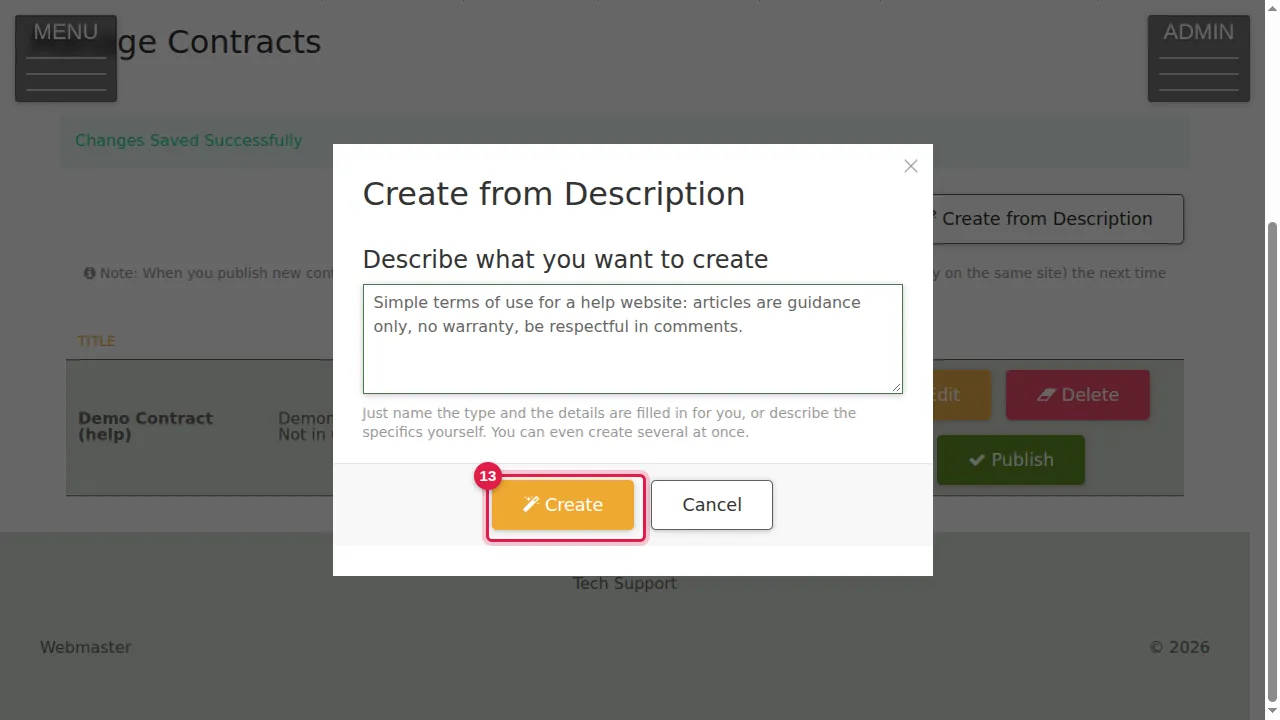
Step 12. Describe what you want, in a sentence or two.
Step 13. Click Create.
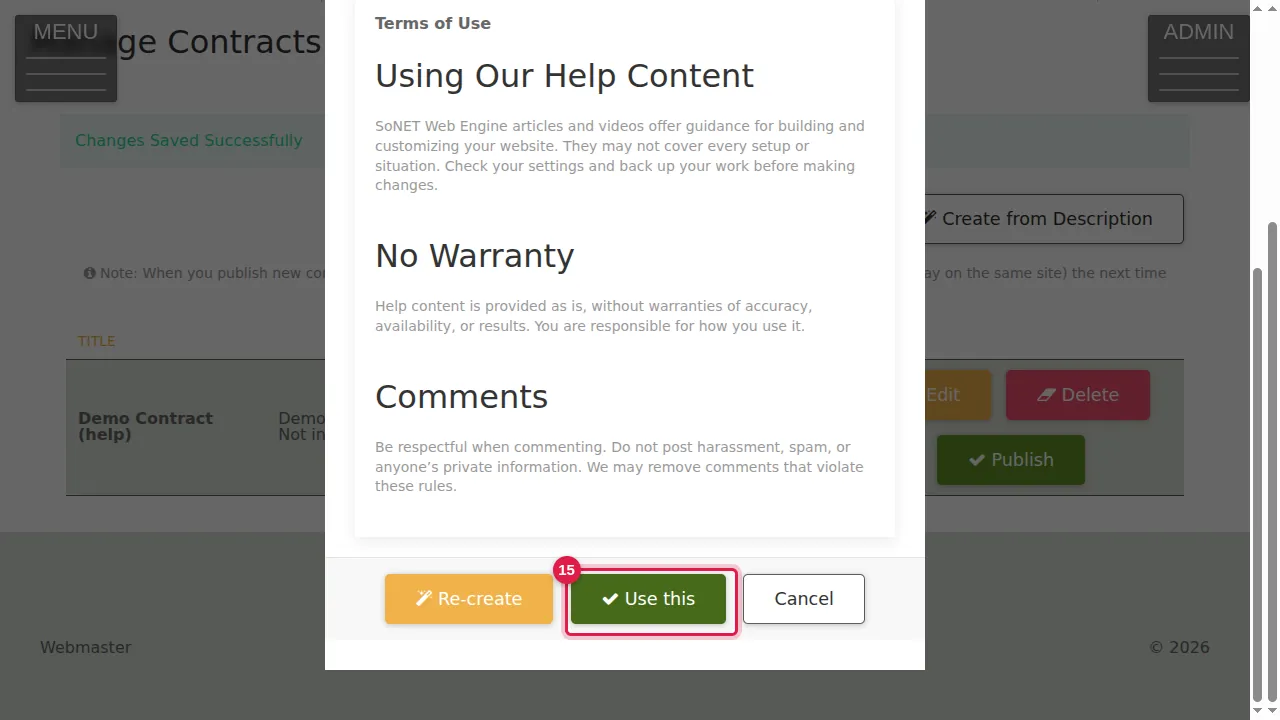
Step 14. After a few seconds a preview appears. Read it. Re-create writes another version; Use this takes it.
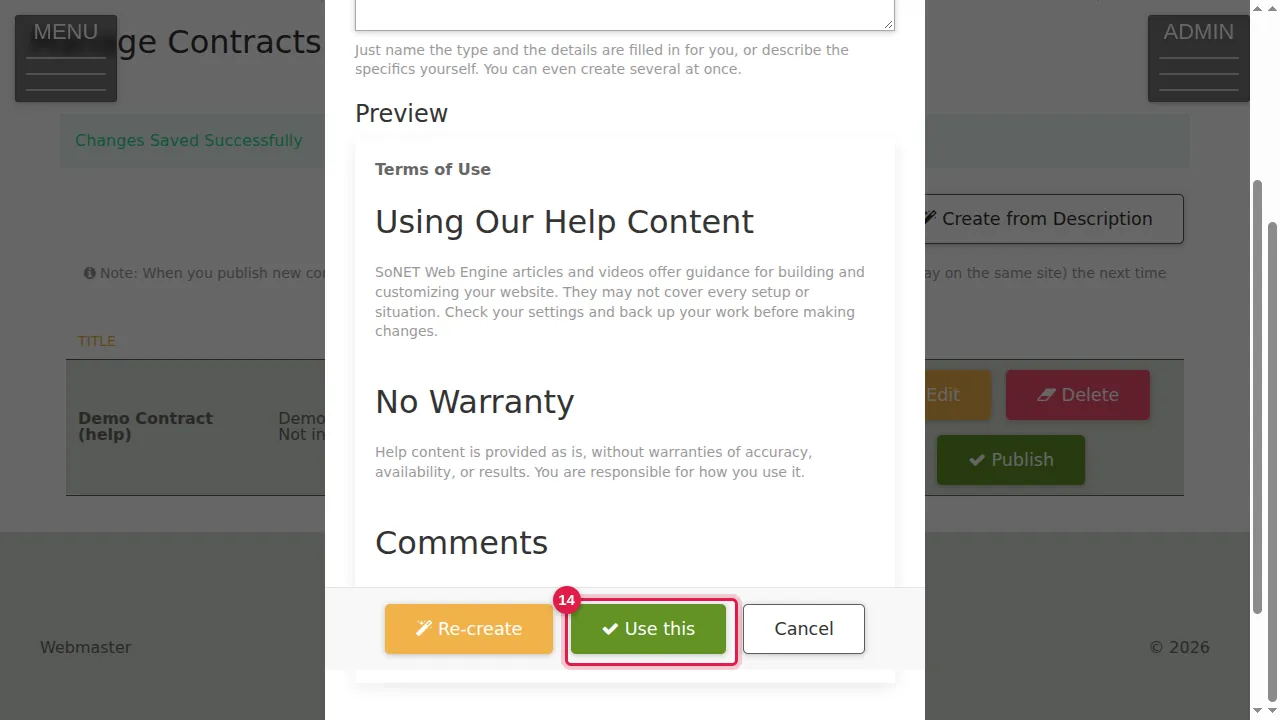
Step 15. Click Use this.
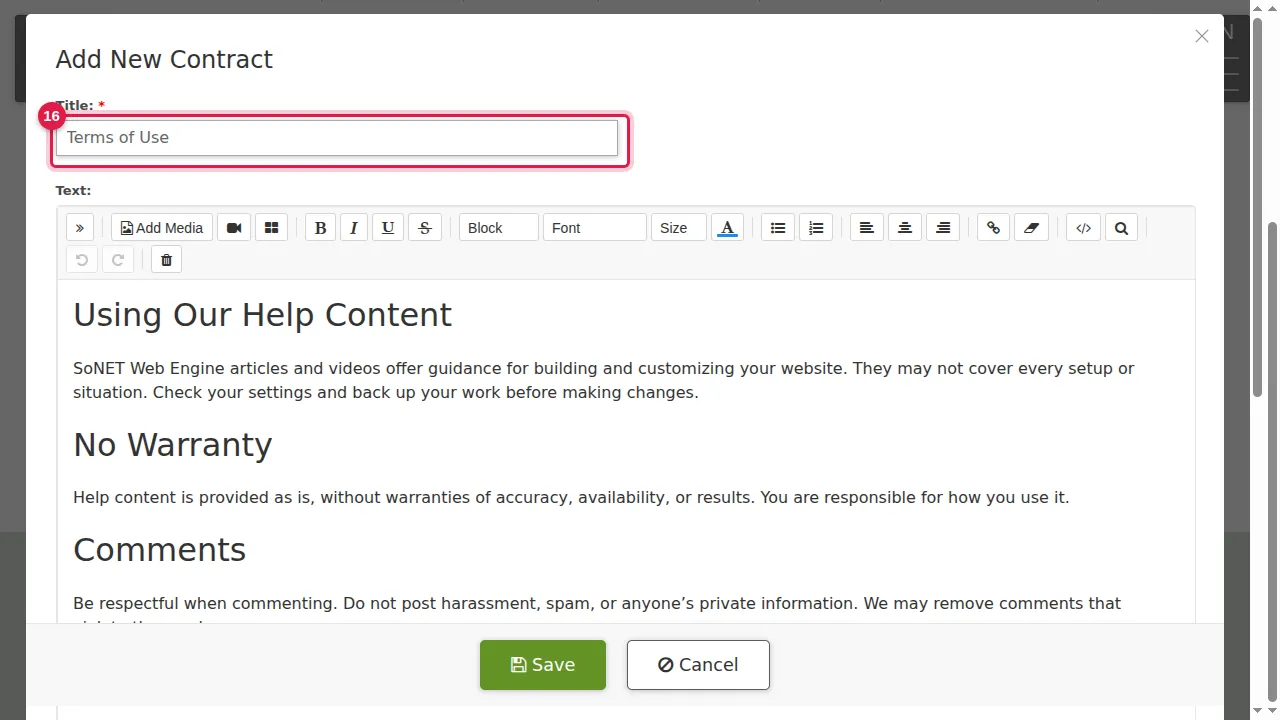
Step 16. The contract window opens with the title, the text and the button words filled in. Read and correct it, then click Save. (Cancelled in this demonstration.)
Check it worked
After saving, the contract is listed in Manage Contracts. Publish it only when you are sure of the wording.
Good to know
- A draft written from a description is a starting point: read every line and make sure it is true for your site before you publish it.
- Publishing affects every user of your site, so publish a contract only once it is final.
Related help
Shown on the 2026 version of the SoNET Web Engine. Last checked 21 October 2026. Something different on your screen? Tell us through the Contact page.