Help Center Domains & Cloudflare
Cloudflare settings for your SoNET website
With your domain in Cloudflare, three settings make your SoNET website work: the A record that points to the server, SSL set to Full, and the browser cache. If your browser's console shows errors about Cloudflare Insights, turn off Cloudflare's Web Analytics.
Before you start
- Your domain uses Cloudflare's nameservers (see Point your domain to your website).
- Log in to your Cloudflare account and open your domain.
The three settings
Step 1. DNS › Records: add (or edit) an A record. Name: @ (the domain itself; add another for www if you use it). IPv4 address: 52.183.46.184, the server of the SoNET Web Engine. Leave Proxy status on Proxied.

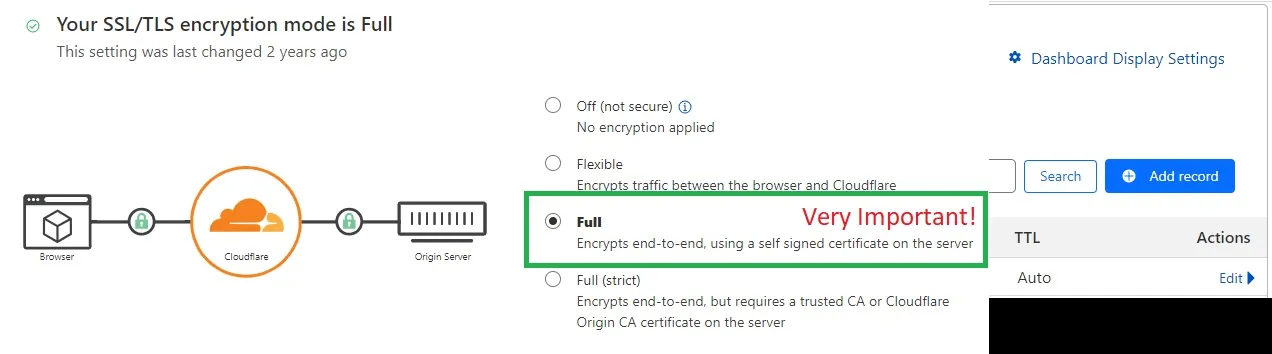
Step 2. SSL/TLS › Overview: set the encryption mode to Full. This is very important: Flexible and Full (strict) do not work with the SoNET server.
Step 3. Caching › Configuration: set Browser Cache TTL, for example to 8 days, so returning visitors load your pages faster.

Turn off Cloudflare Web Analytics
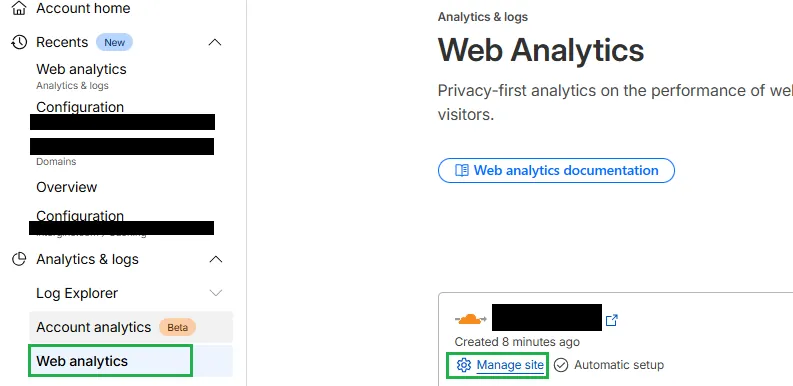
Step 4. If the browser's console shows "Cross-Origin Request Blocked" or integrity errors for static.cloudflareinsights.com, turn off Web Analytics. It is done at account level: from Account home, open Analytics & logs › Web analytics.
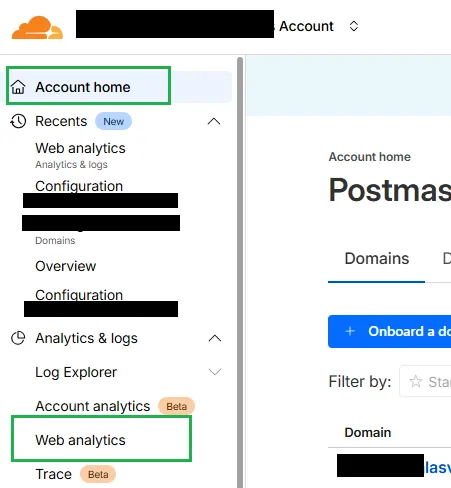
Step 5. Your site is listed there. Click Manage site.
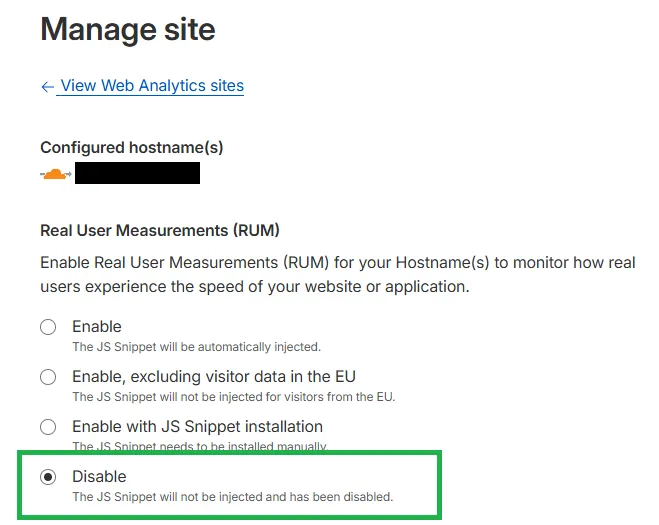
Step 6. Under Real User Measurements (RUM), choose Disable: "The JS Snippet will not be injected and has been disabled." (If your site is not listed yet, enable Web Analytics for it first, then disable it.)
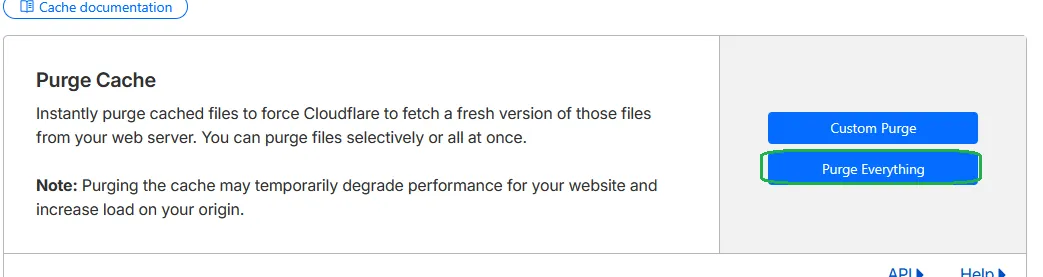
Step 7. Then Caching › Configuration › Purge Cache: click Purge Everything, so visitors get pages without the old snippet.
Check it worked
Open your domain in a private window: your SoNET website loads over https with a padlock, and the browser's console shows no cloudflareinsights errors.
Good to know
- Change one setting at a time and check your site after each change.
- Purging the cache can make the first visits a little slower while Cloudflare fetches fresh copies.
Related help
Shown on the 2026 version of the SoNET Web Engine. Last checked 22 October 2026. Something different on your screen? Tell us through the Contact page.