Help Center Site Settings
Chat: a chat button for your visitors
Chat puts a chat button on your site. Choose where it sits and on which pages, write the greeting, the button text and the first message, and give the phone number the chats go to.
Watch it done: a short silent video with captions · 1:22. The steps below show the same thing picture by picture.
Before you start
- Log in as the site owner.
- Open ADMIN › Site Settings.
- Have the phone number ready that should receive the chats.
Switch it on
Step 1. Click the Chat tab.
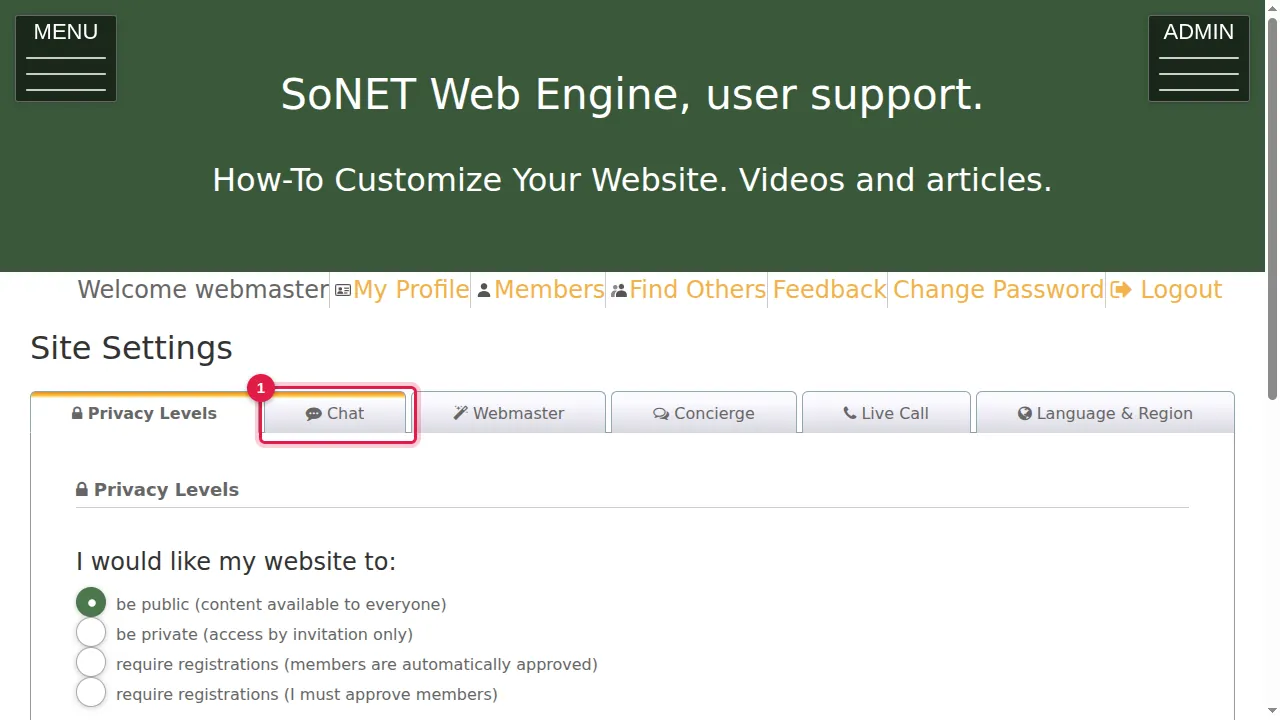
Step 2. Mode: On shows a chat button to your visitors; Off hides it. While it is Off, the other settings are hidden.
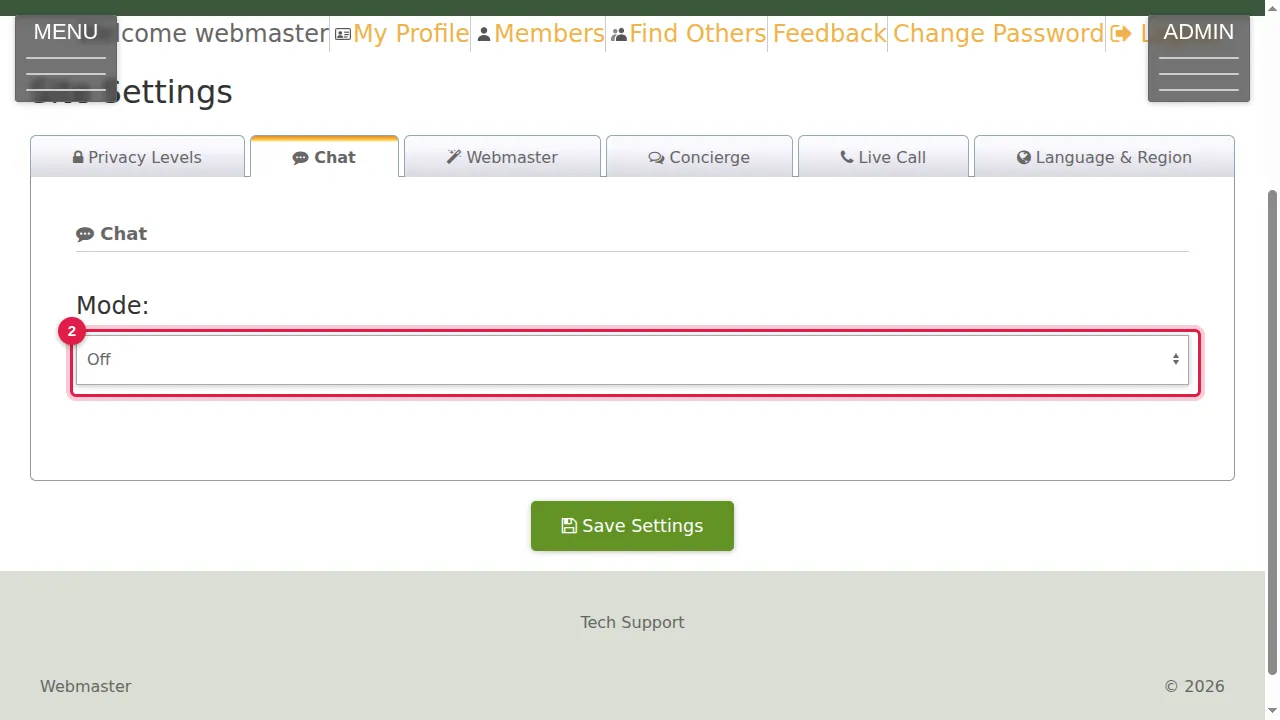
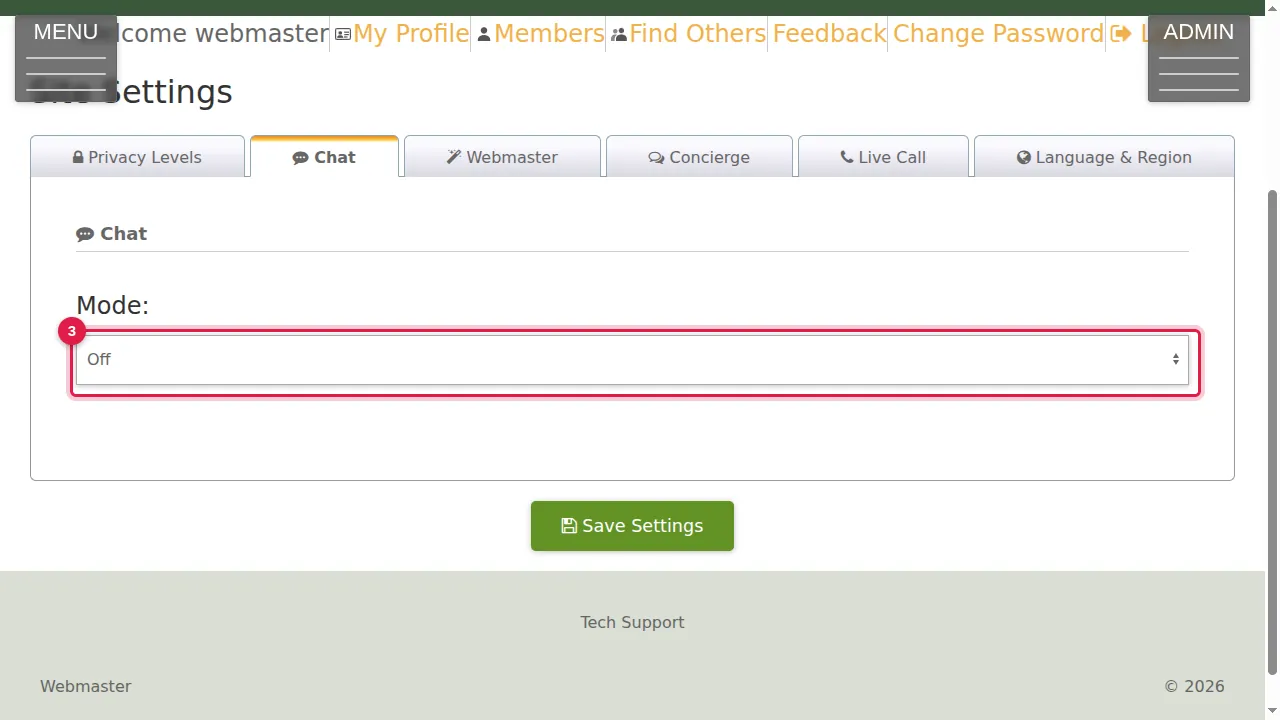
Step 3. Choose On: the settings for the chat button appear.
Set it up
Step 4. Position: the corner of the button, Bottom-Right or Bottom-Left.
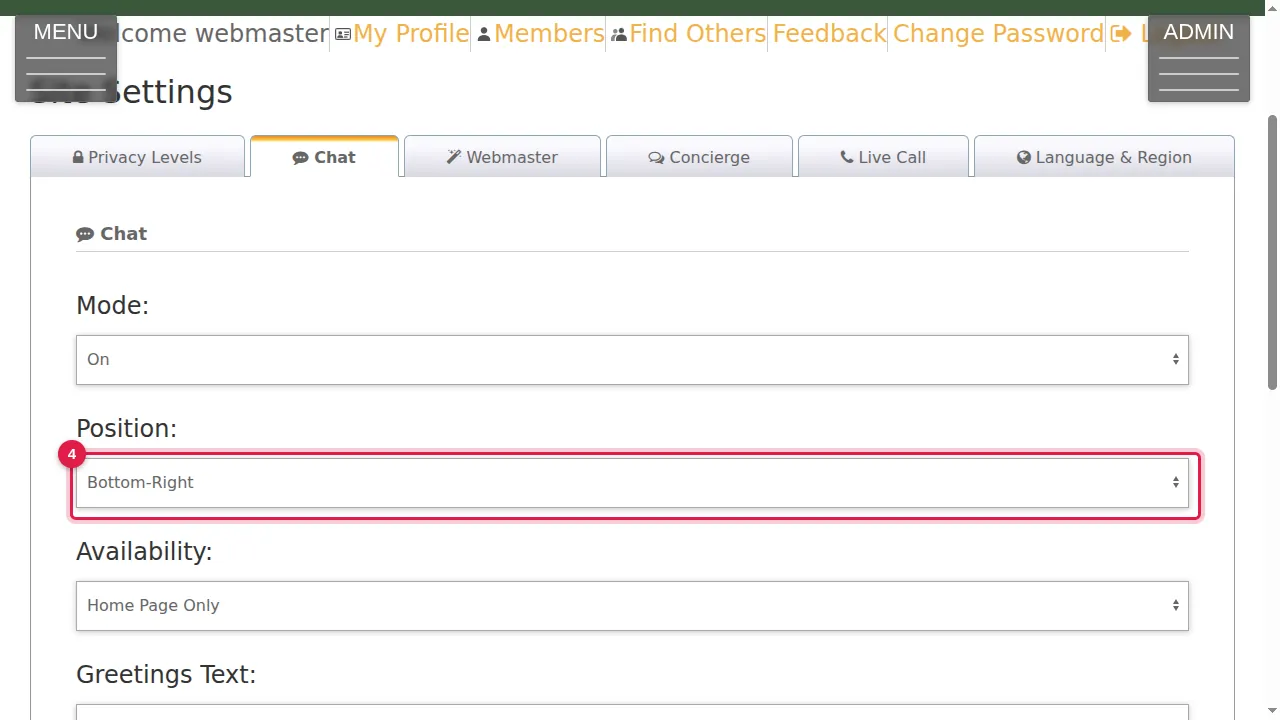
Step 5. Availability: show the button on the Home Page Only, or on All Pages.
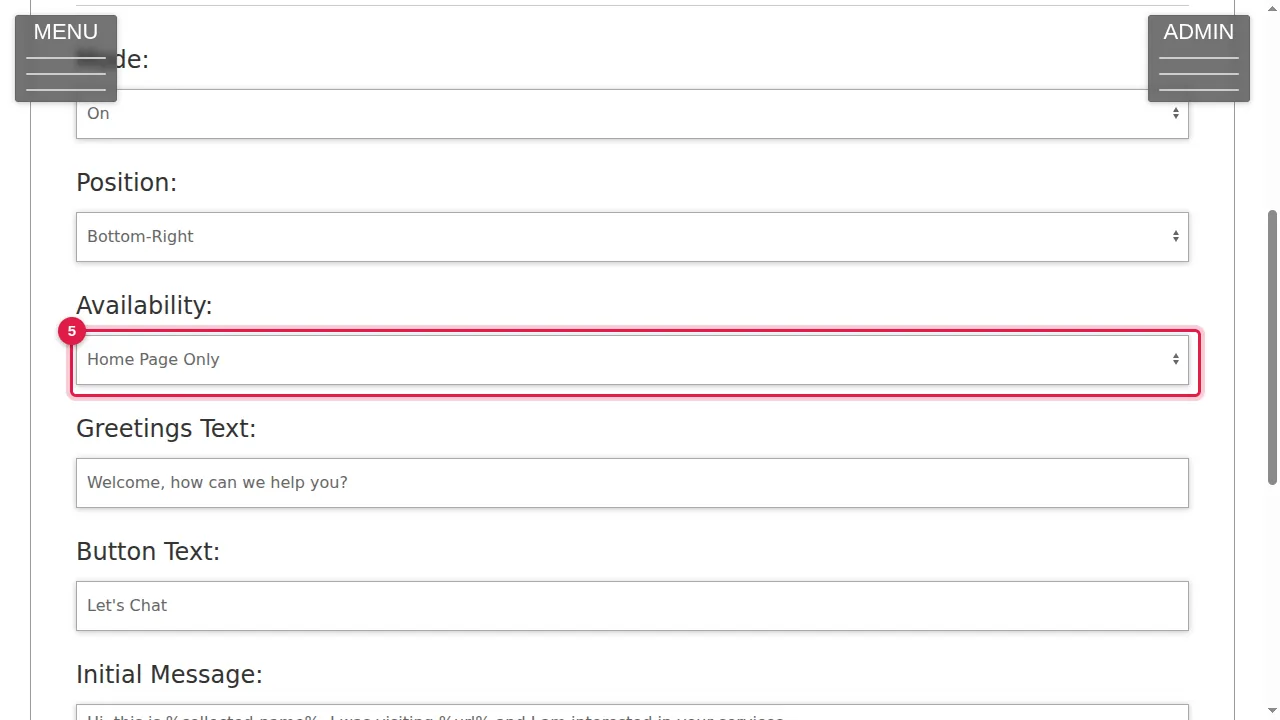
Step 6. Greetings Text (for example "Welcome, how can we help you?") and Button Text (for example "Let's Chat"): the words your visitors see.
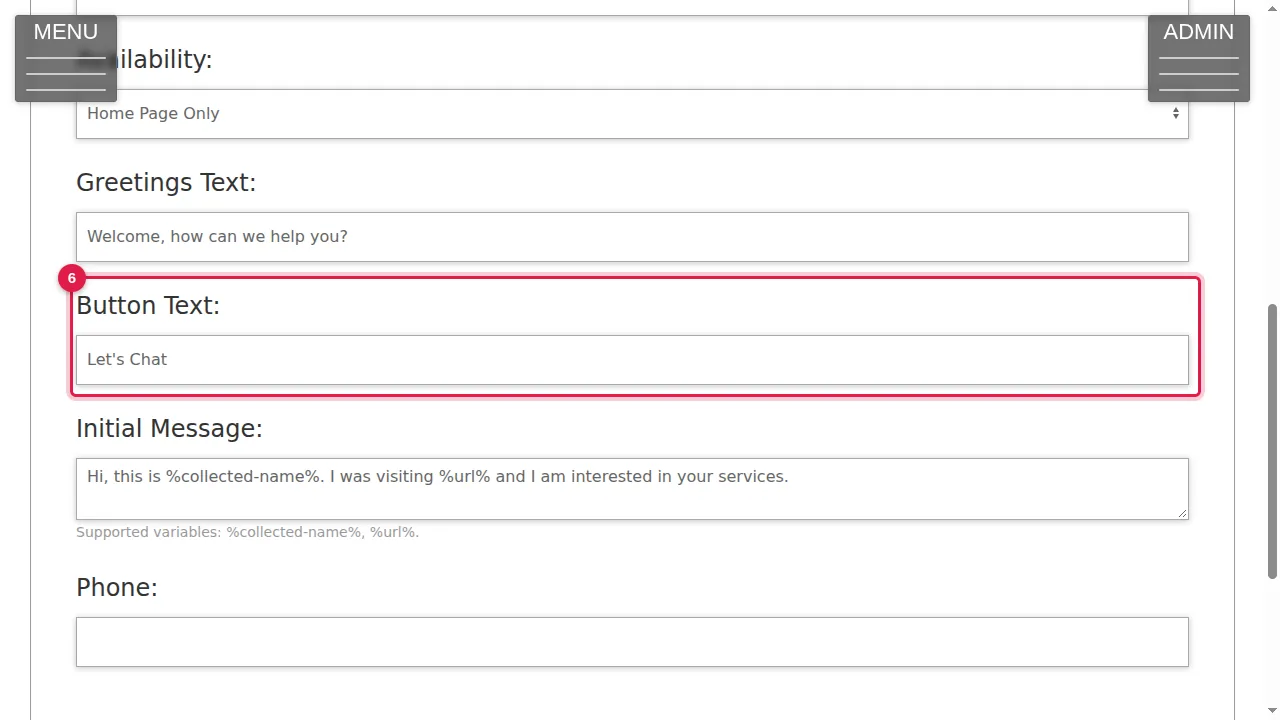
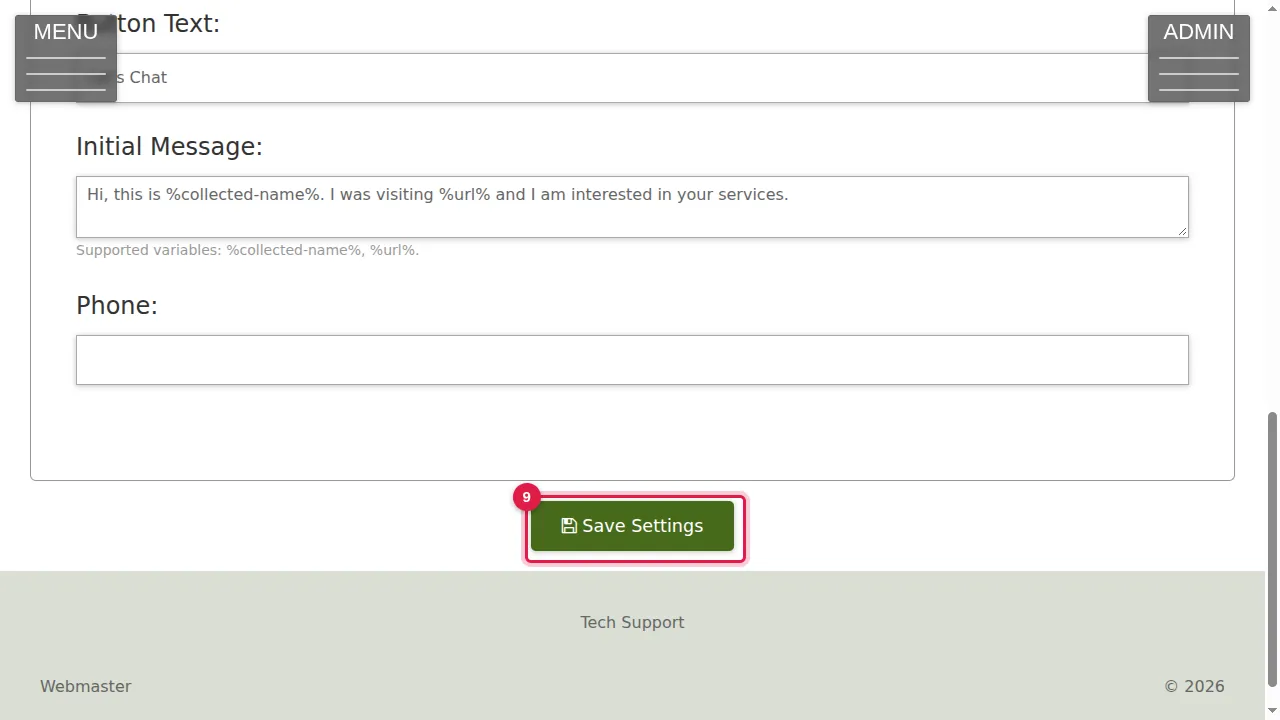
Step 7. Initial Message: the first message, written for the visitor. %collected-name% is replaced by the visitor's name and %url% by the address of the page they were on.
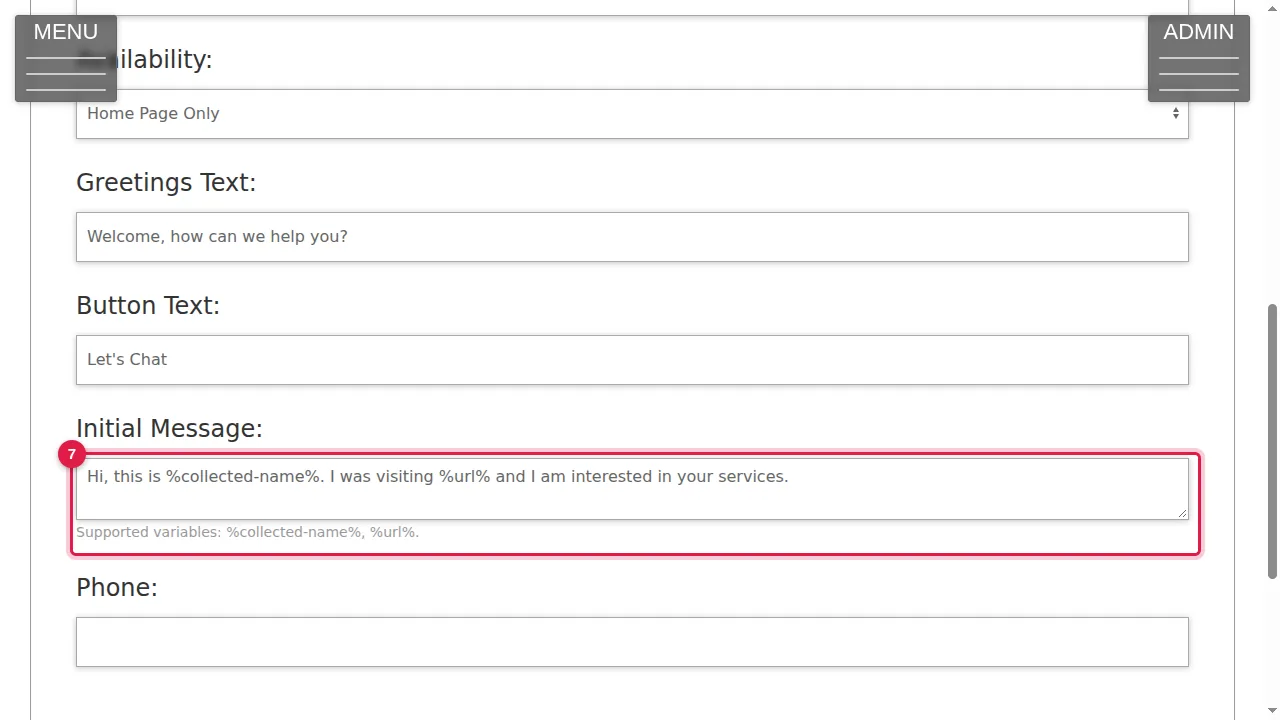
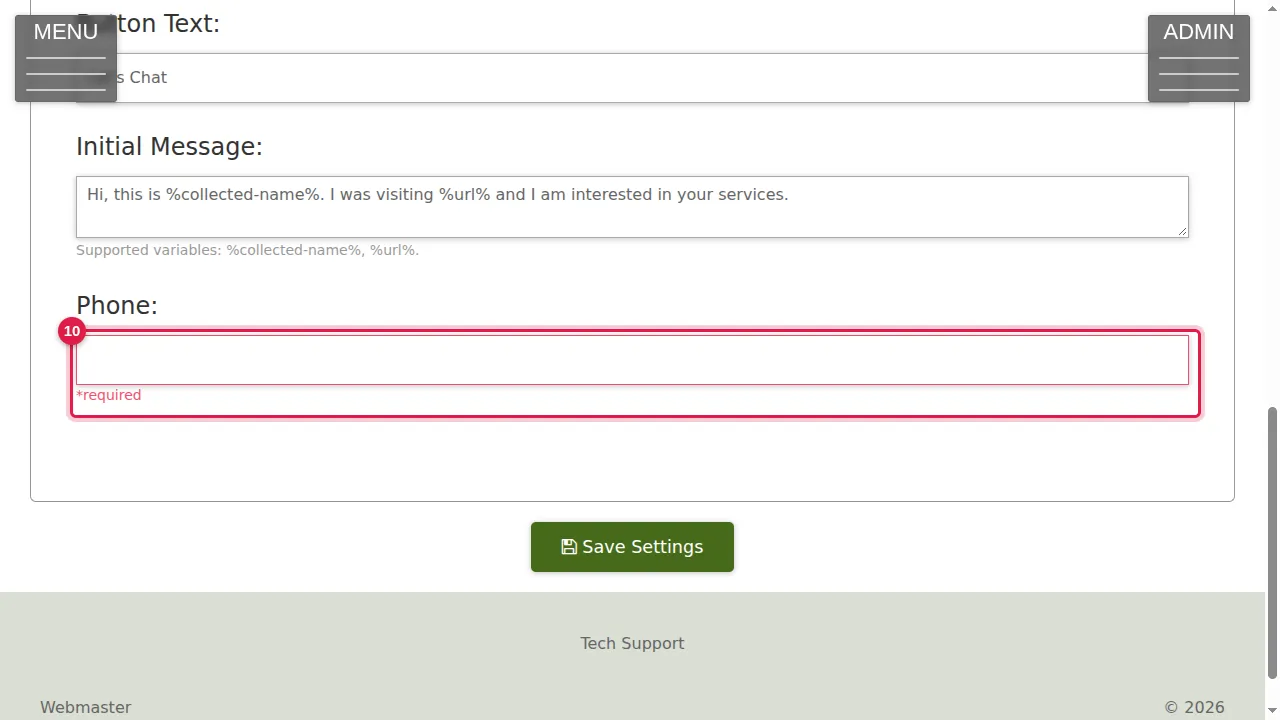
Step 8. Phone: the phone number the chats go to.
Save
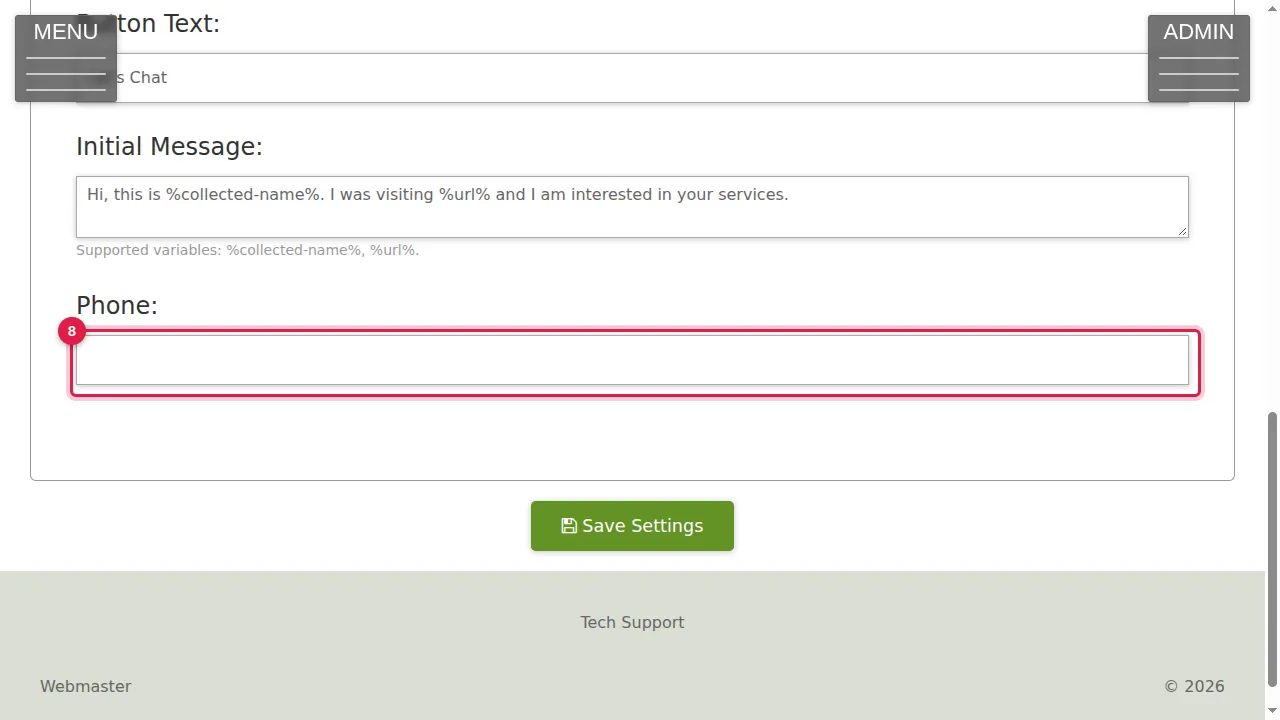
Step 9. Click Save Settings.
Step 10. Phone is required when Chat is On: without a number the settings are not saved and the box says "*required". (In this demonstration no number was given and nothing was saved.)
Check it worked
After saving, open your site in a private window: the chat button is in the corner you chose, on the pages you chose.
Good to know
- Use a number that someone really answers during your opening hours.
- Home Page Only keeps the button off your other pages.
Related help
Shown on the 2026 version of the SoNET Web Engine. Last checked 22 October 2026. Something different on your screen? Tell us through the Contact page.