Help Center Blog & Forum
Blog settings
Choose how your blog page looks to visitors: how many posts per page, full posts or previews with a More button, pictures in the previews, and the tag cloud, month list and latest list at the side.
Watch it done: a short silent video with captions · 1:12. The steps below show the same thing picture by picture.
Before you start
- Log in as the site owner.
- Open ADMIN › Manage … followed by your blog's name (here: Manage Support FORUM).
Open the settings
Step 1. Click the Settings tab (next to Posts).
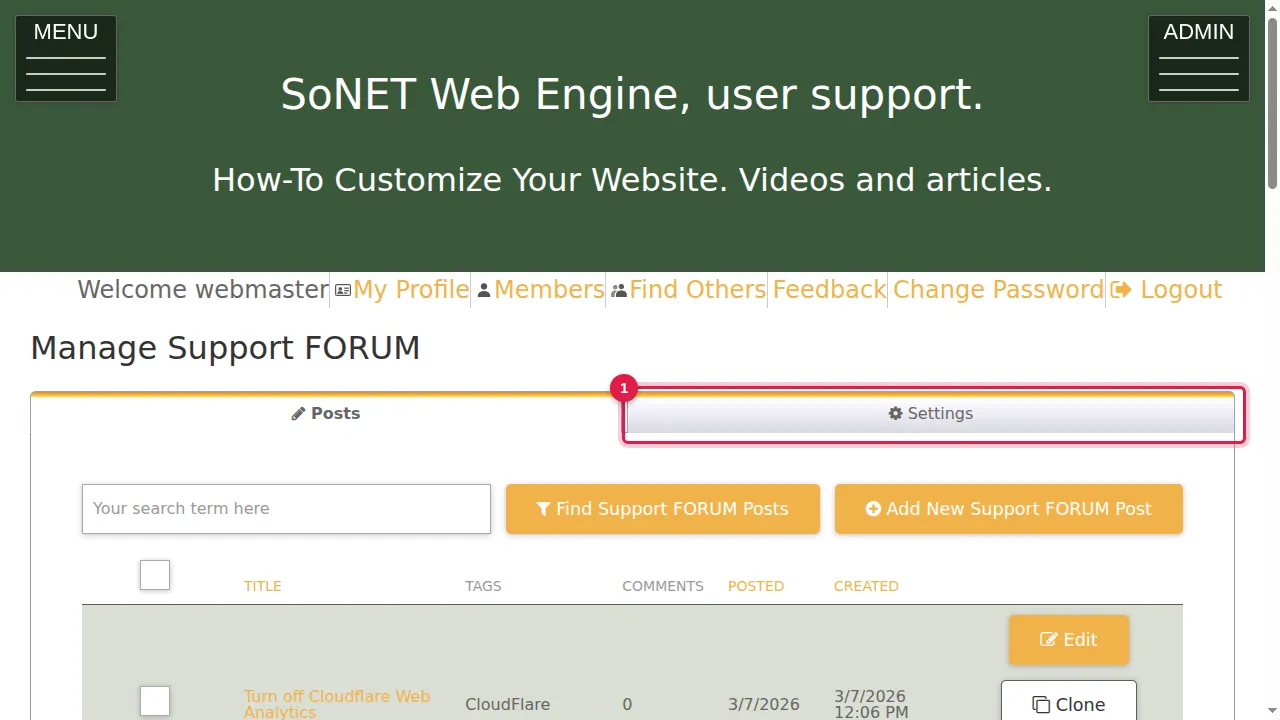
Posts and previews
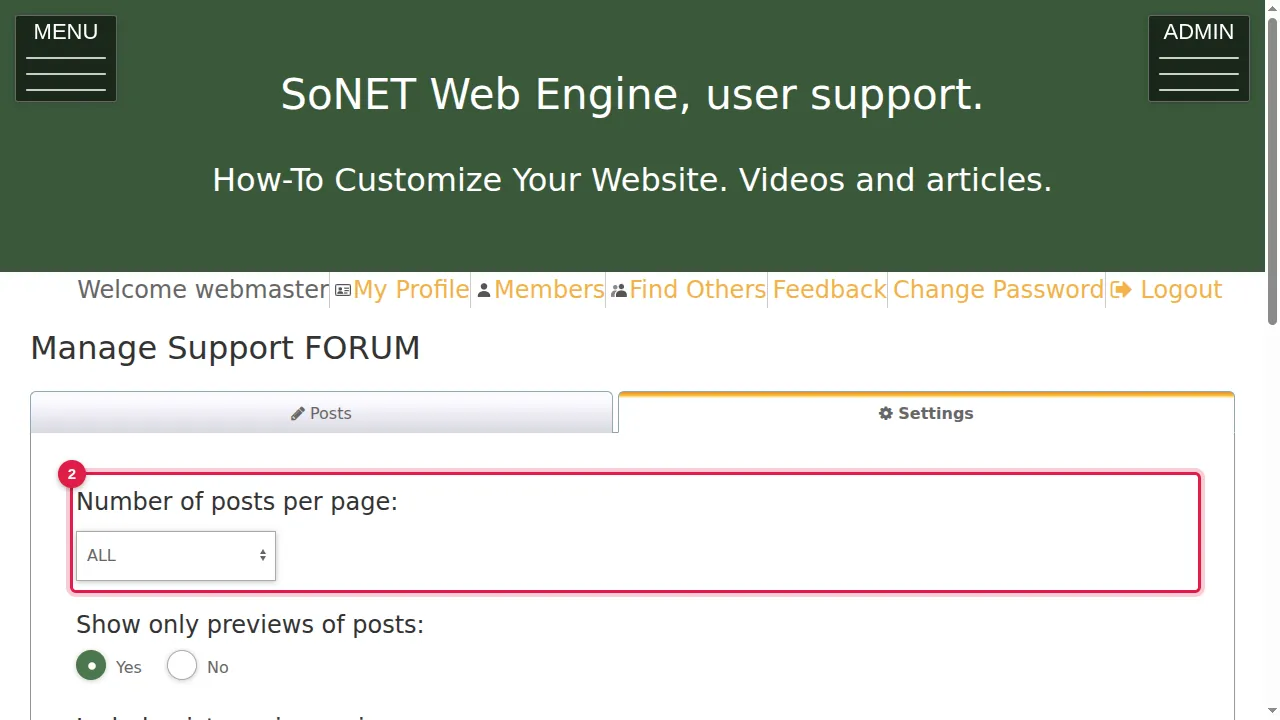
Step 2. Number of posts per page: ALL, or a number from 5 to 30.
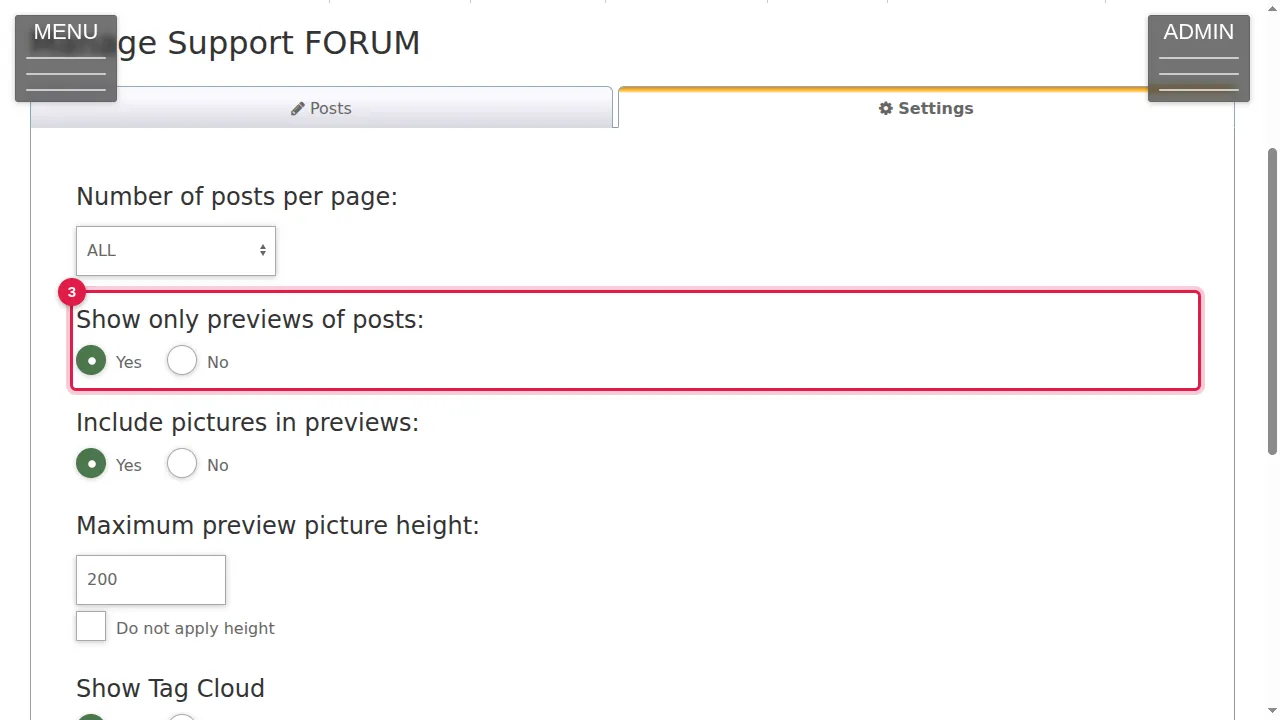
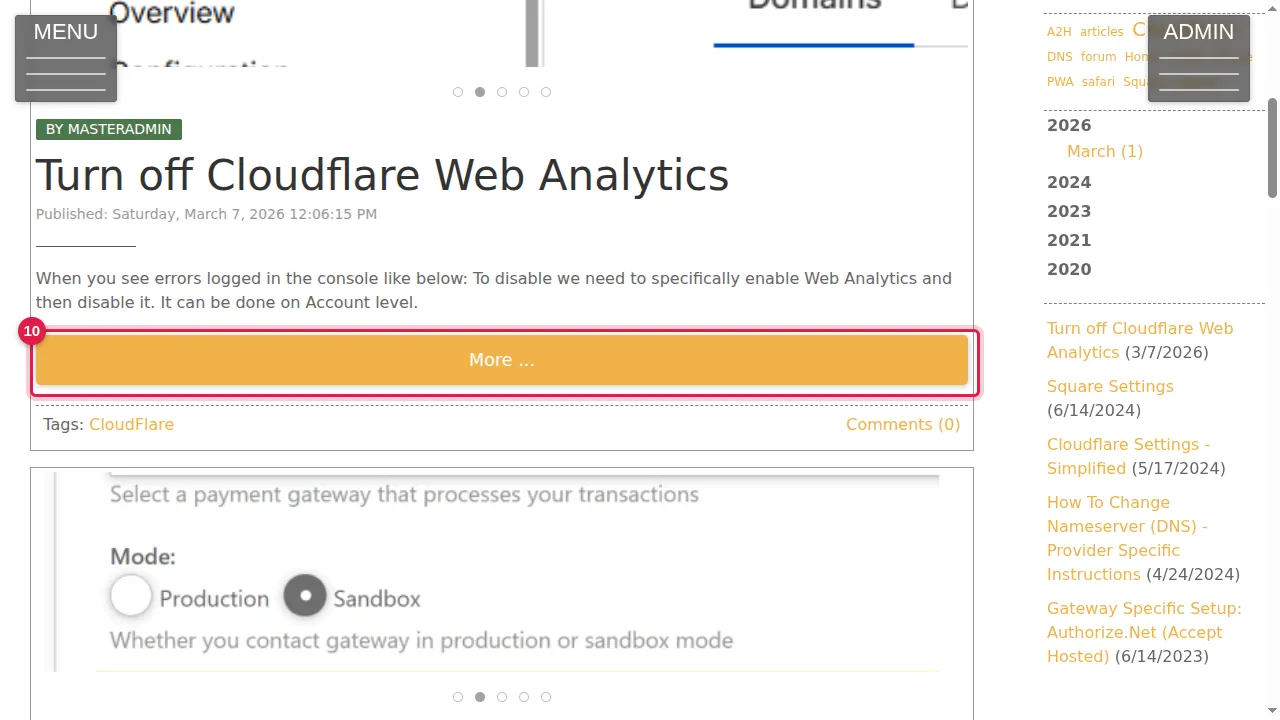
Step 3. Show only previews of posts: Yes shows the start of each post with a More … button; No shows each post in full.
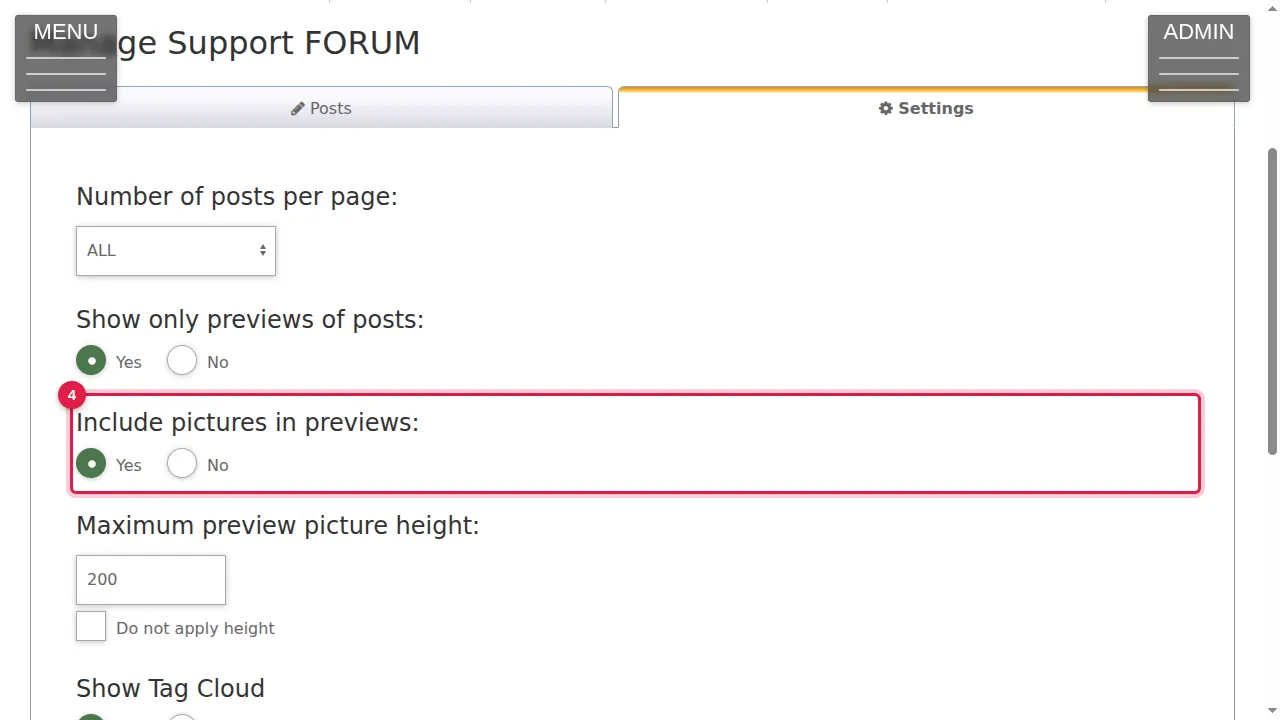
Step 4. Include pictures in previews: Yes or No.
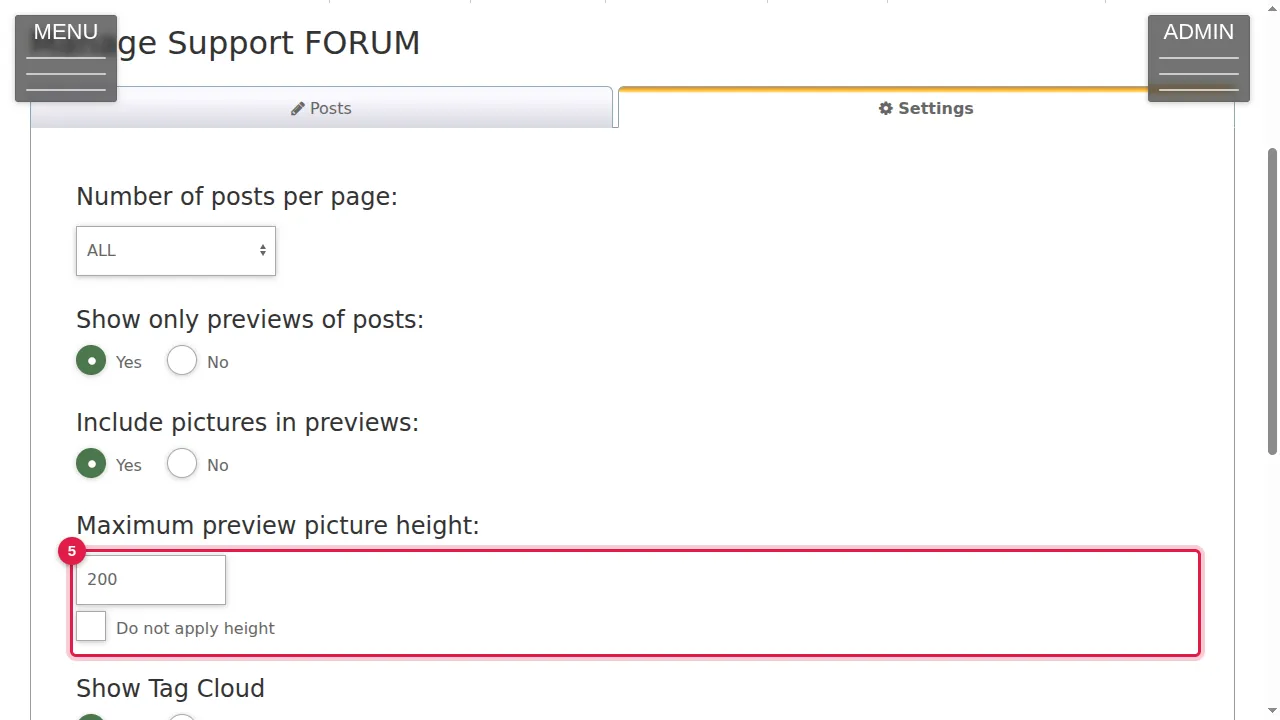
Step 5. Maximum preview picture height (200 here) keeps preview pictures small. Tick Do not apply height to show them at their own size.
The side lists
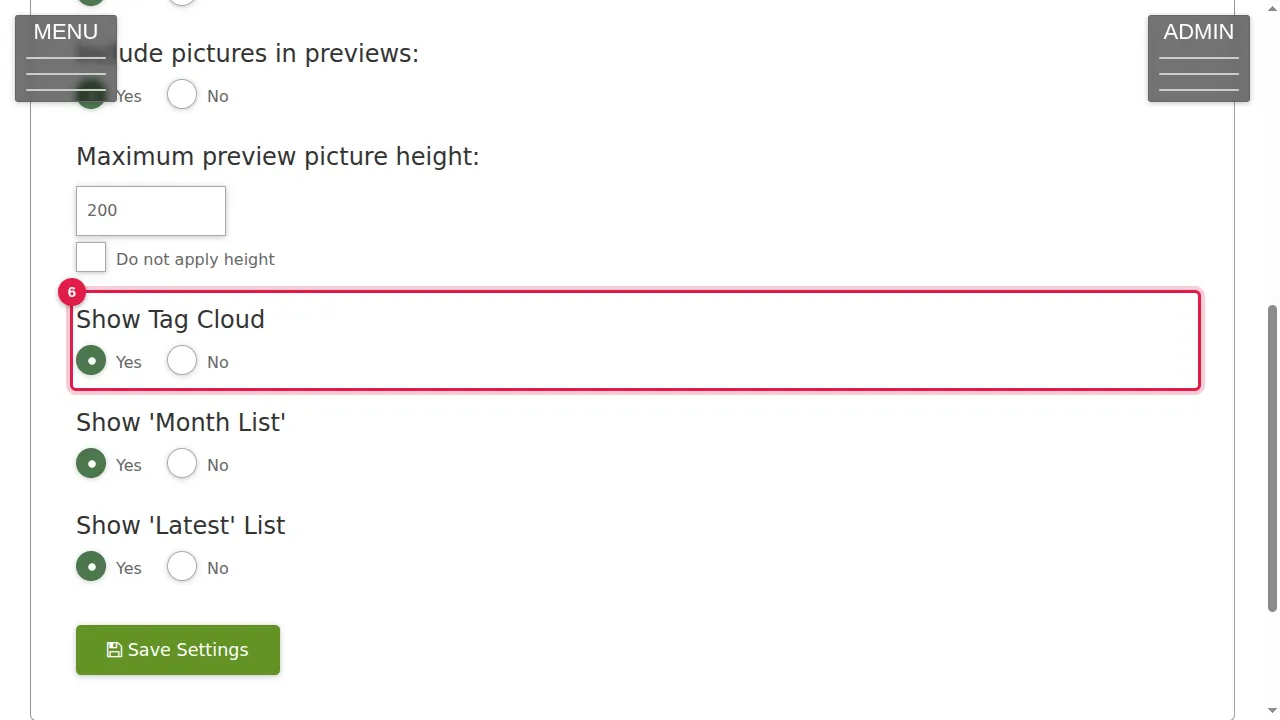
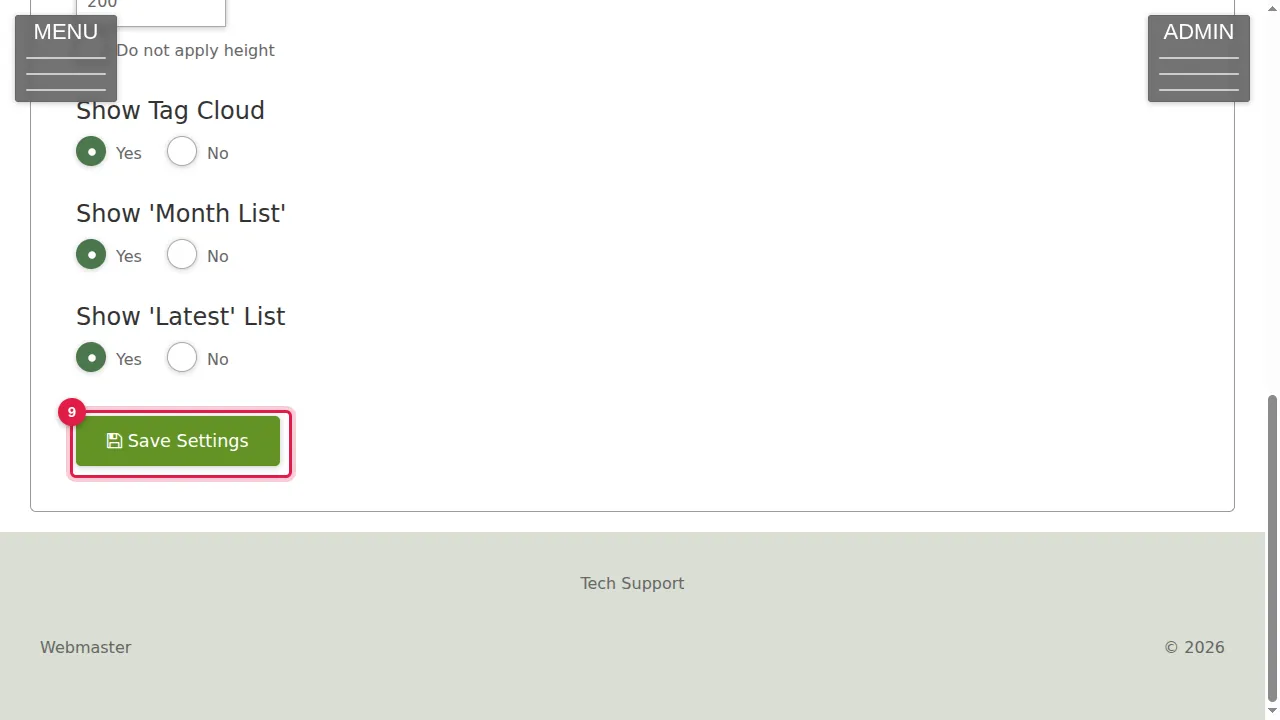
Step 6. Show Tag Cloud: the list of your tags at the side; bigger words are tags with more posts.
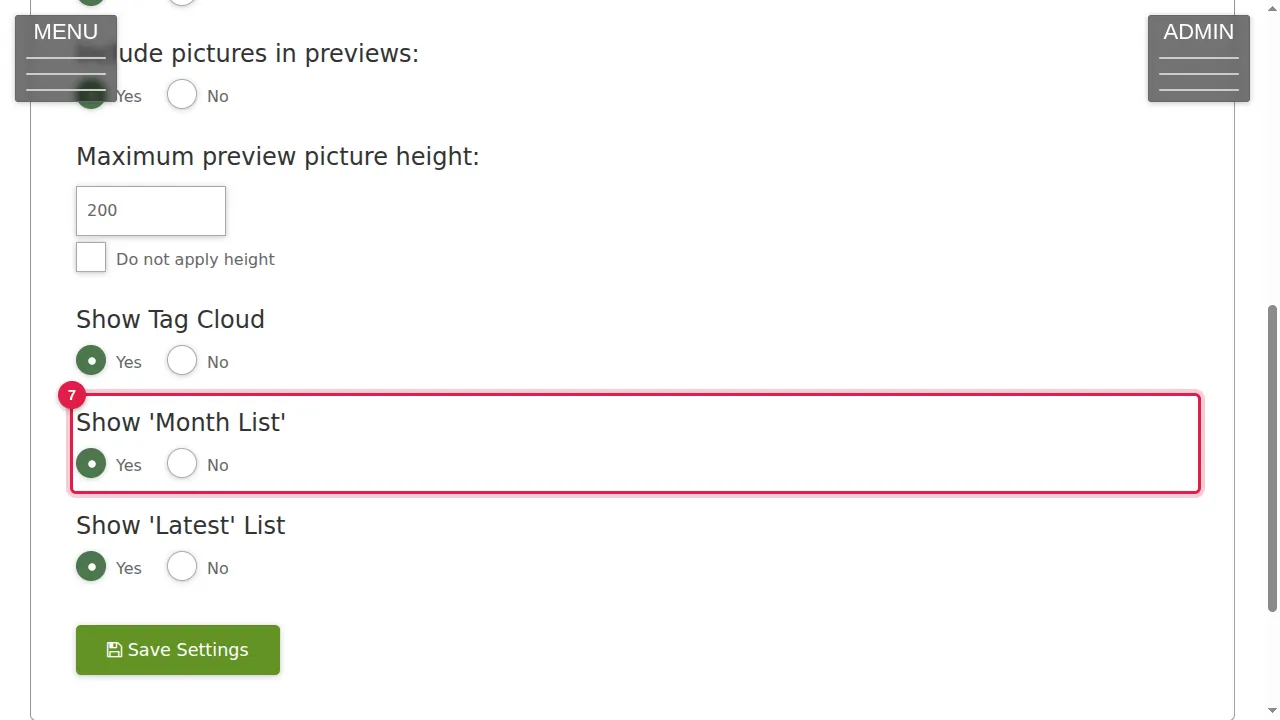
Step 7. Show 'Month List': the years and months at the side, with the number of posts in each month.
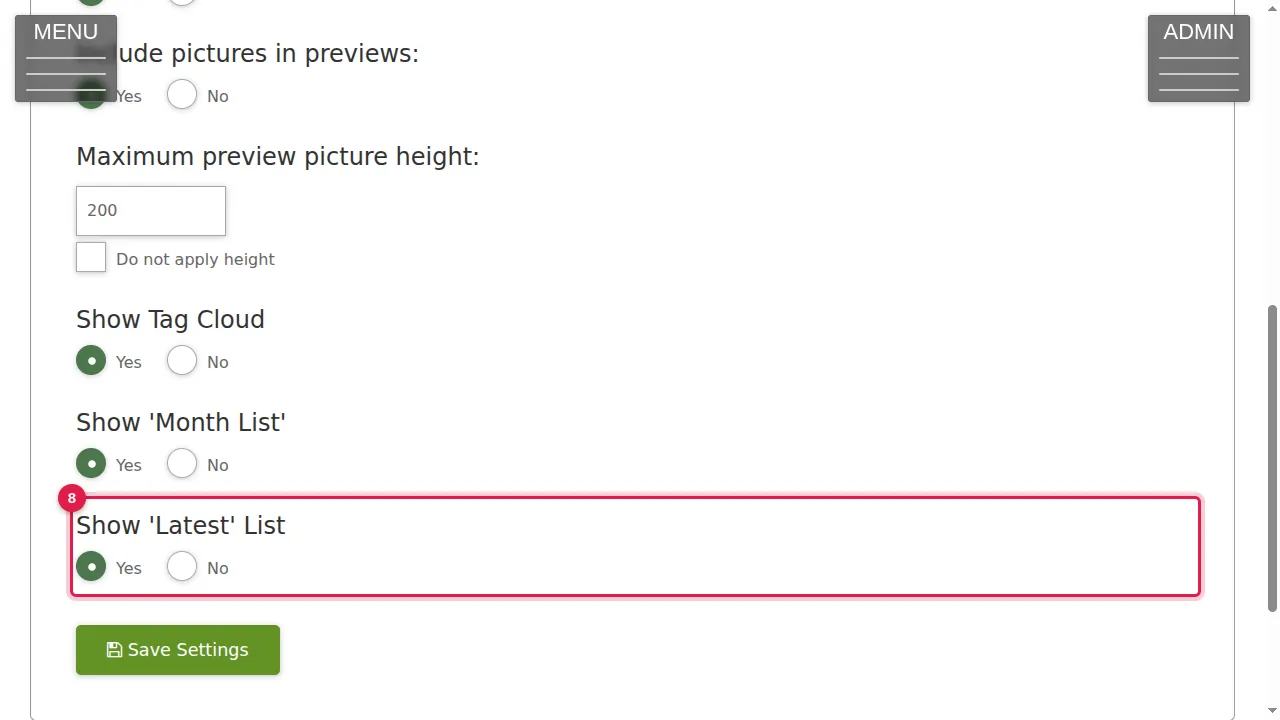
Step 8. Show 'Latest' List: the newest posts with their dates at the side.
Save and look
Step 9. Click Save Settings to keep your changes. (In this demonstration nothing was changed.)
Step 10. Your visitors see the result on the blog page: here previews with a More … button, and the tag cloud, months and latest posts at the side.
Check it worked
After saving, open your blog in a private window and check it looks the way you chose.
Related help
Shown on the 2026 version of the SoNET Web Engine. Last checked 21 October 2026. Something different on your screen? Tell us through the Contact page.