Help Center Look & Design
Animations and dark mode
Bring your site to life with moving backgrounds, buttons and text, and offer your visitors a dark version of your site. Both are on the Template Kit's Effects tab.
Watch it done: a short silent video with captions · 1:50. The steps below show the same thing picture by picture.
Before you start
- Log in and open ADMIN › Template Kit.
Animations
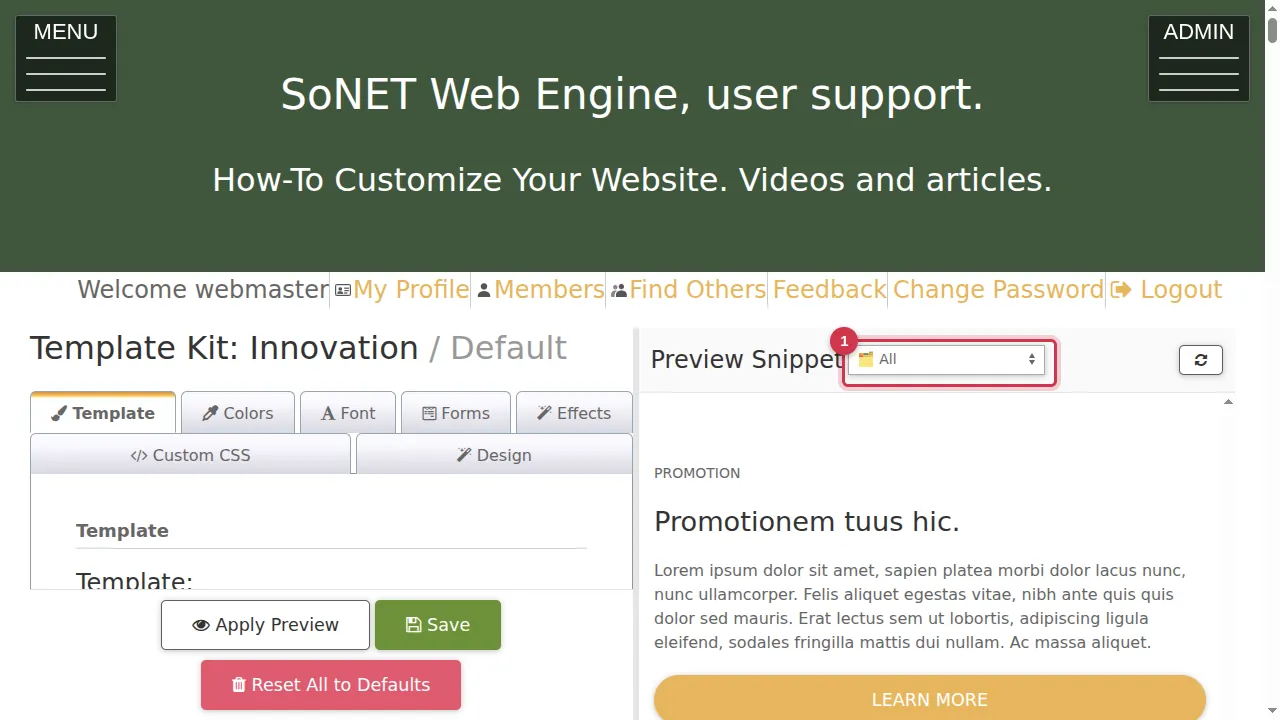
Step 1. Choose Promotion Deck in the Preview Snippet list, so the preview shows sections, cards and buttons.
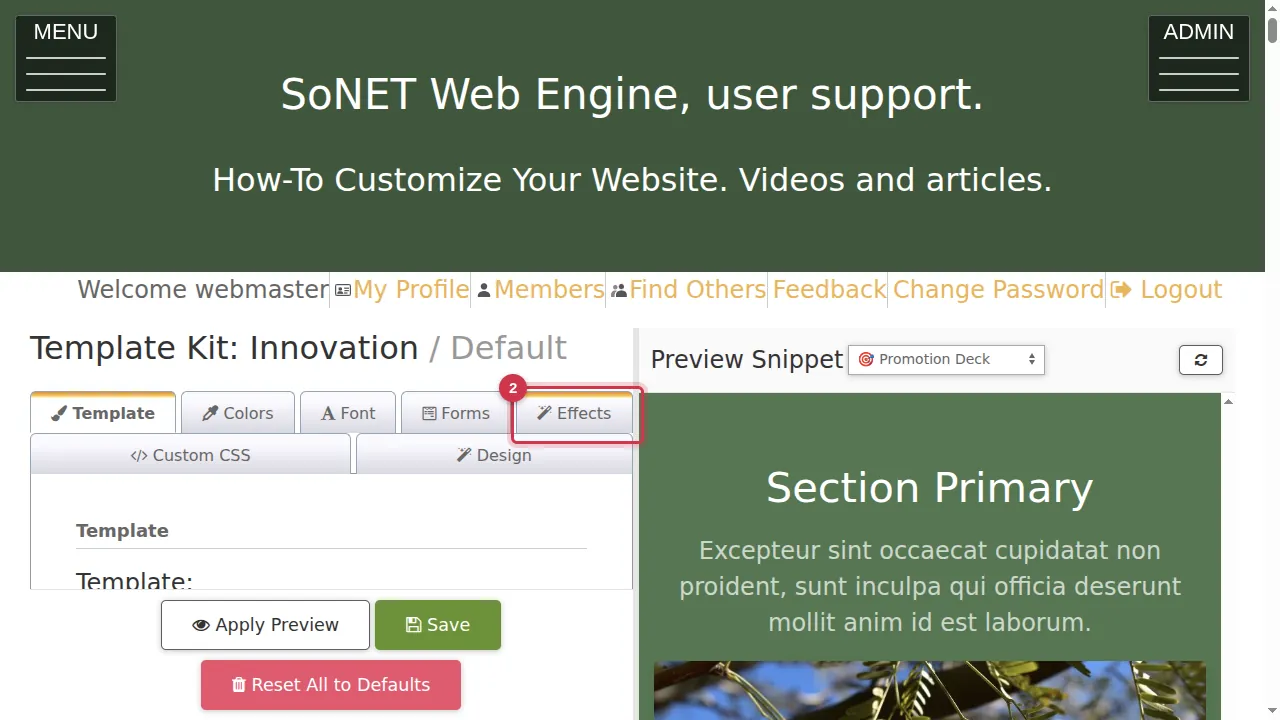
Step 2. Open the Effects tab and scroll down to Animations.
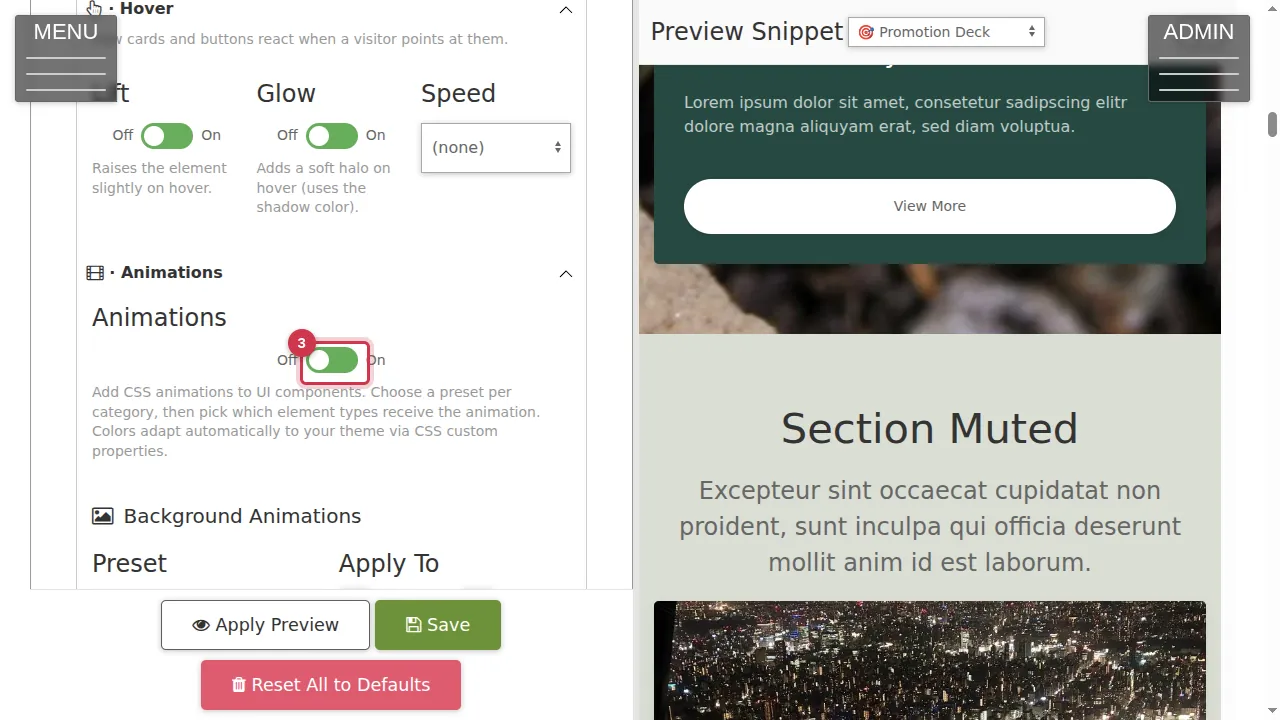
Step 3. Switch Animations on.
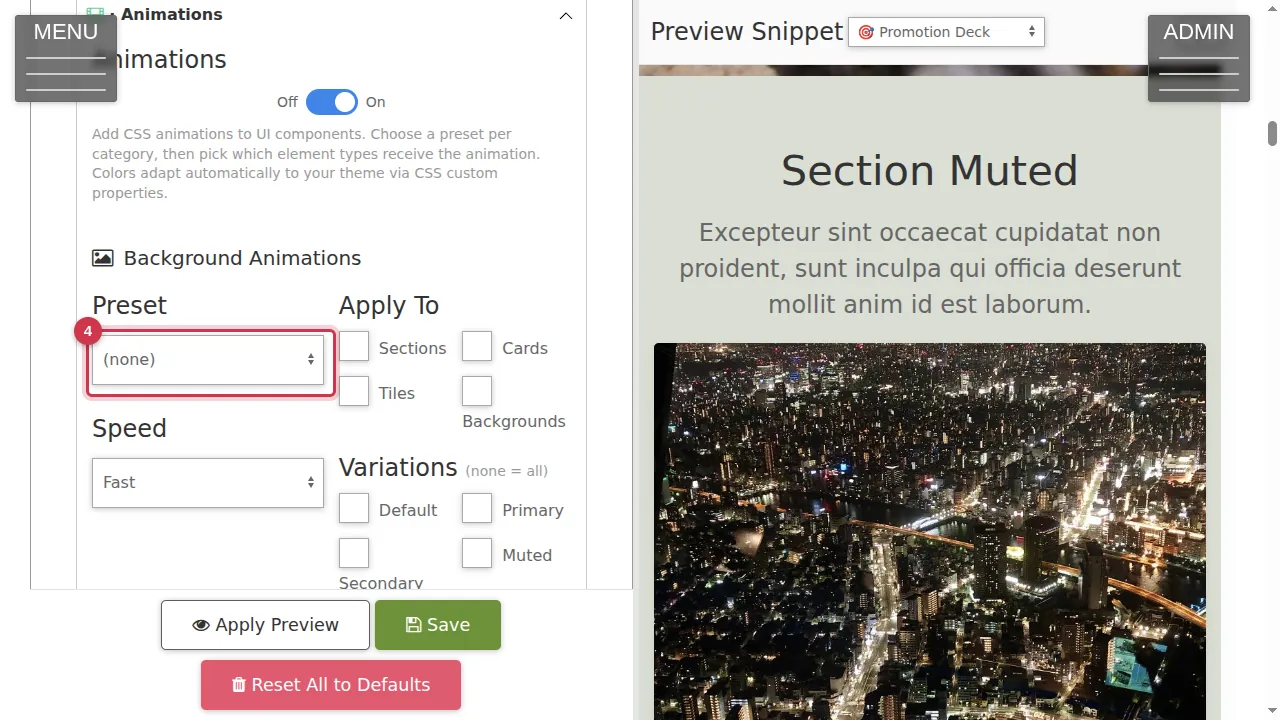
Step 4. Background Animations: pick a preset (Aurora Shift, Color Cycle, Gradient Shift, Pulse Glow, Shimmer Scan, Sliding Diagonals, Soft Breathe, Wave Pattern) and a speed, then tick what it applies to (sections, cards, tiles, backgrounds) and, if you like, only some colour variations.
Step 5. Button Animations: pick a preset (3D Lift, Creative Hover, Elastic Bounce, Glitch Shake, Glow Rainbow, Neon Pulse, Slide Shine), a speed and which buttons.
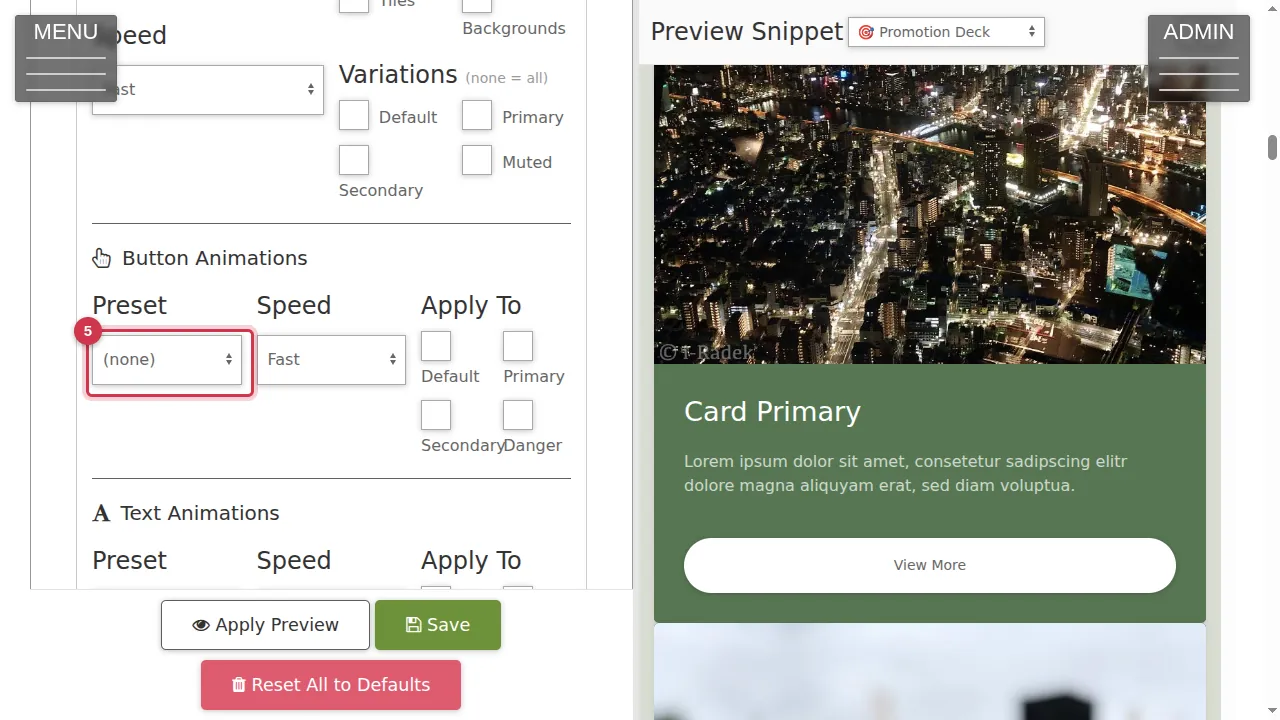
Step 6. Text Animations: pick a preset (Aurora Text, Glow Pulse, Gradient Mask, Neon Glow, Shadow Dance, Shimmer Text, Typewriter), a speed and what it applies to (headings, links, lead text, badges, blockquotes, navigation items).
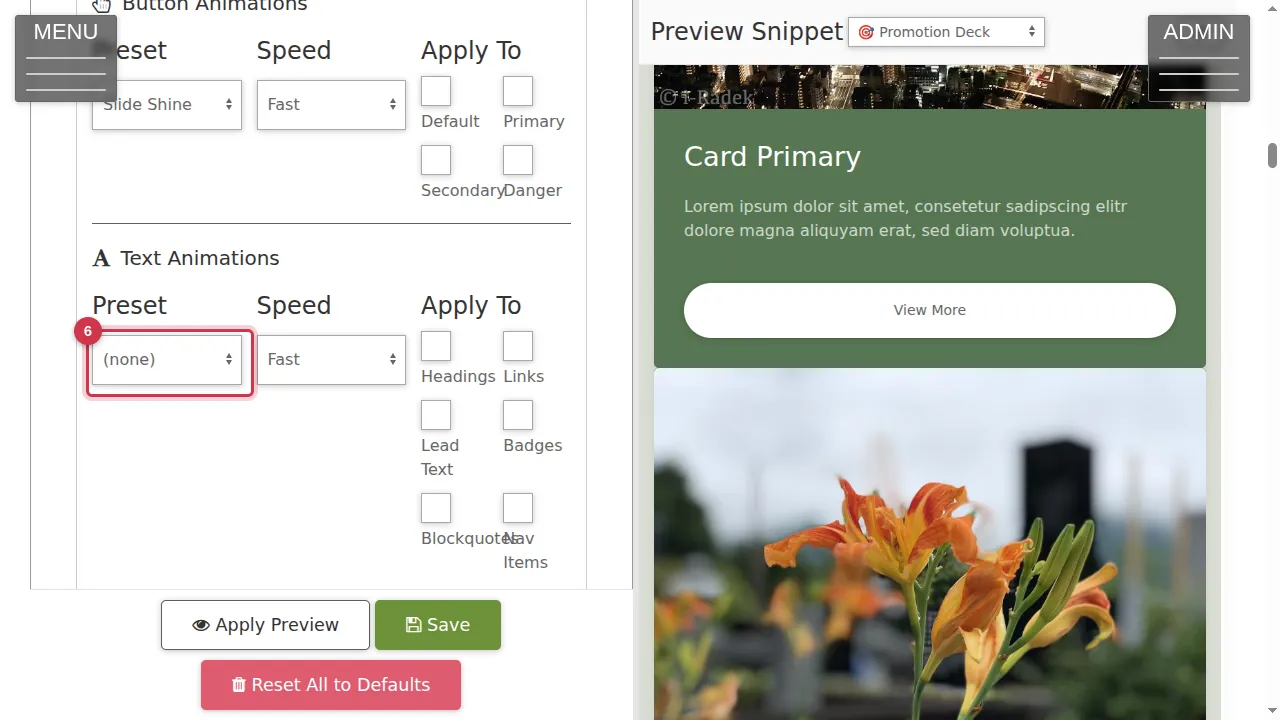
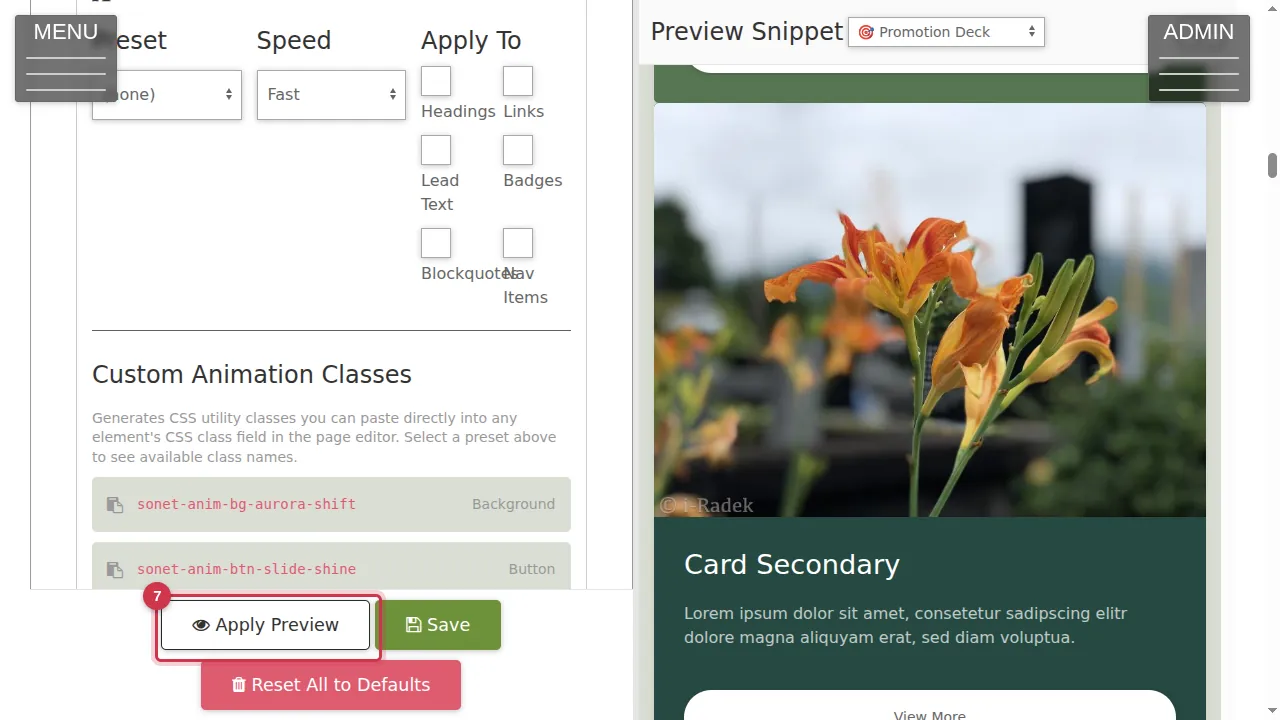
Step 7. Click Apply Preview to see the animations in the preview. Under Custom Animation Classes you find class names you can also give single elements in the page editor.
Dark mode
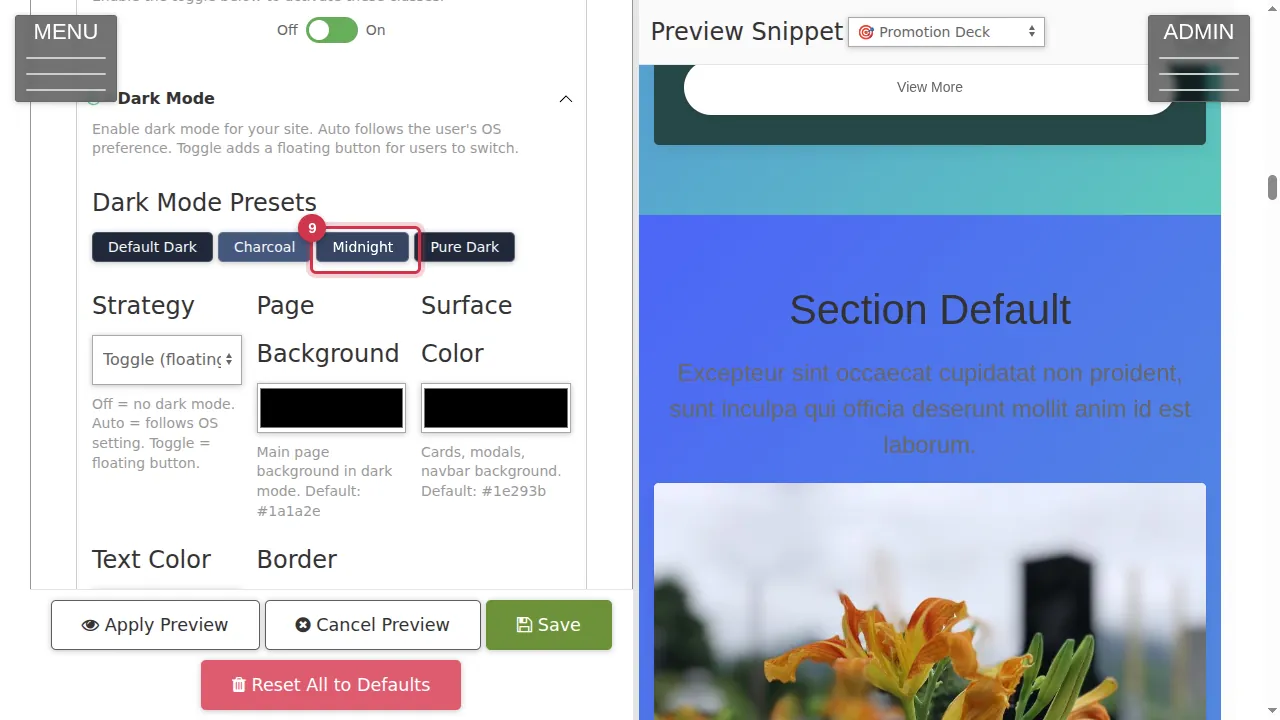
Step 8. Dark Mode › Strategy: Off, Auto (follows the dark setting on the visitor's own device) or Toggle (a floating button lets visitors switch).
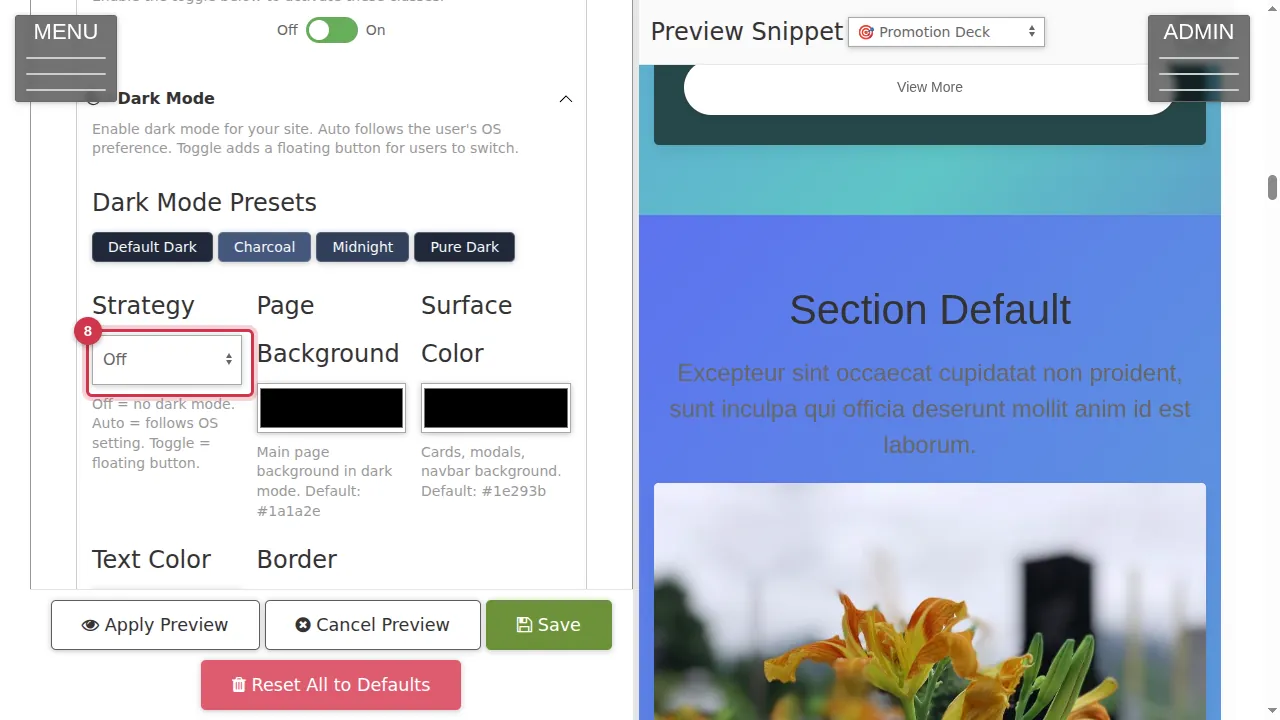
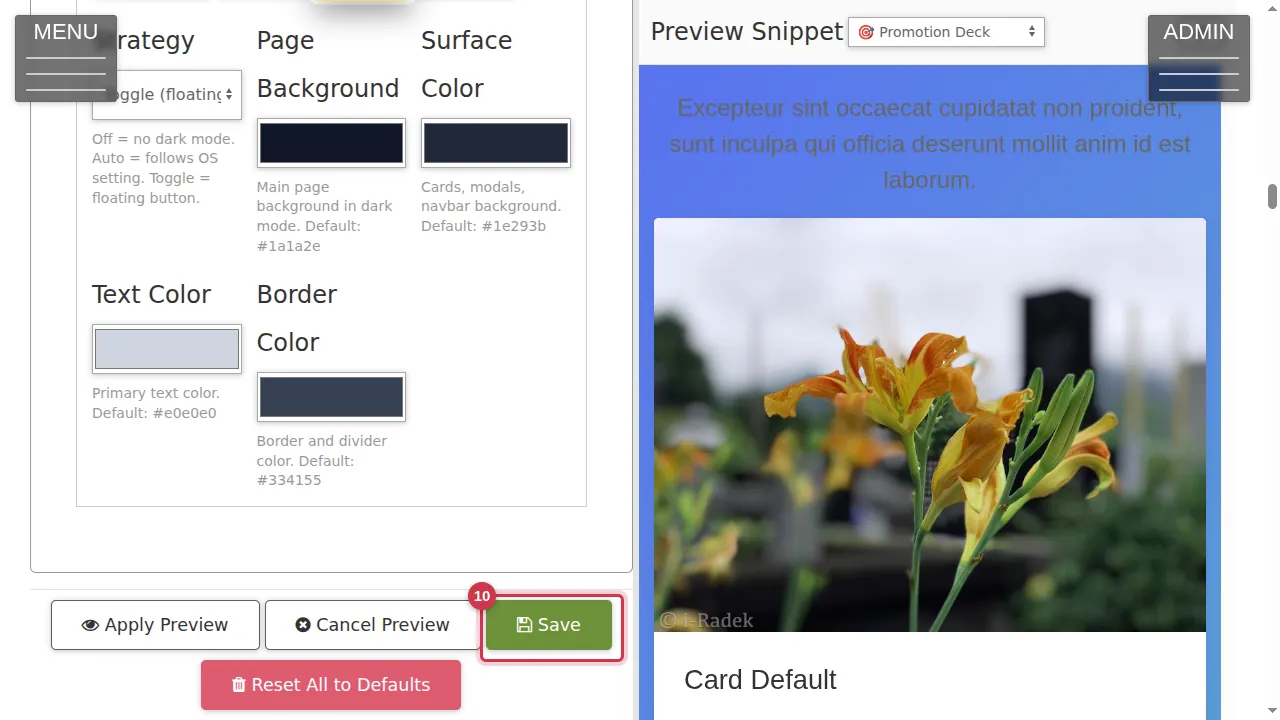
Step 9. Choose the dark colours with a preset (Default Dark, Charcoal, Midnight, Pure Dark), or set the page background, surface, text and border colours yourself.
Save or leave
Step 10. Save makes it live (not clicked in this video). Leave without saving to keep your site as it is.
Check it worked
After saving, open your site as a visitor. With Toggle, click the floating button to switch to dark mode and back.
Good to know
- Use animations sparingly: one animated thing per screen draws attention, many make a page tiring.
Related help
Shown on the 2026 version of the SoNET Web Engine. Last checked 21 October 2026. Something different on your screen? Tell us through the Contact page.