Help Center Look & Design
Add your own CSS
For changes the Template Kit has no setting for, you can type your own CSS rules on the Custom CSS tab. They are added after all other styles of your site.
Watch it done: a short silent video with captions · 1:05. The steps below show the same thing picture by picture.
Before you start
- Log in and open ADMIN › Template Kit.
- Some knowledge of CSS (the language web page styles are written in).
Write a rule
Step 1. In the Template Kit, open the Custom CSS tab.
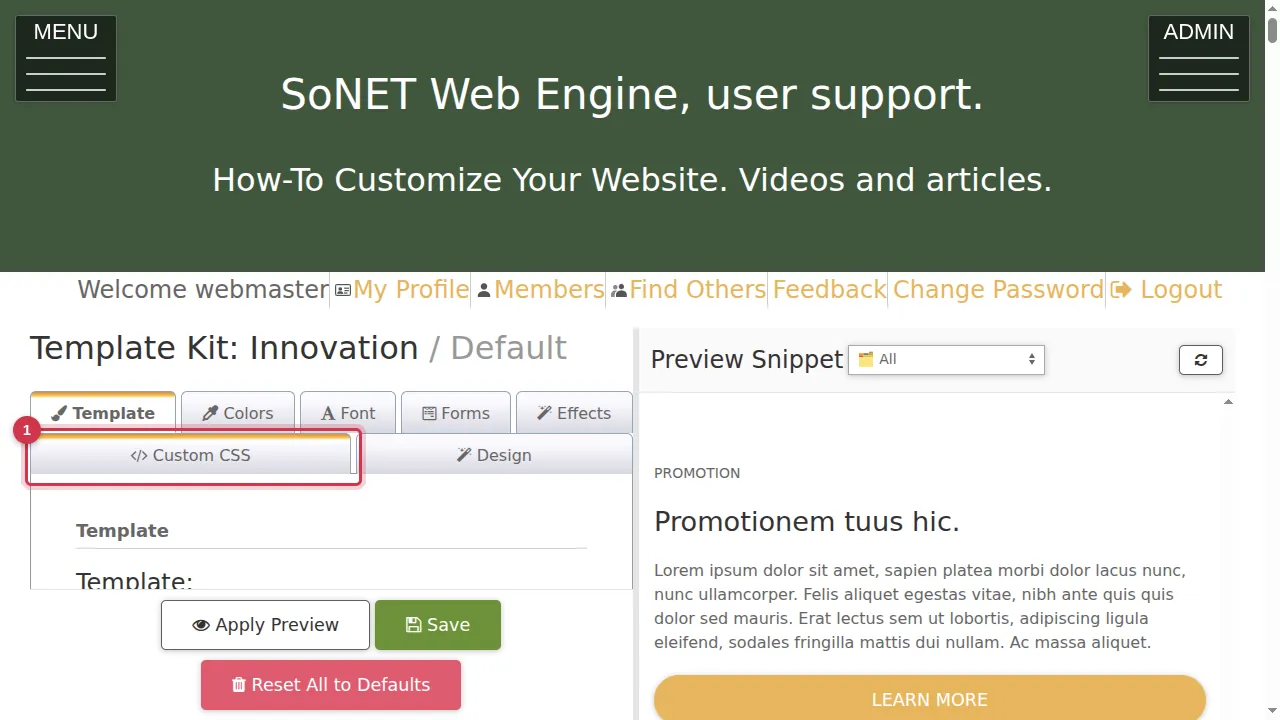
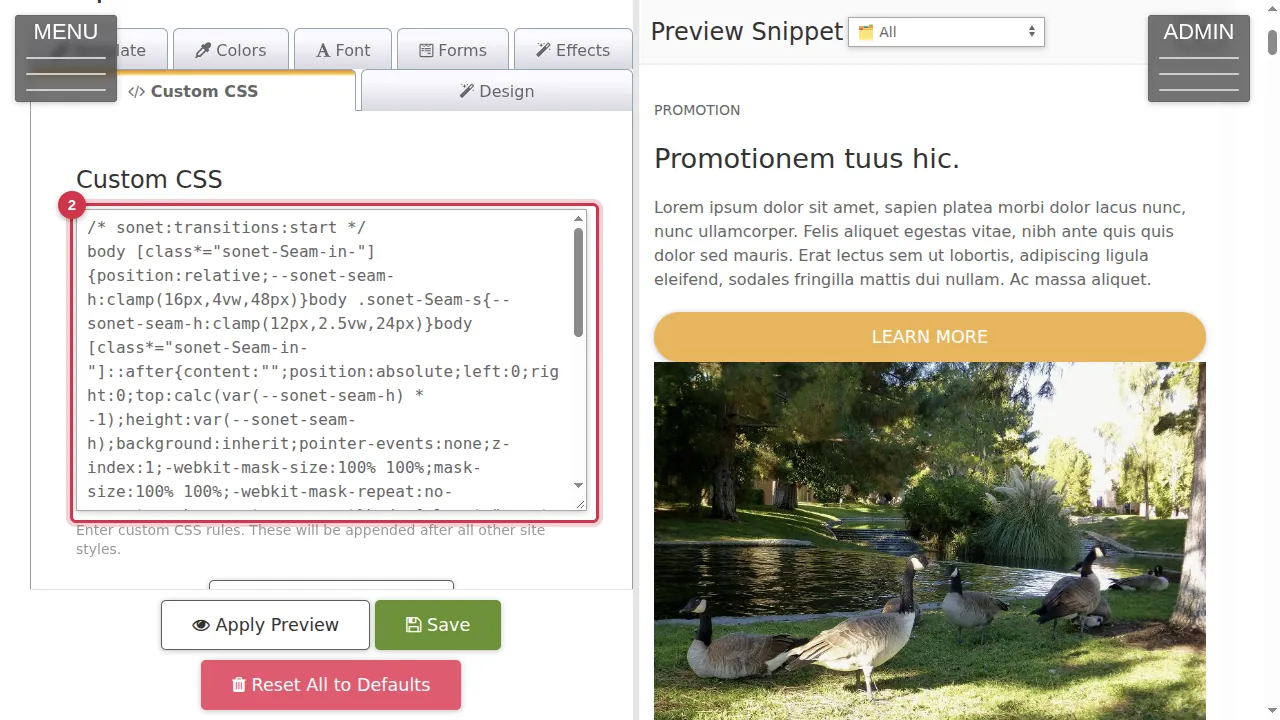
Step 2. Click in the box. Your rules are "appended after all other site styles", so they override the template where they apply. Some lines may already be there: the Template Kit and your earlier changes can add rules here.
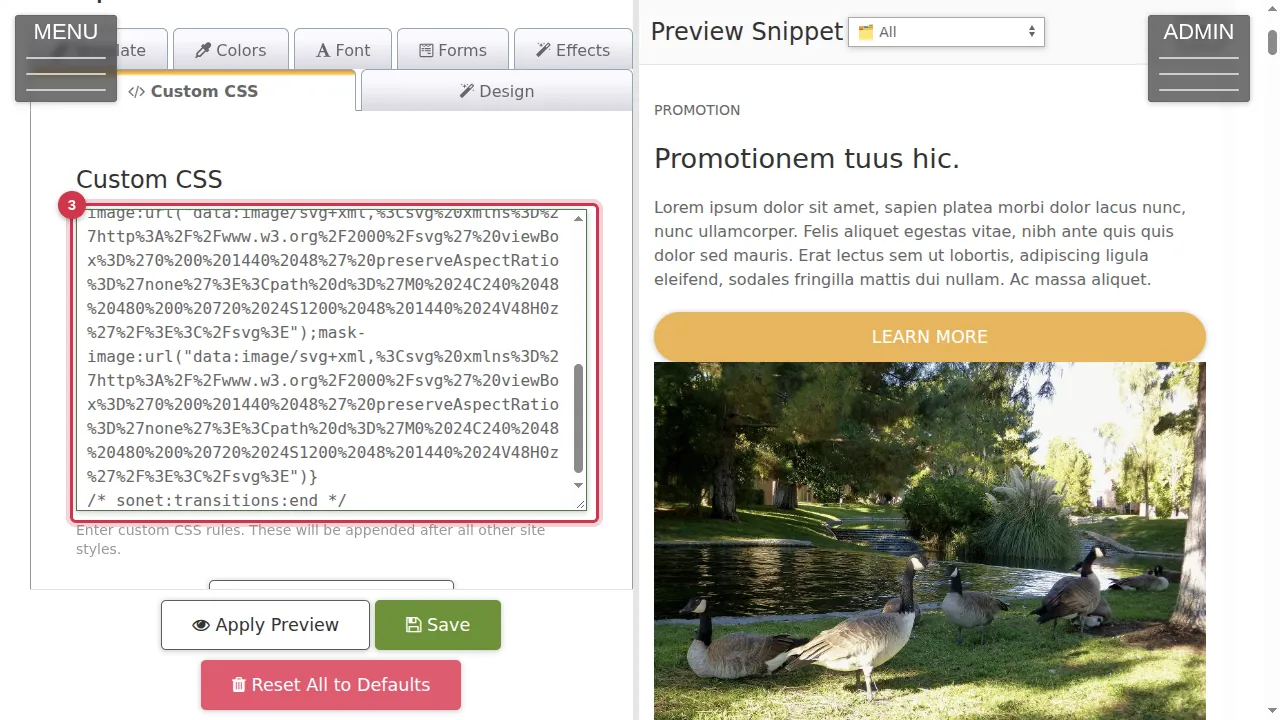
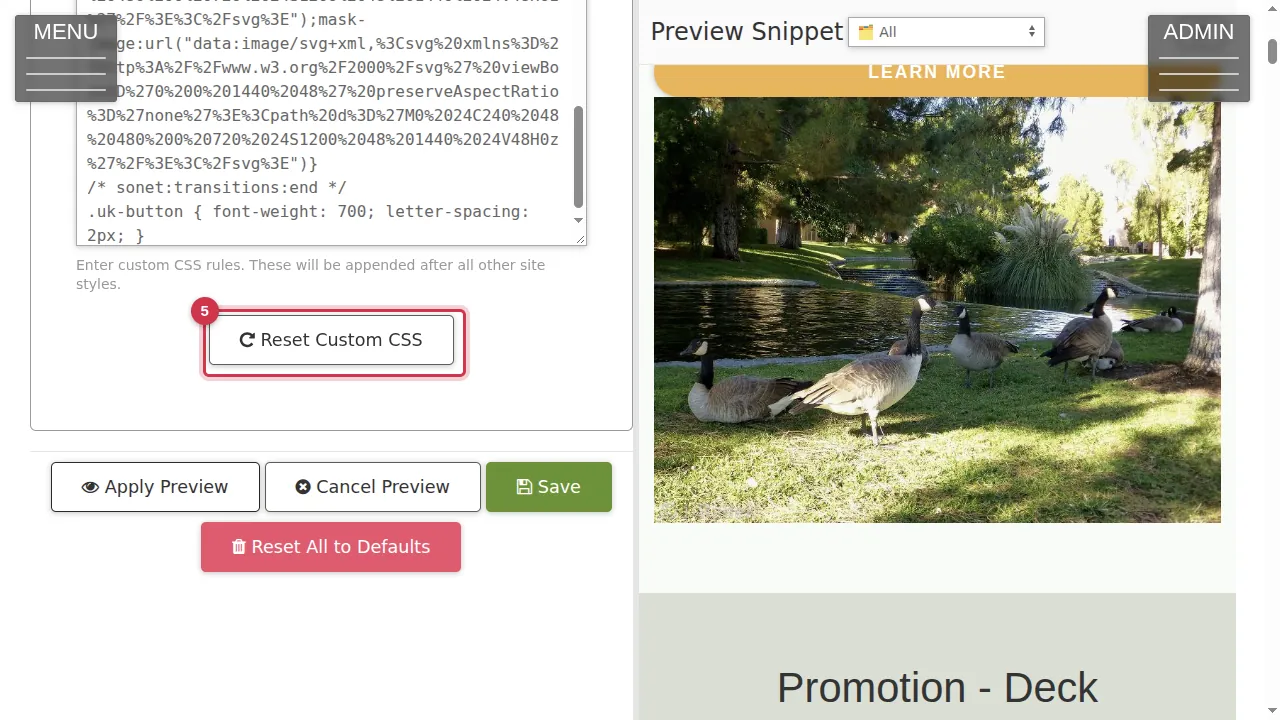
Step 3. Go to the end of the box and type your rule. Here: .uk-button { font-weight: 700; letter-spacing: 2px; } makes every button bold with wider letter spacing.
Try it and save
Step 4. Click Apply Preview to try it in the preview on the right.
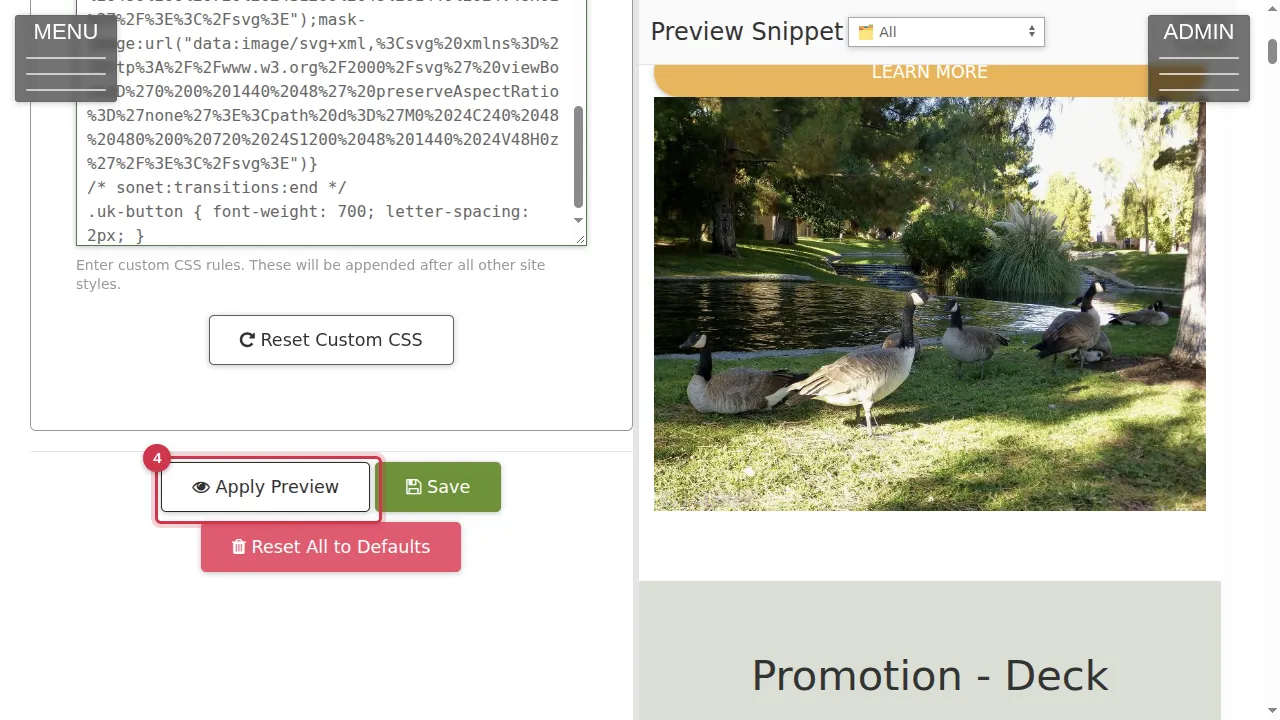
Step 5. The Reset Custom CSS button is also on this tab. Save makes your rules live (not clicked in this video).
Step 6. Leave without saving and nothing changes.
Check it worked
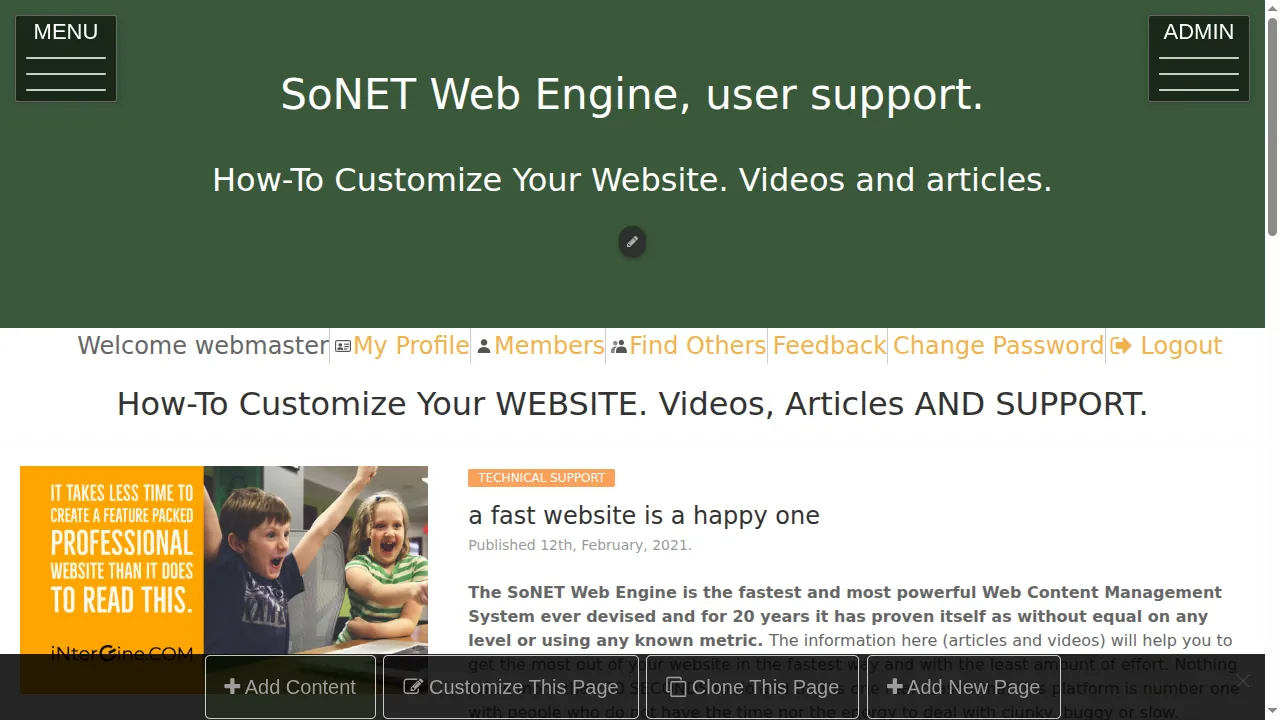
After saving, look at the pages your rule affects as a visitor, also on a phone.
Good to know
- Copy the box's text somewhere safe before big changes, so you can put it back.
Related help
- Effects: presets, gradients, glass, rounded corners, shadows and hover
- Choose a template in the Template Kit
Shown on the 2026 version of the SoNET Web Engine. Last checked 21 October 2026. Something different on your screen? Tell us through the Contact page.