Help Center Pages & Editing
AI in the editor: improve your text and make a picture
Two simple AI helpers in the section editor: Describe Changes corrects or adds to the text of one section when you ask in plain words, and Generate Image makes a picture from a short description. You check the result before anything is saved.
Watch it done: a short silent video with captions · 3:53. The steps below show the same thing picture by picture.
Before you start
- Log in as the site owner.
- Your site must be AI-enabled (Site Settings tells you).
- Open the page you want to change.
Open the section
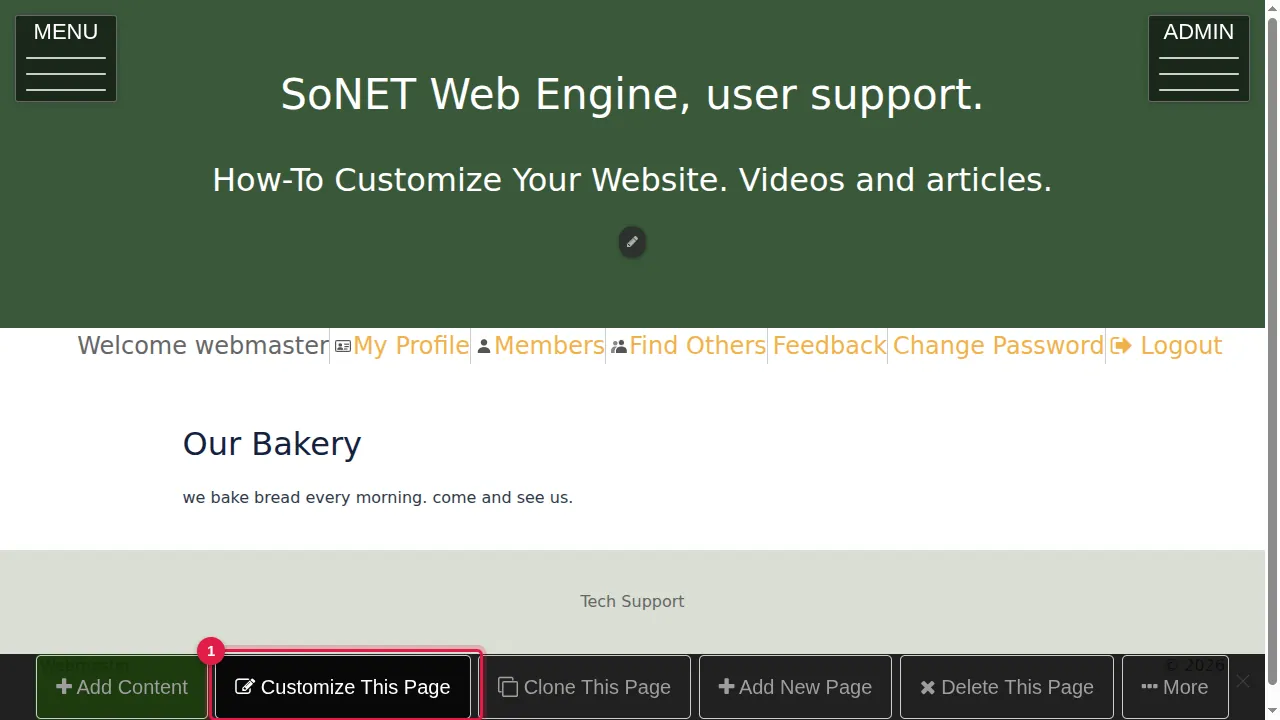
Step 1. Click Customize This Page.
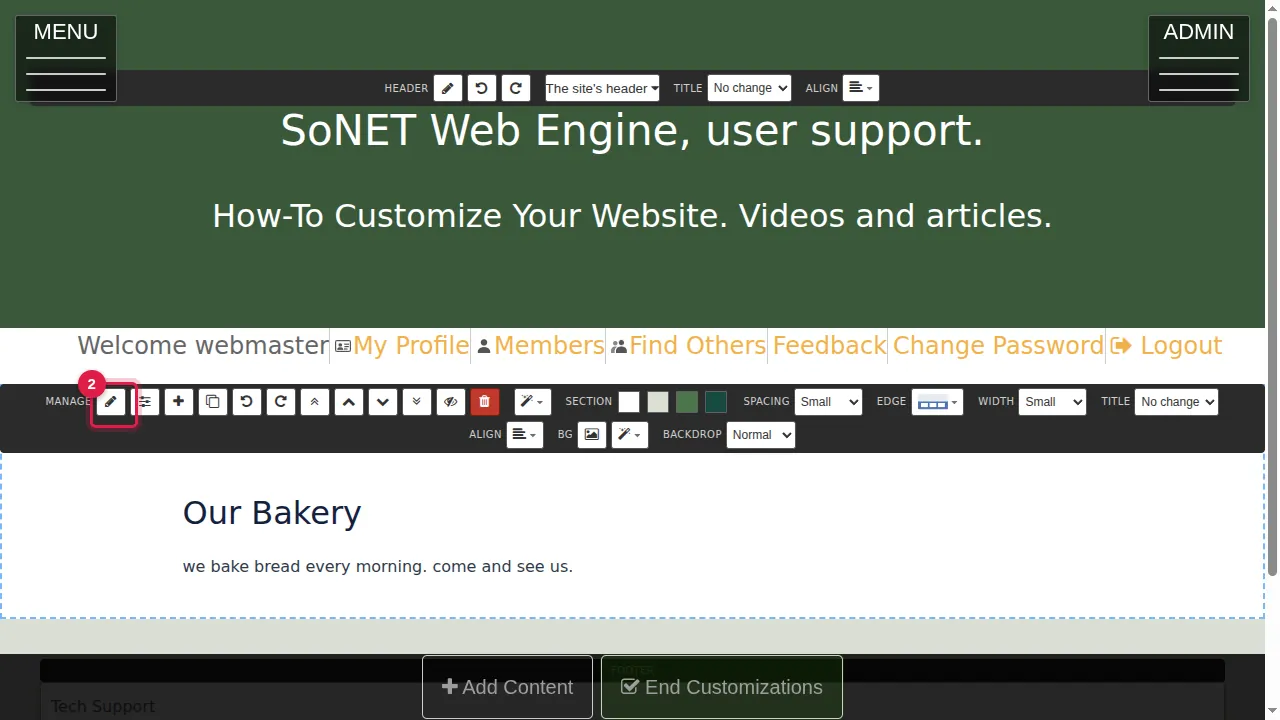
Step 2. Click the pencil of the section you want to change. The AI works on what is in this editor, nothing else.
Improve the text with Describe Changes
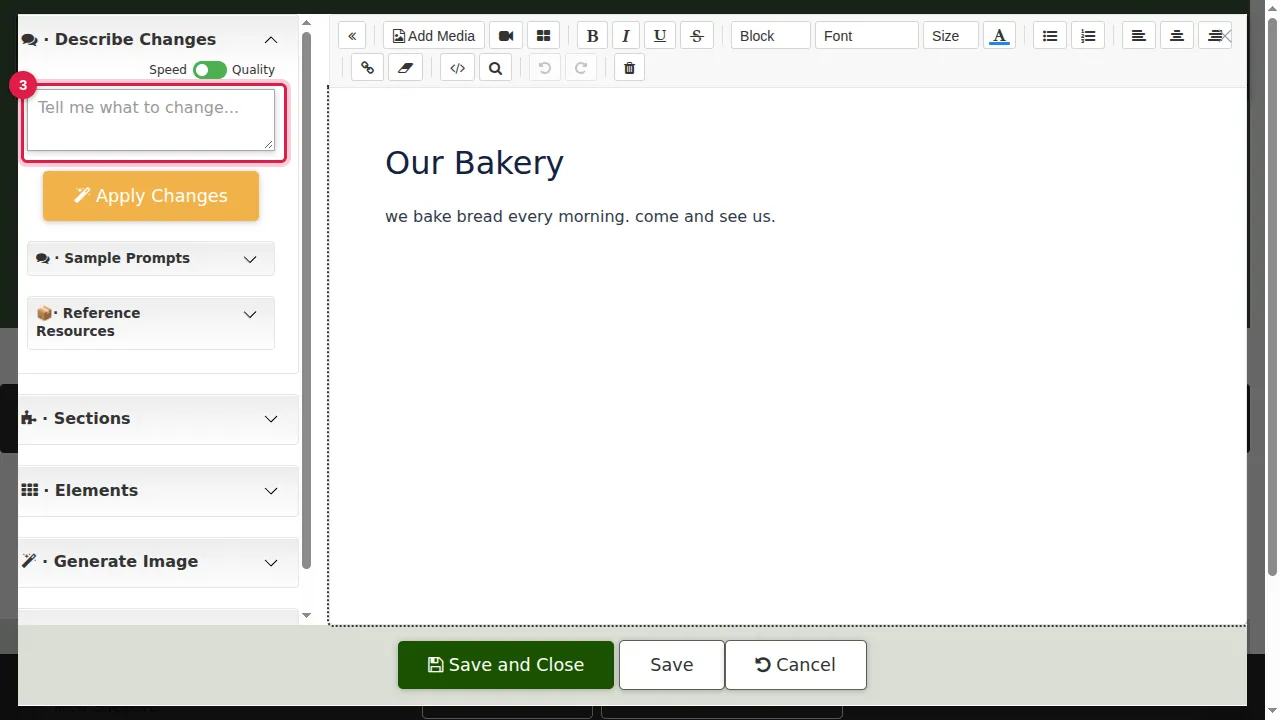
Step 3. Describe Changes is at the top left of the editor.
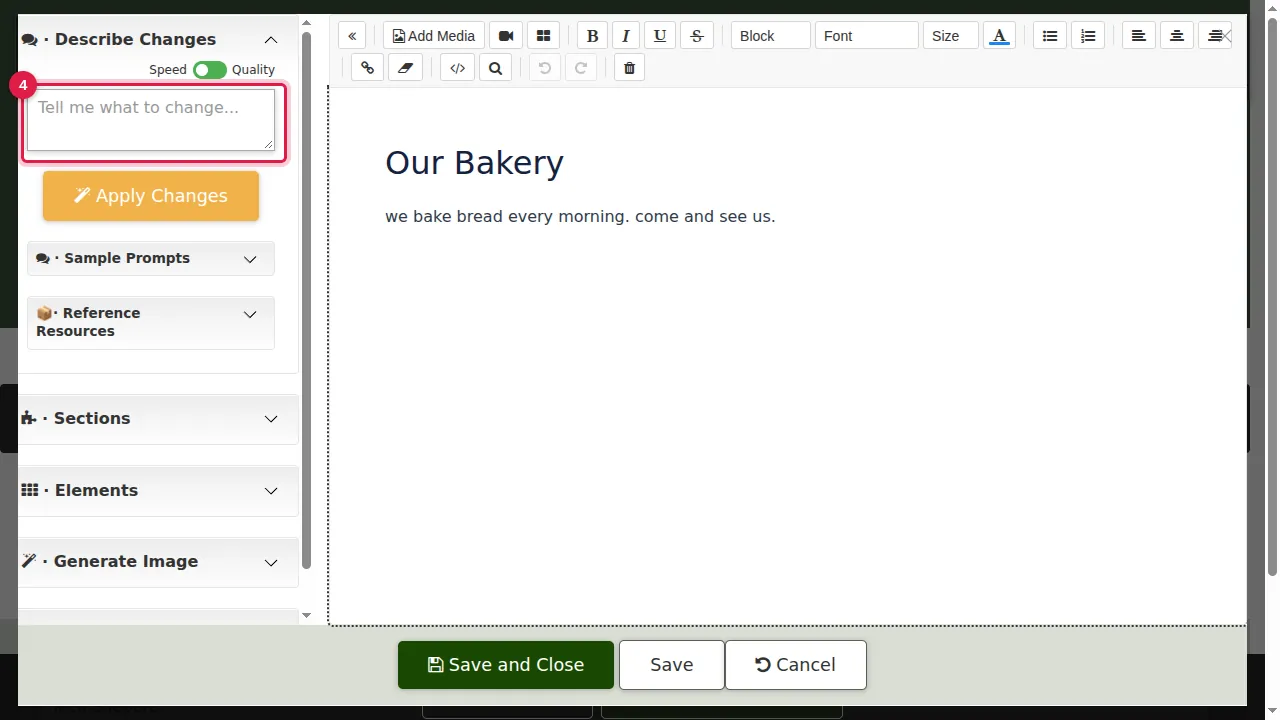
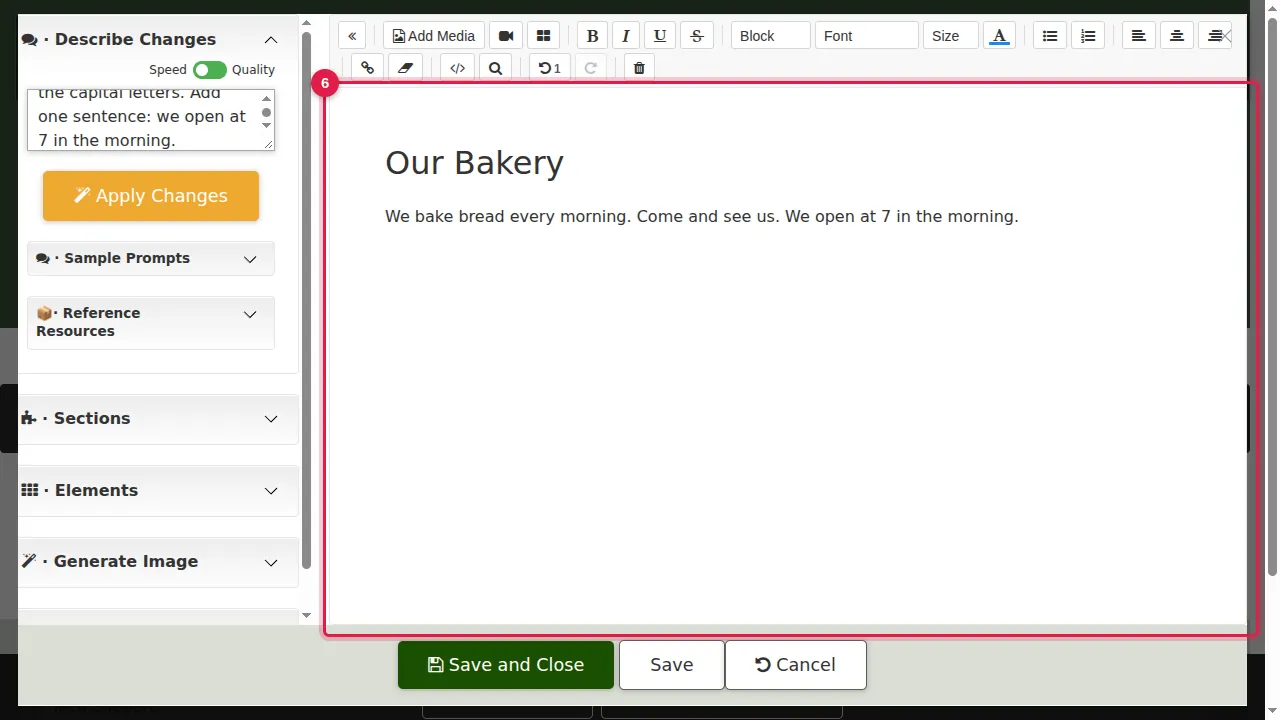
Step 4. Type a short, clear request in plain words, for example: "Correct the spelling and the capital letters. Add one sentence: we open at 7 in the morning."
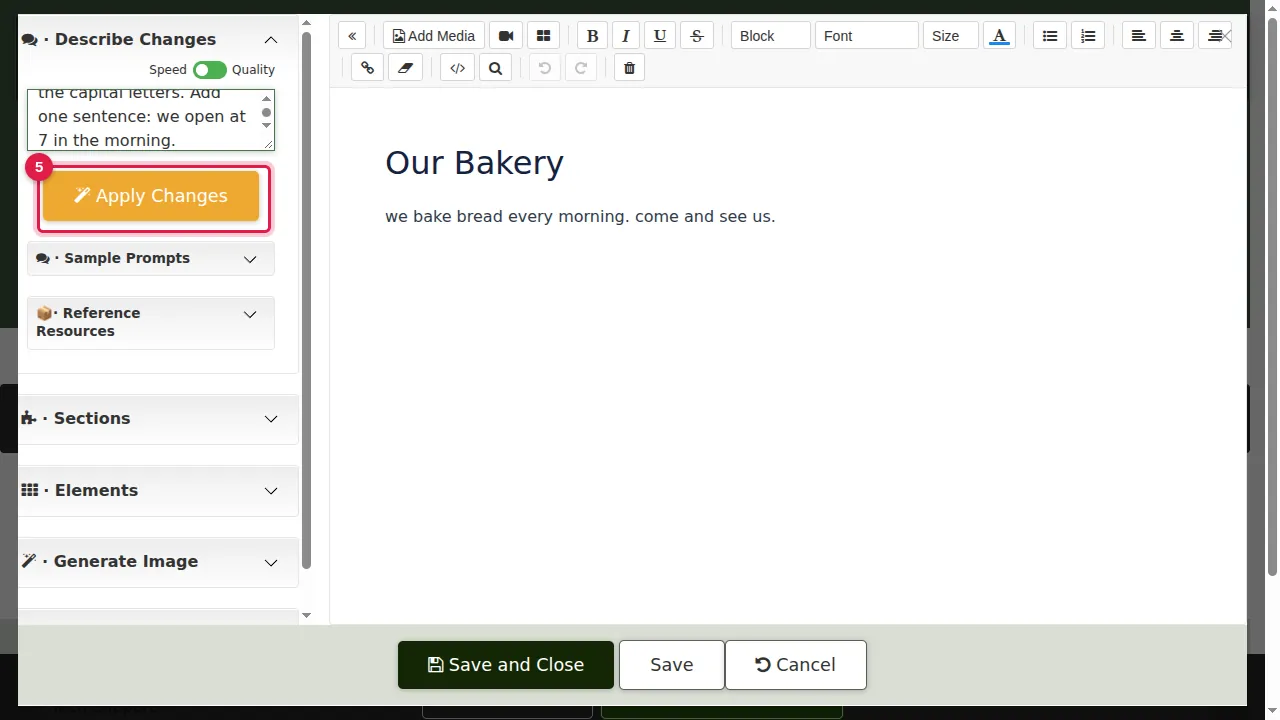
Step 5. Click Apply Changes and wait a few seconds.
Step 6. The AI changes the text in the editor. Read it carefully: AI can make mistakes or add things you did not ask for. Nothing is saved yet.
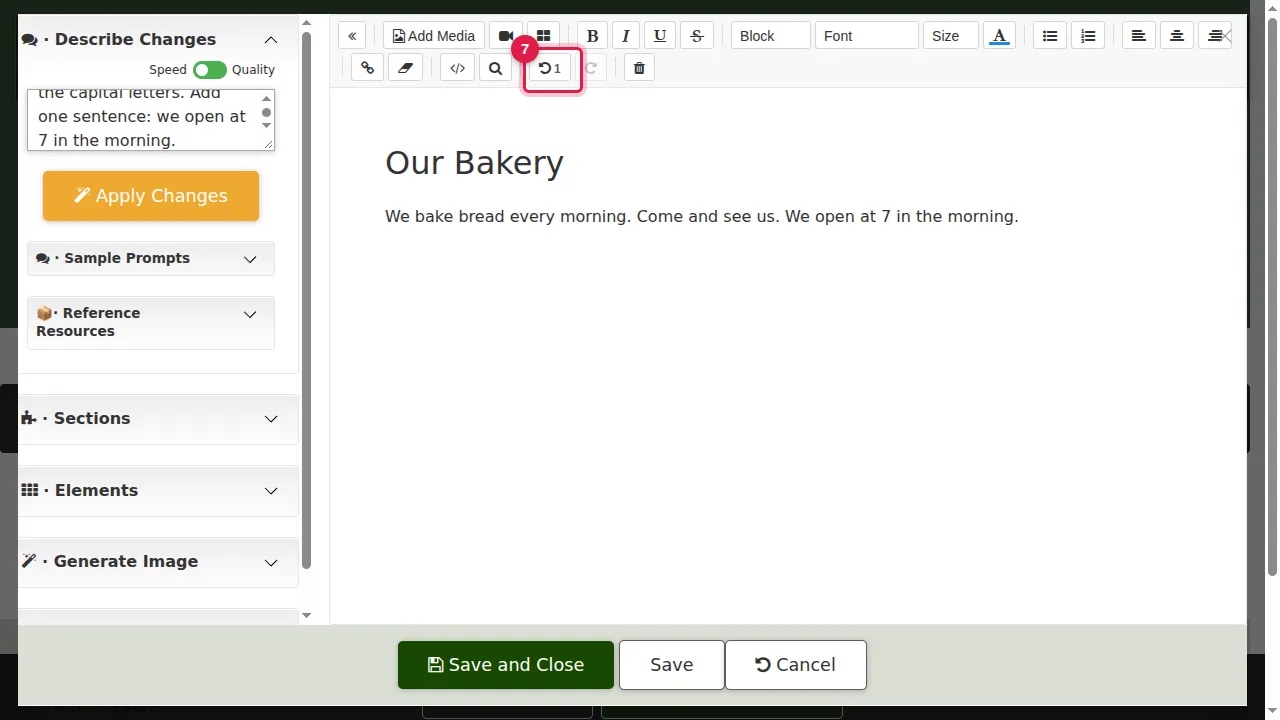
Step 7. Not what you wanted? Undo brings the old text back. Cancel, at the bottom, leaves the whole section as it was.
Make a picture with Generate Image
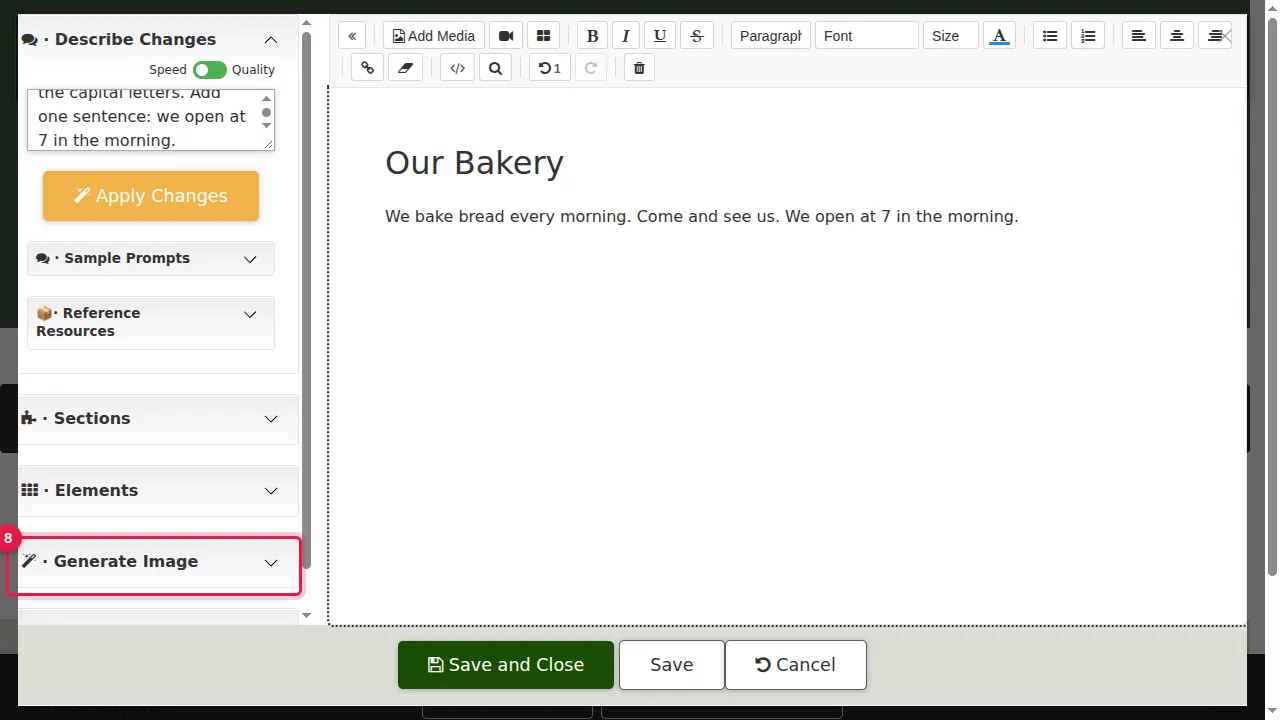
Step 8. To make a picture, click in the text where it should go, then open Generate Image at the left.
Step 9. Click Add AI Image.
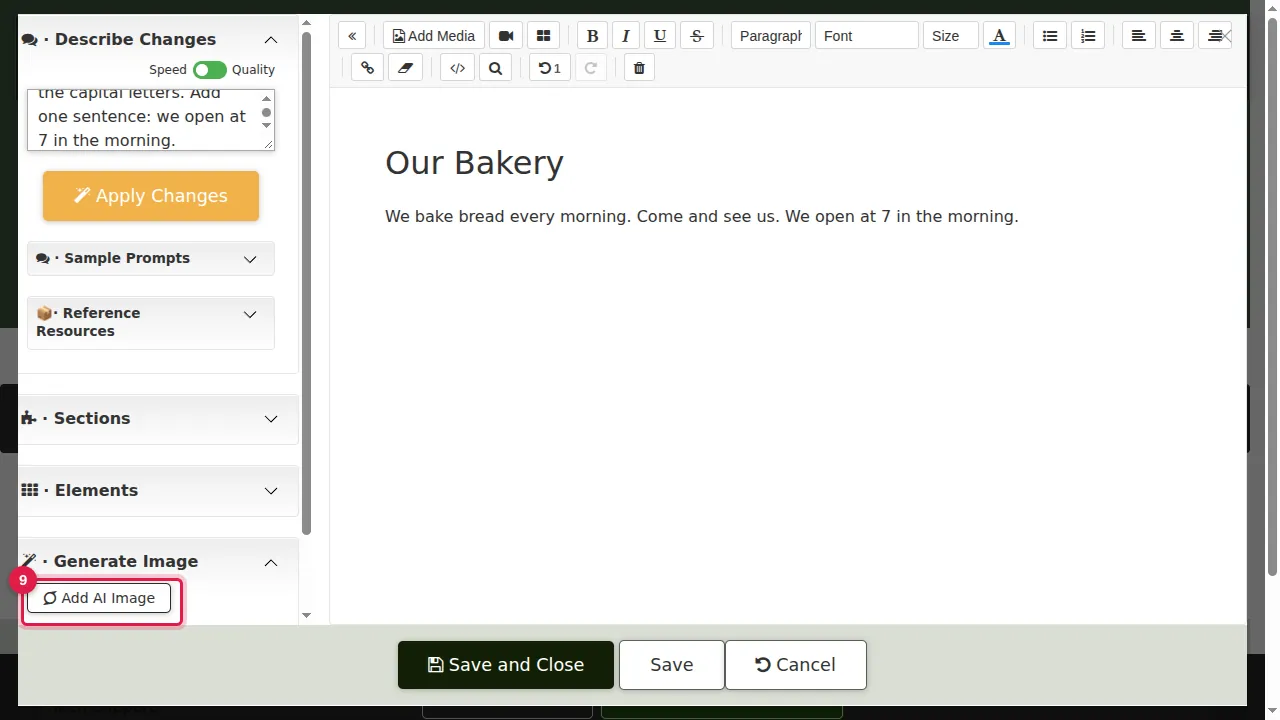
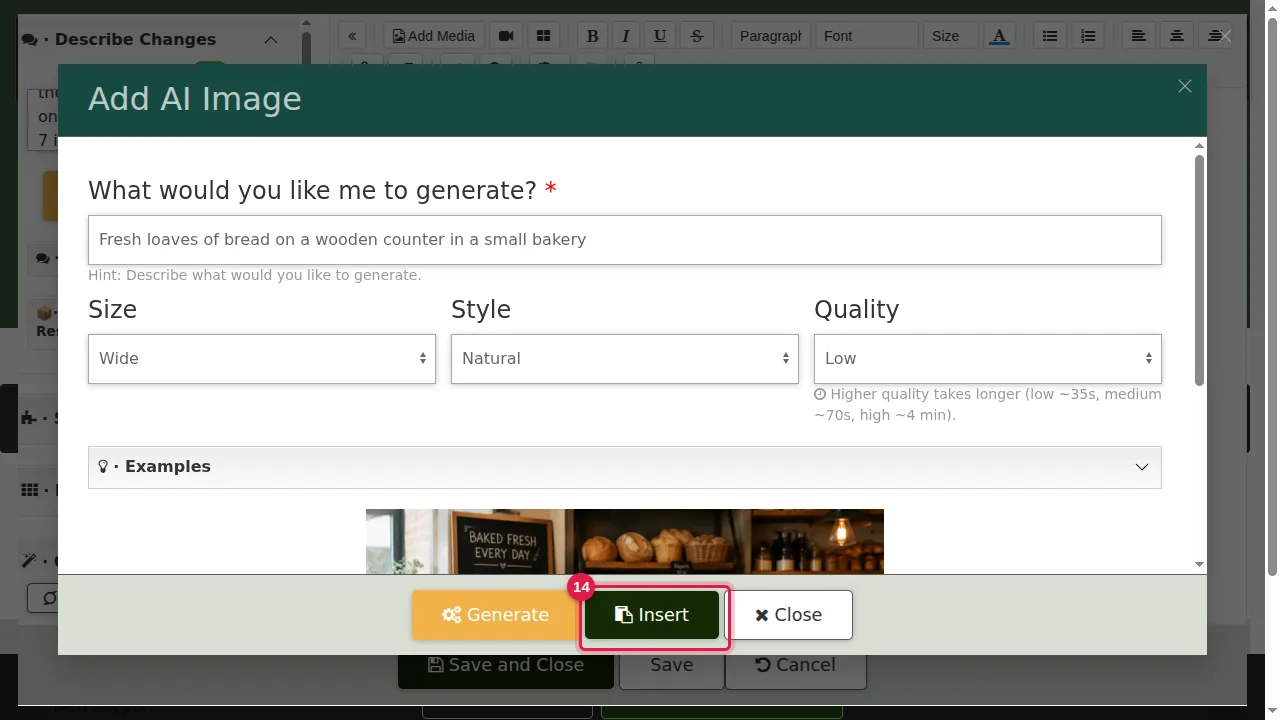
Step 10. Describe the picture you want in one sentence.
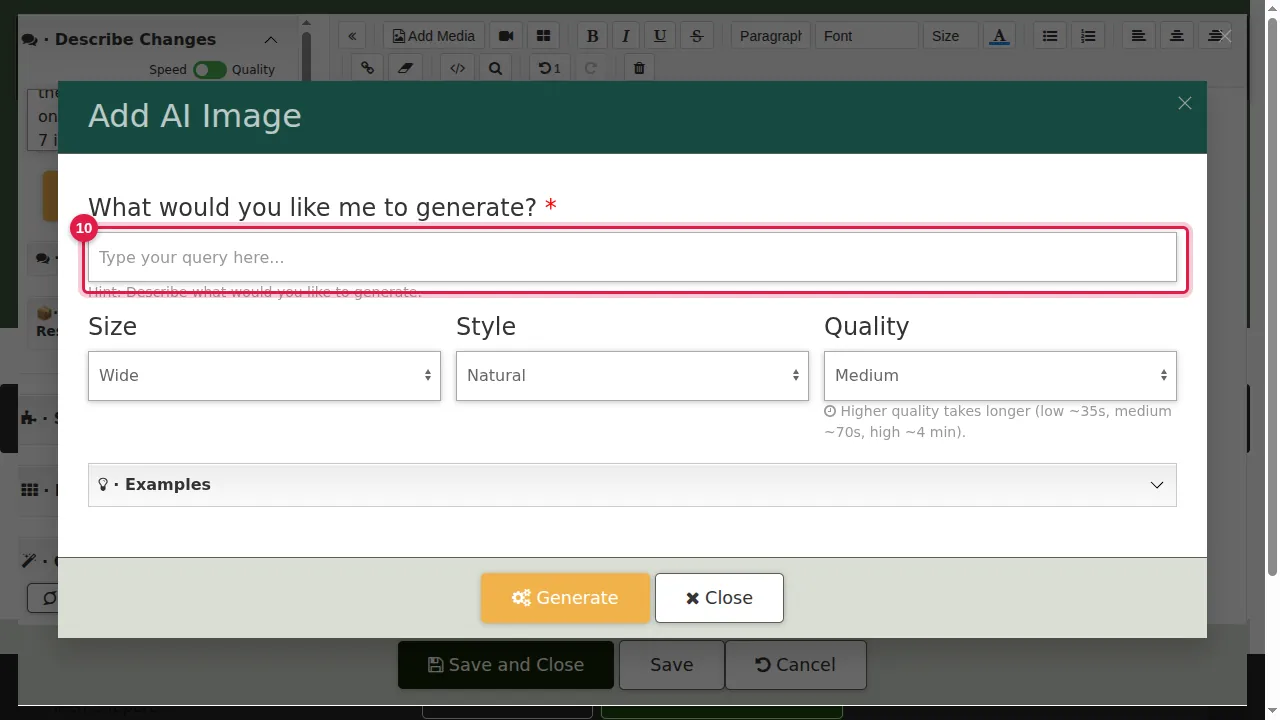
Step 11. Choose its Size (Wide, Tall or Square), Style (Vivid or Natural) and Quality. Higher quality takes longer: Low about 35 seconds, Medium about 70 seconds, High about 4 minutes.
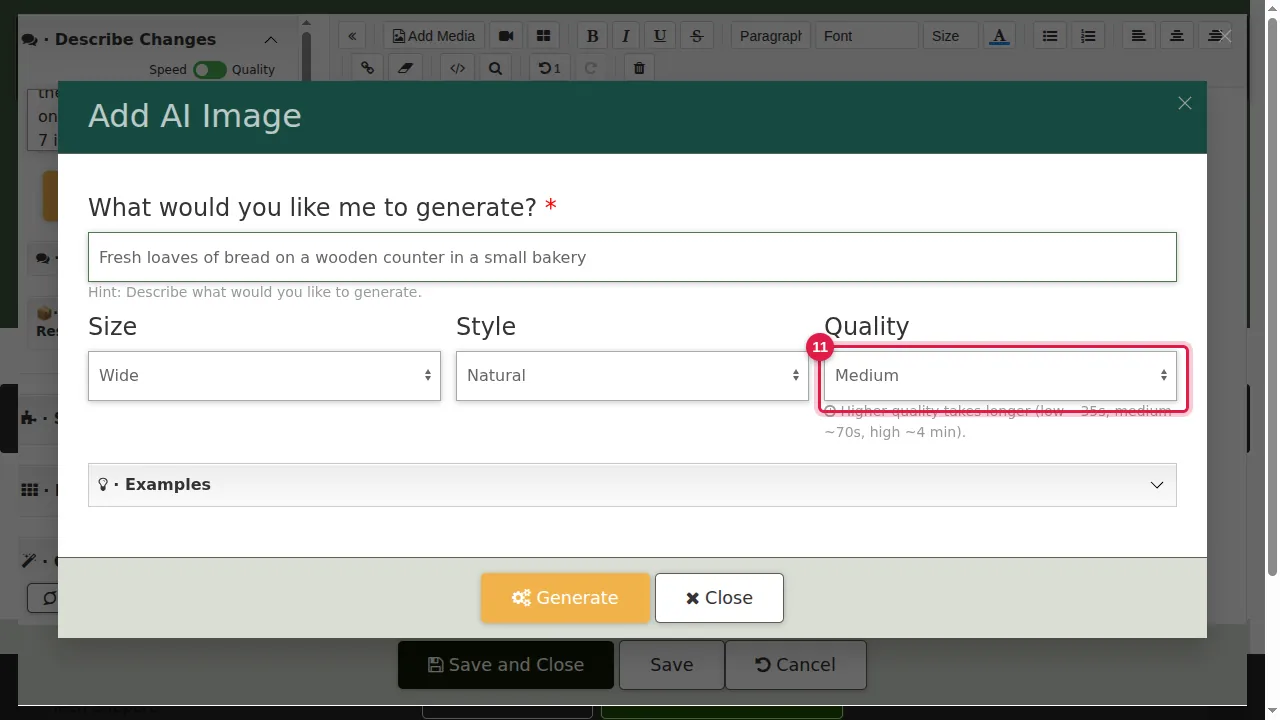
Step 12. Click Generate and wait.
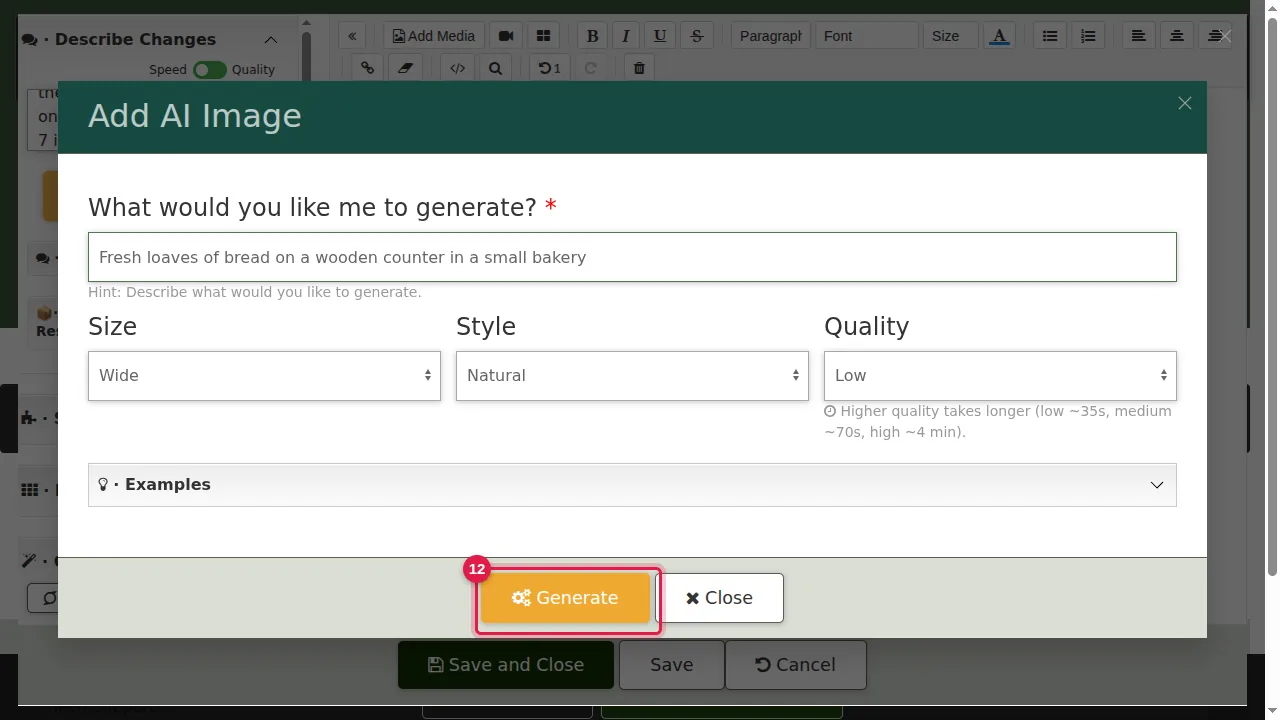
Step 13. Look at the picture. Not right? Change the description and click Generate again.
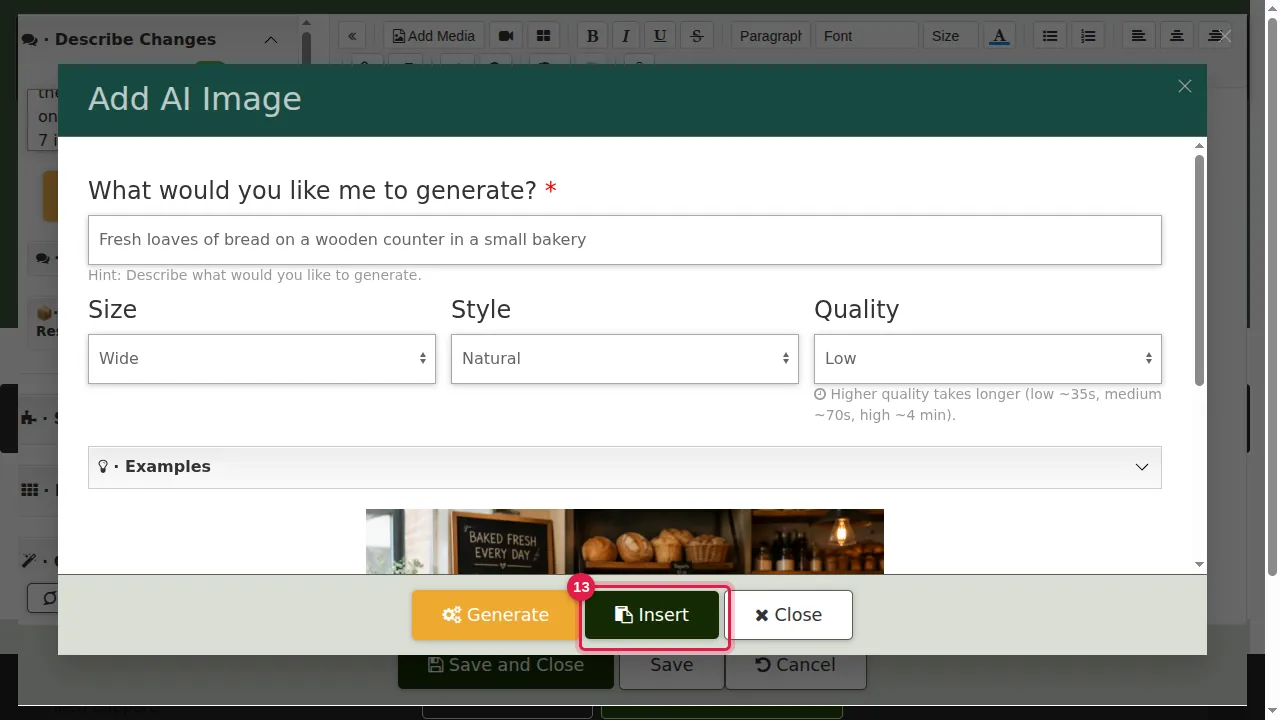
Step 14. Click Insert to put it in the section.
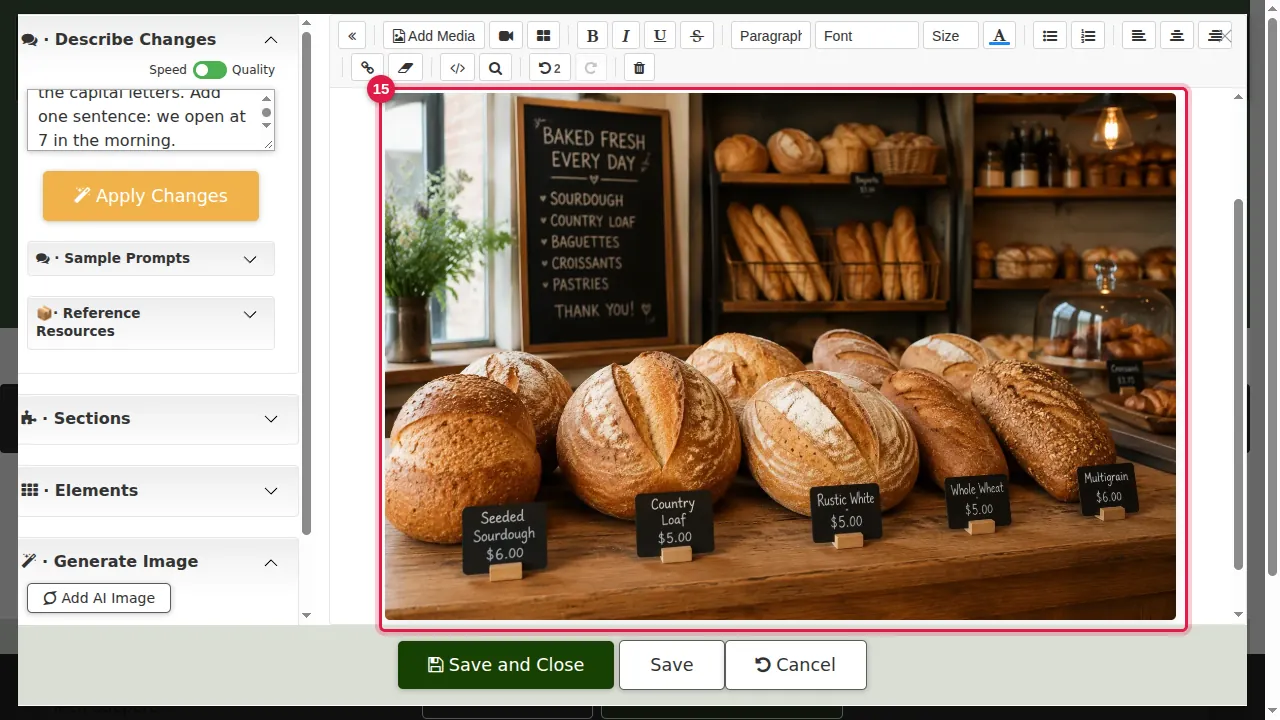
Step 15. The picture is in the section.
Save
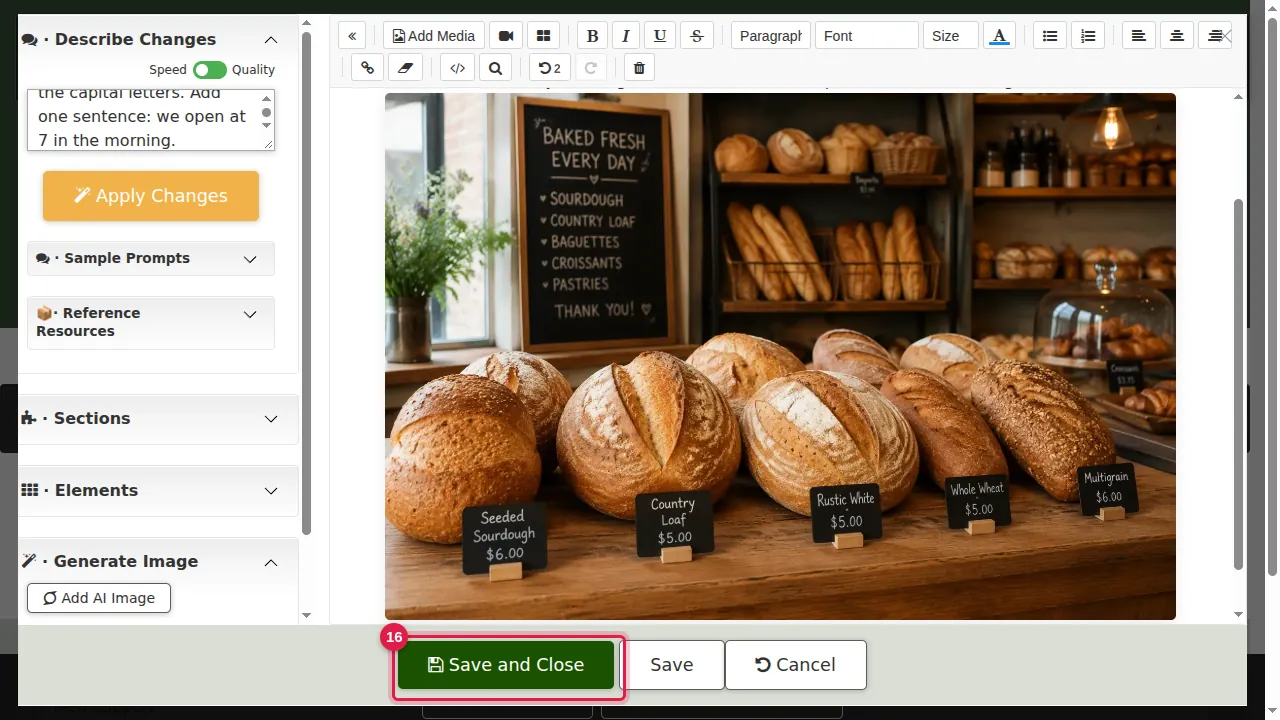
Step 16. Happy with the text and the picture? Click Save and Close.
Step 17. Click End Customizations.
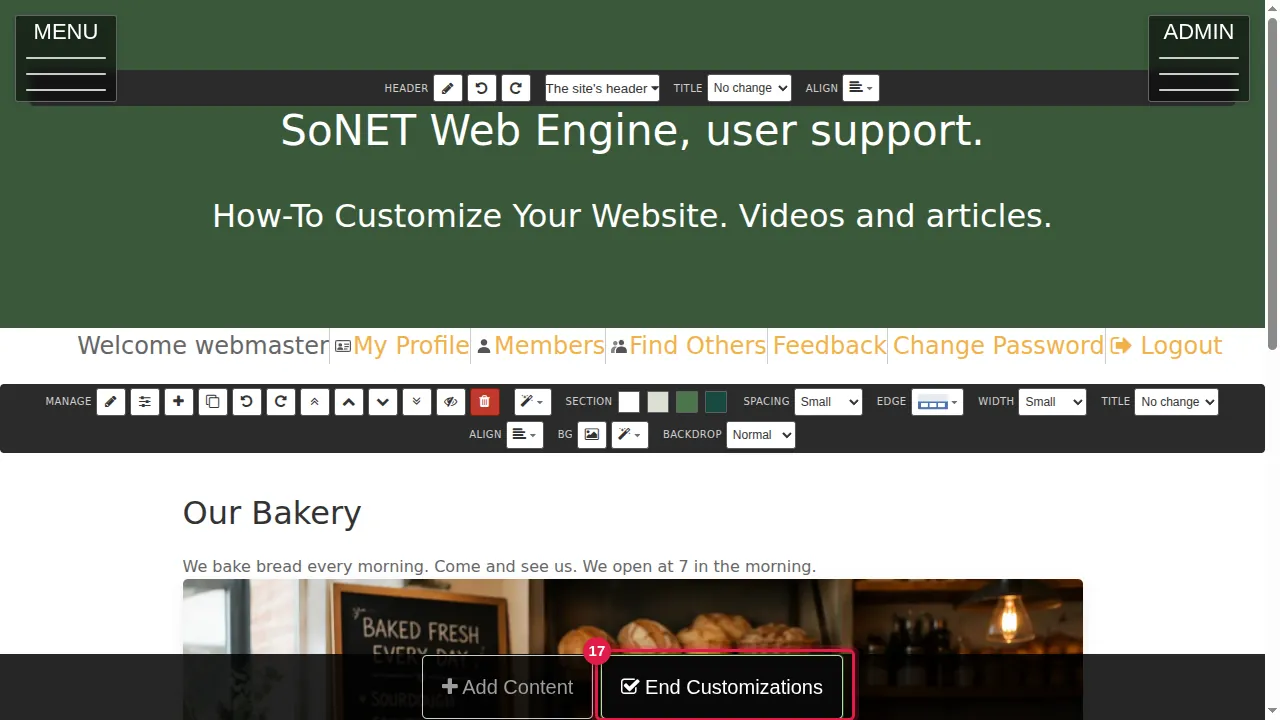
Step 18. The page shows the corrected text and the new picture.
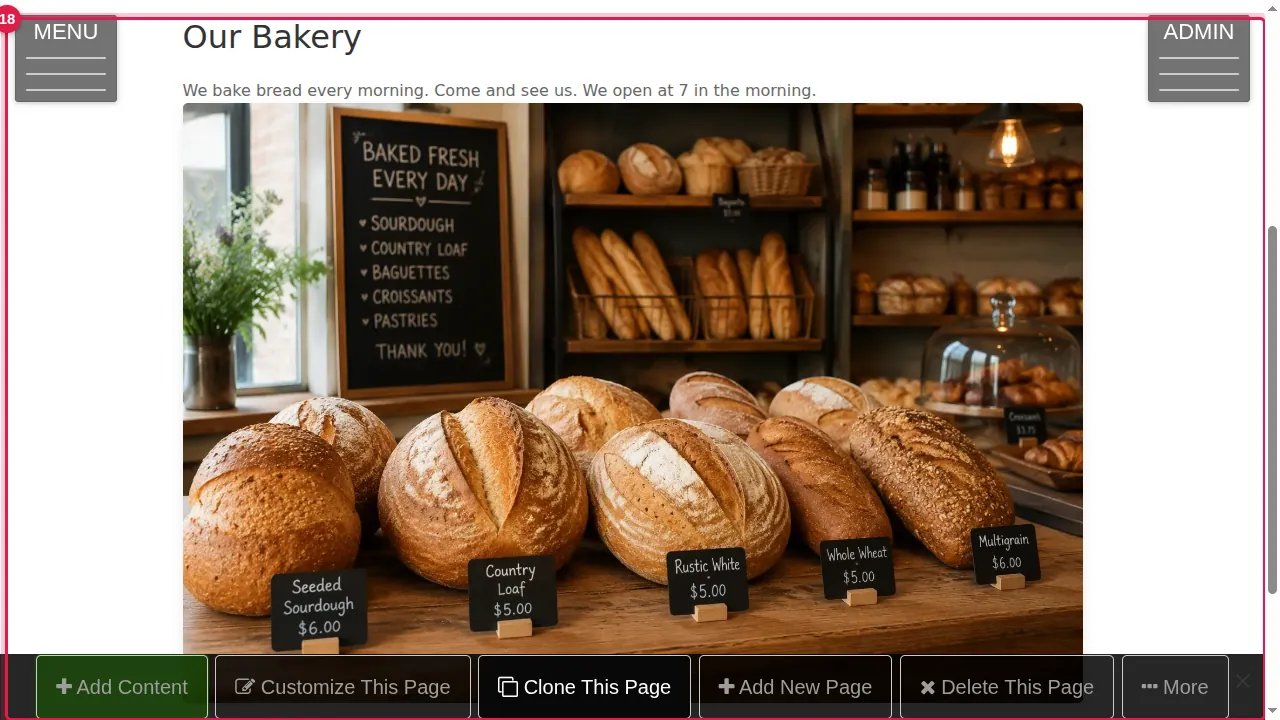
Check it worked
Read the page once more as a visitor (in a private window): the AI's words are now yours, so they must be true.
Good to know
- Ask for one small change at a time. A short request is easier to check than a whole rewrite.
- Pictures made by AI are illustrations: they do not show your real shop, products or people.
Related help
Shown on the 2026 version of the SoNET Web Engine. Last checked 21 October 2026. Something different on your screen? Tell us through the Contact page.