Help Center Look & Design
A new look for my site (the Design tab)
The Template Kit's Design tab gives your site a complete new look in a few clicks. You see each look on your own home page before anything is saved; your words and pictures stay, and a saved look can be put back in one click.
Watch it done: a short silent video with captions · 1:34. The steps below show the same thing picture by picture.
Before you start
- Log in and open ADMIN › Template Kit.
- Fill in your site's description first (ADMIN › SEO › Meta Tags): the Design tab reads it to decide what kind of site you have.
Three ways to a new look
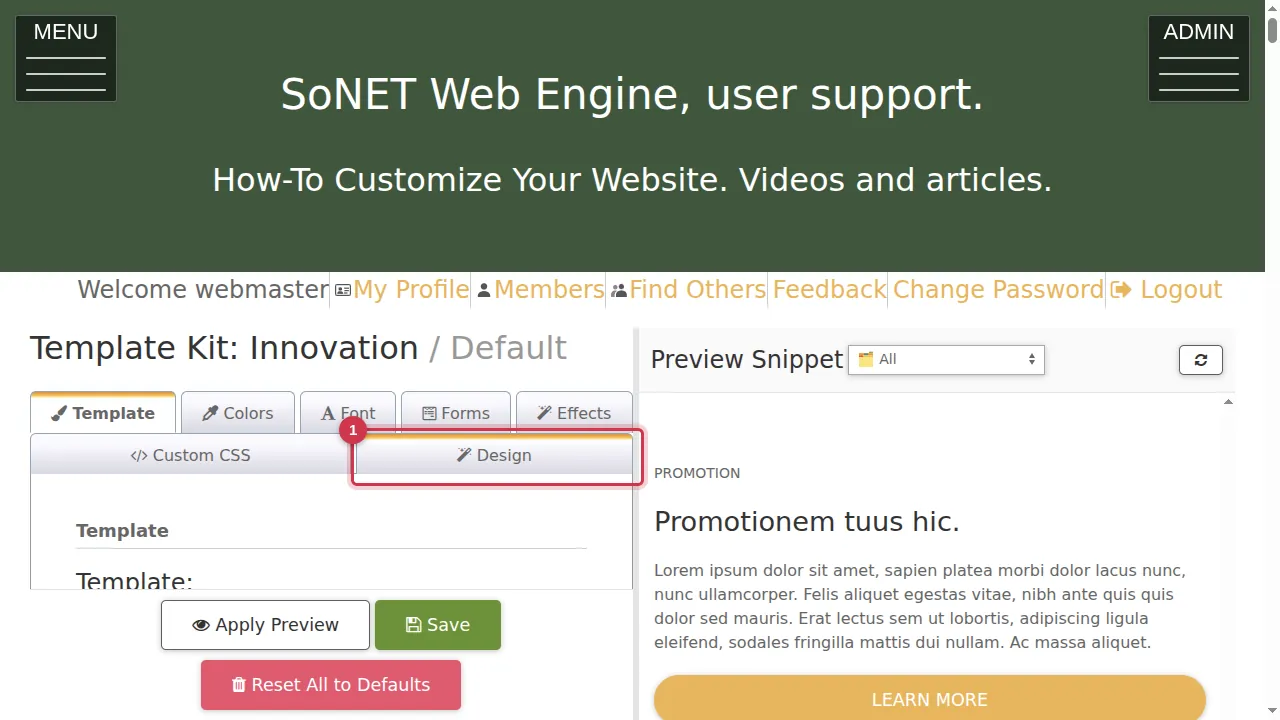
Step 1. In the Template Kit, open the Design tab.
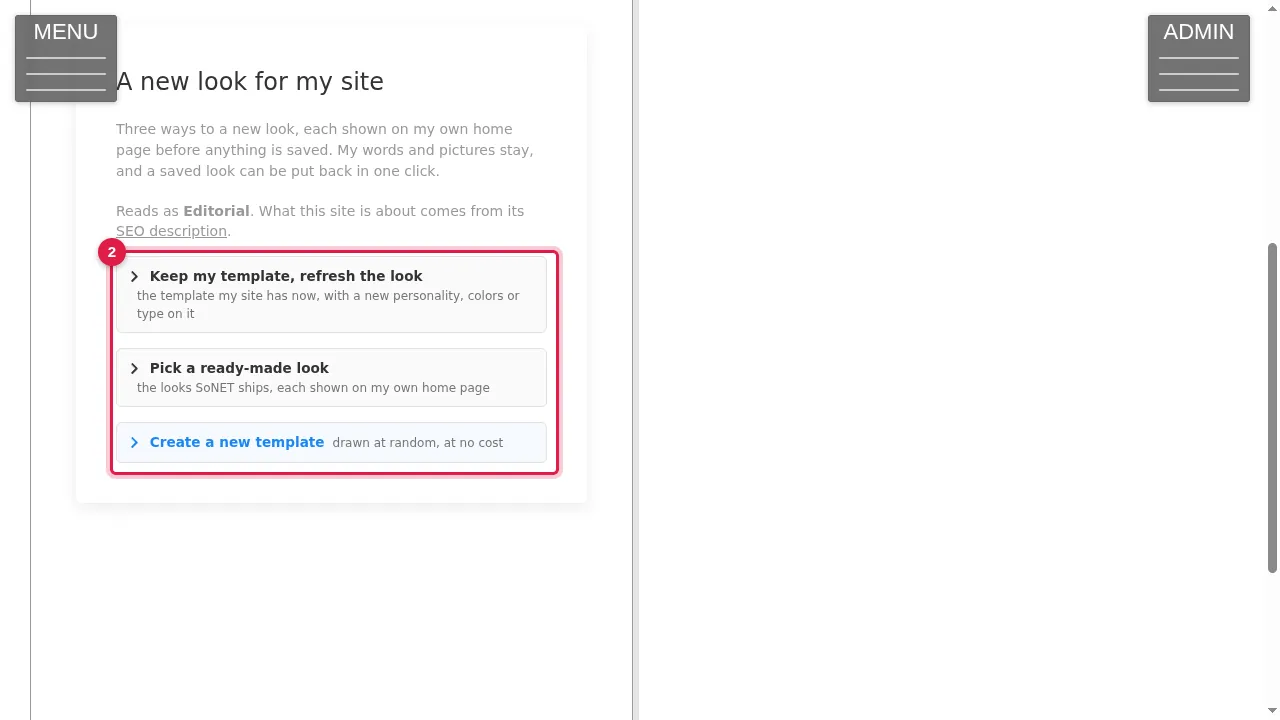
Step 2. "A new look for my site" offers three ways. Above them it says how it reads your site (here "Editorial"), taken from your SEO description.
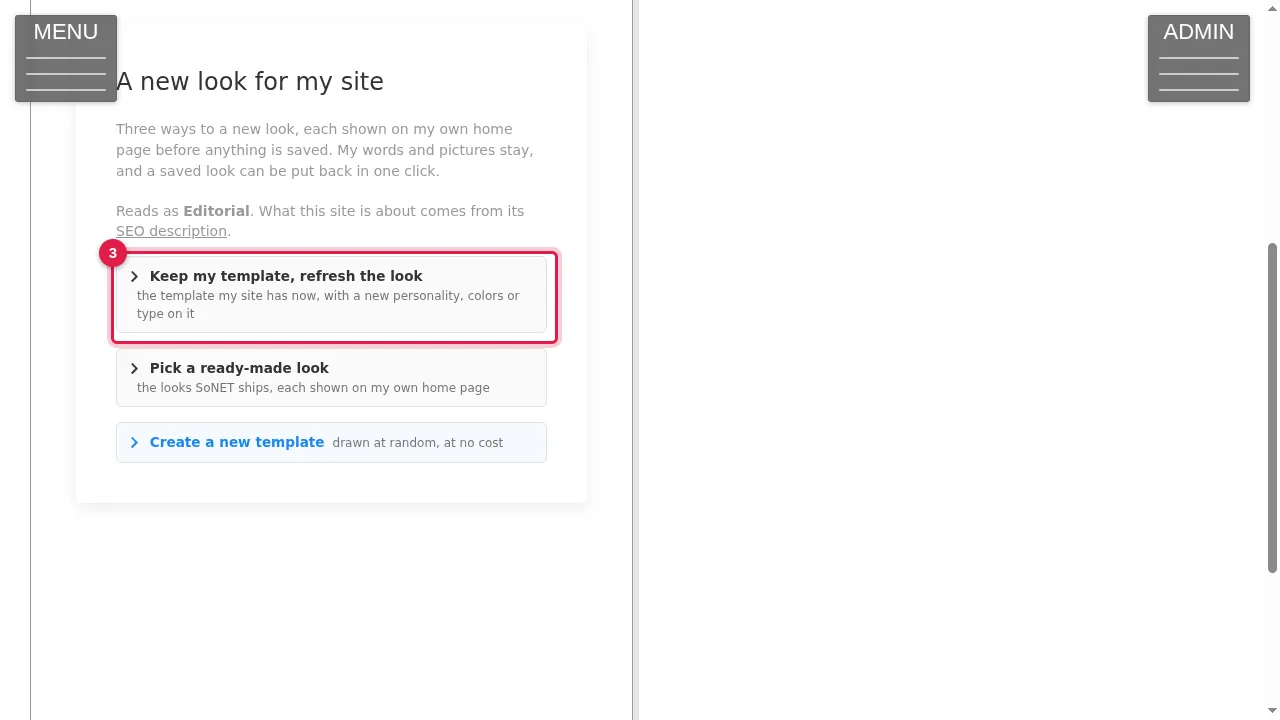
Step 3. Keep my template, refresh the look: the template your site has now, with a new personality, colours or type on it.
Pick a ready-made look
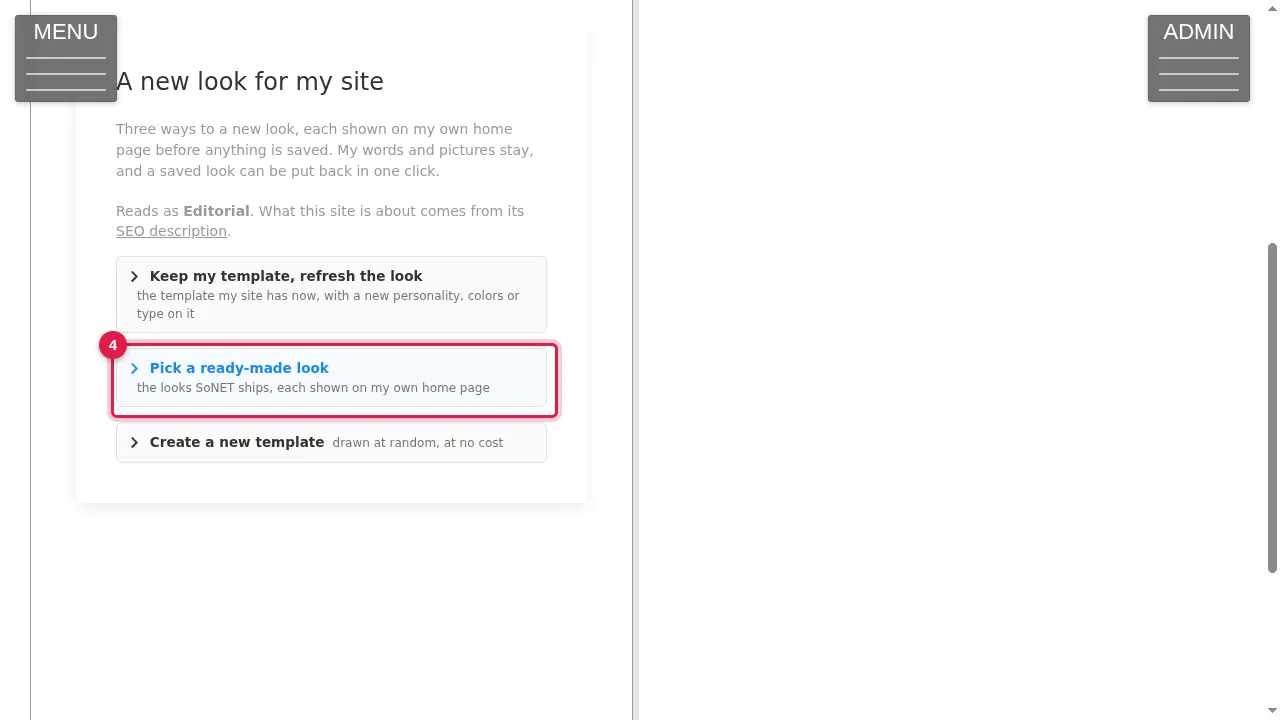
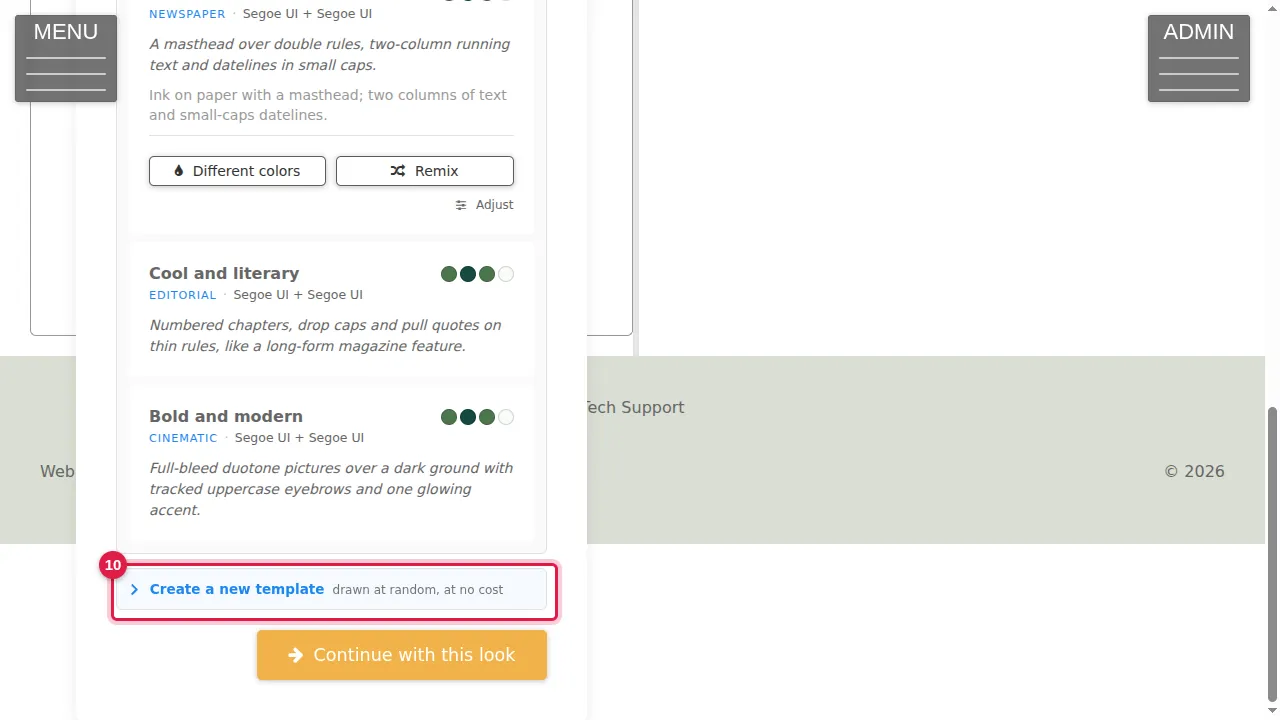
Step 4. Pick a ready-made look: the looks SoNET ships, such as Classic broadsheet (newspaper), Cool and literary (editorial) and Bold and modern (cinematic). Click it to see them.
Step 5. Each look has Different colors and Remix buttons and an Adjust link, to try variations of it.
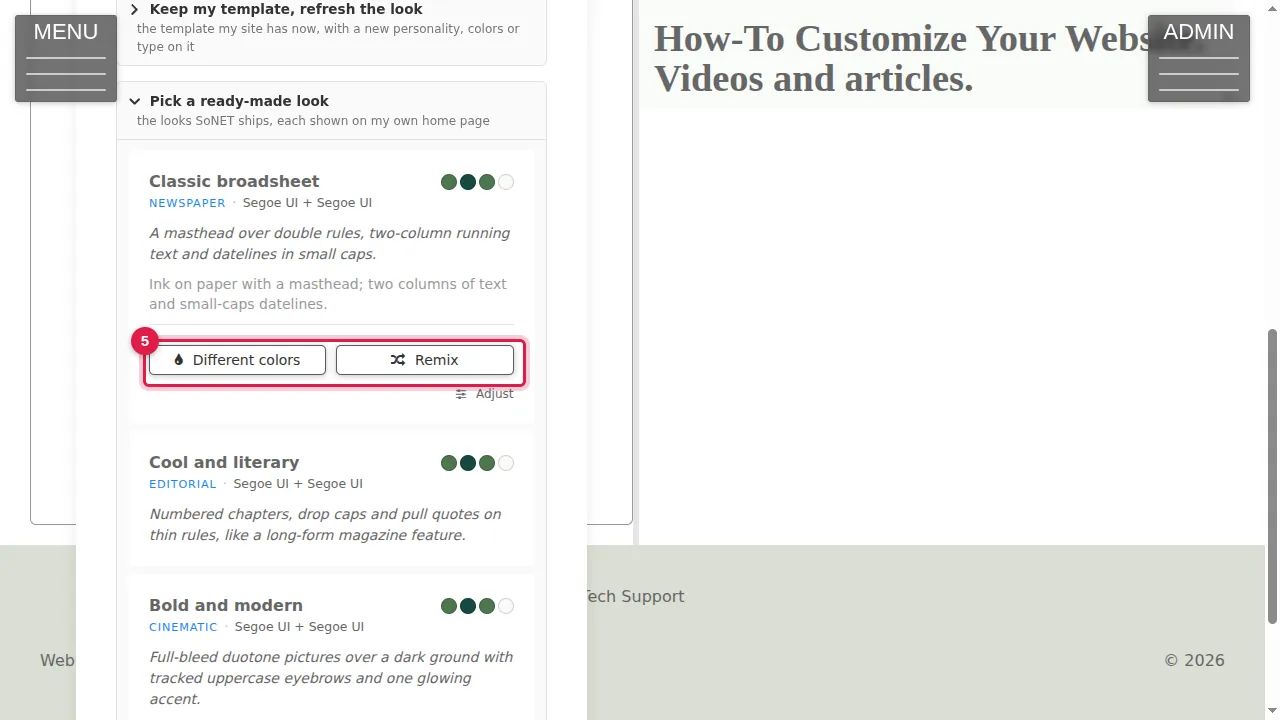
Step 6. Click Continue with this look.
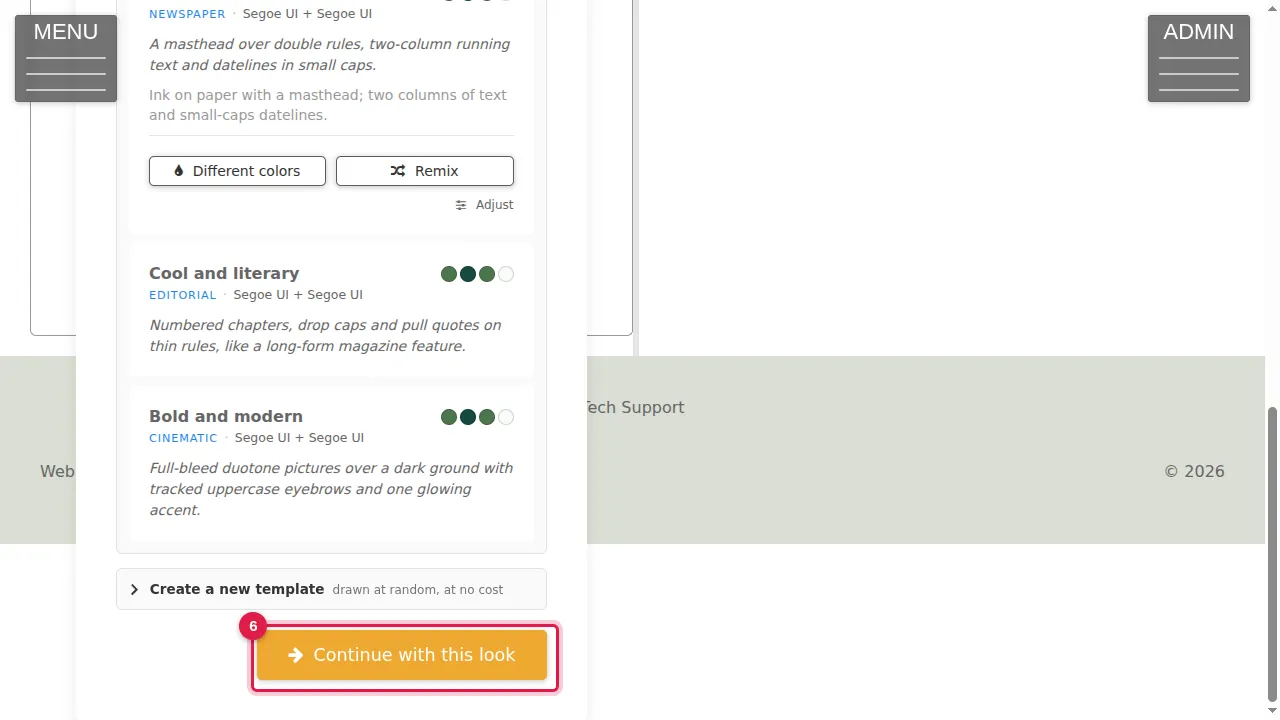
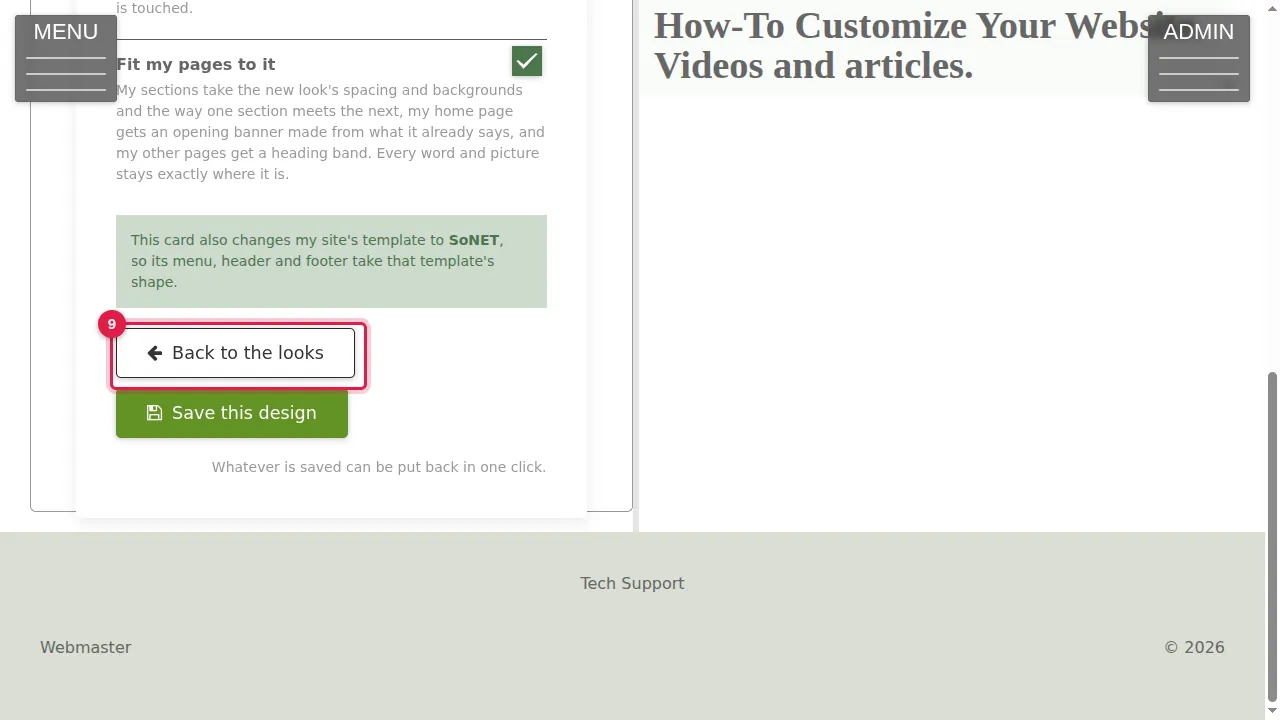
Step 7. Decide how far the look goes. "Fit my pages to it" lets your sections take the new look's spacing and backgrounds, gives your home page an opening banner made from what it already says, and gives your other pages a heading band; every word and picture stays where it is. A note tells you when a look also changes your site's template. Your home page in the new look is shown on the right.
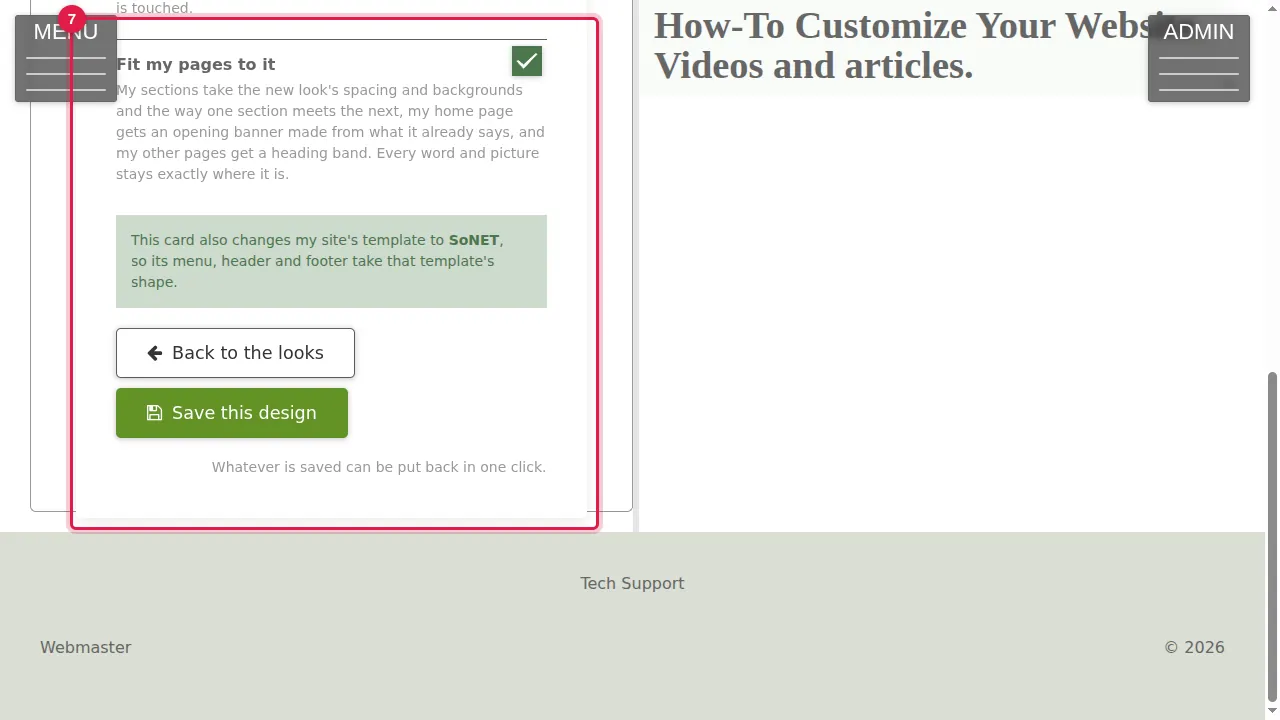
Step 8. Save this design makes it your site's look. Whatever is saved can be put back in one click. (Not clicked in this video.)
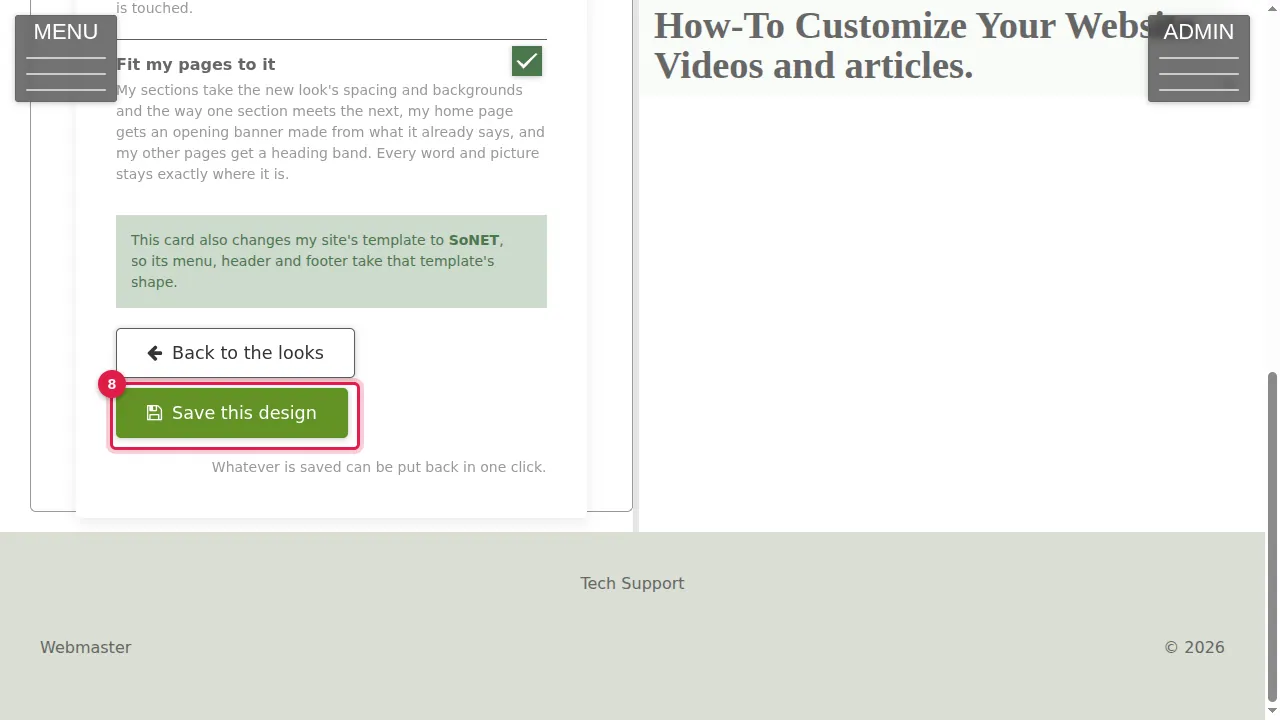
Step 9. Back to the looks returns to the choices without changing anything.
Create a new template
Step 10. Create a new template draws a random new template, as often as you like, at no cost. Choose a tone first (warm and friendly, professional and trustworthy, playful and energetic, elegant and premium, bold and modern, calm and natural, minimal and quiet), and tick "Keep my colors and fonts" to start from the ones your site has now.
Check it worked
After saving, open your home page and a few other pages as a visitor.
Good to know
- Trying looks is free and changes nothing: only Save this design does.
- Not happy after saving? The saved look can be put back in one click.
Related help
Shown on the 2026 version of the SoNET Web Engine. Last checked 21 October 2026. Something different on your screen? Tell us through the Contact page.