Help Center SEO & Search
Headers: every page's header in one place
See and manage the header of every page in one place: the home page's header, the header all other pages follow, and any page's own header, with previews, earlier versions and a slim version.
Watch it done: a short silent video with captions · 1:26. The steps below show the same thing picture by picture.
Before you start
- Log in as the site owner.
- Open ADMIN › SEO.
The Headers tab
Step 1. Click the Headers tab.
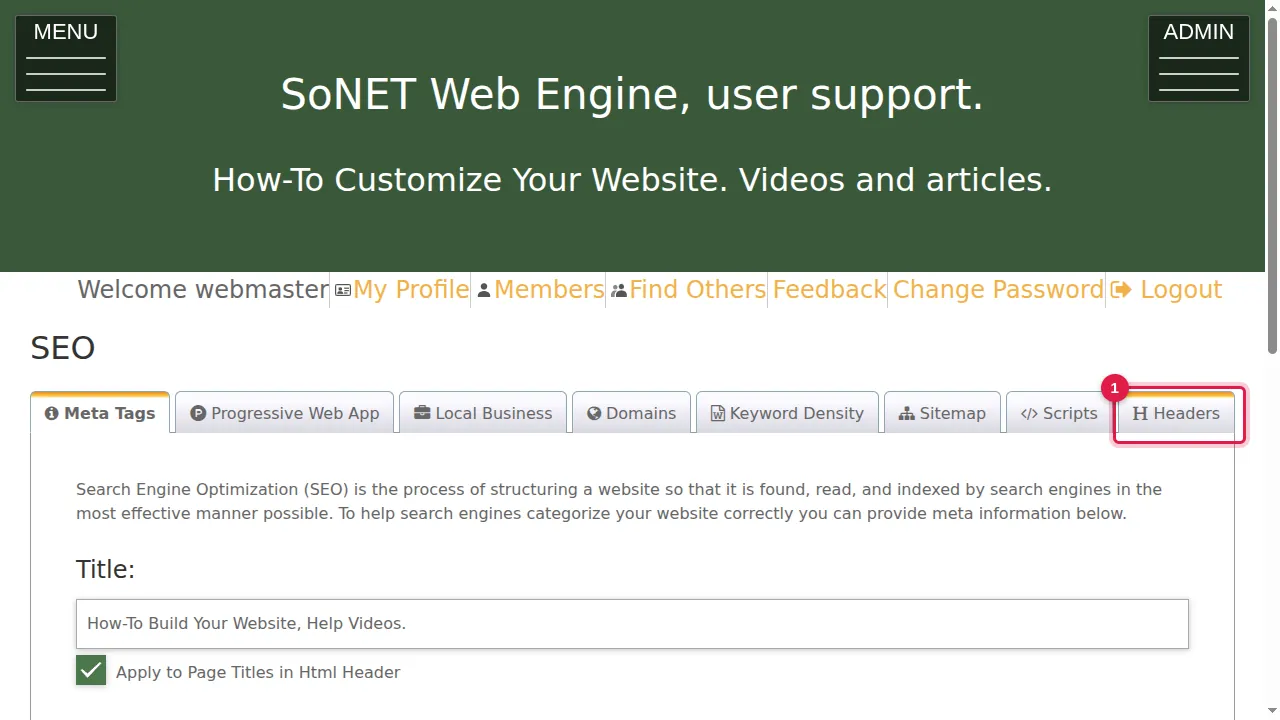
Step 2. It shows every page's header in one place: the home page's, the one every other page follows, and each page's own header where it has one.
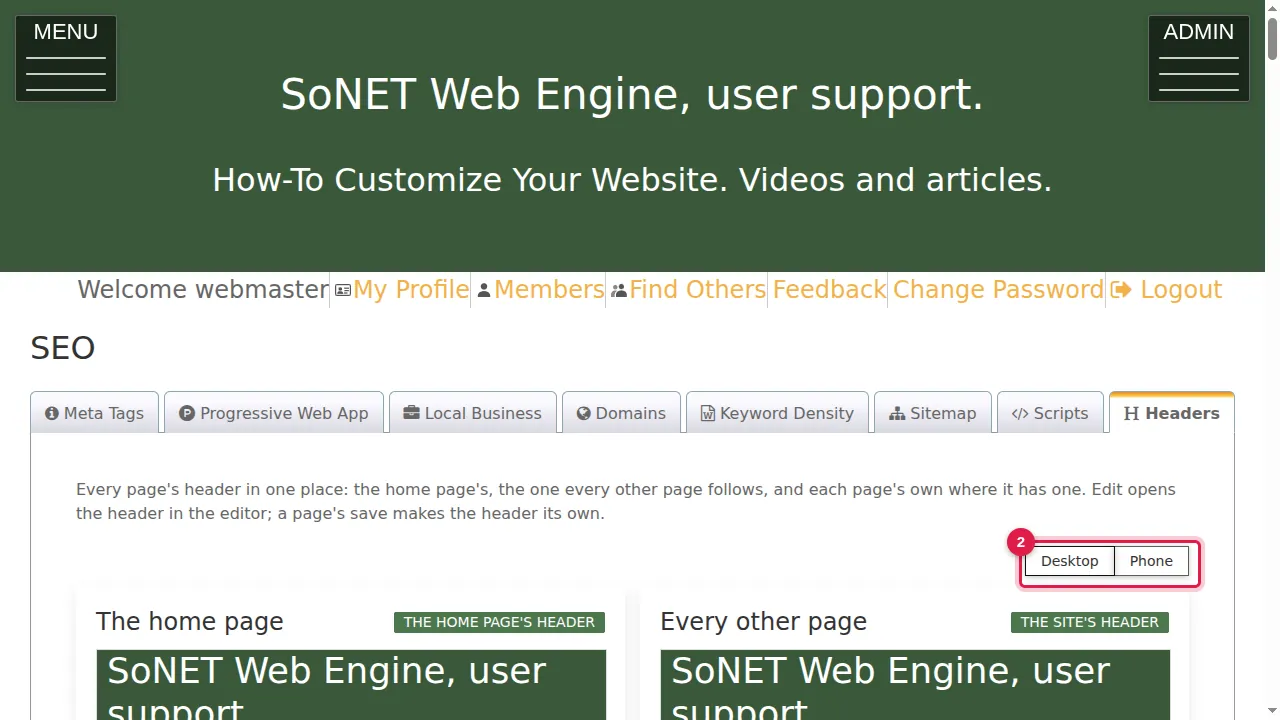
Step 3. Click Phone to see the previews at phone width…
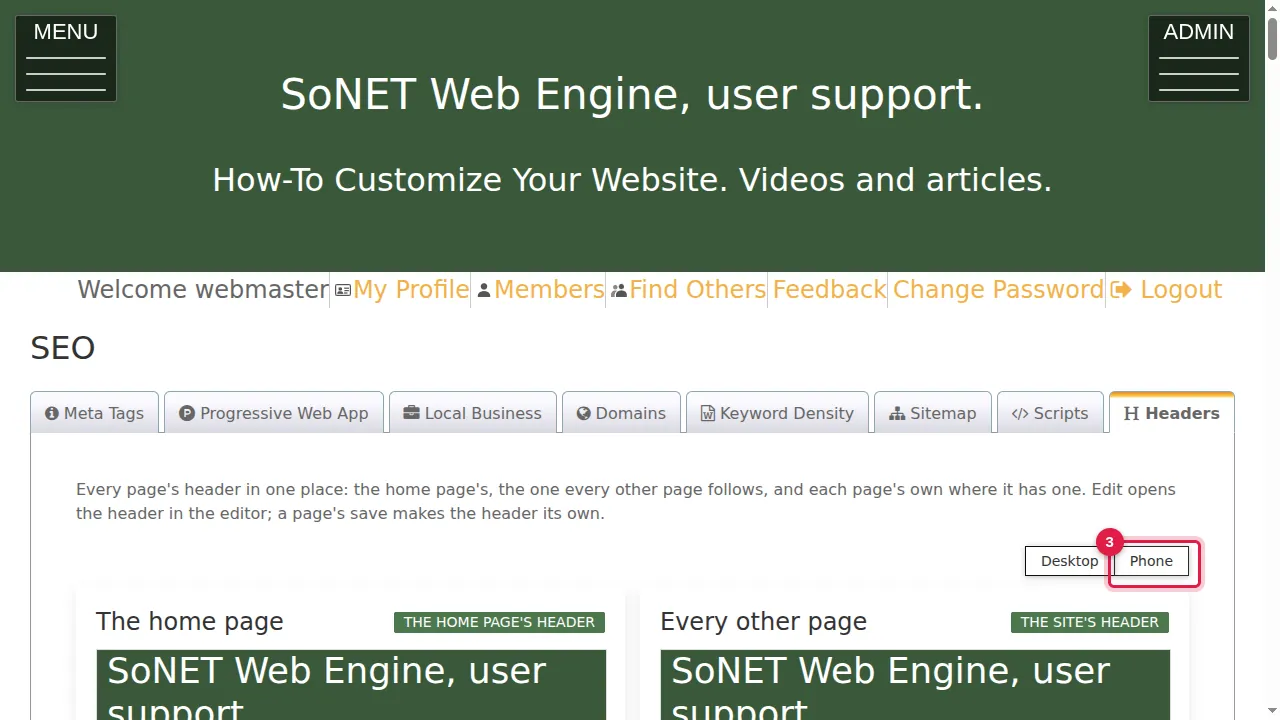
Step 4. …as here. Click Desktop to go back.
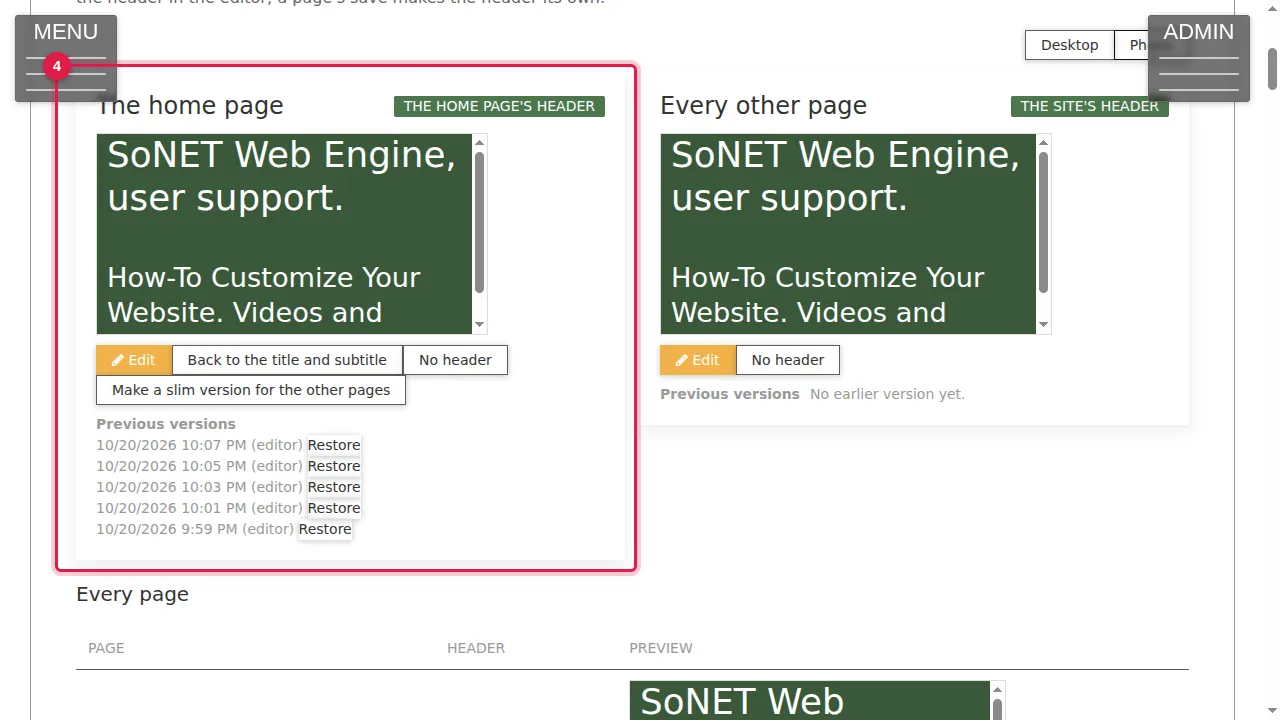
The home page's header
Step 5. The home page: Edit opens its header in the editor.
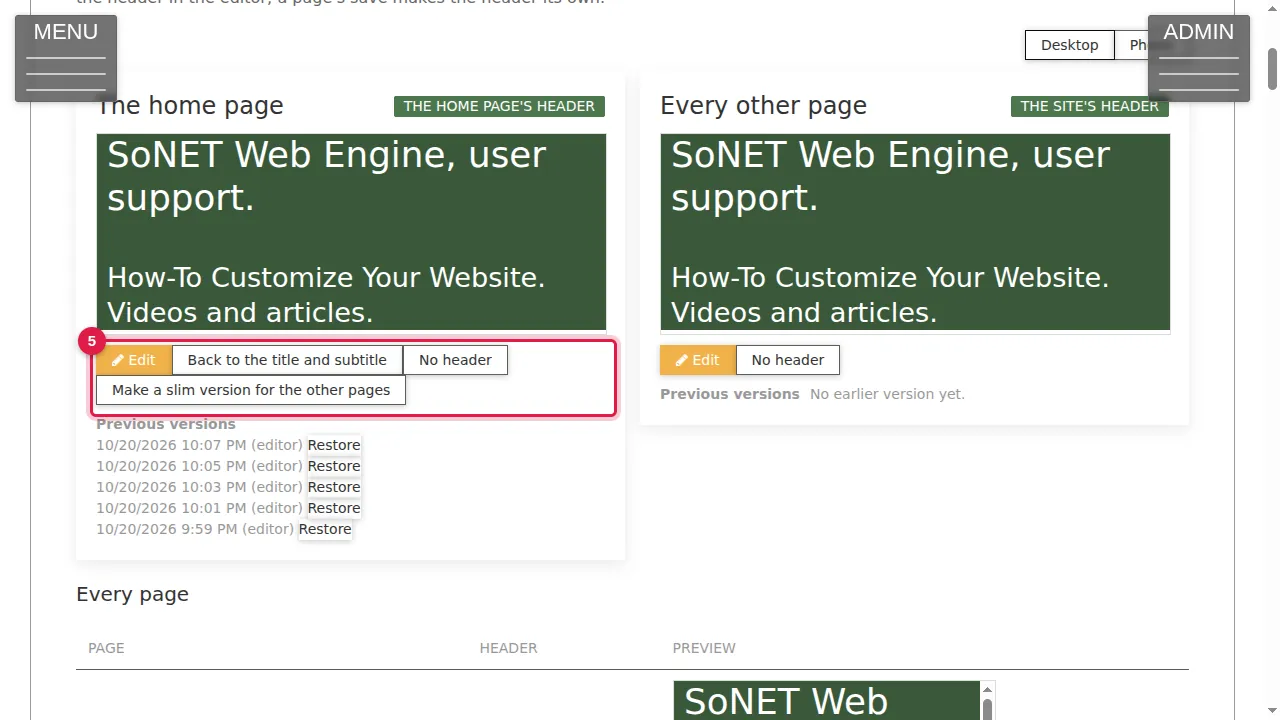
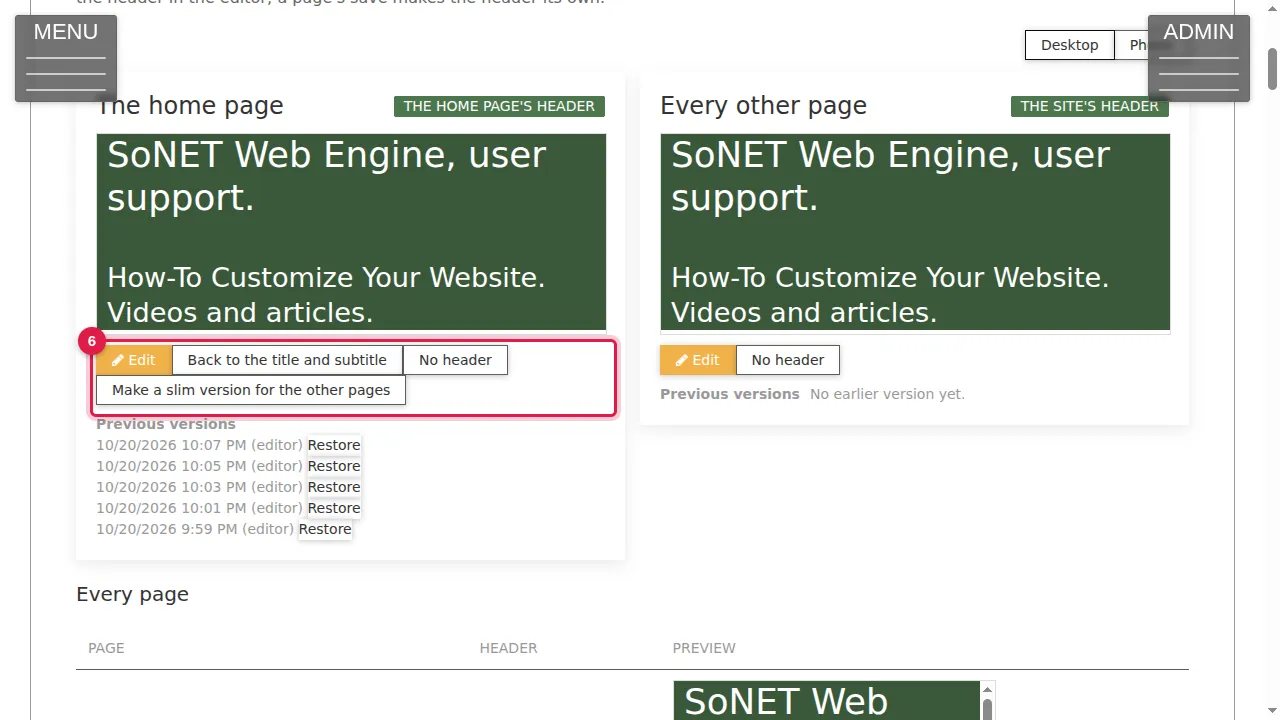
Step 6. Back to the title and subtitle returns to the plain title and subtitle; No header removes the header; Make a slim version for the other pages makes a smaller copy for the rest of the site.
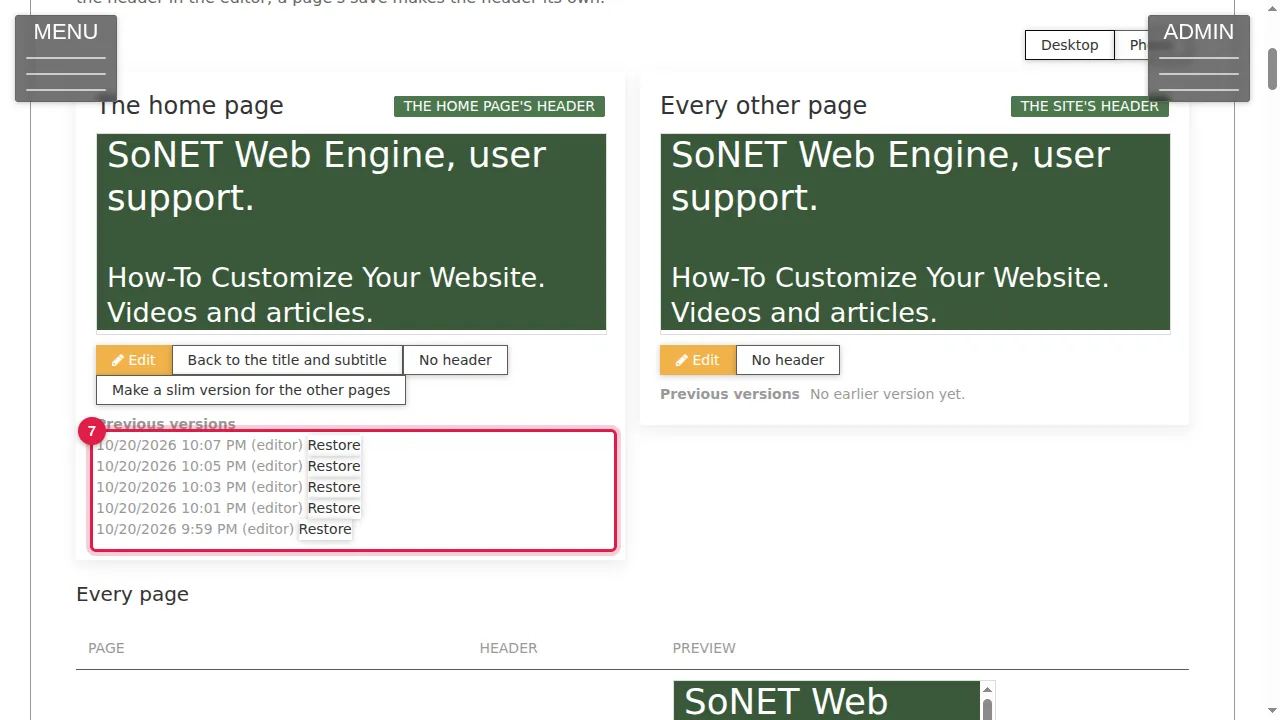
Step 7. Previous versions lists the earlier versions of the header with their date; Restore brings one back.
Every other page
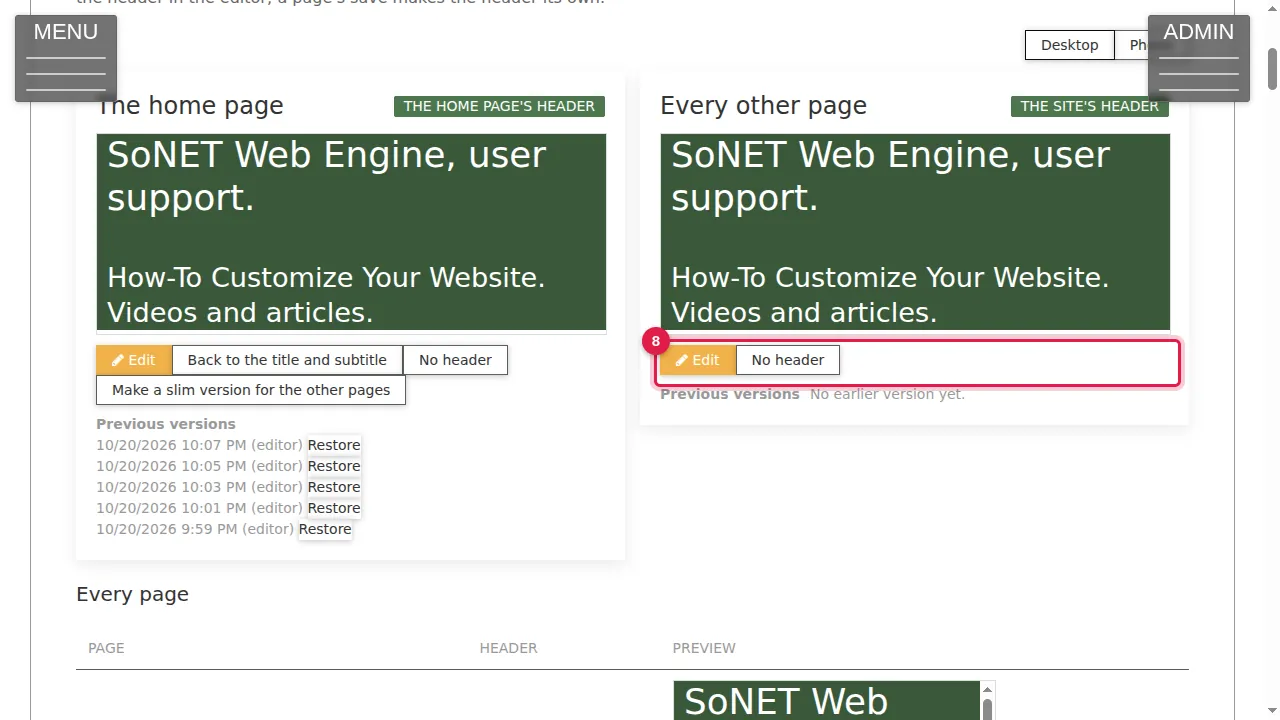
Step 8. Every other page: the site's header that all other pages follow, with Edit and No header.
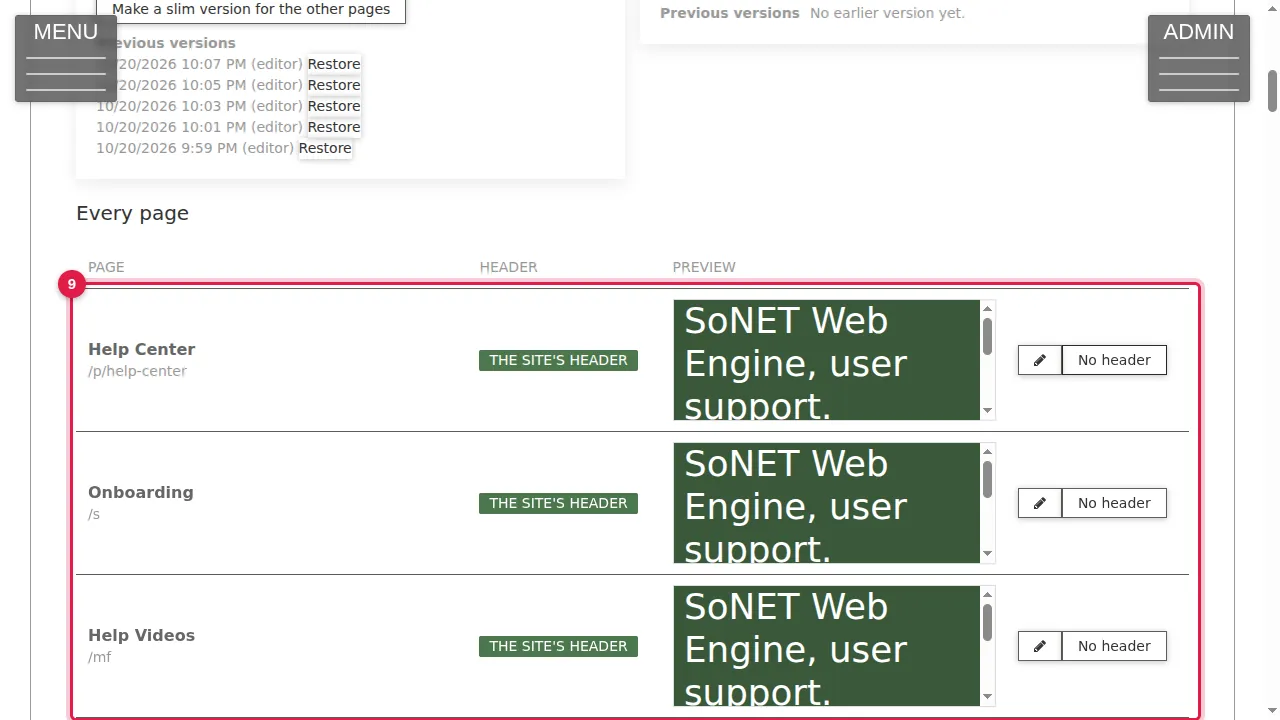
Step 9. Every page lists each page with the header it uses and a preview. Its edit button gives that page its own header (saving it in the editor makes the header the page's own); No header removes the header from that page only.
Check it worked
After a change, open the page in a private window to see its header the way visitors do.
Good to know
- Changed a header and don't like it? Restore one of the previous versions.
Related help
Shown on the 2026 version of the SoNET Web Engine. Last checked 21 October 2026. Something different on your screen? Tell us through the Contact page.