Help Center Site Settings
Creative settings: pictures, writing and clips
Choose which engine draws your site's pictures, whether the editor's writing starts on Speed or Quality, how moving pictures (clips) loop and how long they last, and whether visitors get a pause button.
Watch it done: a short silent video with captions · 0:48. The steps below show the same thing picture by picture.
Before you start
- Log in as the site owner.
- Open ADMIN › Site Settings.
Pictures and writing
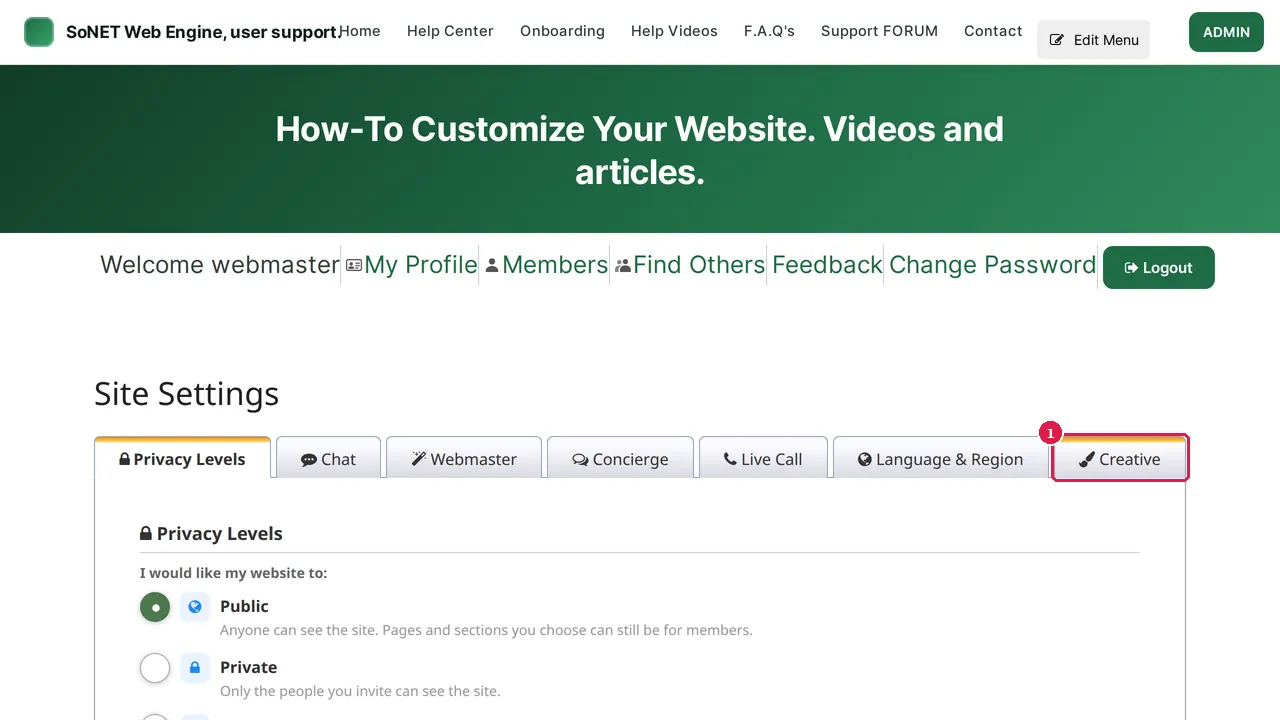
Step 1. In ADMIN › Site Settings, click the Creative tab.
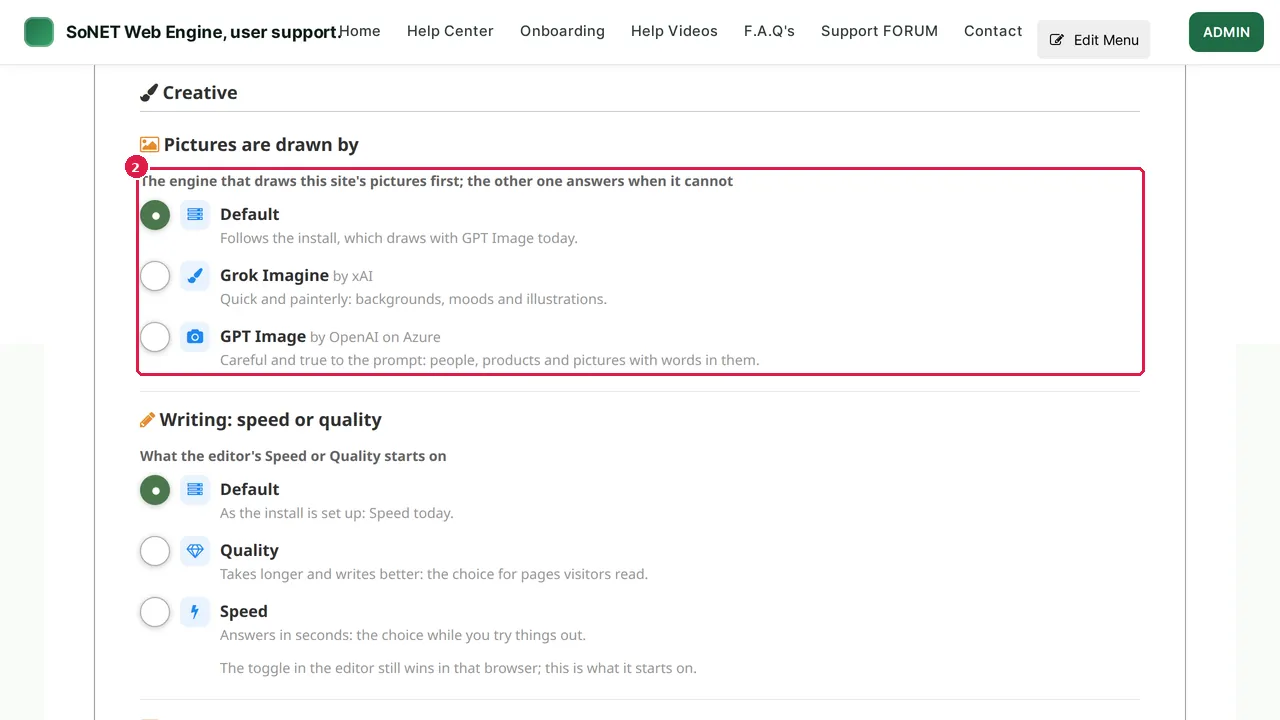
Step 2. Pictures are drawn by: Default follows the platform's choice; Grok Imagine (by xAI) is quick and painterly, good for backgrounds, moods and illustrations; GPT Image (by OpenAI on Azure) is careful and true to the prompt, good for people, products and pictures with words in them.
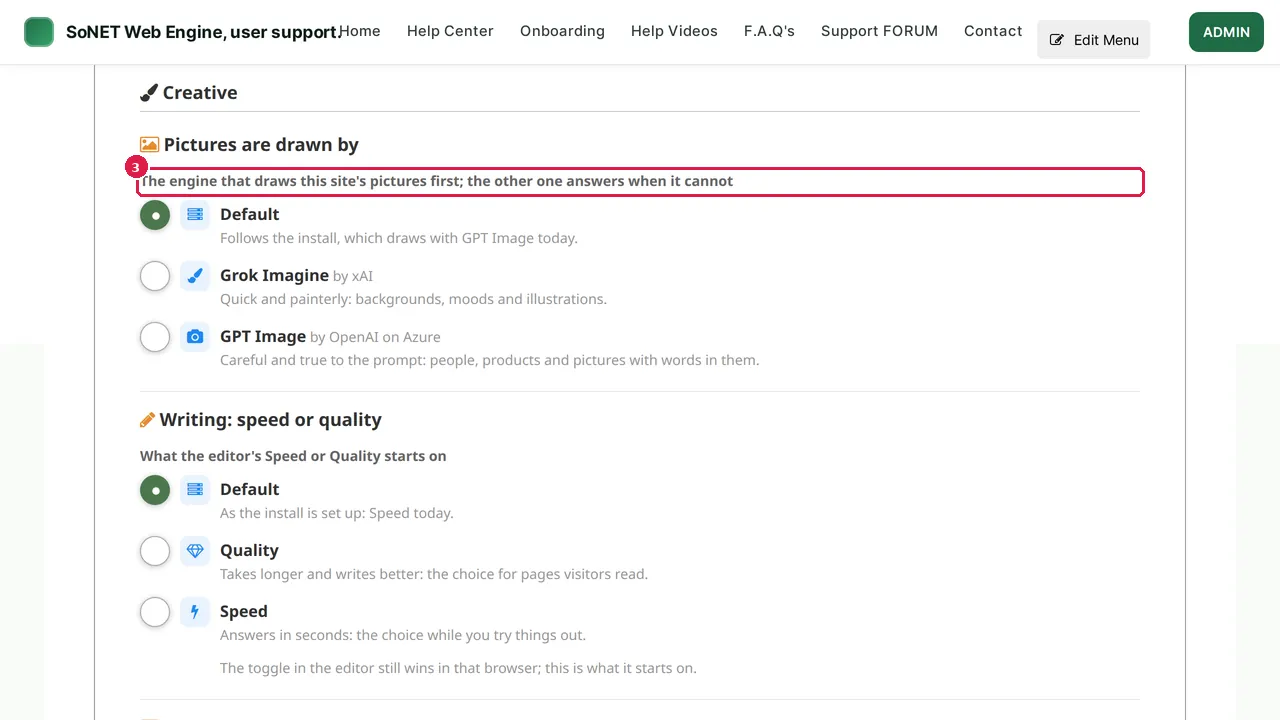
Step 3. The engine you pick draws your pictures first; the other one answers when it cannot.
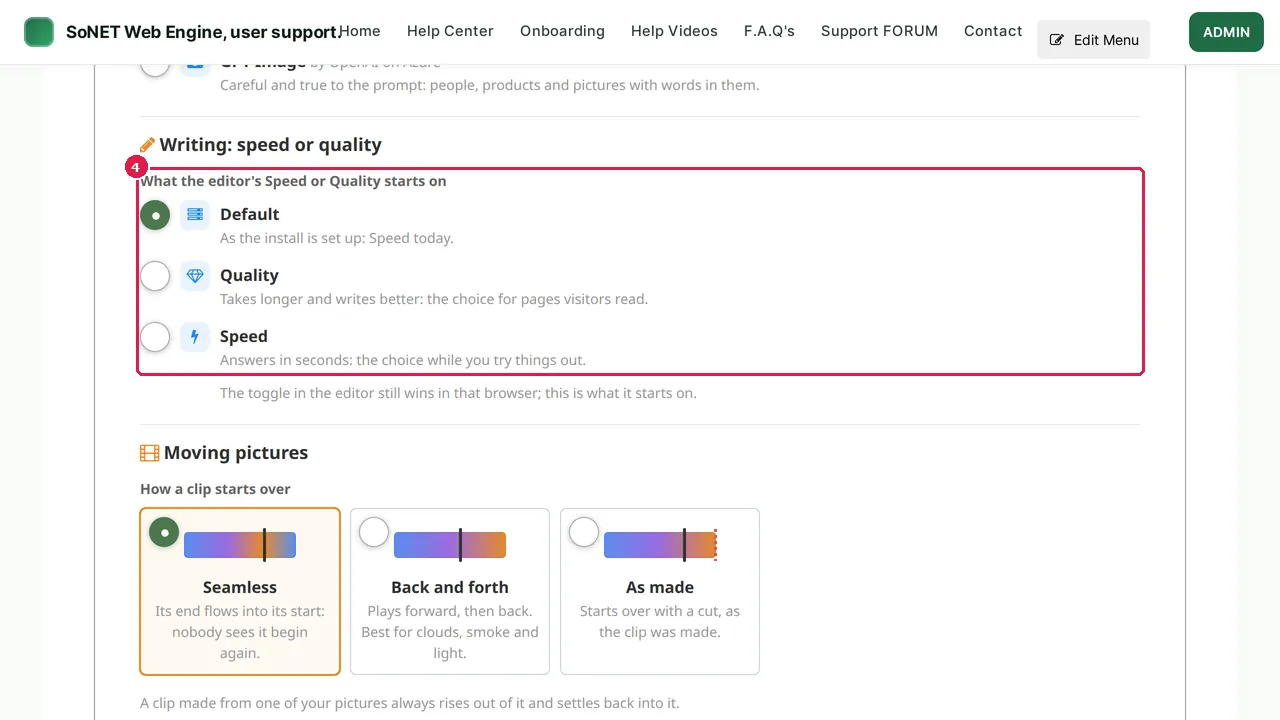
Step 4. Writing: speed or quality sets what the editor's Speed or Quality toggle starts on. Quality takes longer and writes better, for pages visitors read; Speed answers in seconds, while you try things out. The toggle in the editor still wins in that browser.
Moving pictures
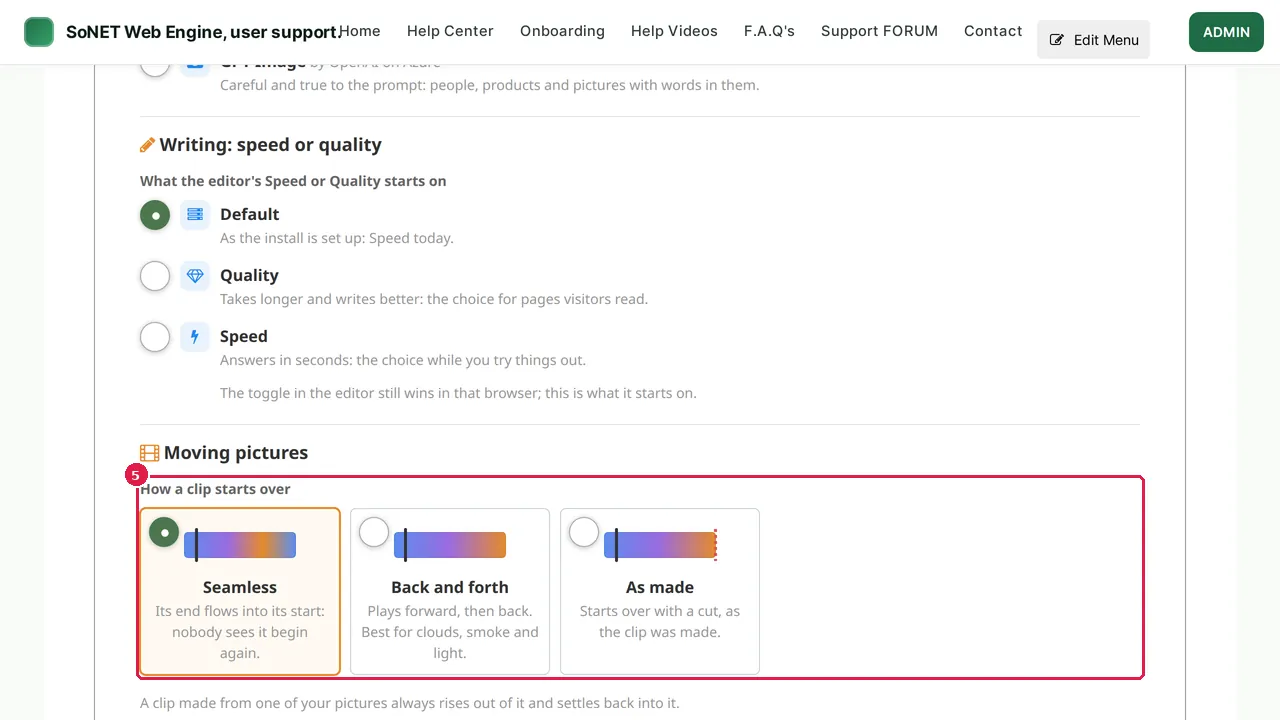
Step 5. Moving pictures: how a clip starts over. Seamless (its end flows into its start), Back and forth (best for clouds, smoke and light) or As made (it starts over with a cut).
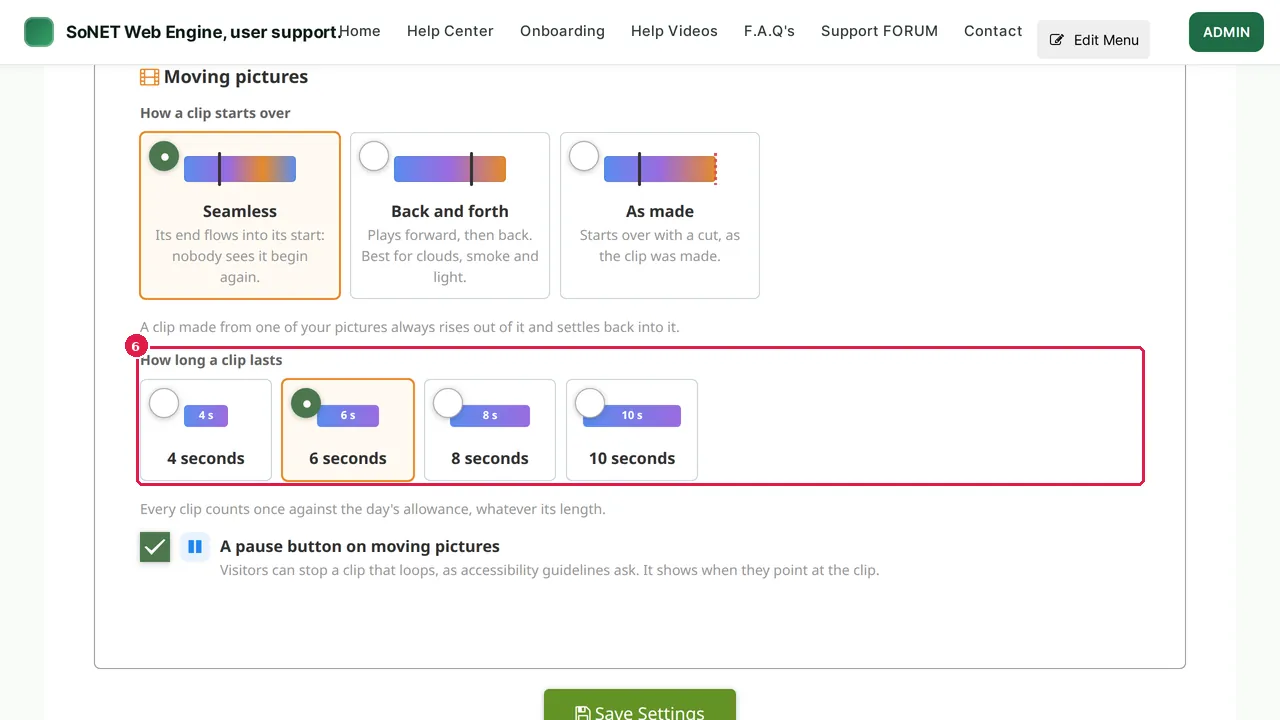
Step 6. How long a clip lasts: 4, 6, 8 or 10 seconds. Every clip counts once against the day's allowance, whatever its length.
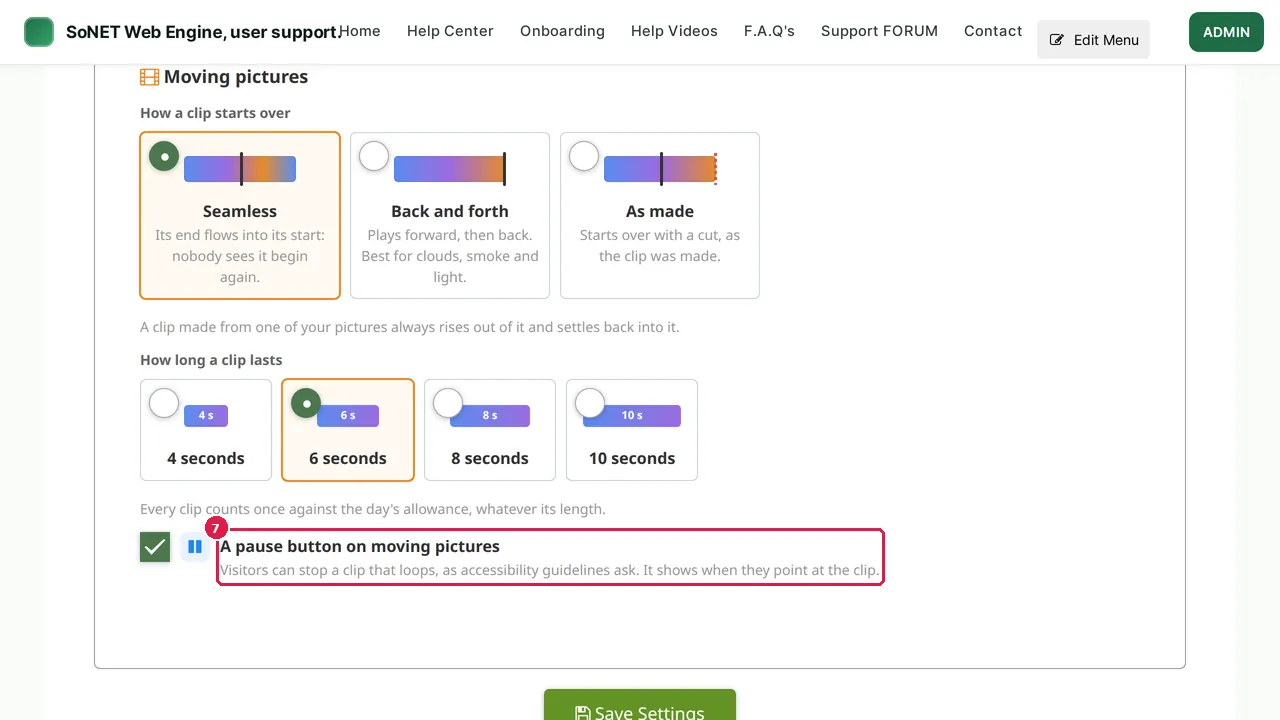
Step 7. A pause button on moving pictures lets visitors stop a clip that loops, as accessibility guidelines ask. It shows when they point at the clip.
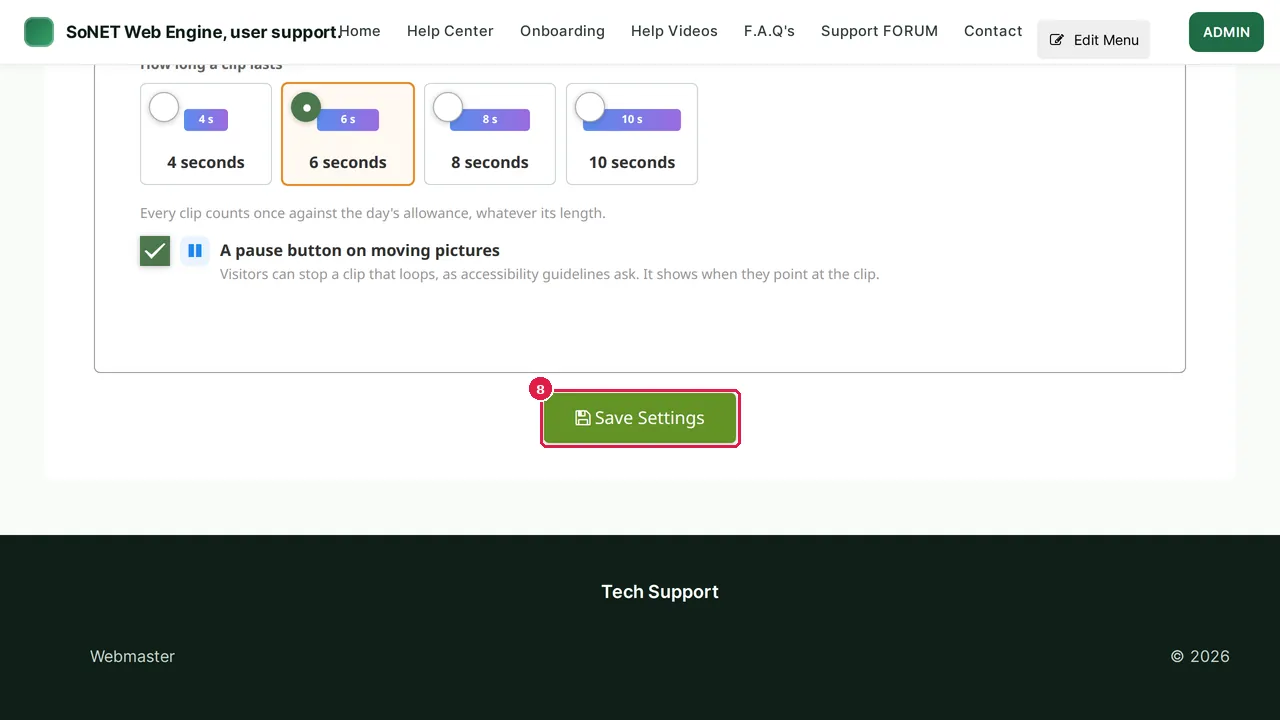
Step 8. Click Save Settings to keep your choices. (In this demonstration nothing was changed.)
Check it worked
Make a picture in the editor after changing the engine, and compare it with one made before.
Good to know
- Not sure? Leave everything on Default: it follows the platform's own choice.
Related help
Shown on the 2026 version of the SoNET Web Engine. Last checked 10 November 2026. Something different on your screen? Tell us through the Contact page.