Help Center Pages & Editing
Copy a section from another page, and use saved favorites
Reuse what you already made: copy any section of another page onto the page you are on, or add a section you saved as a favorite.
Watch it done: a short silent video with captions · 1:18. The steps below show the same thing picture by picture.
Before you start
- Log in and open the page that should get the copied section.
Saved favorites
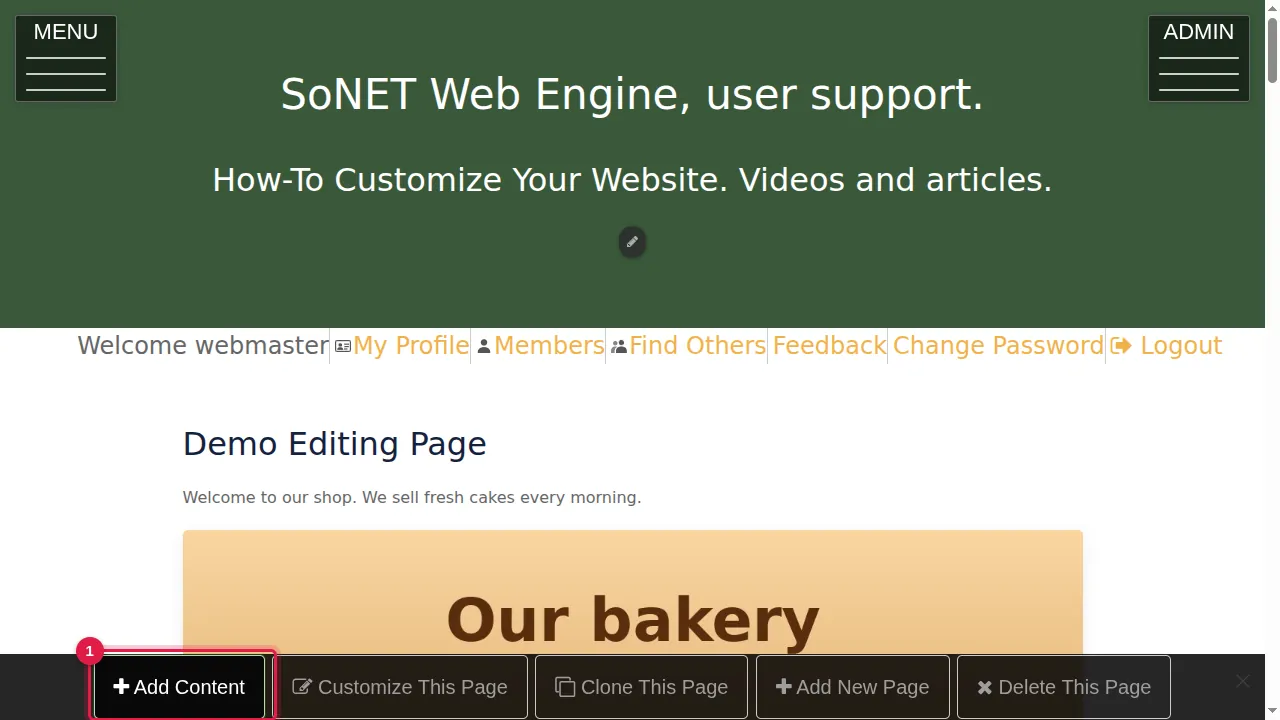
Step 1. Click Add Content in the bar at the bottom of the page.
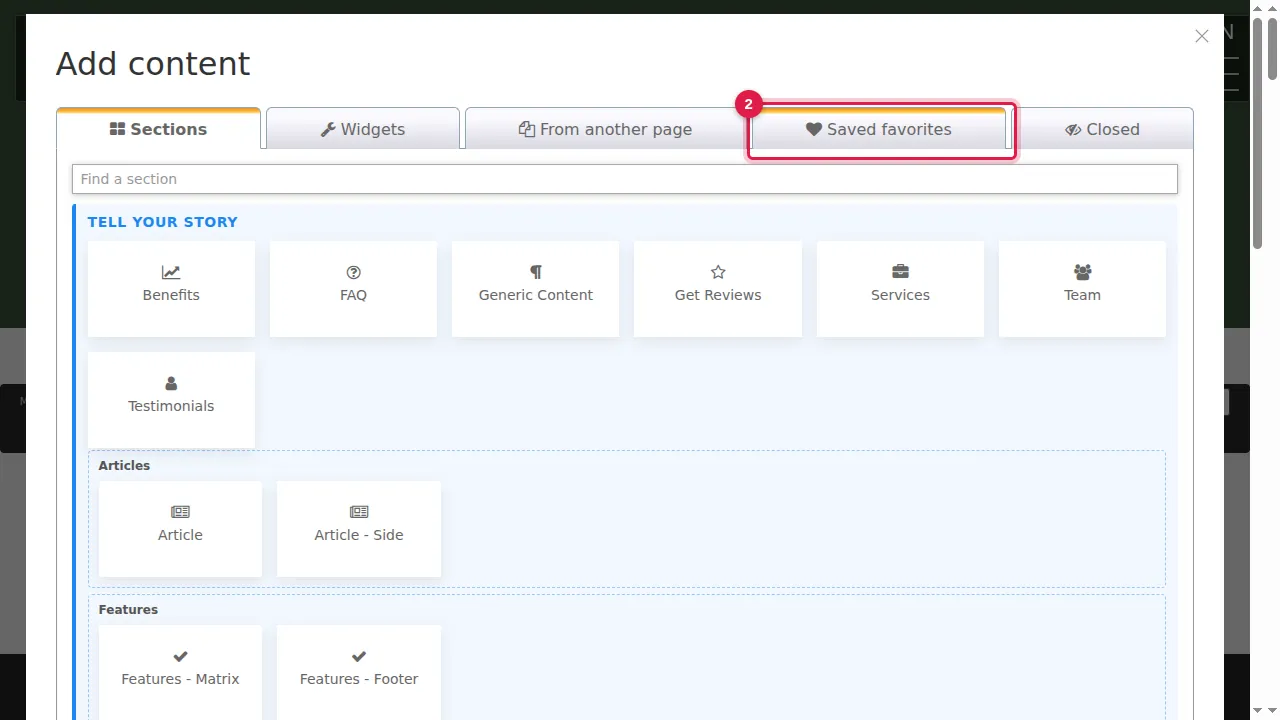
Step 2. The Saved favorites tab lists sections you saved for later in the section editor (side panel › Favorites › Save). Click one to add it to this page. Until you save one, the tab says "Nothing saved for later yet".
Copy a section from another page
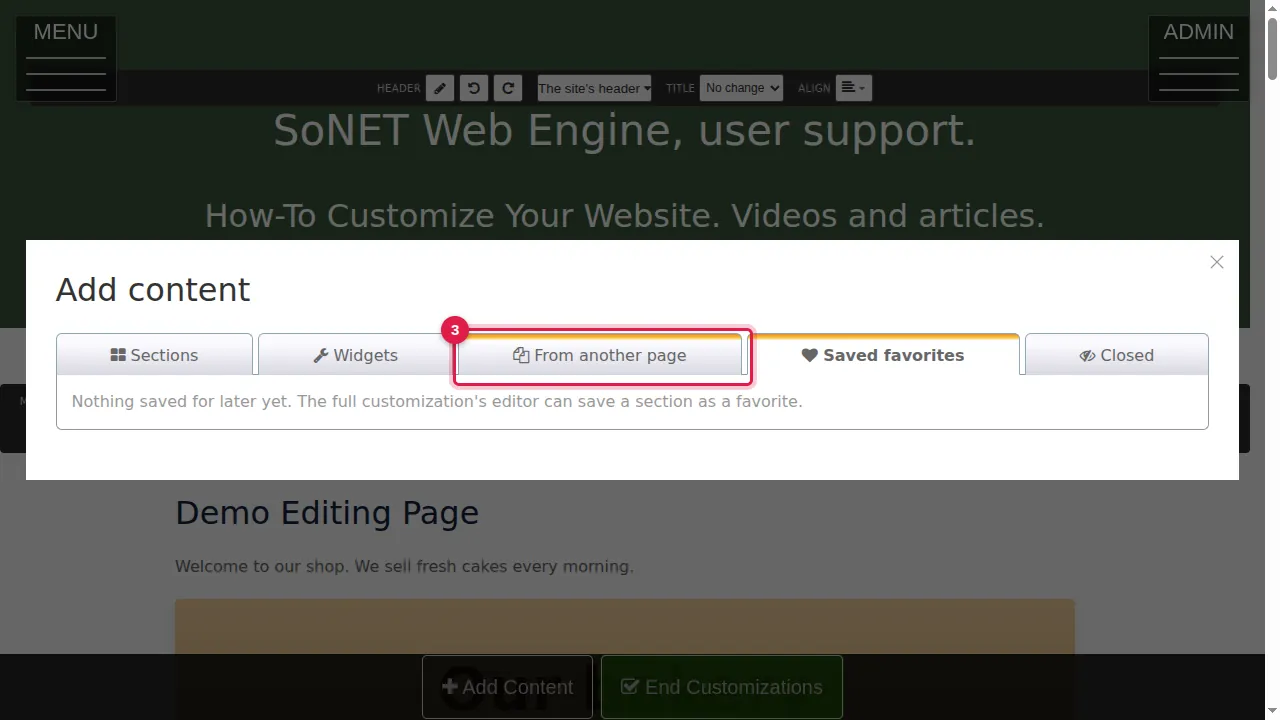
Step 3. Open the tab From another page.
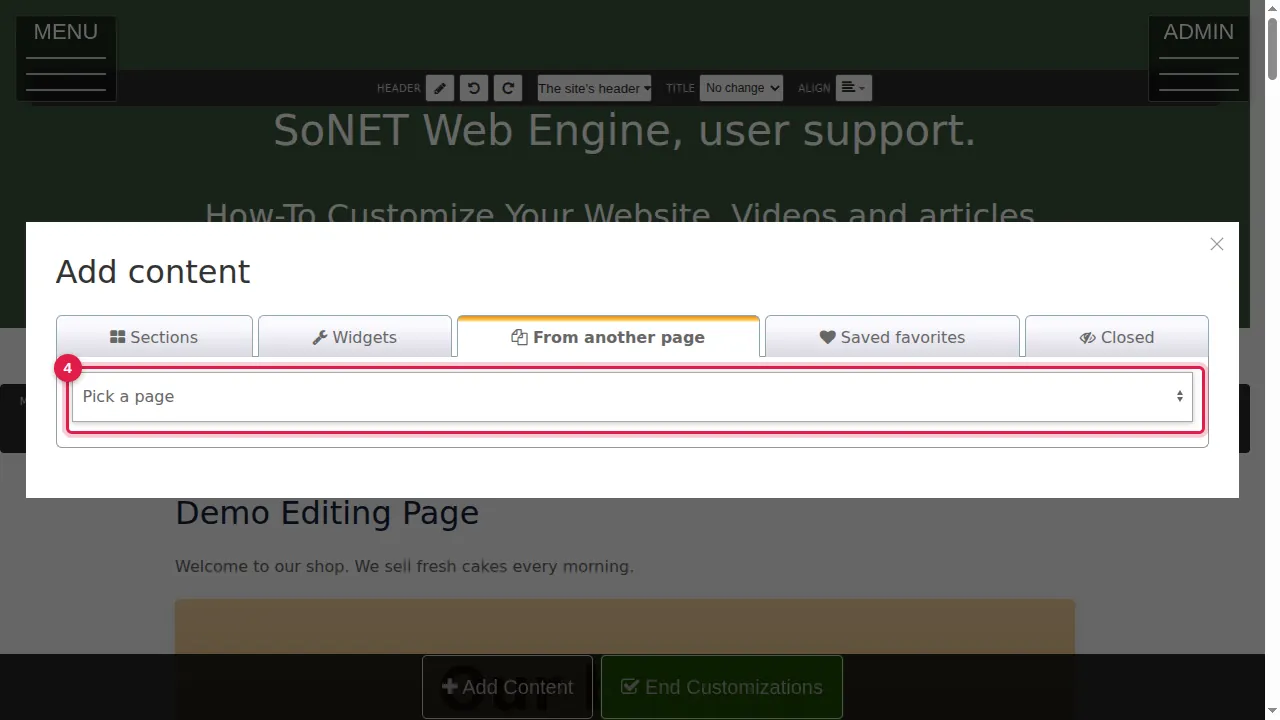
Step 4. Pick the page that has the section you want.
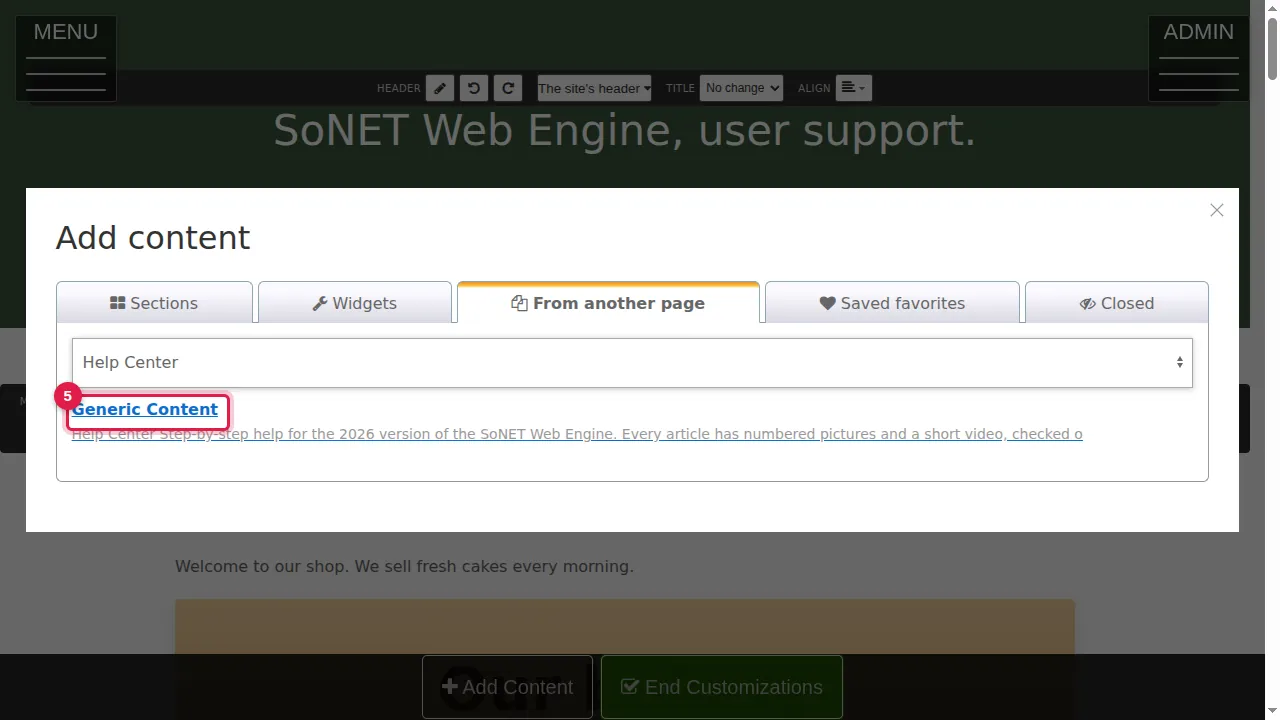
Step 5. The page's sections are listed with their title and the start of their text. Click the one you want.
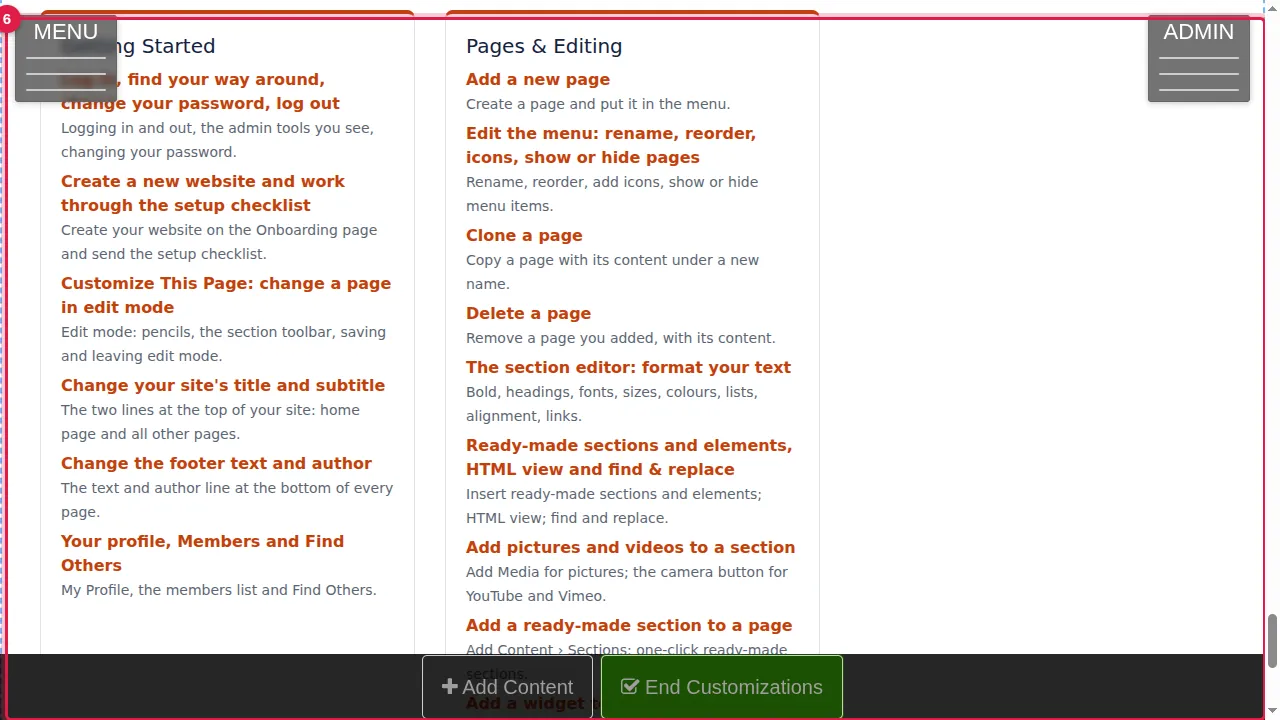
Step 6. A copy of the section is added at the bottom of this page, and the page switches to edit mode. The other page does not change.
Check it worked
Click End Customizations and look at both pages.
Good to know
- Move the copy to the right place with the arrows in its toolbar.
Related help
Shown on the 2026 version of the SoNET Web Engine. Last checked 21 October 2026. Something different on your screen? Tell us through the Contact page.