Help Center Contracts
Switch contracts on or off
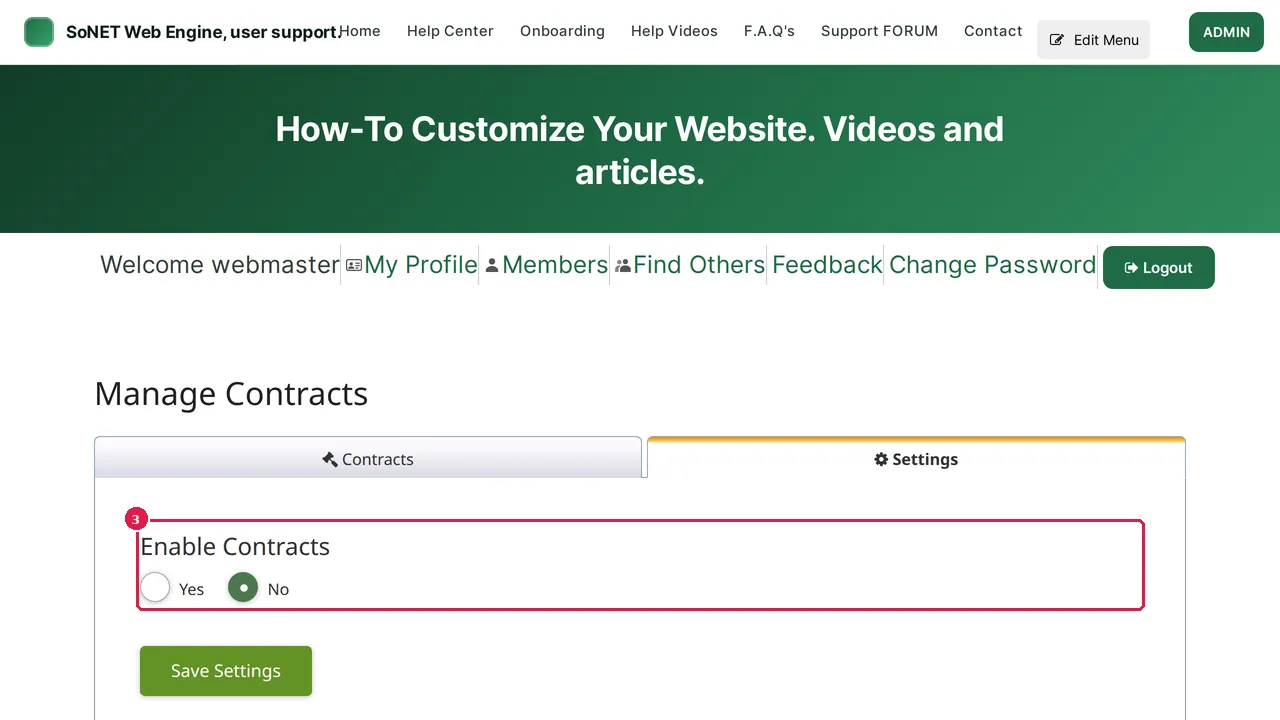
Contracts are switched on or off for the whole site in Manage Contracts › Settings.
Watch it done: a short silent video with captions · 0:20. The steps below show the same thing picture by picture.
Before you start
- Log in as the site owner.
- Open ADMIN › Manage Contracts.
Switch contracts on or off
Step 1. ADMIN › Manage Contracts opens on the Contracts tab, which lists your contracts.
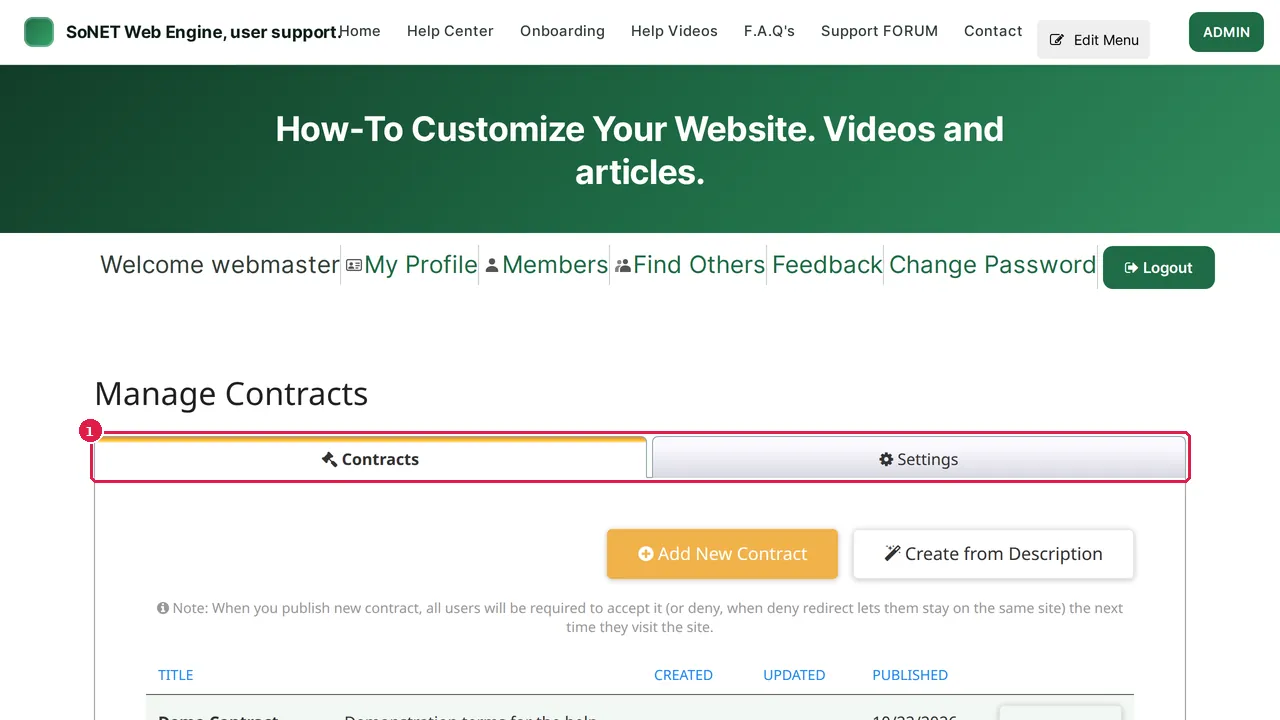
Step 2. Click the Settings tab.
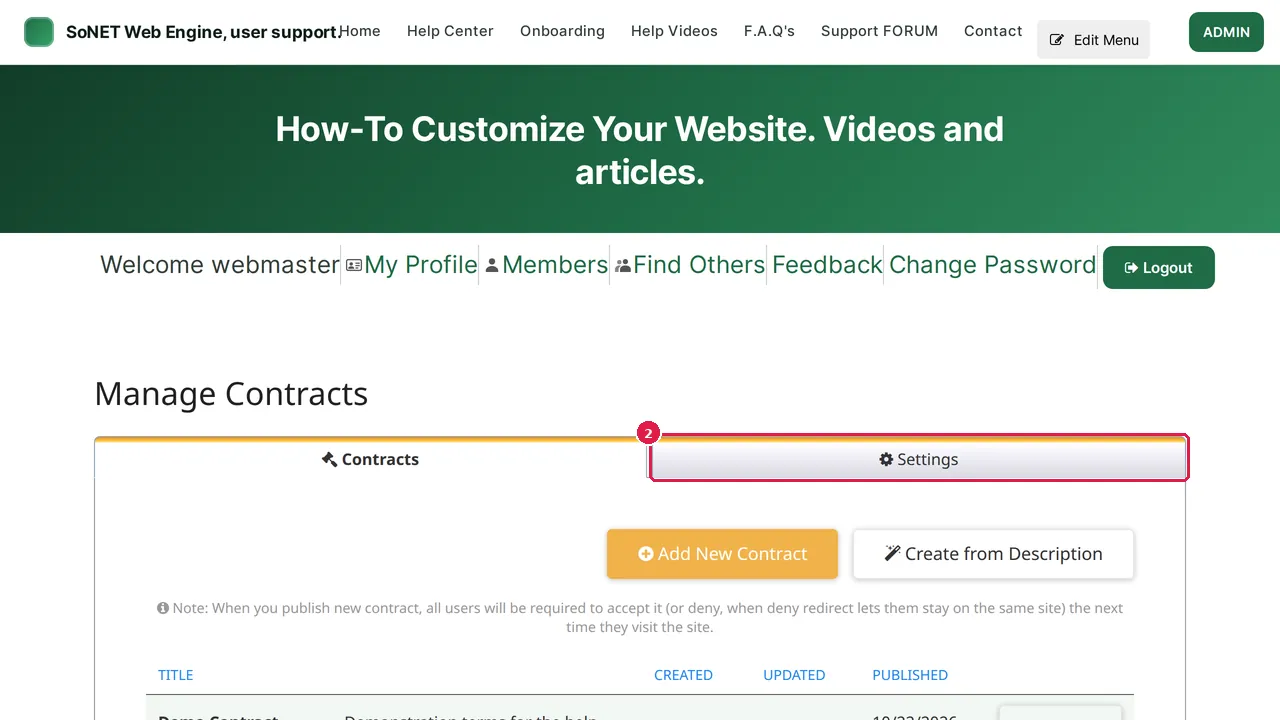
Step 3. Enable Contracts: Yes switches contracts on for your site, No switches them off.
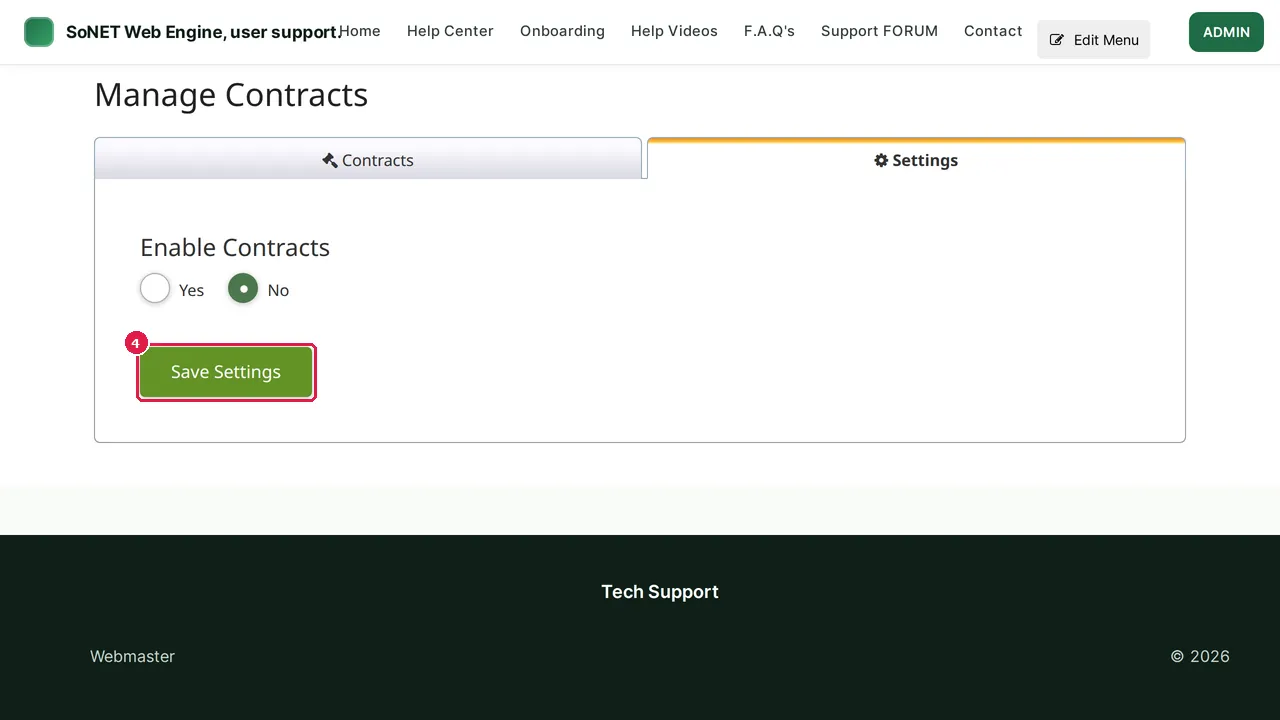
Step 4. Click Save Settings to keep your choice. (In this demonstration nothing was changed.)
Check it worked
After switching contracts on, open your site in a private window: a published contract asks you to accept or deny it.
Good to know
- Write and publish the contract first (see Contracts), then switch contracts on.
Related help
Shown on the 2026 version of the SoNET Web Engine. Last checked 10 November 2026. Something different on your screen? Tell us through the Contact page.