Help Center Contacts
Contacts: your contact list
Keep a list of your contacts: add them by hand, see where each one came from, switch between the full and the short list, show a QR code for each, and download the list as a CSV file.
Watch it done: a short silent video with captions · 2:53. The steps below show the same thing picture by picture.
Before you start
- Log in as the site owner.
- Open ADMIN › Contacts.
Add a contact
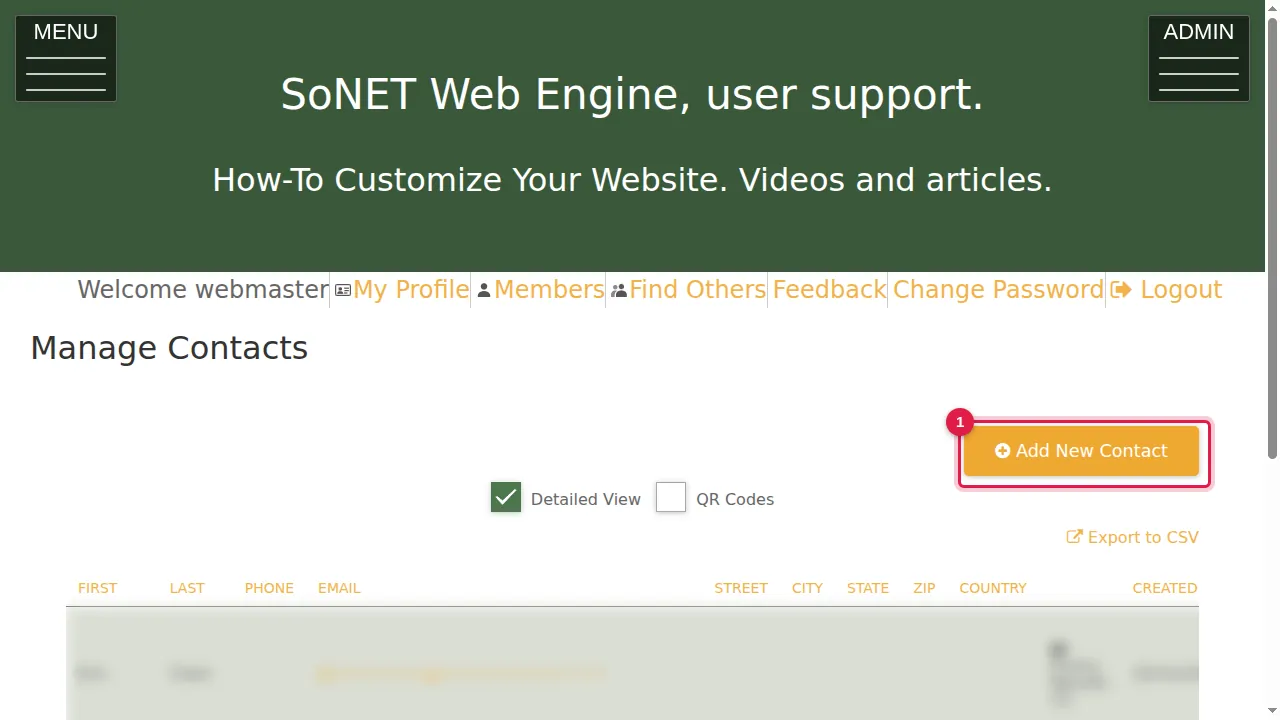
Step 1. Manage Contacts lists your contacts. (Real contacts are blurred in these pictures.) Click Add New Contact.
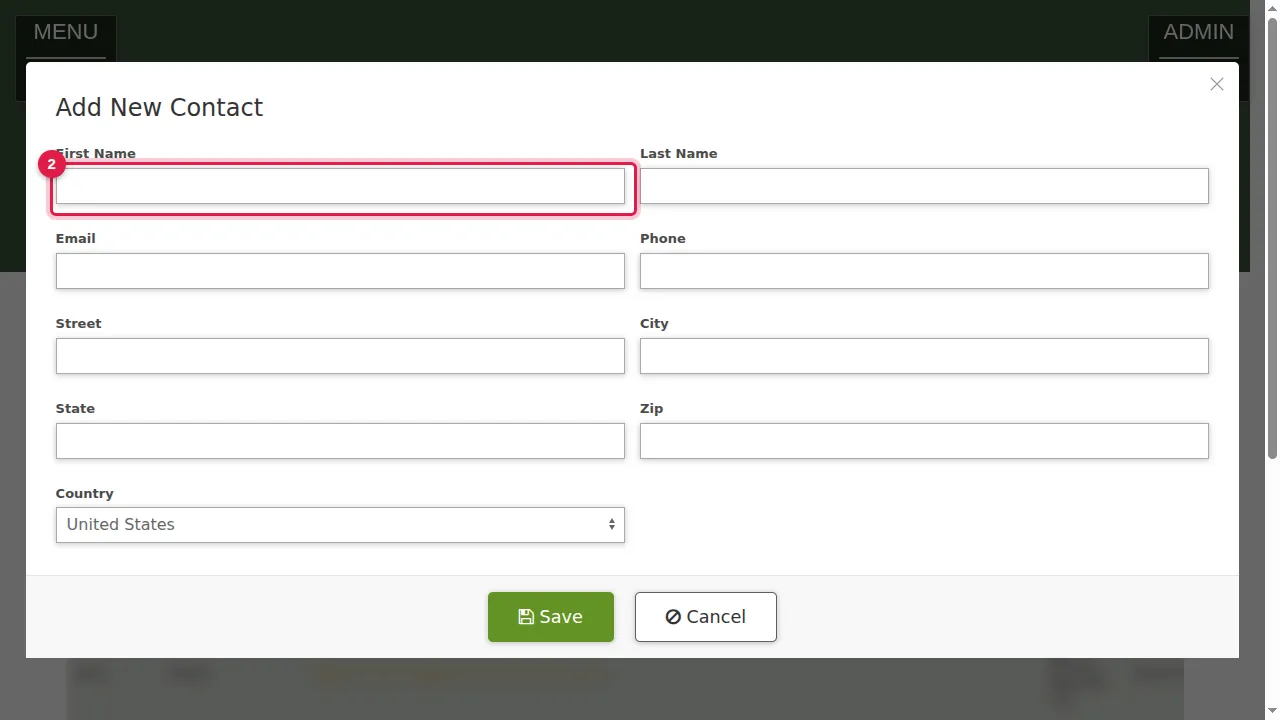
Step 2. Type the First Name and Last Name.
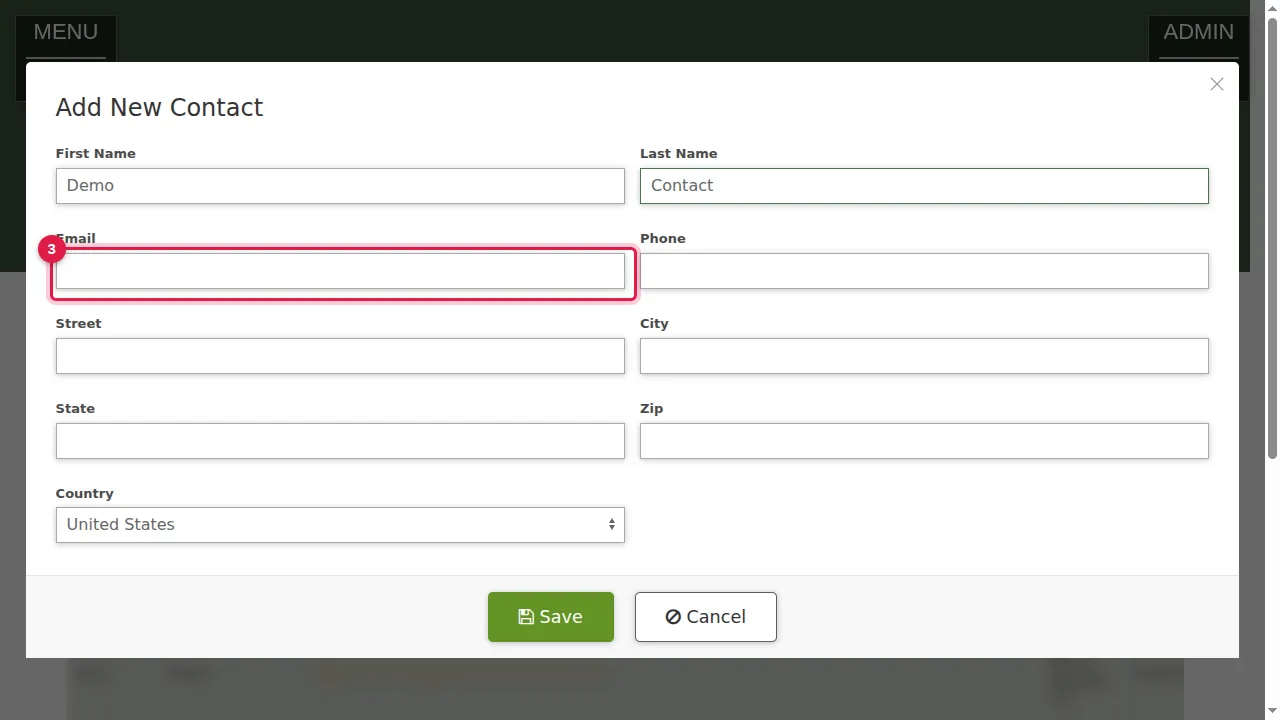
Step 3. Type the Email and Phone.
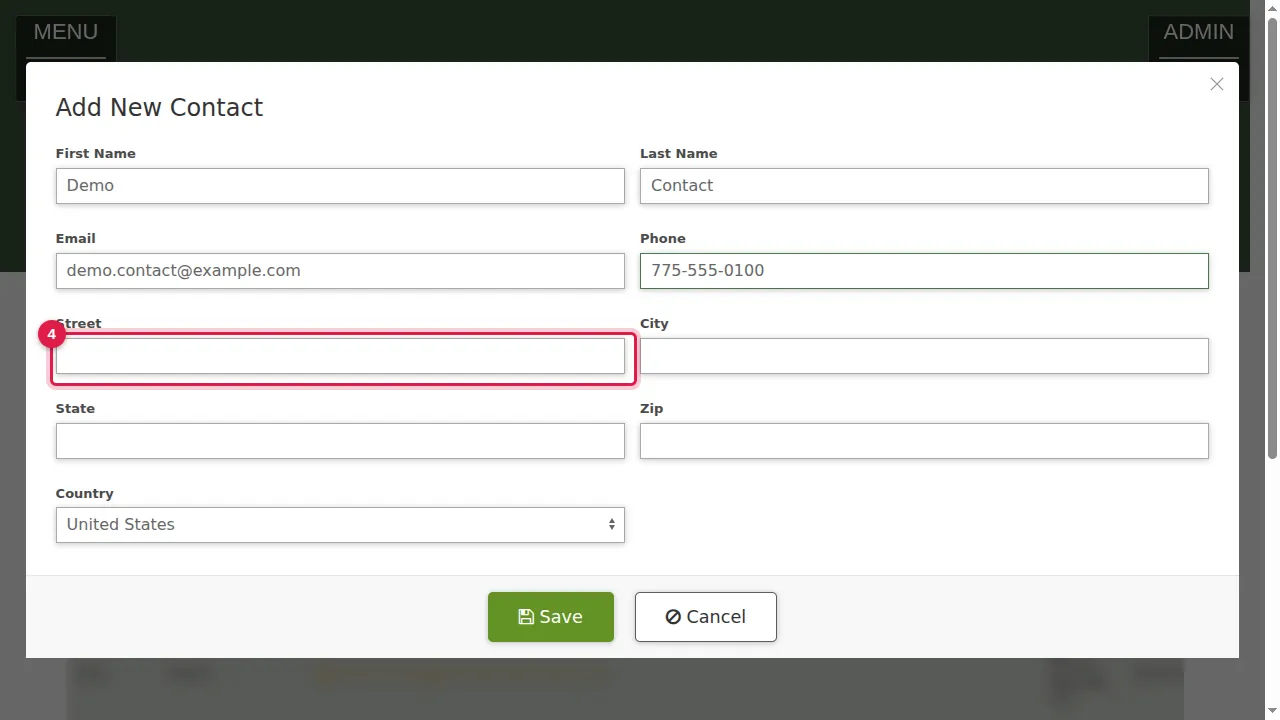
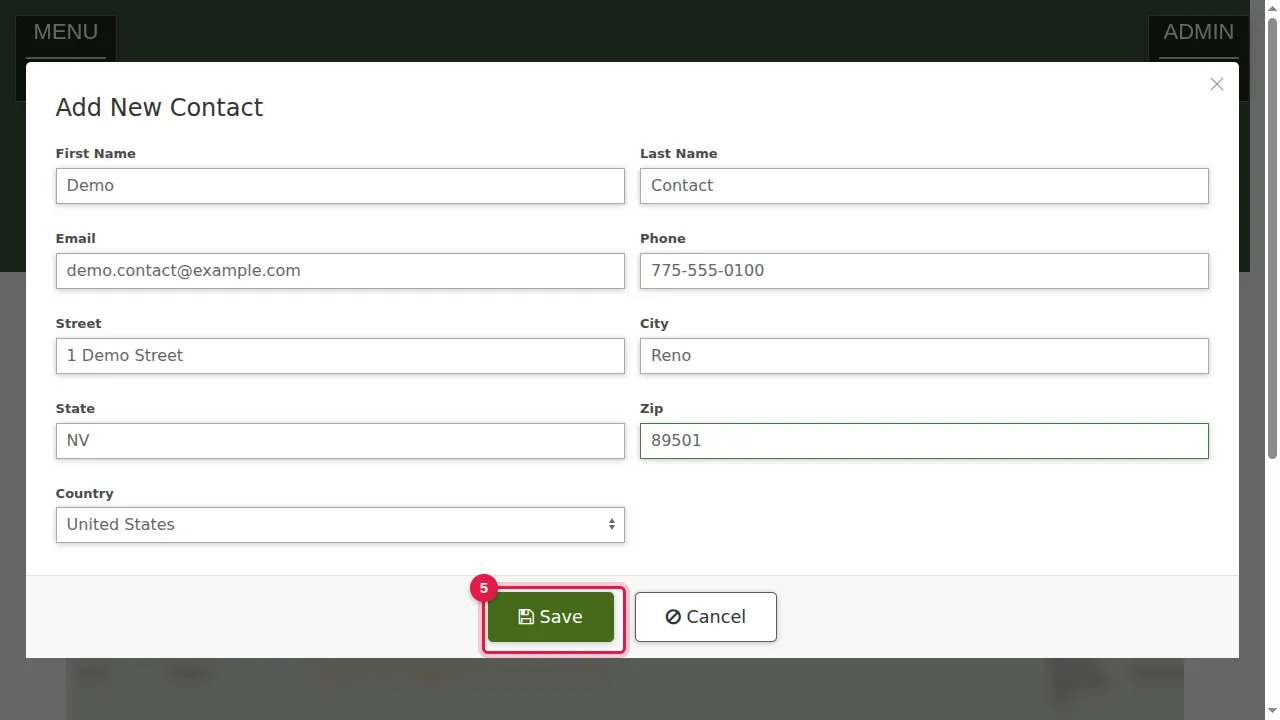
Step 4. Type the Street, City, State and Zip, and choose the Country.
Step 5. Click Save.
Your list
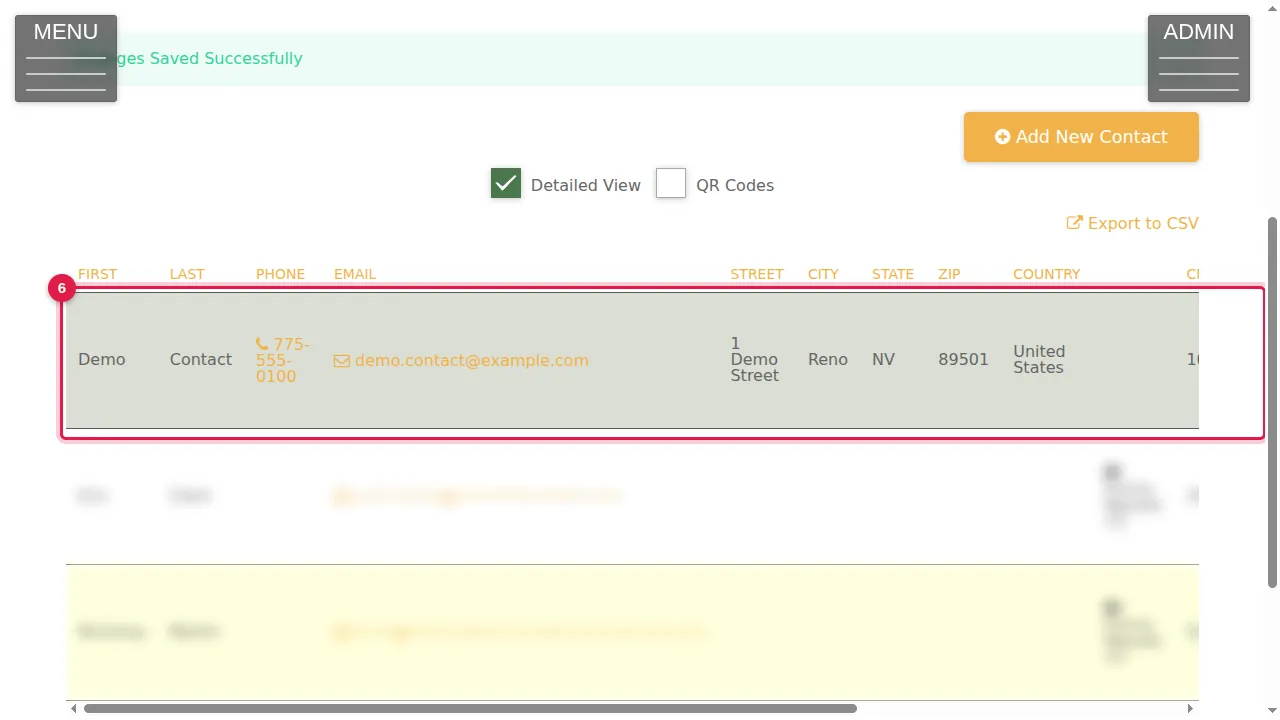
Step 6. The new contact is in the list with all its details. SOURCE shows where a contact came from: for example Forms Results, for someone who sent one of your forms.
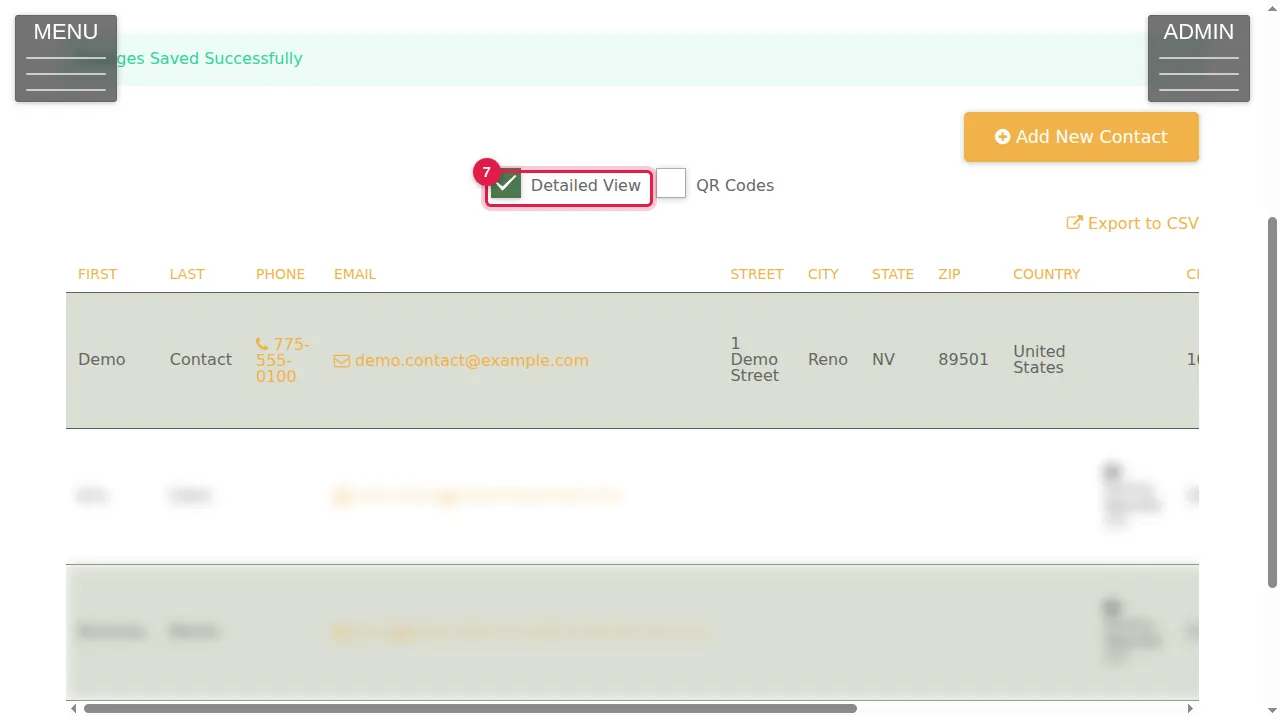
Step 7. Detailed View is ticked: every column is shown. Untick it…
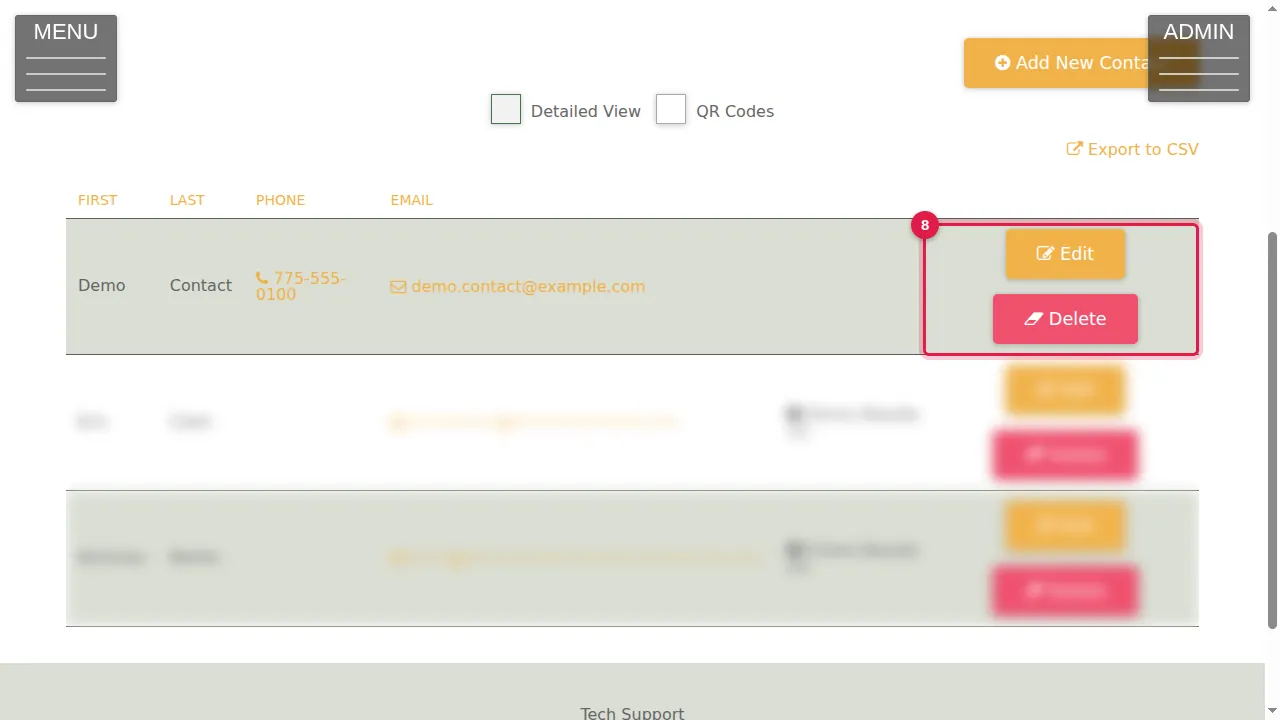
Step 8. …for a shorter list. Here Edit changes a contact and Delete removes it.
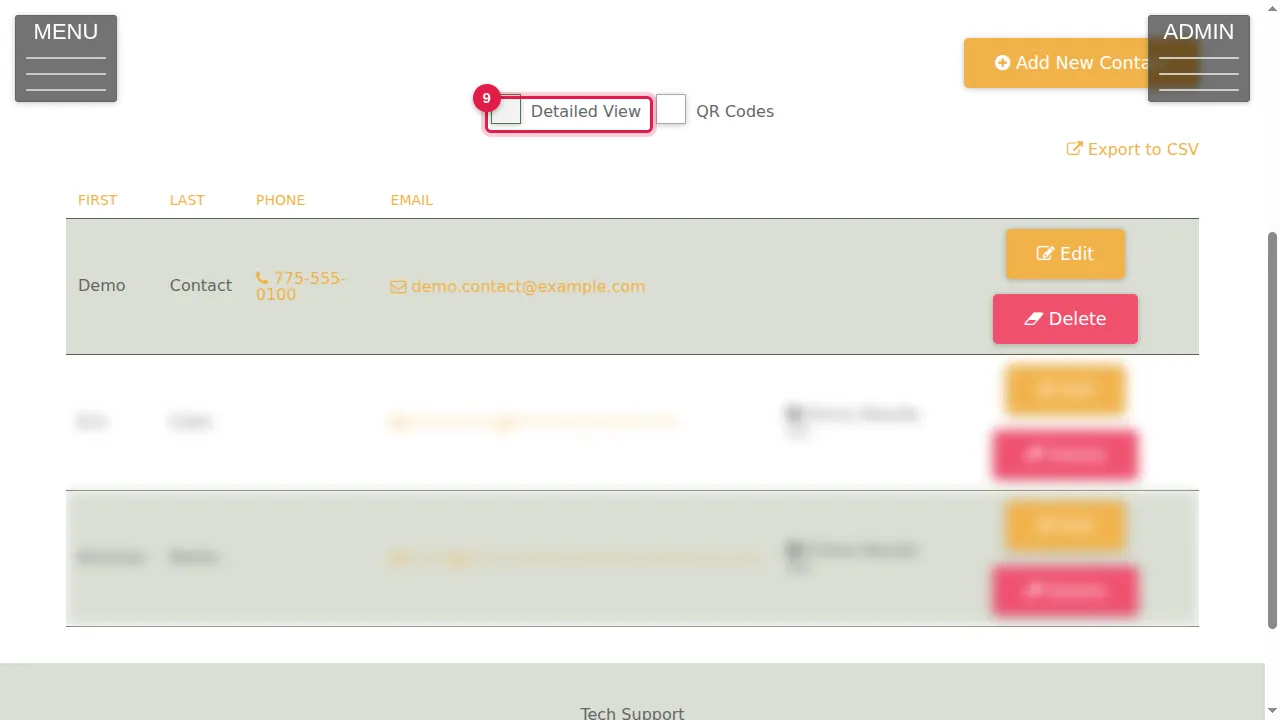
Step 9. Tick Detailed View again to see every column.
QR codes and export
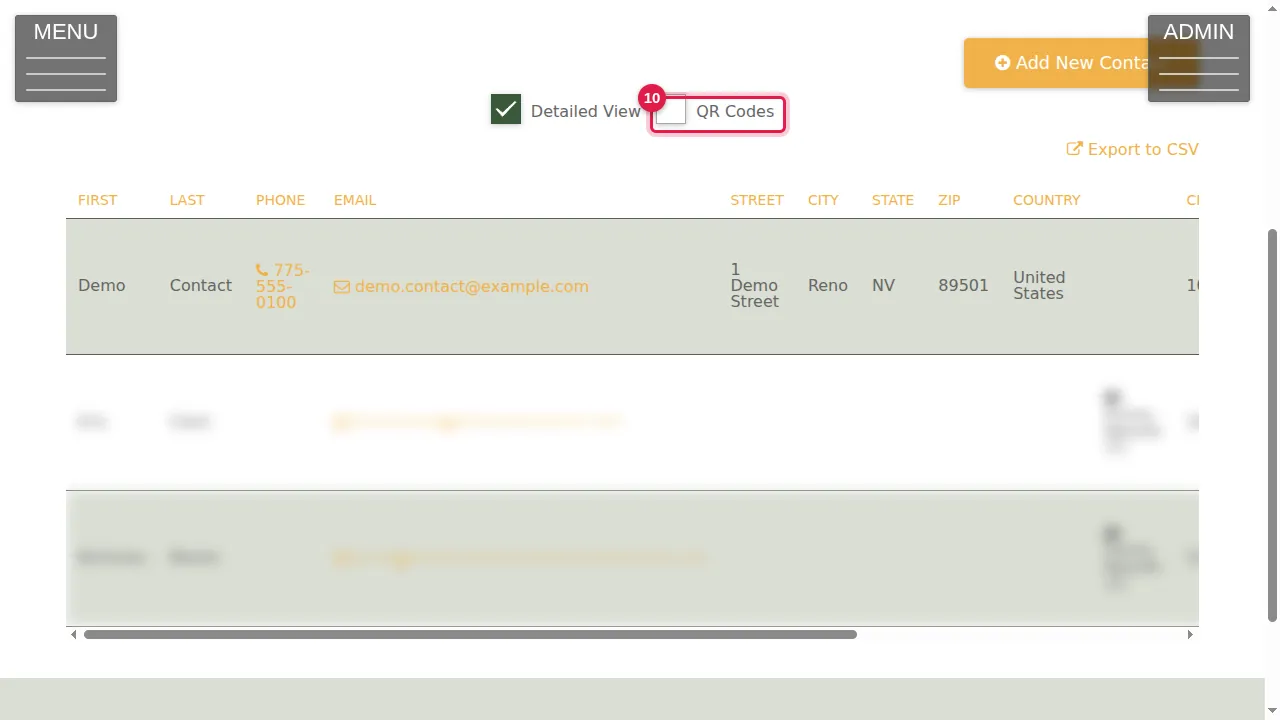
Step 10. Tick QR Codes…
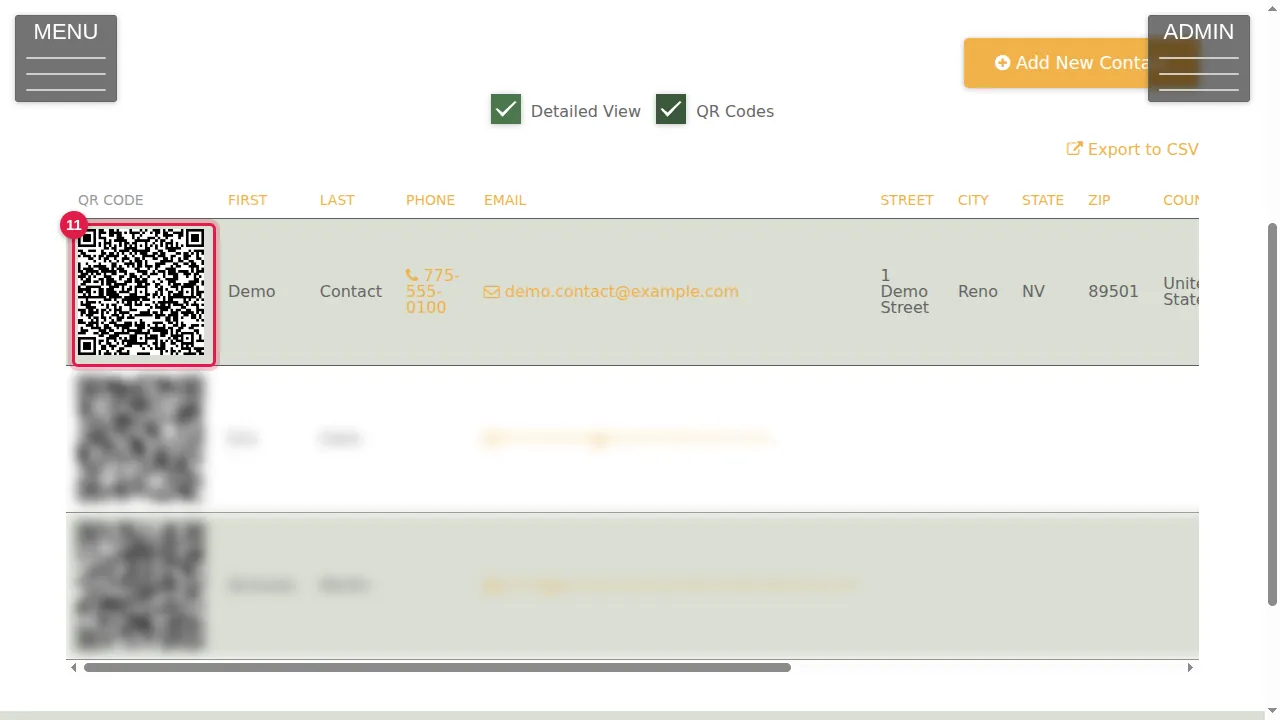
Step 11. …and each contact gets a QR code in the first column.
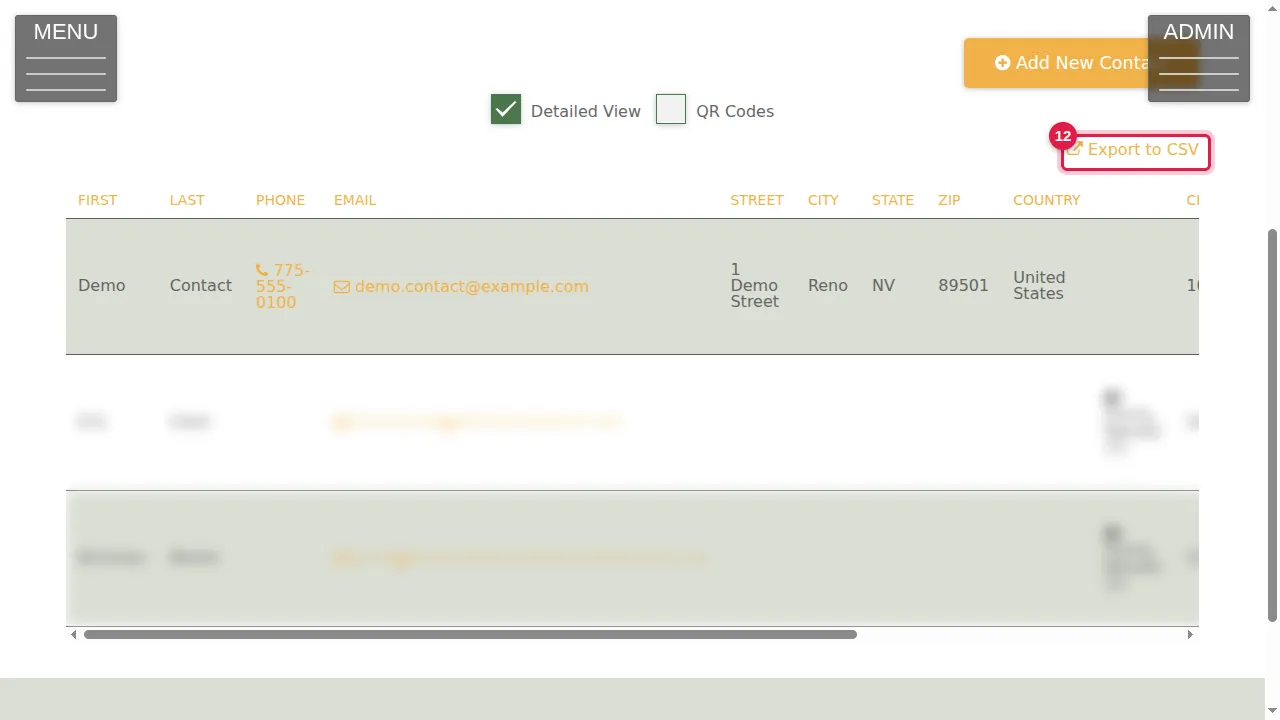
Step 12. Export to CSV downloads your whole contact list as a CSV file, which opens in any spreadsheet program.
Check it worked
After saving, the contact appears in Manage Contacts with the details you typed.
Good to know
- Contacts can also come from your forms: their SOURCE then says Forms Results.
Related help
Shown on the 2026 version of the SoNET Web Engine. Last checked 21 October 2026. Something different on your screen? Tell us through the Contact page.